Invoice report

The Invoice report is a simple report that provides a high-level overview of the costs associated with each group in a project.
Report sections
The invoice report shows a subtotal for each group and a grand total.
Note: Depending on settings, discounts and adjustments may be included in the group total or broken out.
Company logo and information
Administrators can apply a company logo and information—including the company name, address, phone number, and website— in the company info section. For more information on this process, please see our Company info document.
Note: This feature is only available in XactRemodel and XactRestore online.
Report statements
Users can optionally apply custom opening and closing statements to the Proposal report. For assistance with statements, see our Create report statements document.
Report settings
The report settings available to users include the following:
- Invoice Number: This number displays below the word invoice in the top-right corner of the report with a # symbol in front (e.g. entering 1234 prints as #1234)
- Options
- Separate Sales Tax: Shows the sales tax on a separate line
- Opening Statement: Includes the selected opening statement
- Closing Statement: Includes the selected closing statement
- Price adjustments
- Adjustments: Shows adjustments under each group as a separate item
- Discounts: Shows discounts under each group as a separate item
- Groups: Shows or hides groups from the report
Once the settings are configured appropriately, select Apply to apply the report settings to the report.
Generate or share the report
Follow the steps in the following sections to generate and share a .pdf file of the Invoice report.
XactRemodel and XactRestore online
- Within a project, select Reports.
- Select Invoice.
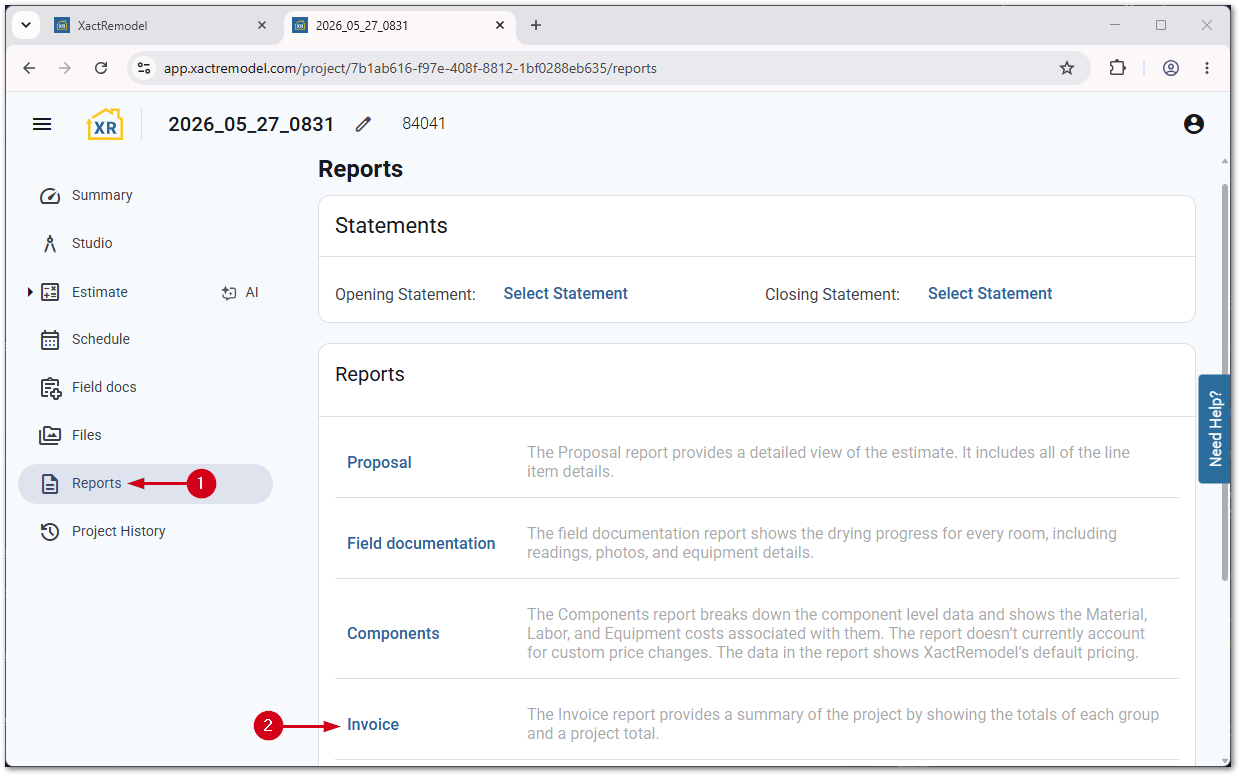
- Select the download icon. A .pdf file downloads automatically.
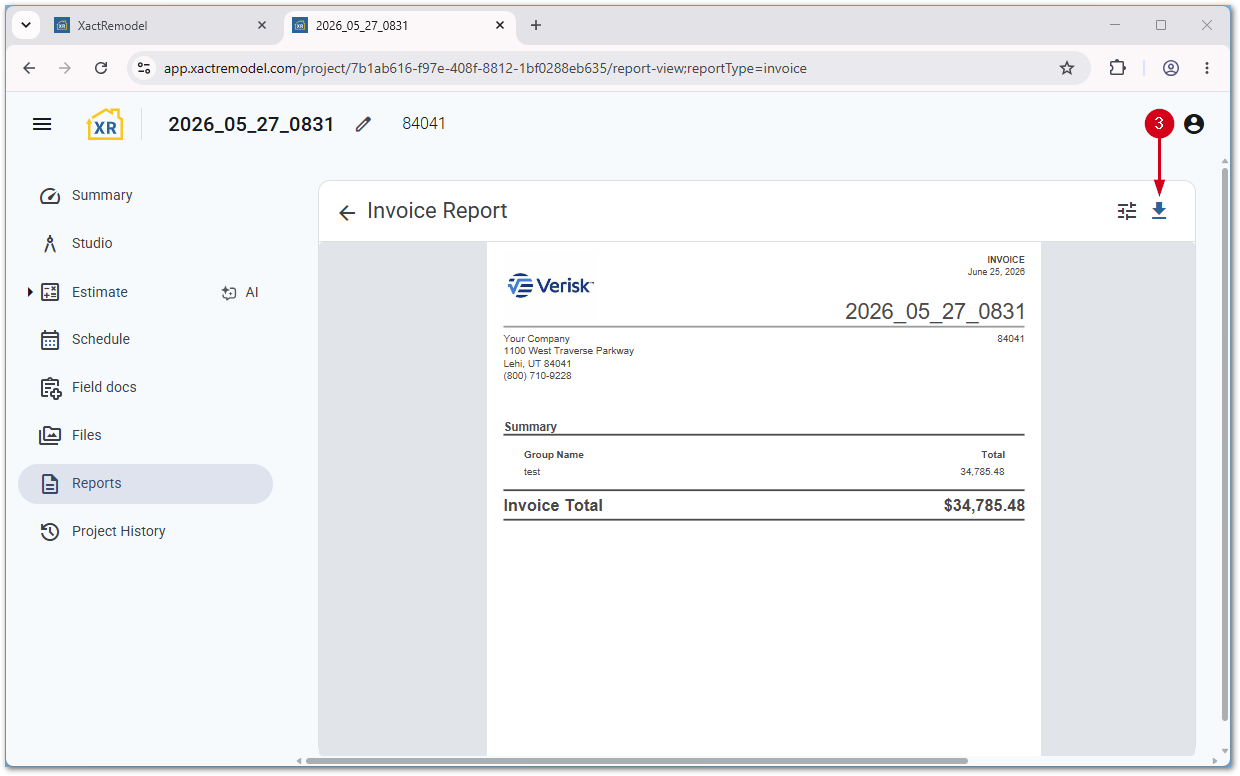
You can then email, print, save, or upload this report to a file sharing application.
XR Mobile
Note: Images are taken from an iOS device and may vary slightly on Android devices.
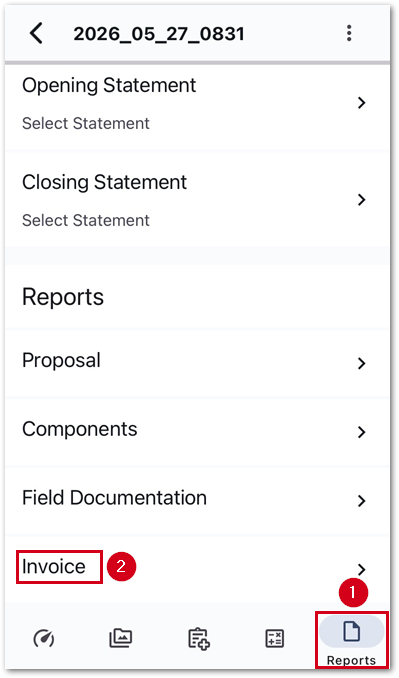
- Within a project, select Reports.
- Select Prospal.
- Select the share icon.
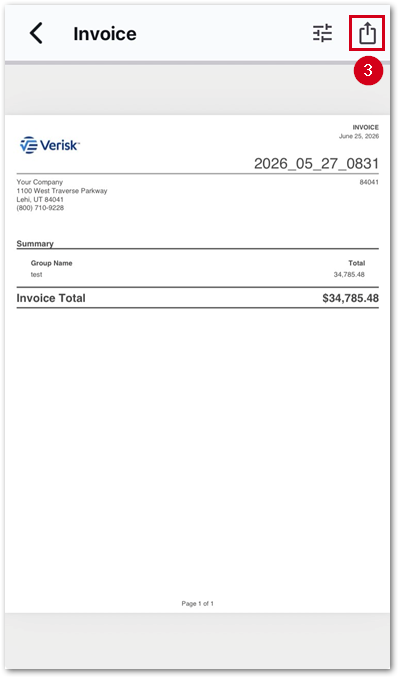
You can then email, print, text, or upload this report to a file sharing application.
