Field Docs completion and final review

When the Field docs project is completed, the project can be marked for completion, and then a final review can be completed by an administrator.
Complete Field docs
The project can be completed by a non-admin user or a user with administrative rights. If an admin user processes the project completion, they will then be prompted to complete the final review immediately after. See the following section for those steps.
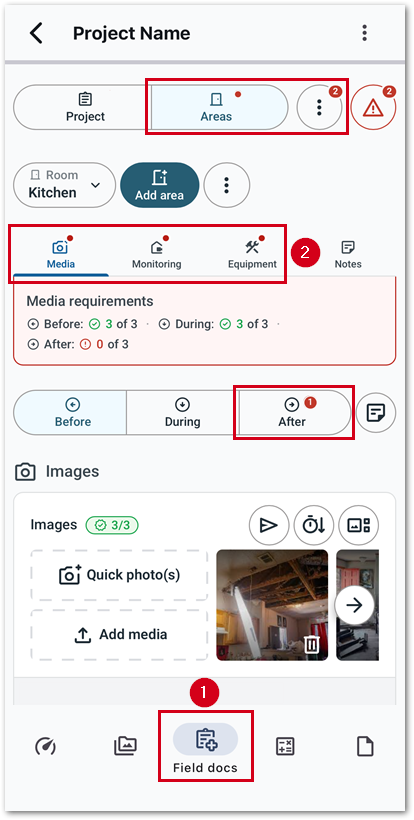
- From within a project, select Field docs.
- Resolve any missing items marked in red. Required items will vary depending on the settings set by the administrator, but may include the following:
- Media: Images of the project, area, levels, room, equipment, or readings. Additionally, add before, during, and after photos of work completed.
- Monitoring: Readings of Ambient, Moisture Content, and Dehumidifiers. In some cases, these are required daily.
- Equipment: Add and pick up all equipment.
- Dates: Job started and dry out dates. Dry out date is editable once the readings meet the established dry standard and all equipment has been picked up.
- Documents: Notes, documents, and required signatures.
Note: For more information on verifying required settings, see our Field docs Admin – Settings document.
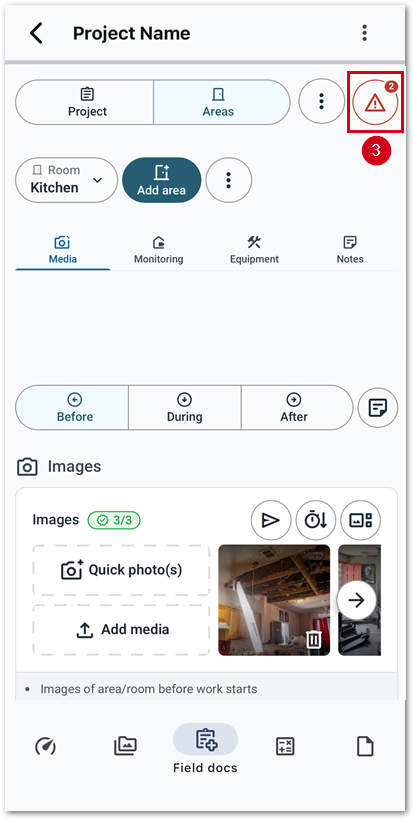
- Select the Project Requirements icon.
Note: Review any additional items in the list that opens. Select the items to be taken to their location within Field Docs to resolve.
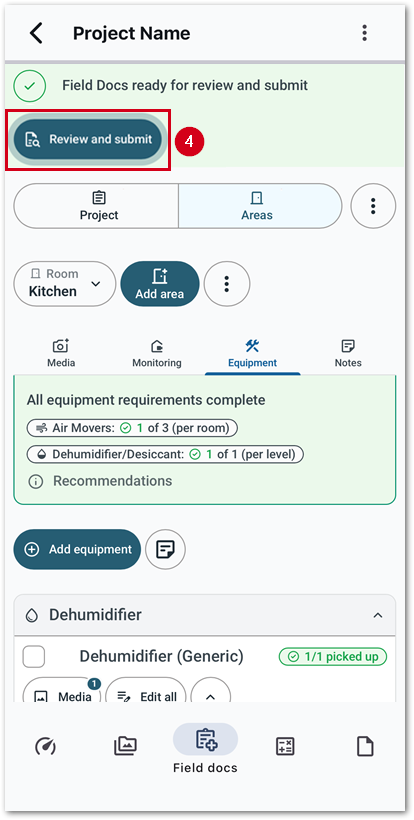
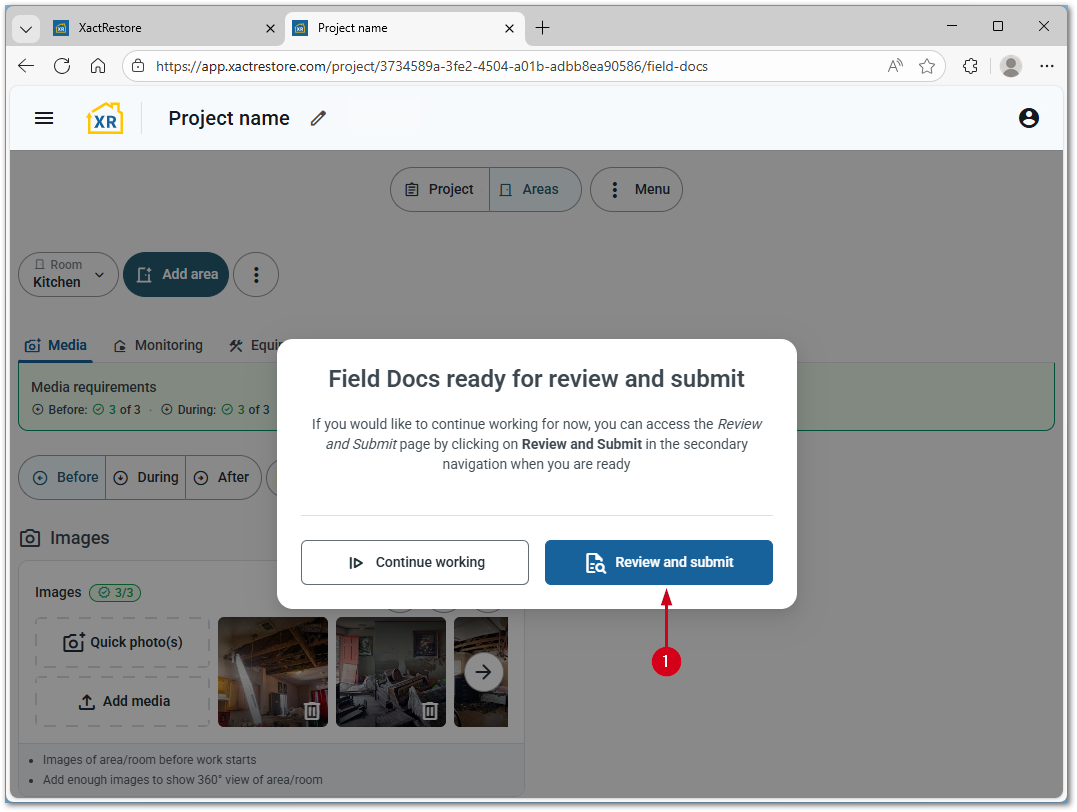
- Select Review and submit.
Note: If this option is not available, there are still missing or required items to review within Field docs. Required items are marked in red. In addition to the location shown in this image, the Review and submit option is also available after completing the list of items in the Project Requirements screen.
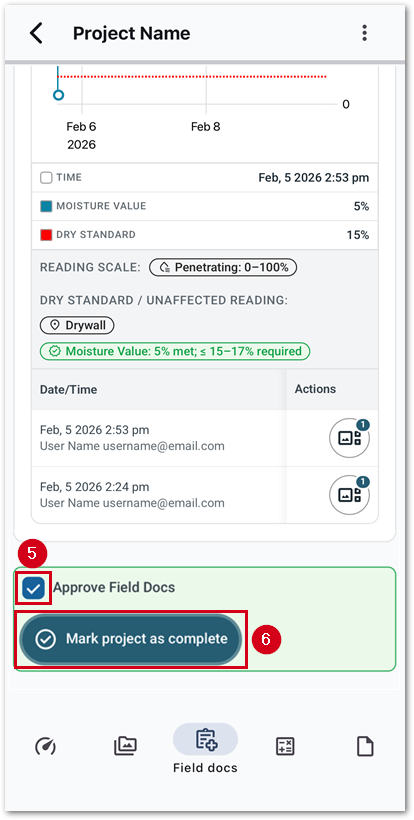
- Check Approve Field Docs.
- Select Mark project as complete.
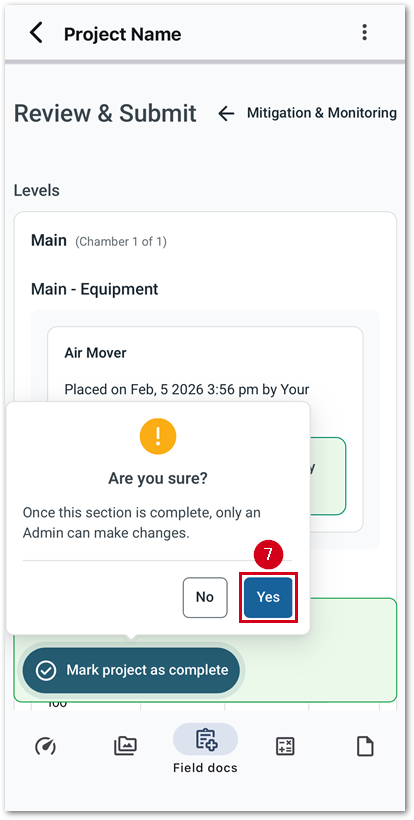
- Select Yes.
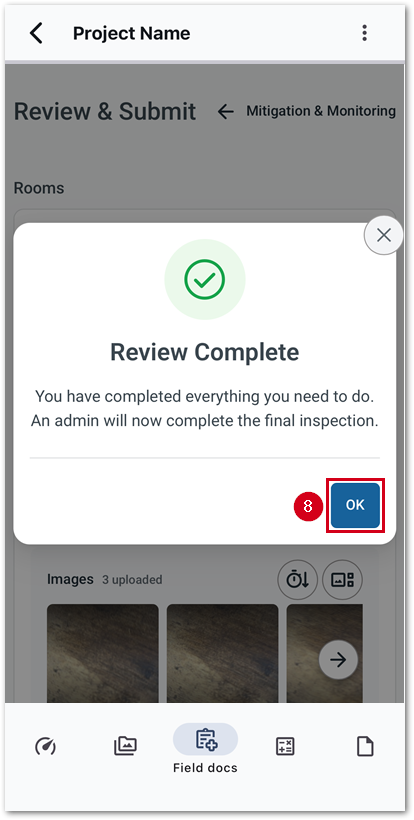
- Select OK.
Final Review
The final review is completed by a user with Admin rights.
- From within Field docs, select Review and Submit.
Note: Select Continue working if additional information needs to be added to the project.
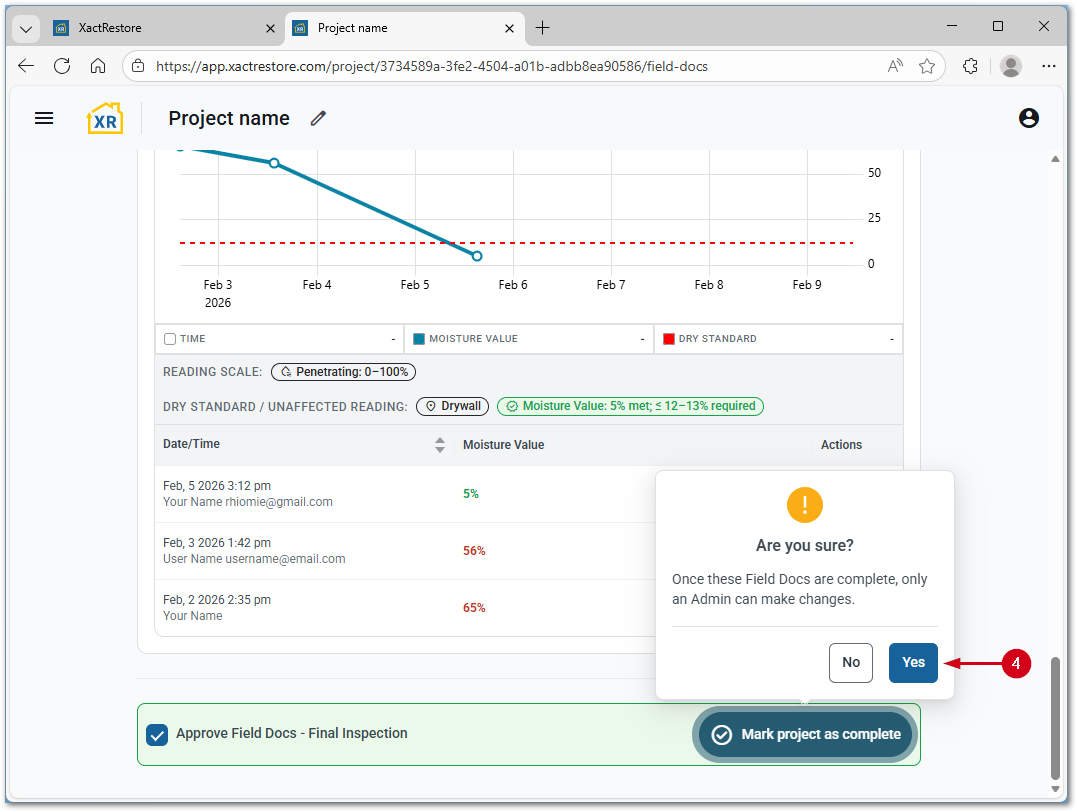
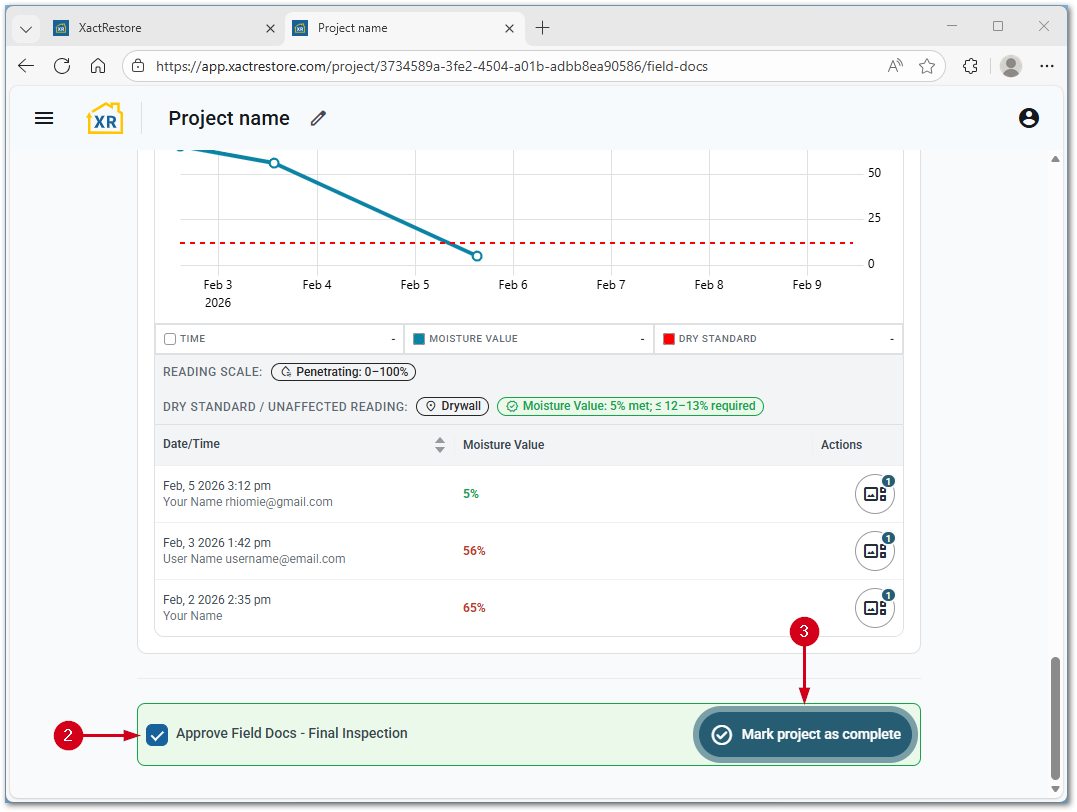
- Check Approve Field Docs – Final Inspection.
- Select Mark project as complete.
- Select Yes.