Take daily readings in Field docs

This Document goes over how users can take daily reading in Field docs.
 Field Docs is part of the XactRestore Pro subscription tier. To upgrade, please speak with our PropTech Sales Department by calling 833-352-9228 between 7:00am – 4:00pm (Mountain Time) Monday – Friday.
All levels, rooms, and initial monitoring readings need to be present in Field docs in the project before you take daily readings. The guided workflow to capture daily readings becomes available at the start of each day until the job is marked complete. See our a href="https://support.xactremodel.com/l/en/article/4epn17n9ud" target="_blank">Add levels in Field docs and Add rooms in Field docs documents for more information.
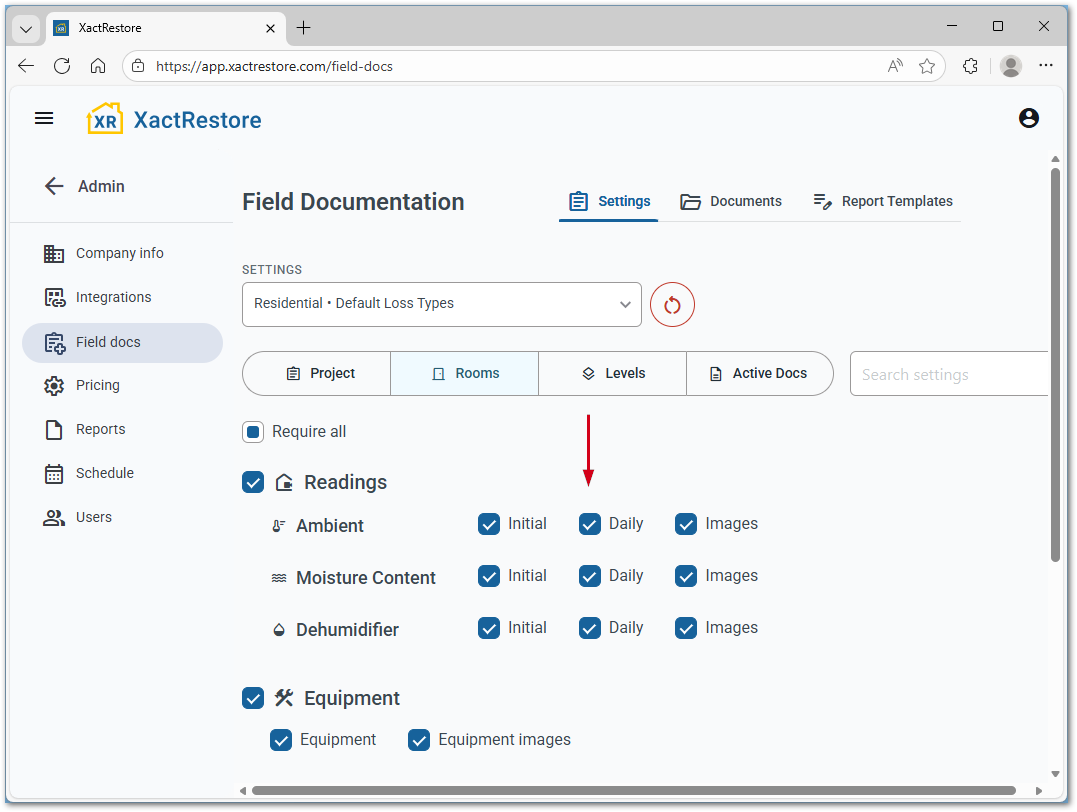
Turn on daily readings in Settings
Administrators can turn on daily readings in Field docs Rooms settings. For more information about accessing or editing these settings, please see our Field docs Admin - Settings document.
Add readings as a non-admin user
Users without the Field docs project settings Project Permission see a curated view when accessing Field docs for daily readings. They are prompted to enter required information in sequential order if they confirm they are on location. This ensures that field technicians accurately record all required information for each project or loss type. For more information on roles, see our Admin Users Control document.
Note: The information required for daily readings can be customized in Settings for each project or loss type. The required information and steps shown below may differ slightly depending on the options set. For more information, see our Field docs Admin - Settings document. document.
Required items are marked with red. Items are removed as they are completed. The Field docs tab and information show once all readings are completed.
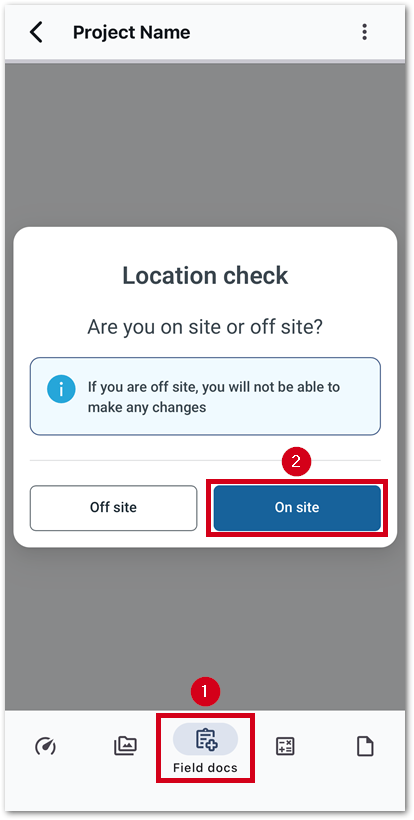
- From within a project, select Field docs.
- Select On site.
Note: Selecting Off site opens a view-only version of Field docs.
- Select the desired room.
- Select the desired reading type.
- Ambient
- Moisture Content
- Dehumidifier
- Enter all required information.
Note: Use the camera or upload icons to capture and upload images. Alternatively, select Scan reading to take an image of the equipment reading and automatically enter the data.
- Select Save.
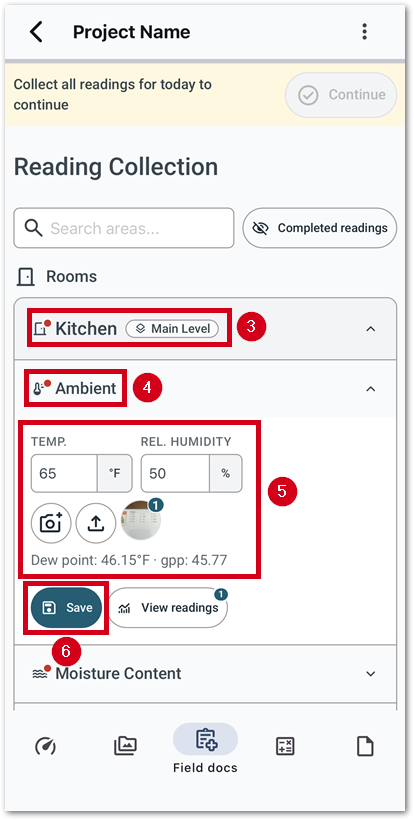
Repeat steps 3-6 for all remaining required readings. Required items are marked with red. Items remove as they are completed. Once all readings are completed, the Field docs tab and information shows.
Add readings as an Admin user
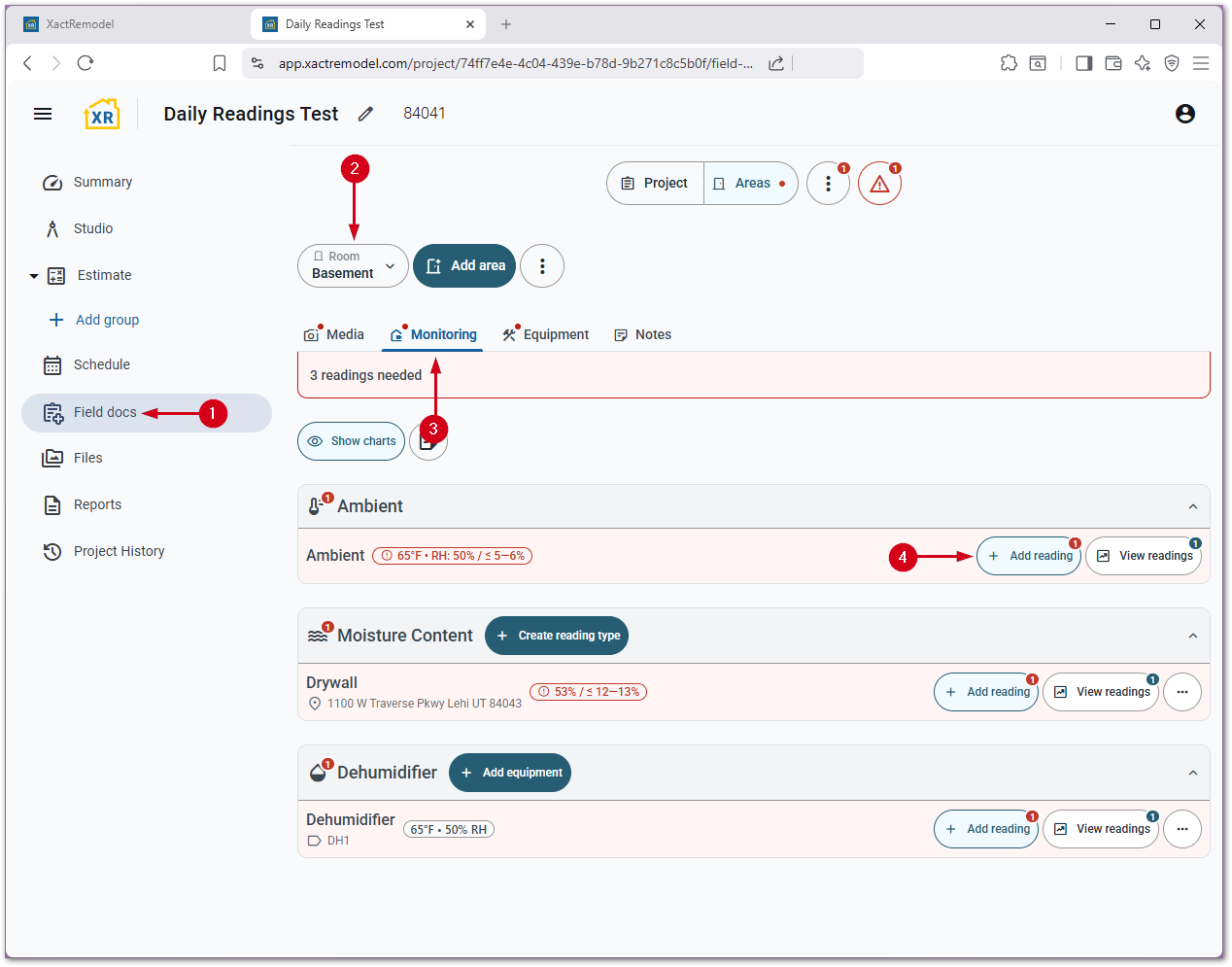
Admin users do not get a walk-through of the required readings when they access Field docs. Instead, they are taken to the main view, where they can navigate to the desired room or reading in the monitoring tab.
Required items are marked with red. A count for each room displays at the top that shows how many readings are left to take.
- From within a project, select Field docs.
- Select the desired room in the Room menu.
- Select Monitoring.
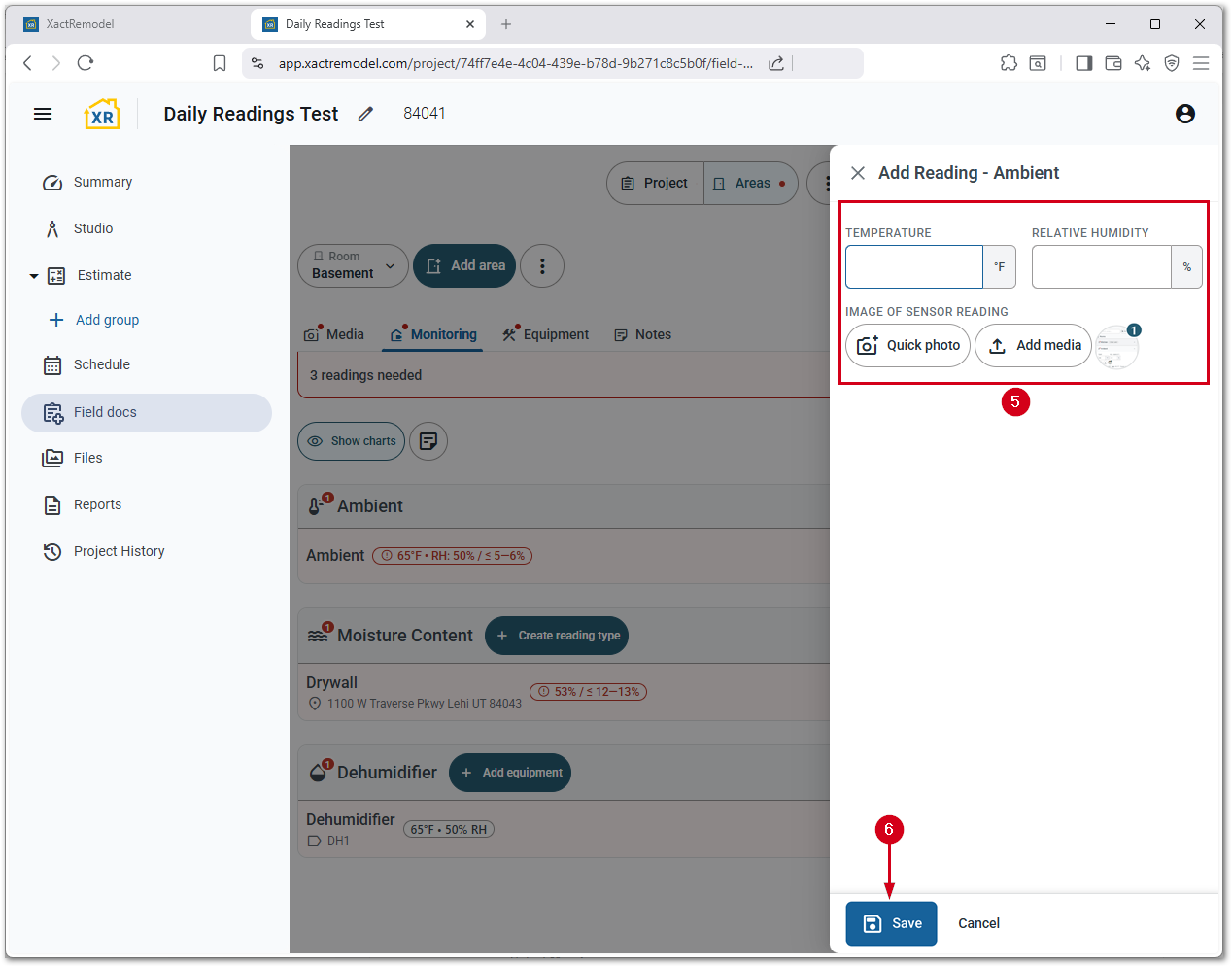
- Select Add reading under the desired reading type.
- Enter the required information.
Note: Select Quick photo or Add media to take an image or upload an image if required. Alternatively, select Scan reading to take an image of the equipment reading and automatically enter the data.
- Select Save.
Note: Repeat steps 2-6 for all remaining required rooms and readings.