Getting Started
Frequently asked questions (FAQ)
System requirements
Company info
Adjustments in XactRemodel and XactRestore
My Pricing
Line Item and Pricing Data
Create report statements
Create a project
Contact Support
XactRemodel and XactRestore subscription levels
XR Mobile overview
Unable to view quick estimates
Manage users and roles
Custom quick estimates
XactAI
Accounts and Contacts
Projects
Project Overview
Project summary
Reprice a project or change a tax jurisdiction
Export projects to Direct Supplier
Import contacts in XR Mobile
Project history log
Project statuses
Recover deleted projects
Groups
Line Items
Add line items from within an estimate
Reorder and delete line items
Line item details
Line item quantity calculations
Edit components
Add a line item note
Use the Verisk XactRestore connector in Claude
Duplicate line items, groups, floorplans, and projects
AI Estimator
Studio
Getting Started
Studio overview
Share floor plans
Build an estimate
Import image underlays in Studio
Level properties
Manage multiple floor plans in Studio
Reference objects
Tools
View sketch in 3D in Studio
Working with levels
Rename a sketch in XactRemodel and XactRestore Studio
Framing in Studio
Rooms
Room basics
Room properties
Subgroups
Square Break tool
Create a vaulted or attic ceiling
Ceilings
Stairs
Vertex tool
Openings
Roofs
Snap line tool
Zoom controls in Studio
Annotations
Capture floorplans using Sketch AR or Sketch Scan
Add line items in Studio
Rotate an object
Scheduling
Attachments
Reports
Integrations
Release Notes
Account management
Cancel or change a subscription
Account Deletion
Subscribe to XactRemodel or XactRestore
Update account information
Transferring from XactRemodel Desktop
XactRestore
Field docs
Field docs - Admin
Field docs initial job setup
Add levels in Field docs
Add rooms in Field docs
Add equipment in Field docs
Reporting in Field docs
Field Docs completion and final review
Take daily readings in Field docs
Pick up equipment in Field docs
XactRestore now available!
Set project dates
Type of loss
Import Xactimate estimates (ESX) in to XactRemodel and XactRestore
Manage users and roles in XactRemodel and XactRestore
Lead creation in XactRestore
Convert .pdf files into XactRestore and Xactimate project files
Sync Studio sketches with Xactimate
XactRestore Pro integration with XactAnalysis
- All Categories
- XactRestore
- Sync Studio sketches with Xactimate
Sync Studio sketches with Xactimate
 Updated
by Russell B.
Updated
by Russell B.
You can sync sketches created in the Studio tab of XactRestore Pro with Xactimate. To sync a sketch, the project must originate in XactAnalysis. XactRestore Pro also exports line items attached to rooms. It does not export groups added manually outside Studio.
Note: The exported sketch in Xactimate is locked. You can add or remove line items, but you cannot change the sketch in Xactimate. Any sketch updates need to be made in the Studio tab of XactRestore and synced again to Xactimate. For more information about the XactAnalysis link, see our XactRestore Pro integration with XactAnalysis document.
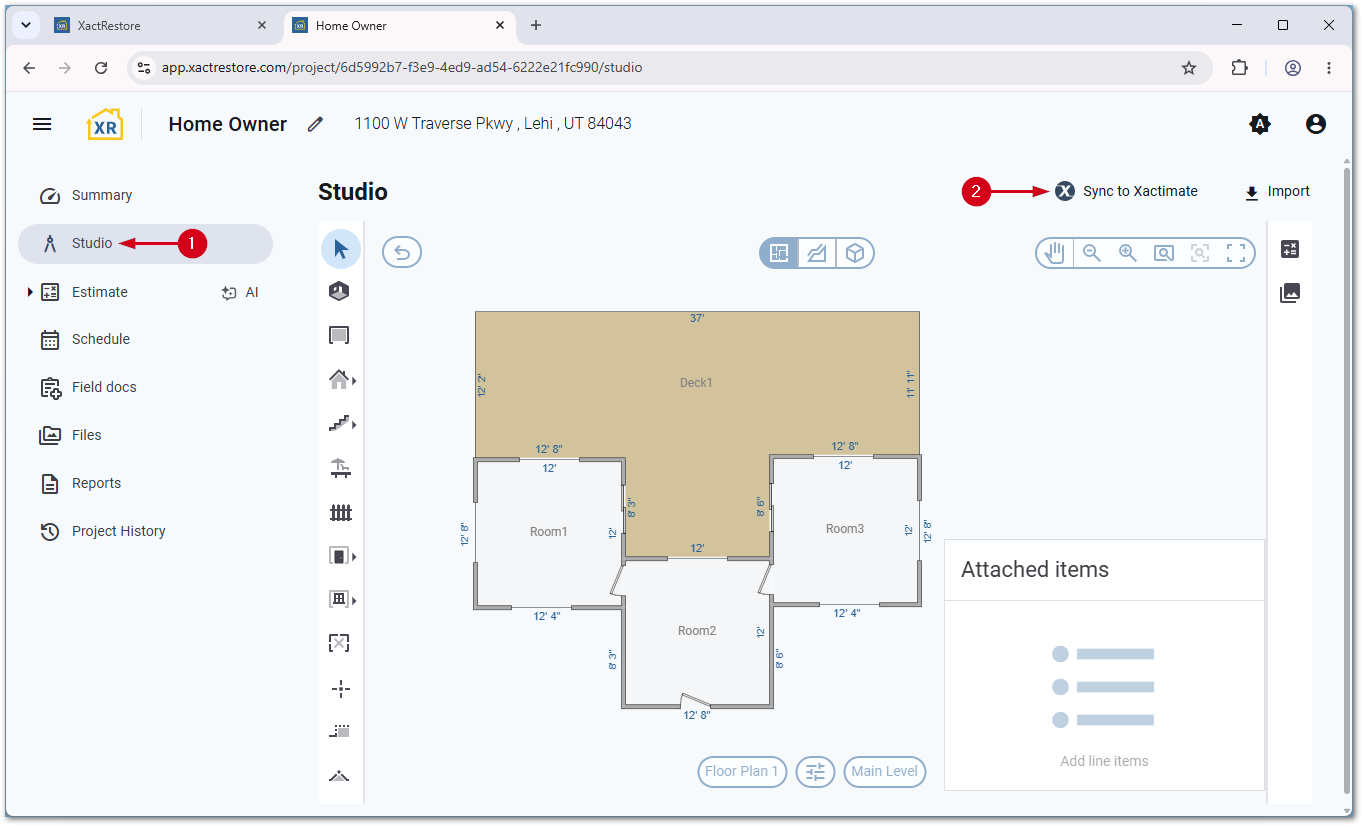
- In an XactAnalysis-linked project in XactRestore Pro, select Studio.
- Select Sync to Xactimate.
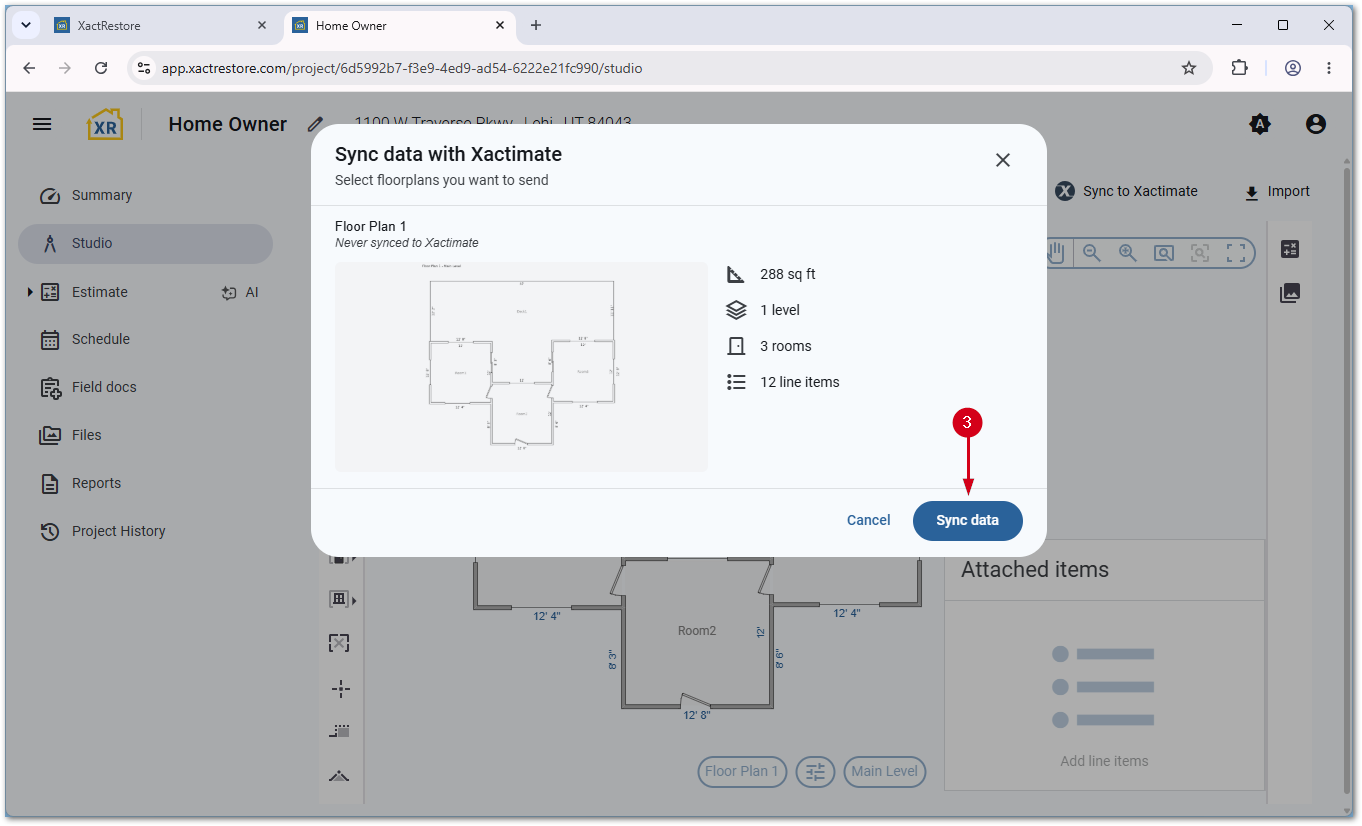
- Select Sync data.
Note: If you have more than one sketch, unselect any unneeded sketch before proceeding.
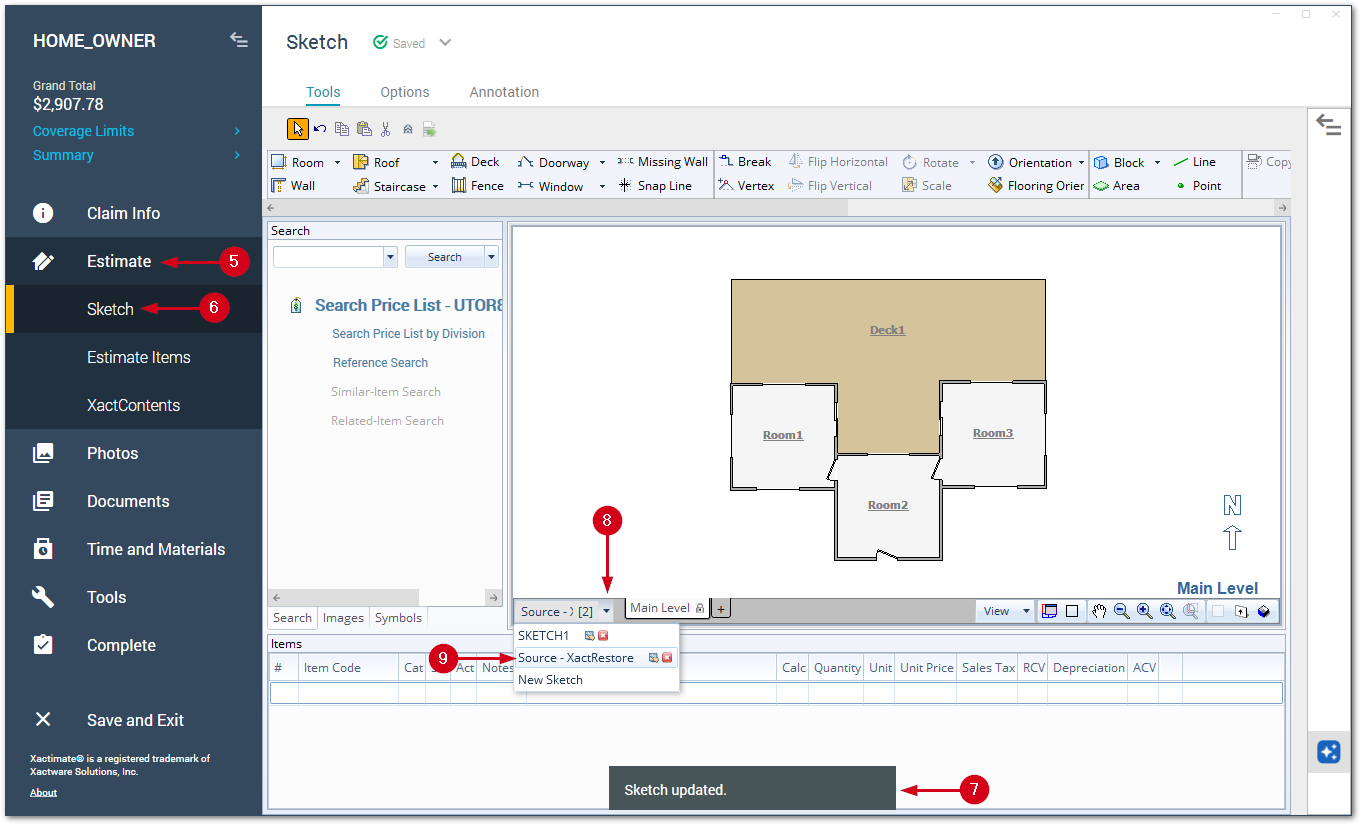
- In Xactimate, open the associated project.
- Select Estimate.
- Select Sketch.
- Wait for the Sketch updated message to appear and disappear.
Note: Depending on the size of the sketch and the number of line items, you may see related line items appear on the main sketch level. Wait for the message before proceeding.
- Open the sketch space menu.
- Select the desired source entry.
Note: If you export multiple XactRestore floor plans at the same time, Xactimate lists them as Source - XactRestore, Source - XactRestore 1, and so on.