Create a project
 Updated
by Russell B.
Updated
by Russell B.
You can easily create projects in both XactRemodel and XactRestore online and on the XR Mobile app.
XactRemodel and XactRestore online
XactRemodel and XactRestore online
To create a new project in XactRemodel and XactRestore online, follow the steps below.
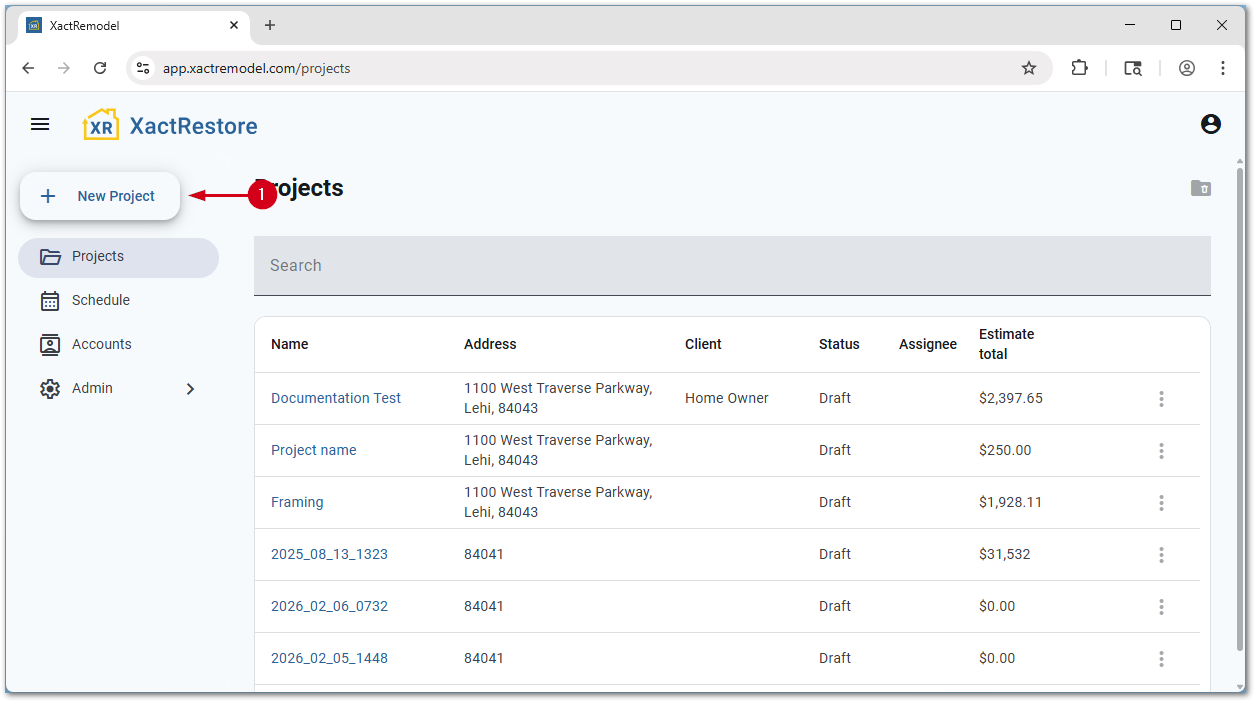
- From the project list, select New Project.
Note: For users with XactRestore, select Quick Create after selecting New Project. For assistance with the lead capture form included in XactRestore, see our Lead creation in XactRestore document.
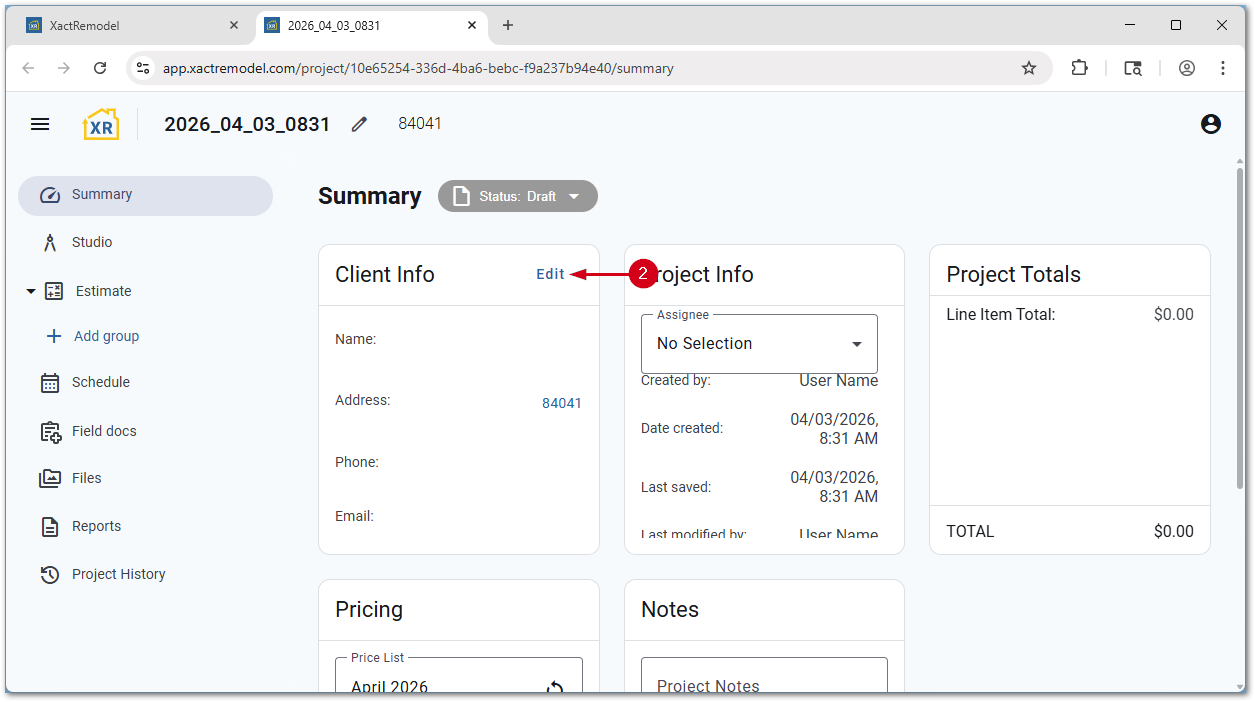
- Select Edit.
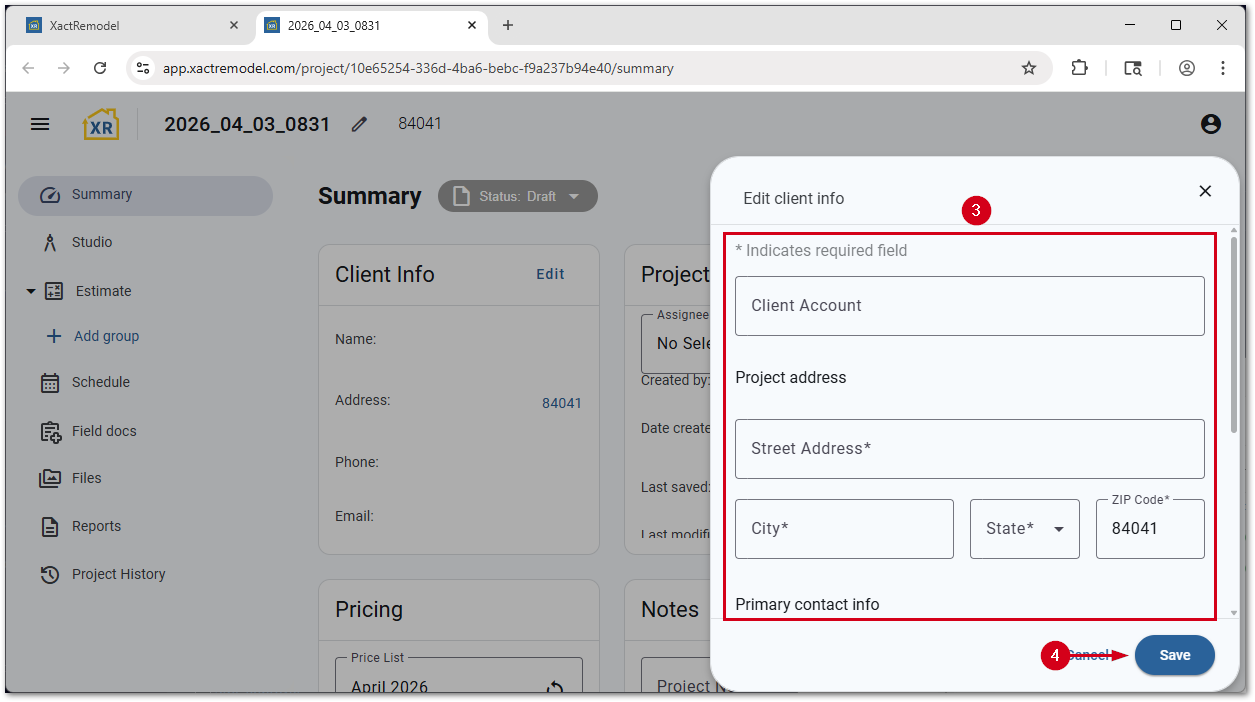
- Fill out the Edit client info form.
Note: Only the project address is required; however, you can also add a property type and contact information. Your company's ZIP or postal code is used as the starting ZIP or postal code for new projects. For assistance with client accounts, see our Associate projects with Accounts document.
- Select Save.
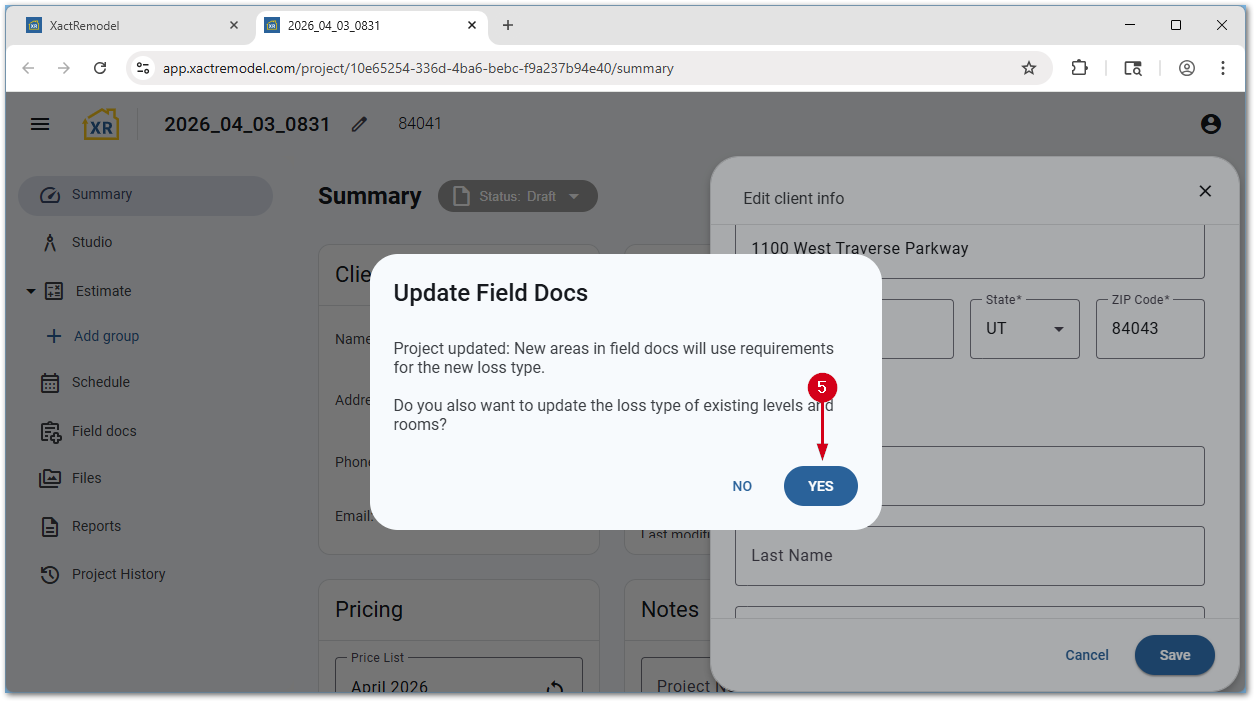
- Select Yes.
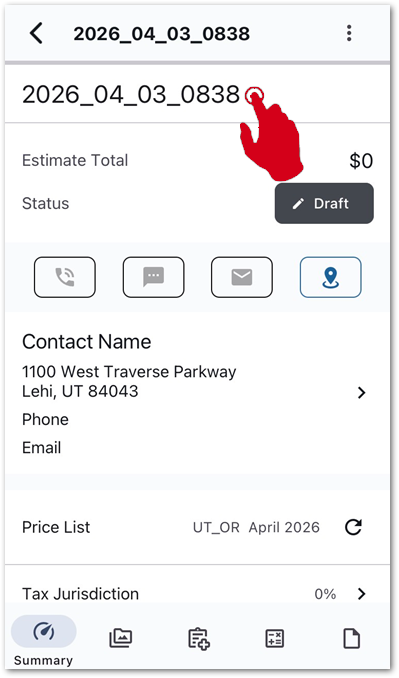
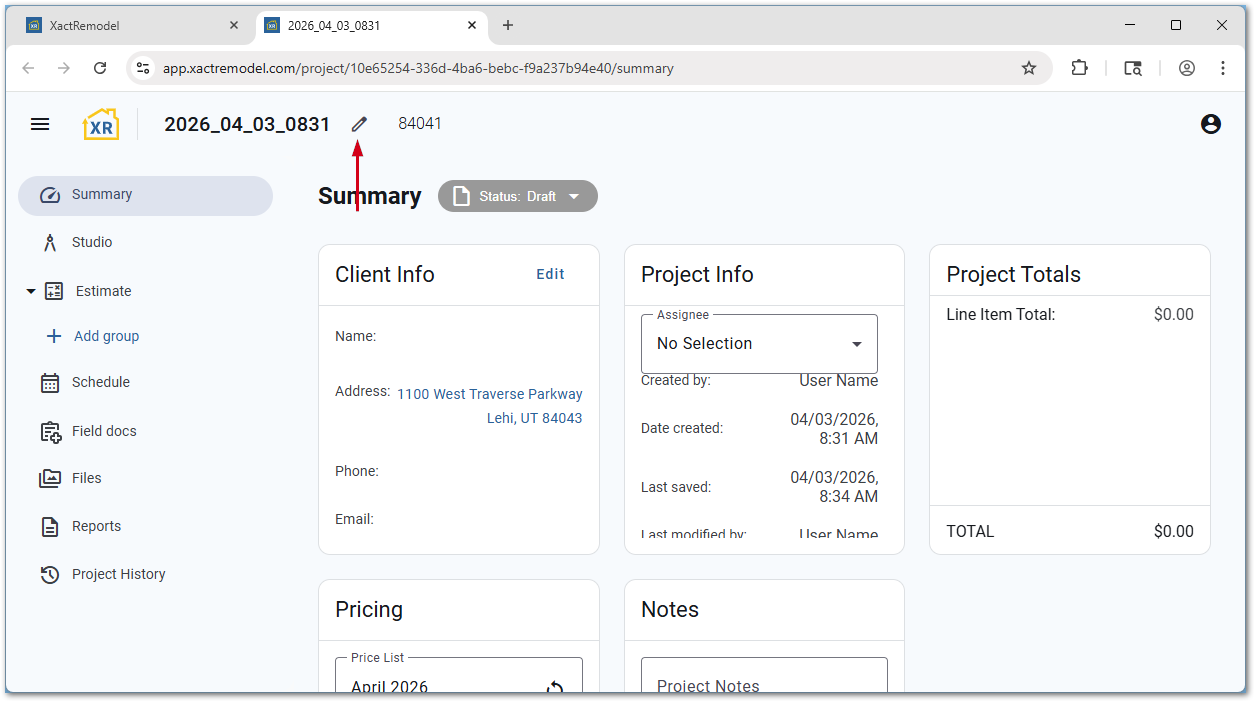
You can edit the project name if desired. This name appears on all reports. To make changes, select the pencil icon next to the project name.
Note: You may need to refresh the project list to see new or renamed projects.
XR Mobile
To create a new project in XR Mobile, follow the steps below.
Note: Images are taken from an iOS device and may vary slightly on Android devices.
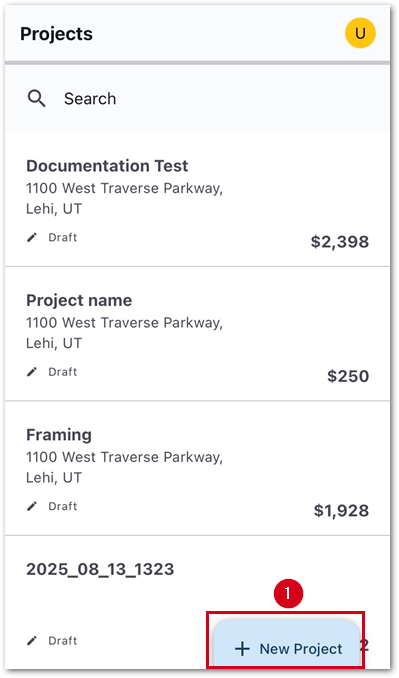
- From the project page, select the New Project button.
Note: If you scroll down the project list, the button may just show a plus icon. For users with XactRestore, select Quick Create after selecting New Project. For assistance with the lead capture form included in XactRestore, see our Lead creation in XactRestore document.
- Select Contact Name.
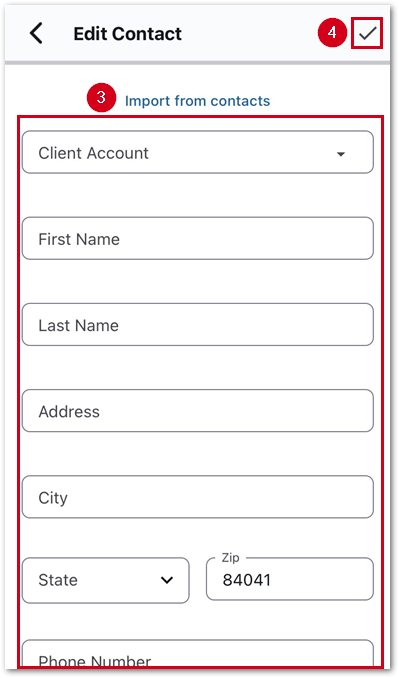
- Fill out Edit Contact form.
Note: Only a ZIP or postal code is required. Your company’s ZIP or postal code is used as the starting ZIP or postal code for new projects. If you have the contact saved in the phone's contact list, select Import from contacts. For more information about the import process, see our Import contacts in XR Mobile document.
- Select the checkmark icon to save and return to the project home.
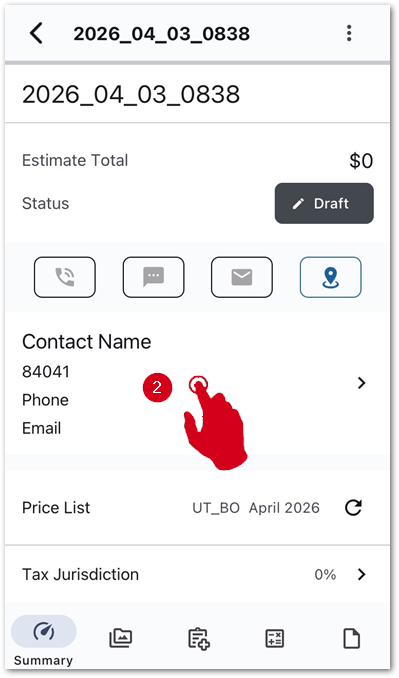
You can edit the project name if desired. This name appears on all reports. To make changes, select the project name.
Note: You may need to swipe down on the project list to see new or renamed projects.