Table of Contents
Openings
 Updated
by Russell B.
Updated
by Russell B.
Once rooms are created, doors, windows, and wall openings can be added to the Studio canvas. The following sections detail these openings in XactRemodel and XactRestore.
Opening types
The opening types available in XactRemodel and XactRestore Studio are doors, windows, and missing walls.
Doors
For information about doors, see our Doors document.
Windows
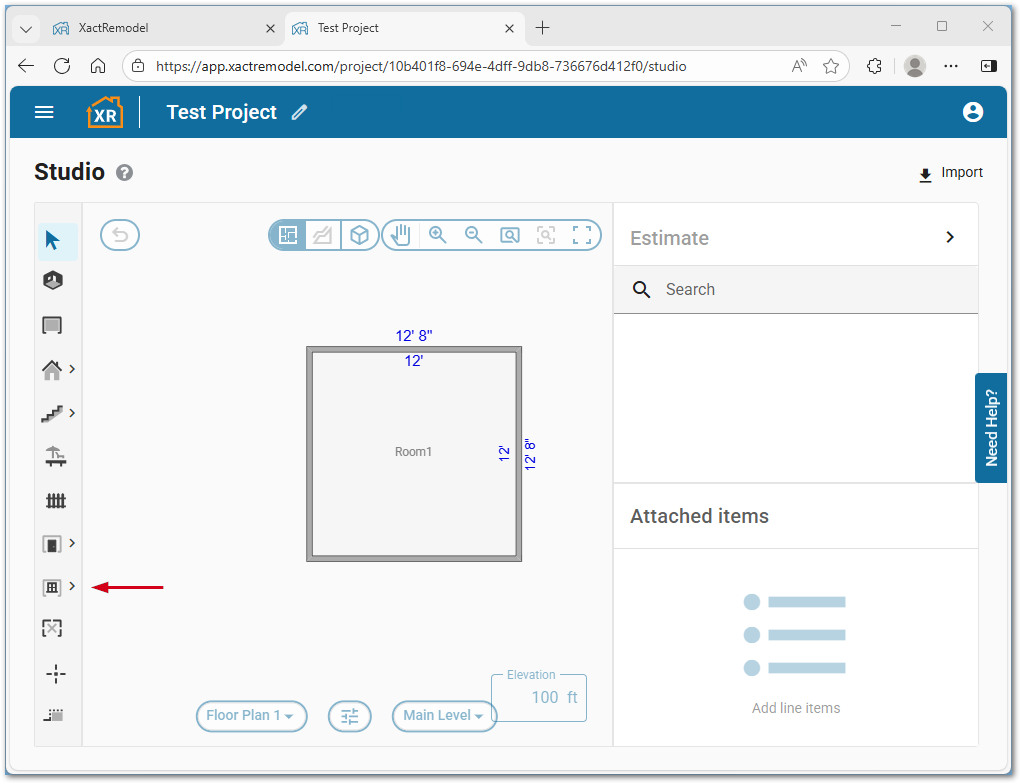
To access the window tool within Studio, select the Window icon.
Note: Alternatively, press the W key to load a window to the cursor.
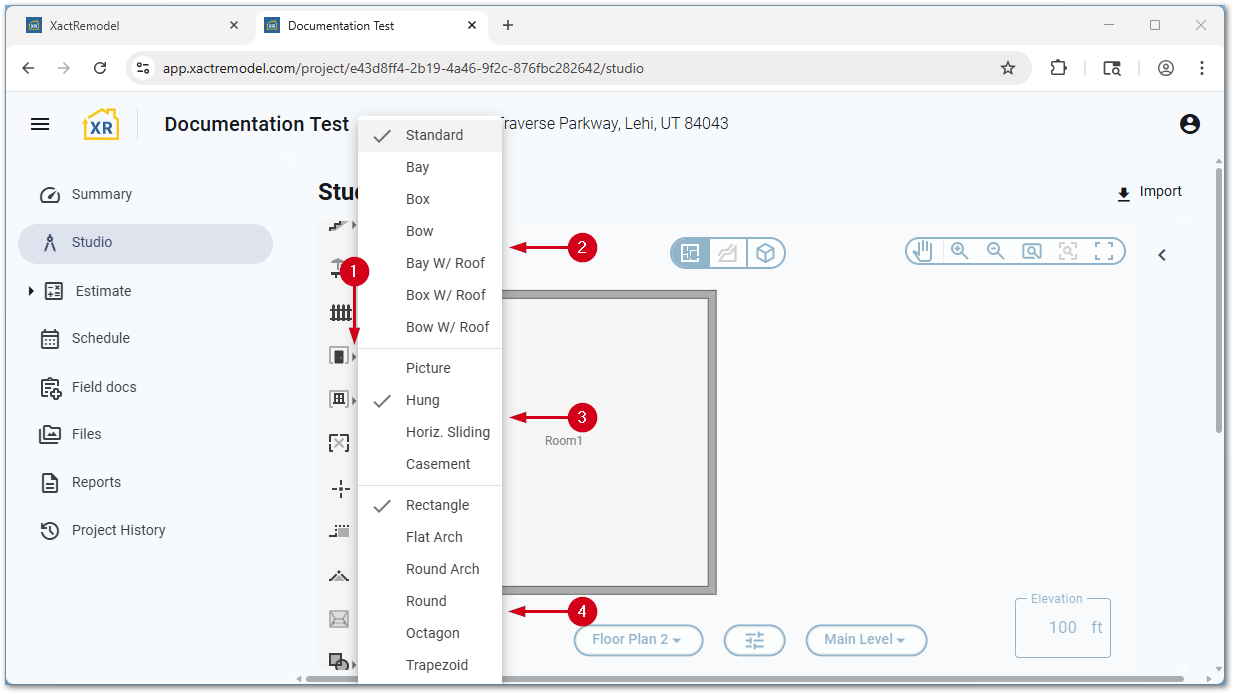
To switch window types, use the following steps.
- From within Studio, select the arrow next to the window tool.
- Select the desired type of window.
- Select the desired style of window.
- Select the desired shape of window.
Missing walls
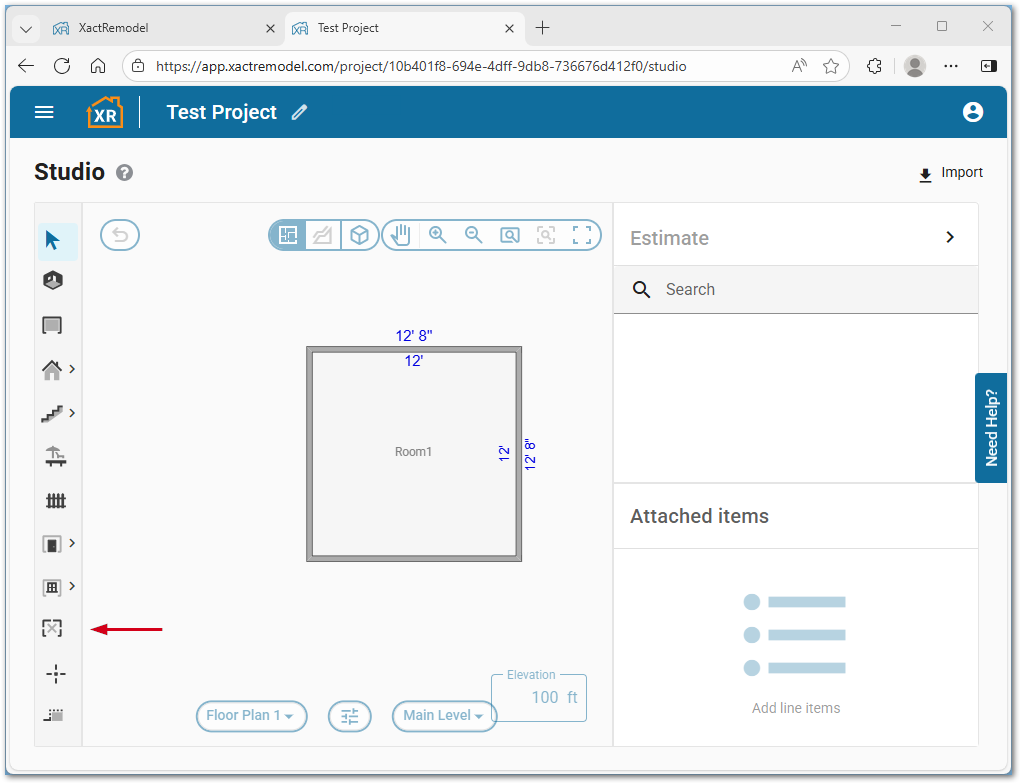
To access the missing wall tool within Studio, select the Missing Wall icon.
Note: Alternatively, use the keyboard shortcut M to load a missing wall to the cursor.
Place an opening
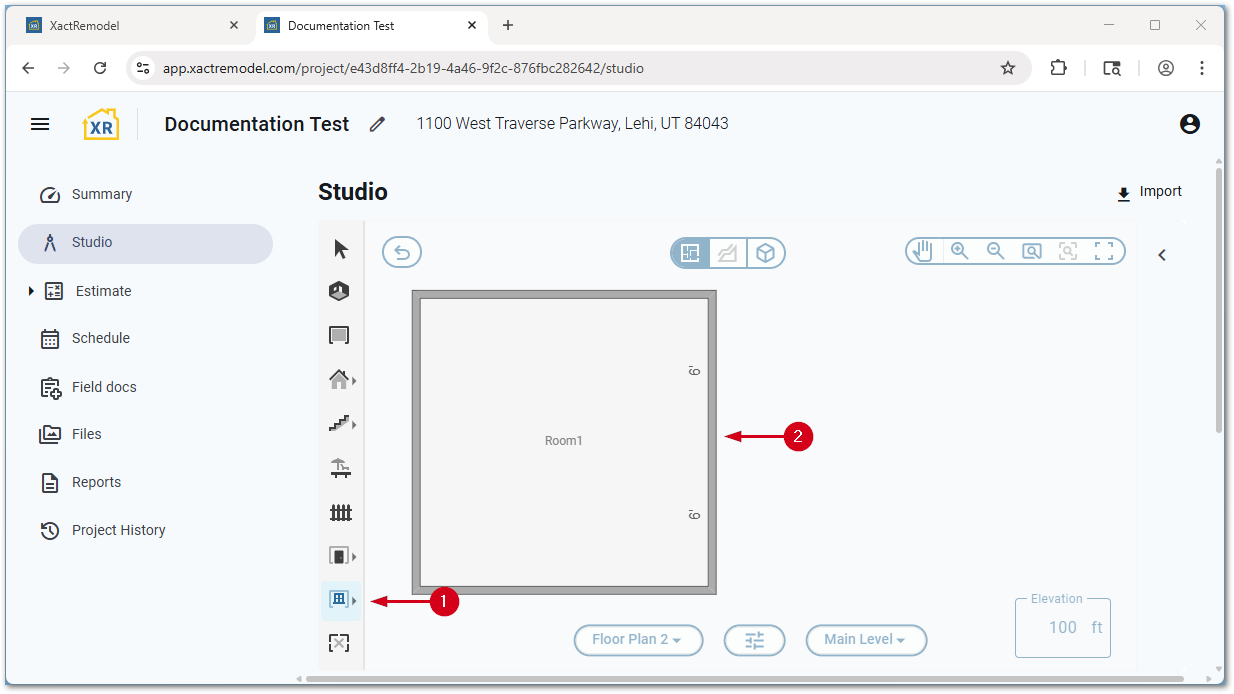
Follow these steps to place an opening. In this example, a window is used; however, the steps can be used for any type of opening.
Note: There must be an existing room before an opening can be placed.
- From within Studio, select the desired opening icon. This loads the opening to the cursor.
Note: Alternatively, use a keyboard shortcut to load an opening to the cursor.
- Select the desired wall location to place the opening.
Note: Openings cannot be placed on a wall that is smaller than the size of the opening. To place an opening smaller than the default size, select and hold one end of the opening, drag to the desired width, then release to place.
Resize an opening
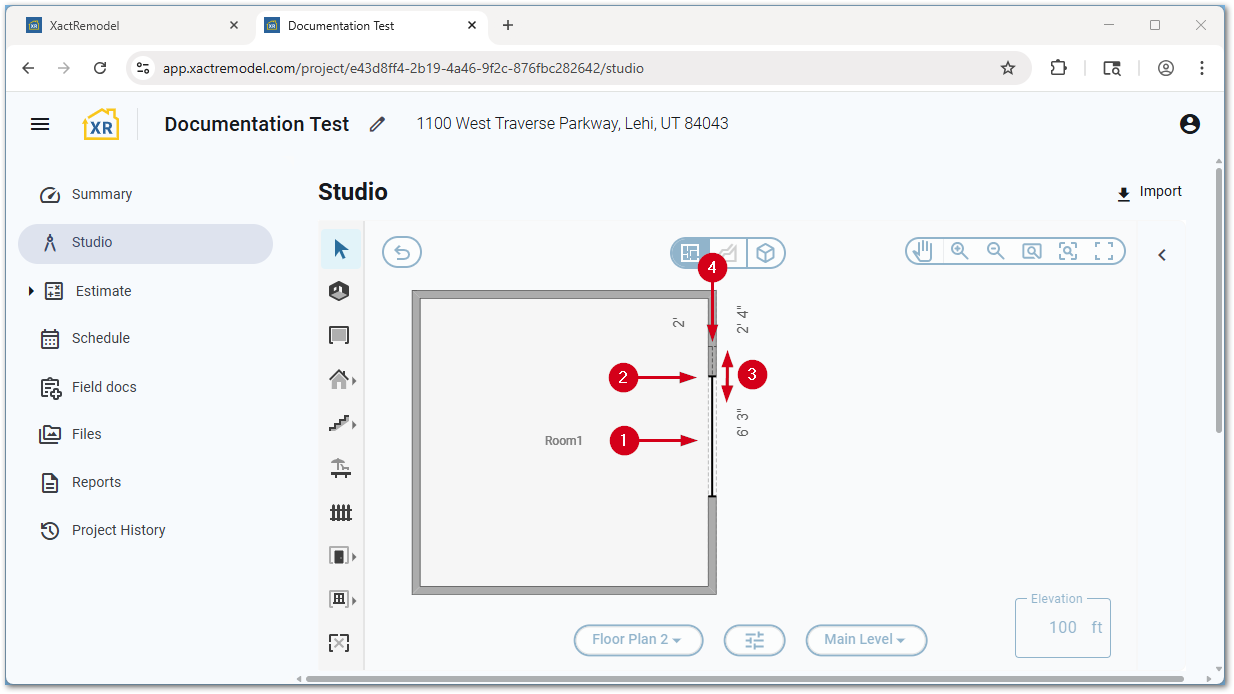
Follow these steps to resize an opening. In this example, a window is used; however, the steps can be used for any type of opening.
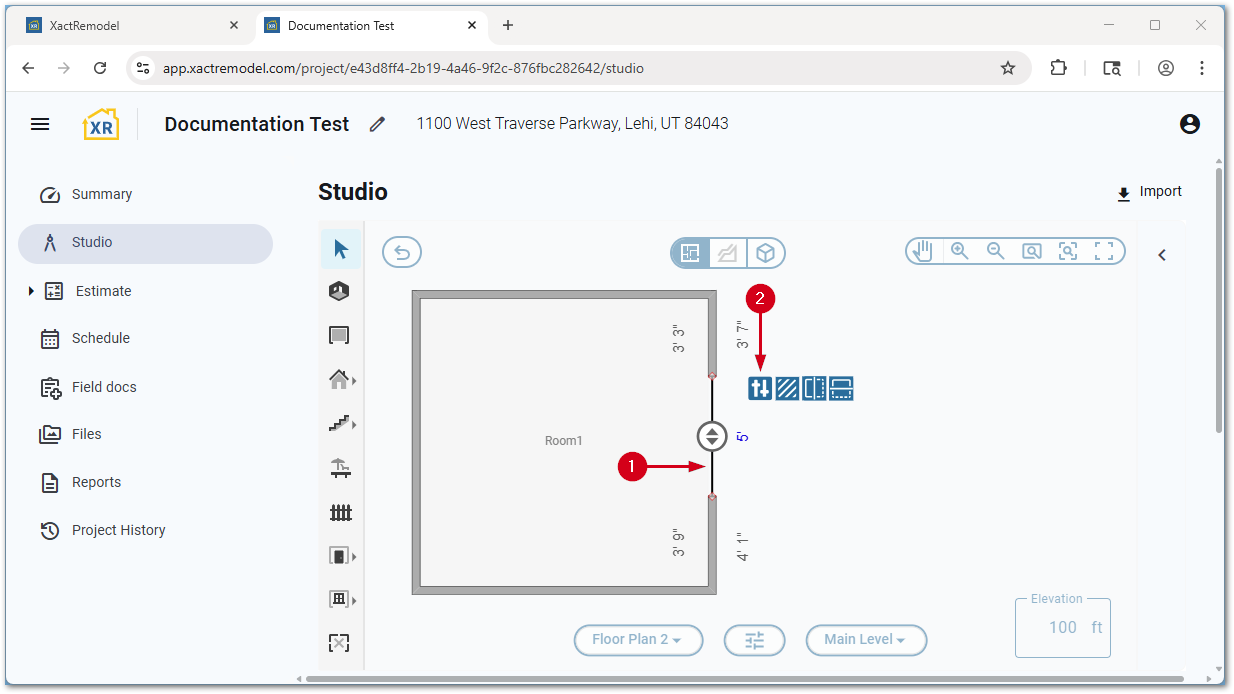
- From within Studio, select the opening to highlight it. The red endpoint icons appear.
- Select and hold one end of the opening.
- Drag to the desired width.
- Release the hold save the new size.
Access properties
Follow these steps to access the properties window of an opening. In this example, a window is used; however, the steps can be used for any type of opening.
- From within Studio, select any existing opening.
- Select the Properties… icon.