Field docs Admin - Settings

This document is part of the initial setup an XactRestore Pro administrator will go through to setup Field Docs for use by employees in the field.
It is also important to create a new role that does not include the Field docs projects settings permission and assign field technicians to that role. That will ensure that those users are guided through the process step-by-step instead of being able to freely move around the project when in the field. For assistance with this, see our Manage users and roles in XactRemodel and XactRestore document.
To take advantage of signed documents or report templates, complete the steps in Field docs Admin - Documents and Field docs Admin - Report Templates which cover the remainder of the initial setup.
 Field Docs is part of the XactRestore Pro subscription tier. To upgrade, please speak with our Sales Department by calling 833-352-9228.
To access the settings:
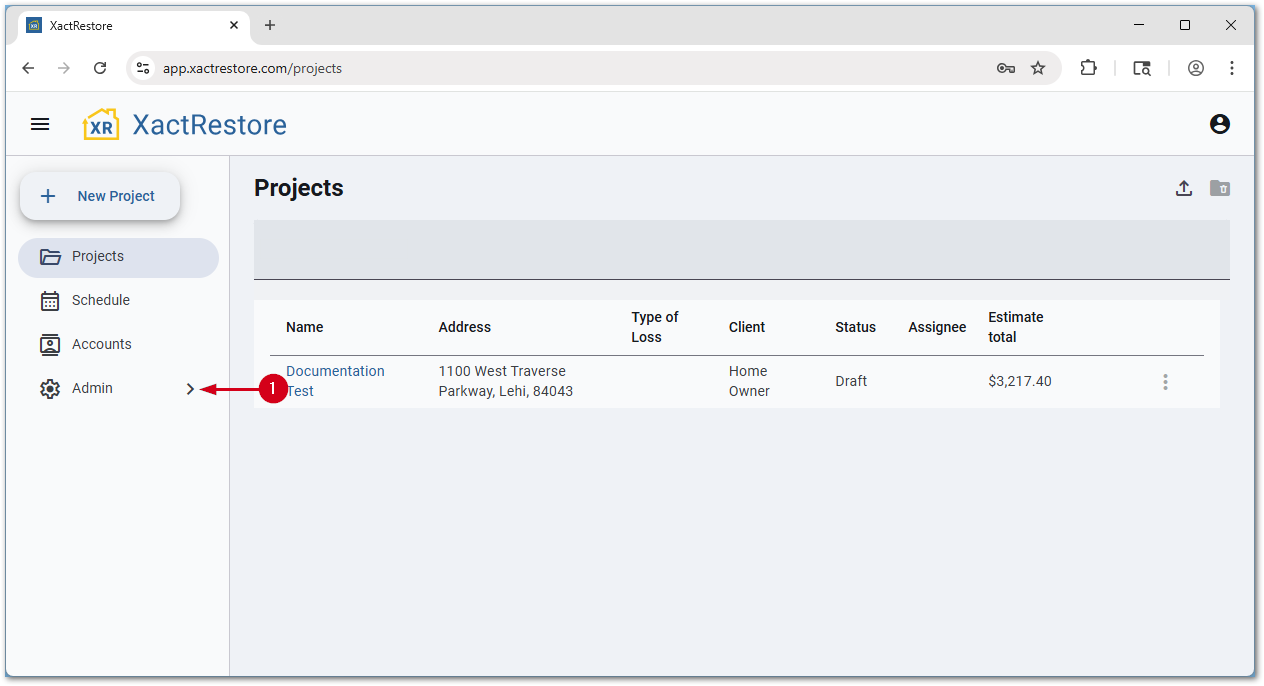
- Select Admin.
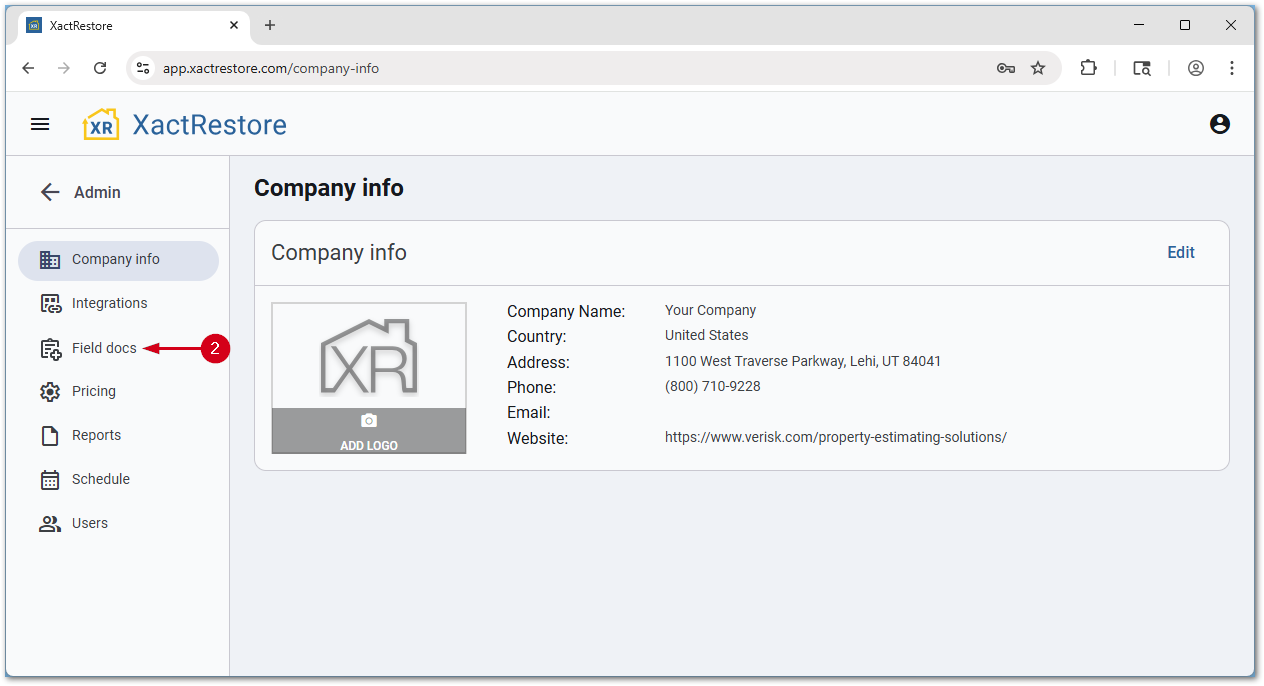
- Select Field docs.
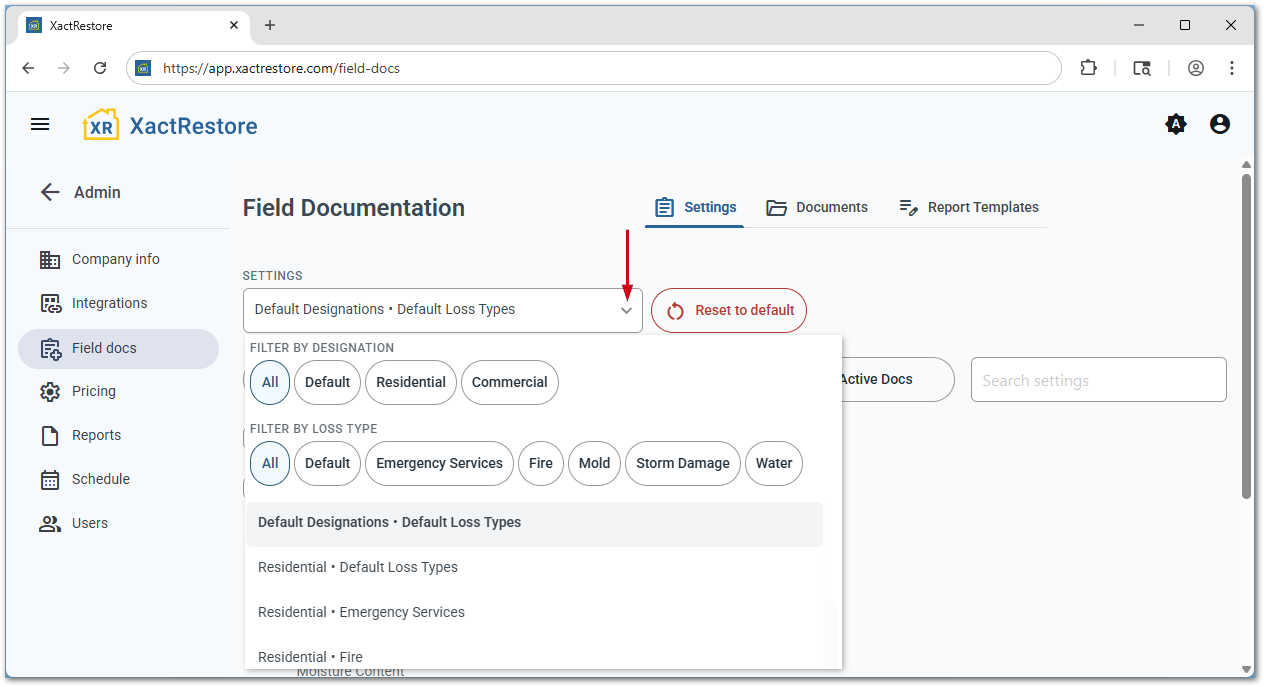
Field Docs can have separate setups for different designations and loss types. The below example shows configuring the default settings which apply to all jobs. Use the drop-down menu to select a specific designation and loss type to edit specific combinations.
Note: The Reset to default button next to the drop-down menu can be used to reset a specific designation and loss type back to the default settings if desired.
Project
Project settings let you select the mandatory items that field techs will need to complete when working a job utilizing Field Docs.
- Readings
- Outdoor
- Initial: Requires an outdoor temperature reading at the start of a job.
- Images: Requires a photo of the outdoor temperature reading.
- Daily: Requires daily outdoor temperature readings.
- Dry Standard (Ambient)
- Initial: Requires an interior ambient drying standard before levels and rooms can be added.
- Images: Requires an image of the ambient drying standard.
- Dry Standard (Moisture Content)
- Initial: Requires a moisture content drying standard for each surface type entered.
- Images: Requires an image of the moisture content drying standard.
- Outdoor
- Media
- Front of structure: Requires a picture of the front of the structure before levels and rooms can be added.
- Documentation
- Daily notes: Requires notes to be added each day of the job.
Rooms
Rooms settings let you select the mandatory items that field techs will need to complete when working a job utilizing Field Docs.
- Readings
- Ambient
- Initial: Requires an initial ambient reading to be added.
- Daily: Requires daily ambient readings to be added.
- Images: Requires images of the ambient reading to be added.
- Moisture Content:
- Initial: Requires an initial moisture content reading to be added.
- Daily: Requires daily moisture content readings to be added.
- Images: Requires images of the moisture content reading to be added.
- Dehumidifier
- Initial: Requires an initial dehumidifier reading to be added.
- Daily: Requires daily dehumidifier readings to be added.
- Images: Requires images of the dehumidifier reading to be added.
- Ambient
- Equipment
- Equipment: Requires equipment to be added and provides the equipment calculation for air movers and dehumidifiers according to the IICRC S500 guidelines.
- Equipment images: Requires images of the equipment to be added to the job.
- Media
- Before
- Images: Requires photos of the room before treatment.
- Video: Requires video of the room before treatment.
- Thermal: Requires thermal readings of the room before treatment.
- During
- Images: Requires photos of the room during treatment.
- Video: Requires video of the room during treatment.
- After
- Images: Requires photos of the room after treatment.
- Video: Requires video of the room after treatment.
- Before
- Documentation
- Daily Notes: Requires daily notes to be added.
- Dimensions (floor, ceiling, and walls): Requires the room dimensions to be added.
IMPORTANT: It is strongly recommended that this field is set to be required. Unlike other fields which are still presented but not required if not enabled, the field to enter dimensions will not be visible if not required, and thus equipment recommendations cannot be presented.
Levels
Levels settings let you select the mandatory items that field techs will need to complete when working a job utilizing Field Docs.
Some of the settings may not be available in residential or commercial specific designations. The settings listed below are from the default designation and default task. Specifically, Residential designations only present the option for dehumidifiers for levels.
- Readings
- Ambient
- Initial: Requires an initial ambient reading to be added.
- Daily: Requires daily ambient readings to be added.
- Images: Requires images of the ambient reading to be added.
- Moisture Content
- Initial: Requires an initial moisture content reading to be added.
- Daily: Requires daily moisture content readings to be added.
- Images: Requires images of the moisture content reading to be added.
- Dehumidifier
- Initial: Requires an initial dehumidifier reading to be added.
- Daily: Requires daily dehumidifier readings to be added.
- Images: Requires images of the dehumidifier reading to be added.
- Ambient
- Equipment
- Equipment: Requires equipment to be added and provides the equipment calculation for air movers and dehumidifiers according to the IICRC S500 guidelines.
- Equipment images: Requires images of the equipment to be added to the job.
- Dehumidifier: Requires dehumidifier(s) to be added to the job.
- Media
- Before
- Images: Requires photos of the level before treatment.
- Video: Requires video of the level before treatment.
- Thermal: Requires thermal readings of the level before treatment.
- During
- Images: Requires photos of the level during treatment.
- Video: Requires video of the level during treatment.
- After
- Images: Requires photos of the level after treatment.
- Video: Requires video of the level after treatment.
- Before
- Documentation
- Daily Notes: Requires daily notes to be added.
- Dimensions (floor, ceiling, and walls): Requires the level dimensions to be added.
Active Docs
The Active Docs section allows administrators to have documents automatically available to non-admins in the field, depending on job type.
Once a document is added to the documents section, see our Field docs Admin - Documents document for assistance with this; an administrator will need to come back to the settings section.
To make a document available for non-administrators without an administrator manually enabling it for a job, ensure the document is selected in the desired designations and loss types. Administrators still can, if not set up in this section, manually enable a document on a job-by-job basis.
Note: For example, this allows you to have a mold specific document for all mold jobs, but not show up on non-mold jobs, or have separate commercial vs residential documents.
