Reprice a project or change a tax jurisdiction
 Updated
by Russell B.
Updated
by Russell B.
We are engaged in an extremely volatile market where prices seem to change on a daily basis. XactRemodel and XactRestore are designed to allow users to compile a comprehensive estimate using relevant pricing. In the event the pricing associated with a project needs to be updated, XactRemodel and XactRestore provides users with a simple way to update the pricing on their projects to ensure they are using the most current pricing.
Changing a tax jurisdiction within a project causes the new tax jurisdiction to automatically apply to all line items, and the project is recalculated accordingly. When the reprice is complete, a message appears at the bottom of the screen showing what impact the new tax jurisdiction had on the project.
Note: Switching between tax jurisdictions is reversable; simply select the desired jurisdiction from the drop-down menu.
Reprice a project
XactRemodel and XactRestore online
XactRemodel and XactRestore online
Follow the steps below to reprice a project in XactRemodel or XactRestore online. A rolling 12-month selection of price lists is available. For older projects, the original price list is also available.
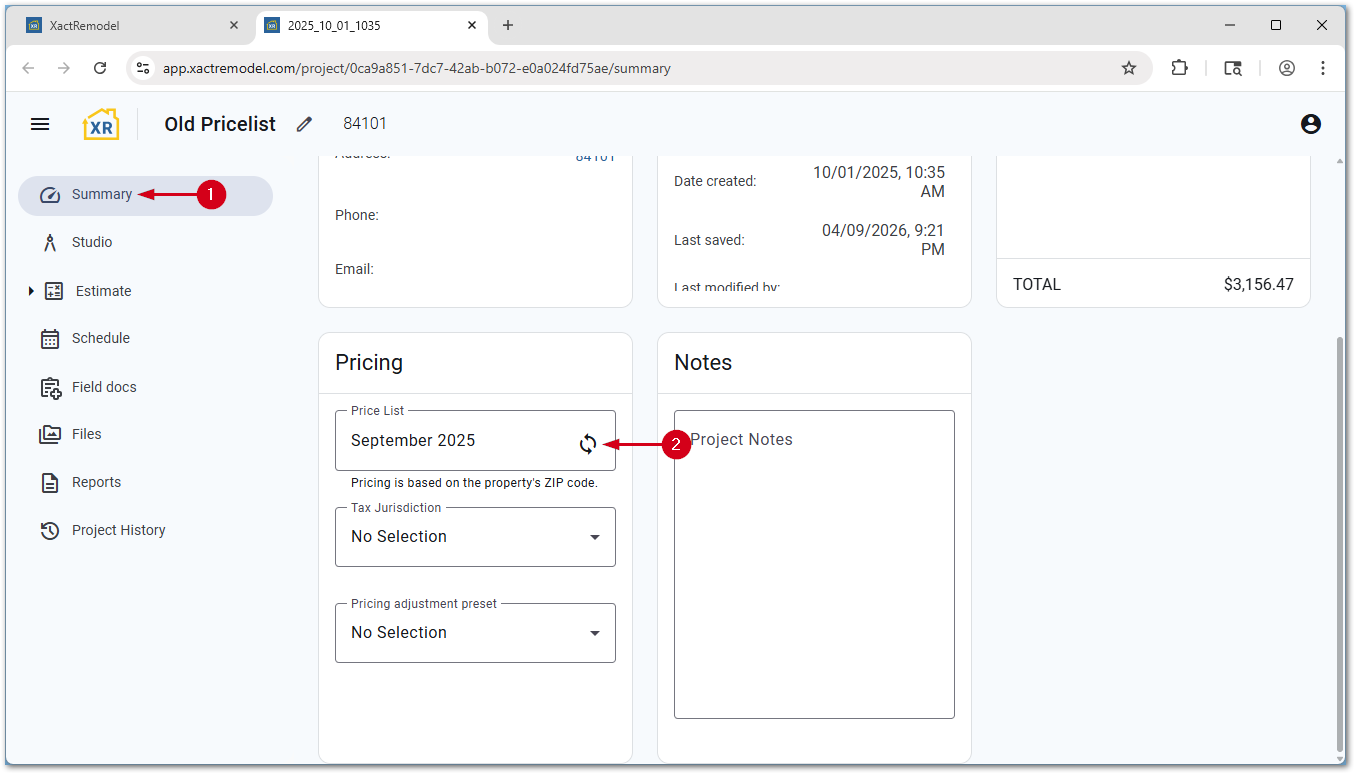
- Within a project, select Summary.
- Open the Price list menu.
- Select the desired price list.
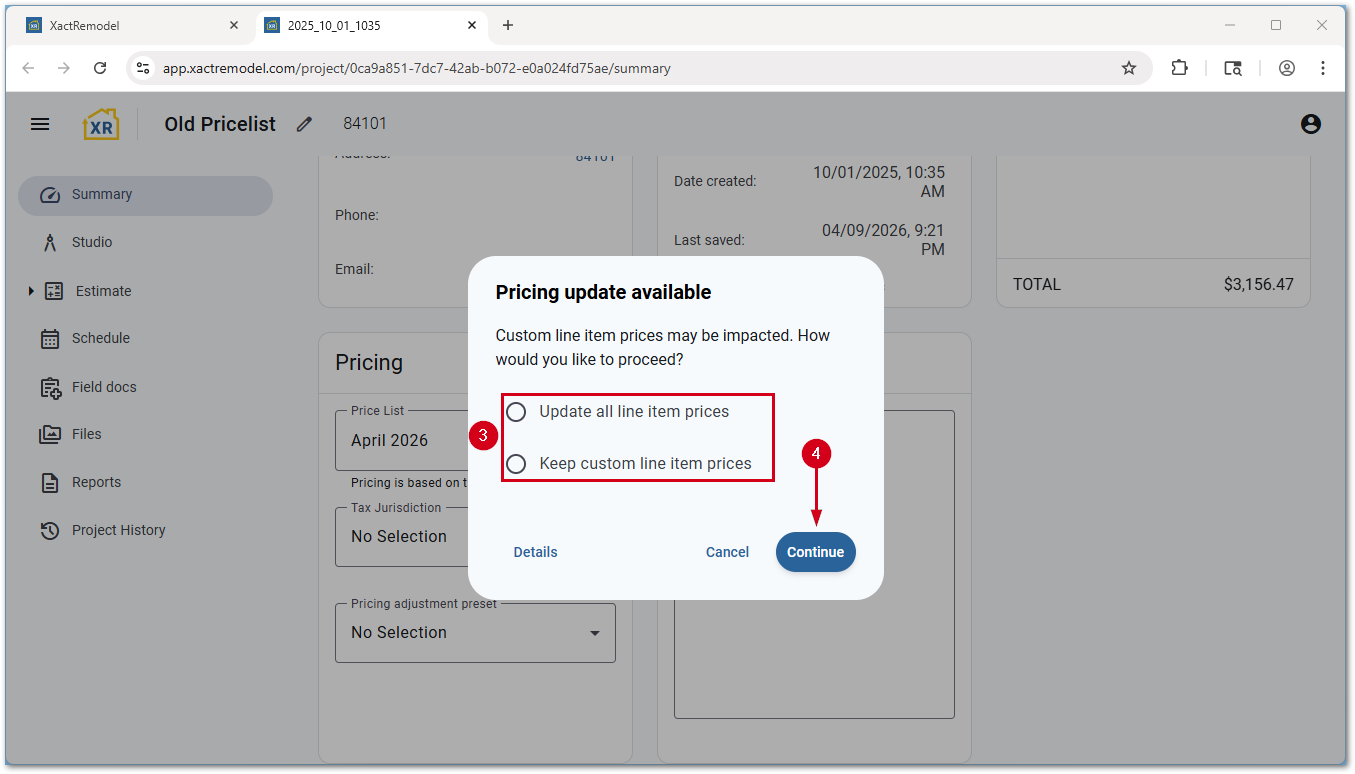
- Select the desired repricing option.
Note: If there are no line items in the project, the prompt does not appear and the price list updates. If the existing tax jurisdiction is not present on the updated price list, you are prompted to select a new tax jurisdiction.
- Update all line item prices: Any overridden prices are replaced with the new pricing from the updated price list. This includes any custom pricing from the My Pricing section.
- Keep custom line item prices: Custom priced items are not updated.
- Select Continue. The project reprices and a message appears at the bottom of the page to show the price difference.
XR Mobile
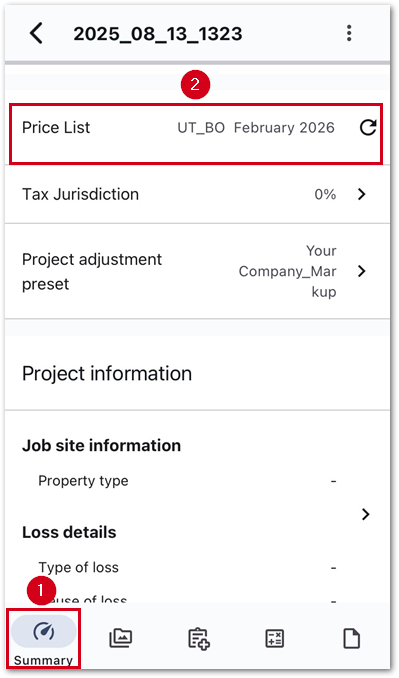
Follow the steps below to reprice a project in XR Mobile.
Note: The screenshots below are from an iOS device; however, the process is similar on Android devices.
- Within a project, select Summary.
- Select Price list.
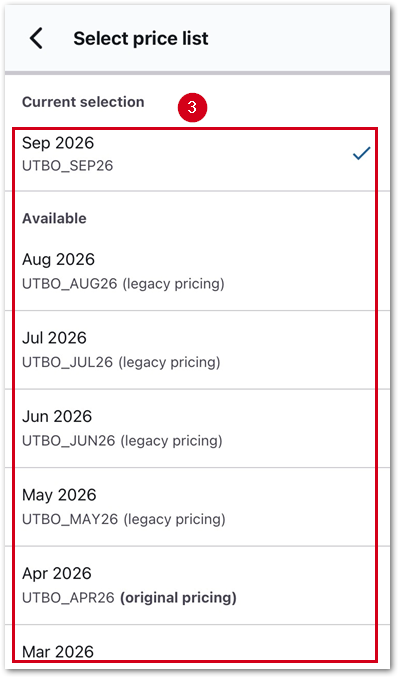
- Select the desired price list.
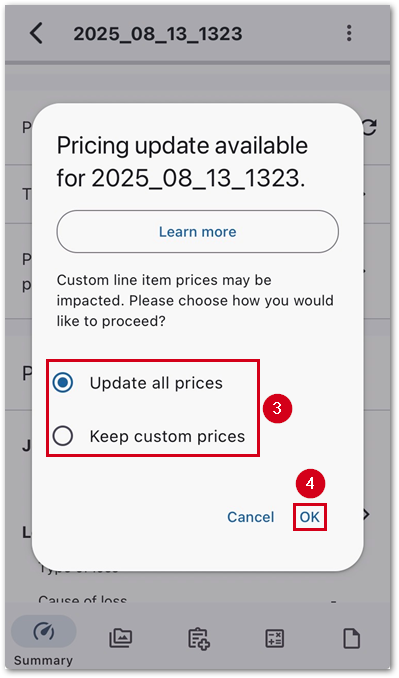
- Select the desired repricing option.
Note: If there are no line items in the project, the prompt does not appear and the price list updates. If the existing tax jurisdiction is not present on the updated price list, you are prompted to select a new tax jurisdiction.
- Update all line item prices: Any overridden prices are replaced with the new pricing from the updated price list. This includes any custom pricing from the My Pricing section.
- Keep custom line item prices: Custom priced items are not updated.
- Select Update. The project reprices and a message appears at the bottom of the page to show the price difference.
Change a tax jurisdiction
XactRemodel and XactRestore online
XactRemodel and XactRestore online
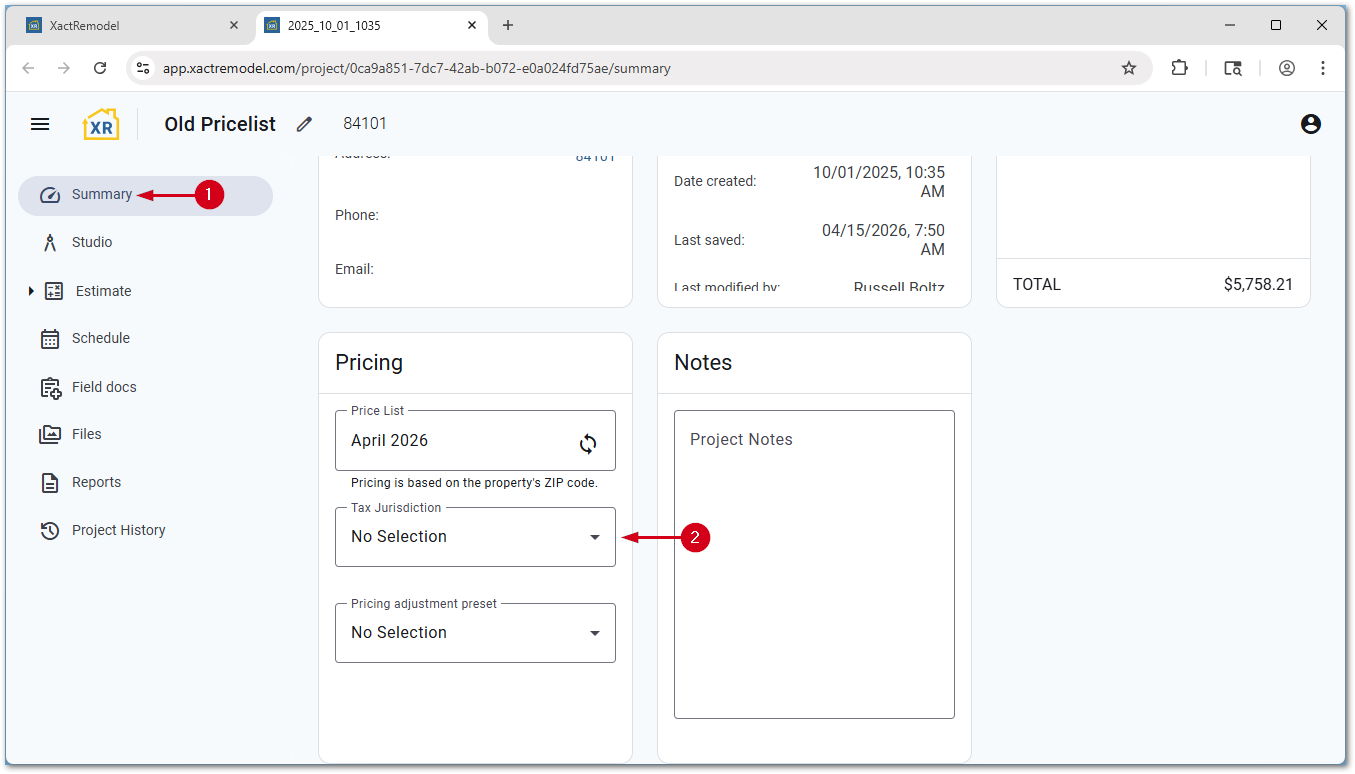
Follow the steps below to change tax jurisdictions in XactRemodel and XactRestore online.
- Within a project, select Summary.
- Select the desired tax jurisdiction from the drop-down menu. The new jurisdiction applies to all line items and the project total updates.
XR Mobile
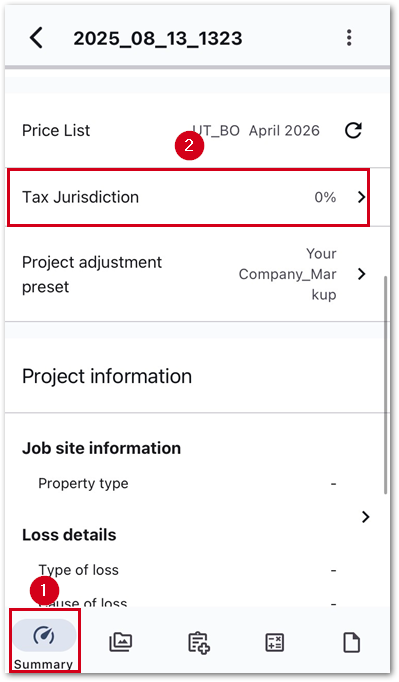
Follow the steps below to change tax jurisdictions in XR Mobile.
- Within a project, select Summary.
- Select Tax Jurisdiction.
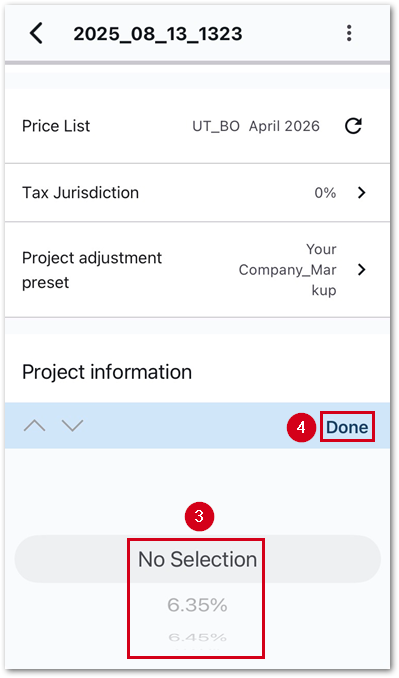
- Select the desired tax jurisdiction.
- Select Done. The new jurisdiction applies to all line items and the project total updates.
Note: On Android devices there is no Done button; selecting a tax jurisdiction automatically saves and applies it.