Getting Started
Frequently asked questions (FAQ)
System requirements
Company info
Adjustments in XactRemodel and XactRestore
My Pricing
Line Item and Pricing Data
Create report statements
Create a project
Contact Support
XactRemodel and XactRestore subscription levels
XR Mobile overview
Unable to view quick estimates
Manage users and roles
Custom quick estimates
XactAI
Accounts and Contacts
Projects
Project Overview
Project summary
Reprice a project or change a tax jurisdiction
Export projects to Direct Supplier
Import contacts in XR Mobile
Project history log
Project statuses
Recover deleted projects
Groups
Line Items
Add line items from within an estimate
Reorder and delete line items
Line item details
Line item quantity calculations
Edit components
Add a line item note
Use the Verisk XactRestore connector in Claude
Duplicate line items, groups, floorplans, and projects
AI Estimator
Studio
Getting Started
Studio overview
Share floor plans
Build an estimate
Import image underlays in Studio
Level properties
Manage multiple floor plans in Studio
Reference objects
Tools
View sketch in 3D in Studio
Working with levels
Rename a sketch in XactRemodel and XactRestore Studio
Framing in Studio
Rooms
Room basics
Room properties
Subgroups
Square Break tool
Create a vaulted or attic ceiling
Ceilings
Stairs
Vertex tool
Openings
Roofs
Snap line tool
Zoom controls in Studio
Annotations
Capture floorplans using Sketch AR or Sketch Scan
Add line items in Studio
Rotate an object
Scheduling
Attachments
Reports
Integrations
Release Notes
Account management
Cancel or change a subscription
Account Deletion
Subscribe to XactRemodel or XactRestore
Update account information
Transferring from XactRemodel Desktop
XactRestore
Field docs
Field docs - Admin
Field docs initial job setup
Add levels in Field docs
Add rooms in Field docs
Add equipment in Field docs
Reporting in Field docs
Field Docs completion and final review
Take daily readings in Field docs
Pick up equipment in Field docs
XactRestore now available!
Set project dates
Type of loss
Import Xactimate estimates (ESX) in to XactRemodel and XactRestore
Manage users and roles in XactRemodel and XactRestore
Lead creation in XactRestore
Sync Studio sketches with Xactimate
XactRestore Pro integration with XactAnalysis
- All Categories
- Scheduling
- Task report
Task report
 Updated
by Russell B.
Updated
by Russell B.
There is an Xactware Xpert Tip that might help with part of this process. After selecting play, select the full-screen icon to make the video full-screen.
See our XpertTips library for more Xpert Tips.
The Task Report provides a detailed breakdown of all the line items and specifics for each task within your schedule. It also includes a work summary, along with a section to date and sign the document for tracking purposes. The report can be used as a work order, item shopping list, category report, or a scope of work report. The Task Report includes the following information:
- Company Details: Company name, logo, address, phone number, email
- Project Details: Project name, start date, client’s name, address, email, phone number
- Task Details: Task name, description, associated line items (group/item, description, activity, quantity), line for date and signature
Use the following steps to generate the Task Report.
Note: The Task Report can be generated from both the project schedule and the company schedule. A schedule must be created before the Task Report can be generated. For more information, see our Scheduling overview document.
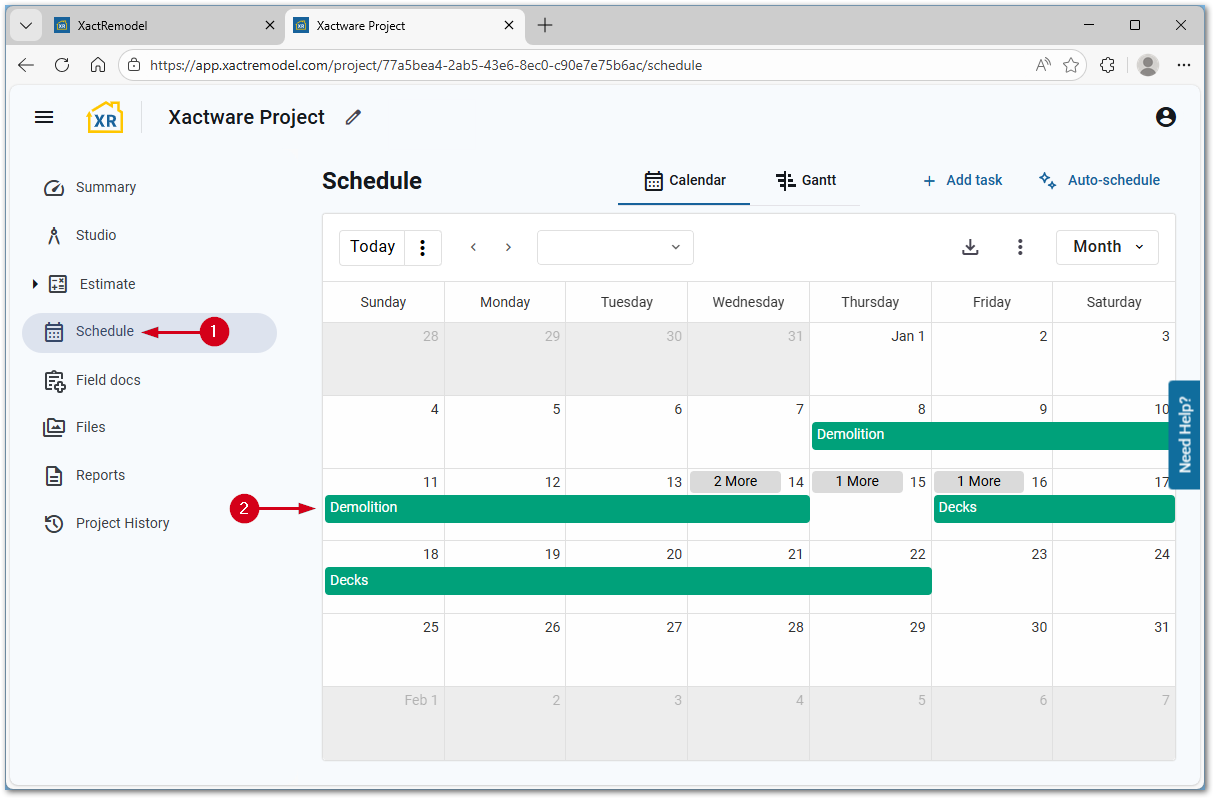
- From within a project, select Schedule.
- Select the desired task.
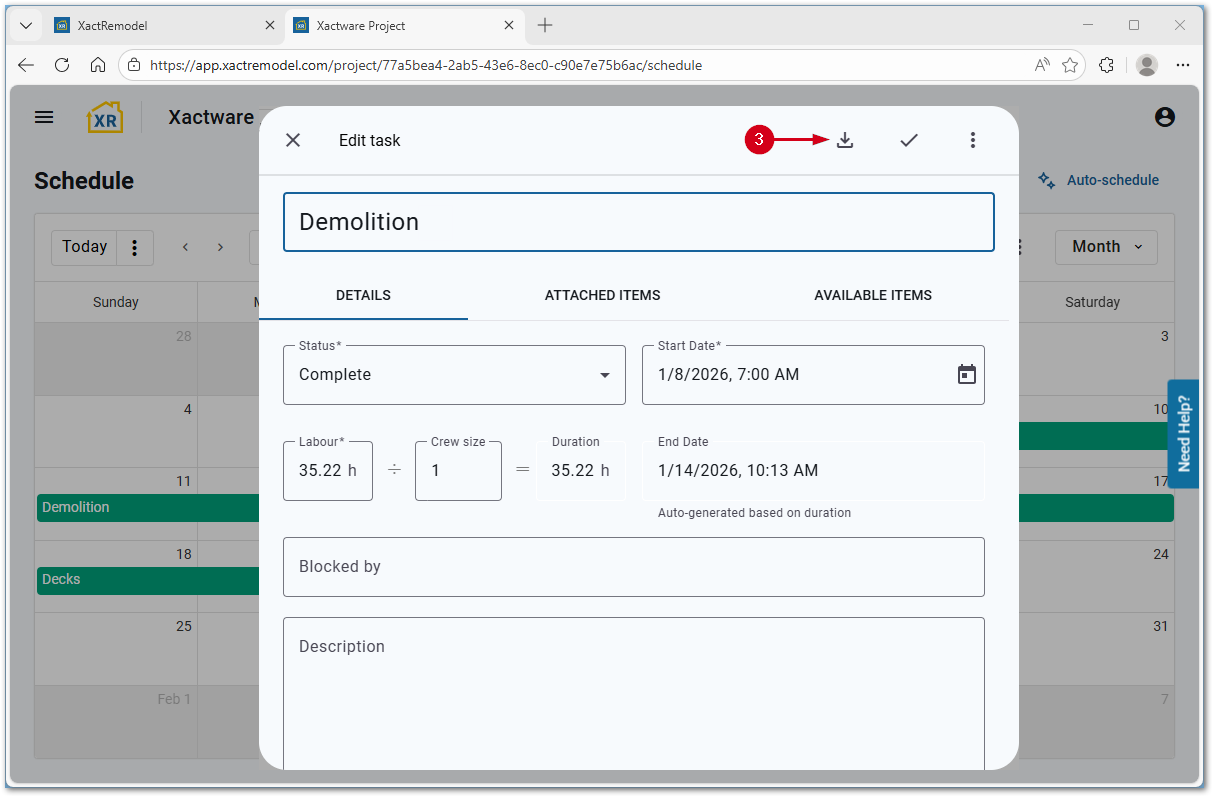
- Select the Download PDF icon. A .pdf file downloads.
Note: If needed, edit the fields in the Details tab prior to generating the report. Items can also be removed from the Attached Items list or readded from the Available Items list.