XactRestore Pro integration with XactAnalysis
 Updated
by Russell B.
Updated
by Russell B.
XactRestore Pro now integrates with XactAnalysis so you can send projects from XactAnalysis, sync key project dates, and send files from XactRestore back to the XactAnalysis assignment.
 To set up the integration, contact your Verisk account representative or Support.
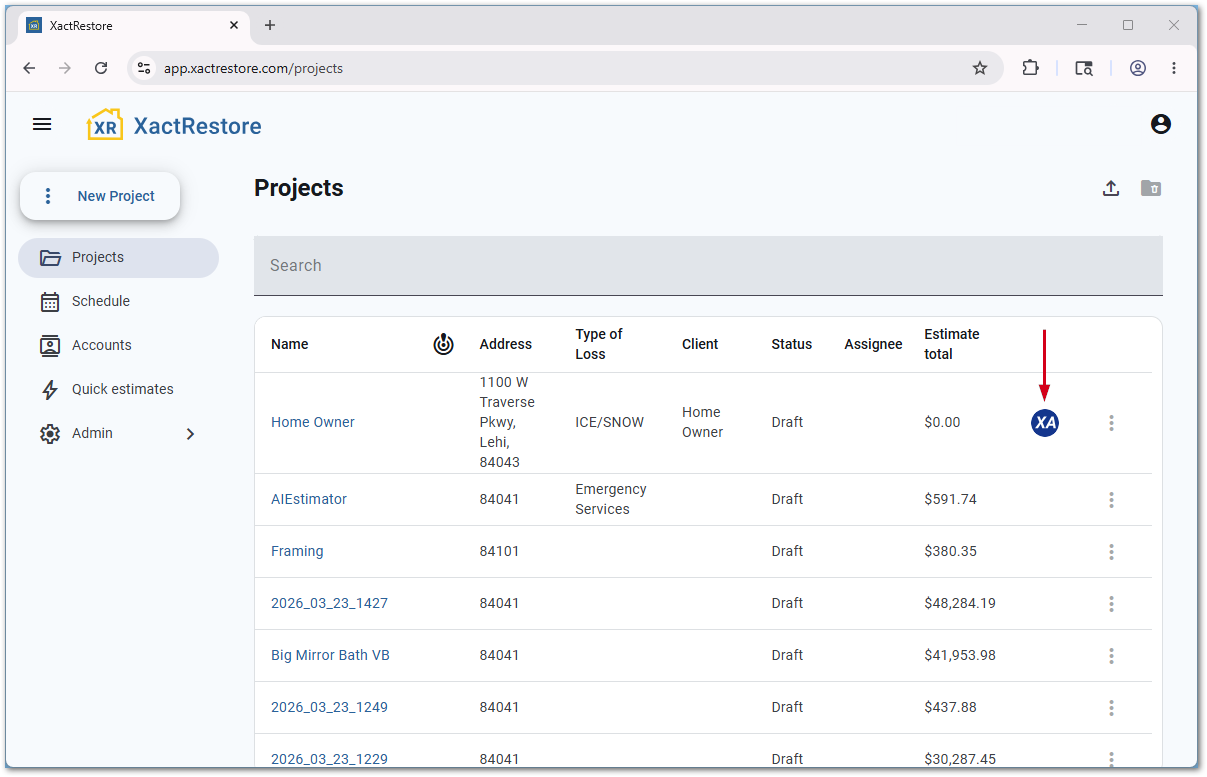
You can easily identify projects that have come from XactAnalysis on the project list.
Manually export projects from XactAnalysis to XactRestore
If you use manual exports, follow the steps below to send a project from XactAnalysis to XactRestore.
Note: See the Company Setup & Exports document in our XactAnalysis SP interactive user’s guide for assistance with confirming or changing export options.
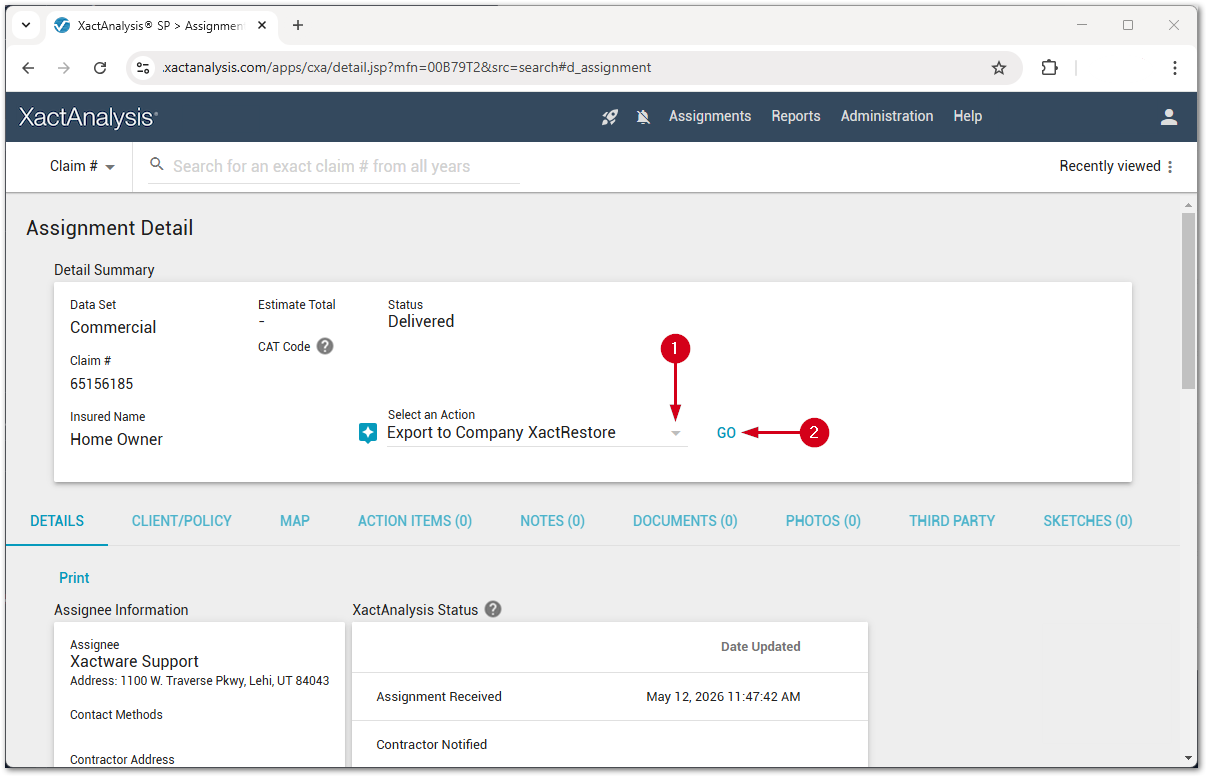
- From the Assignment Detail page, select Export to Company XactRestore from the Select an Action menu.
- Select Go. The assignment exports, and the system records the date and time in the notes section.
Send dates to XactAnalysis
Dates entered in XactRestore or XR Mobile sync automatically to XactAnalysis, and dates entered in XactAnalysis are synced to the project in XactRestore or XR Mobile.
 CAUTION: Once you set a date, you cannot remove it.
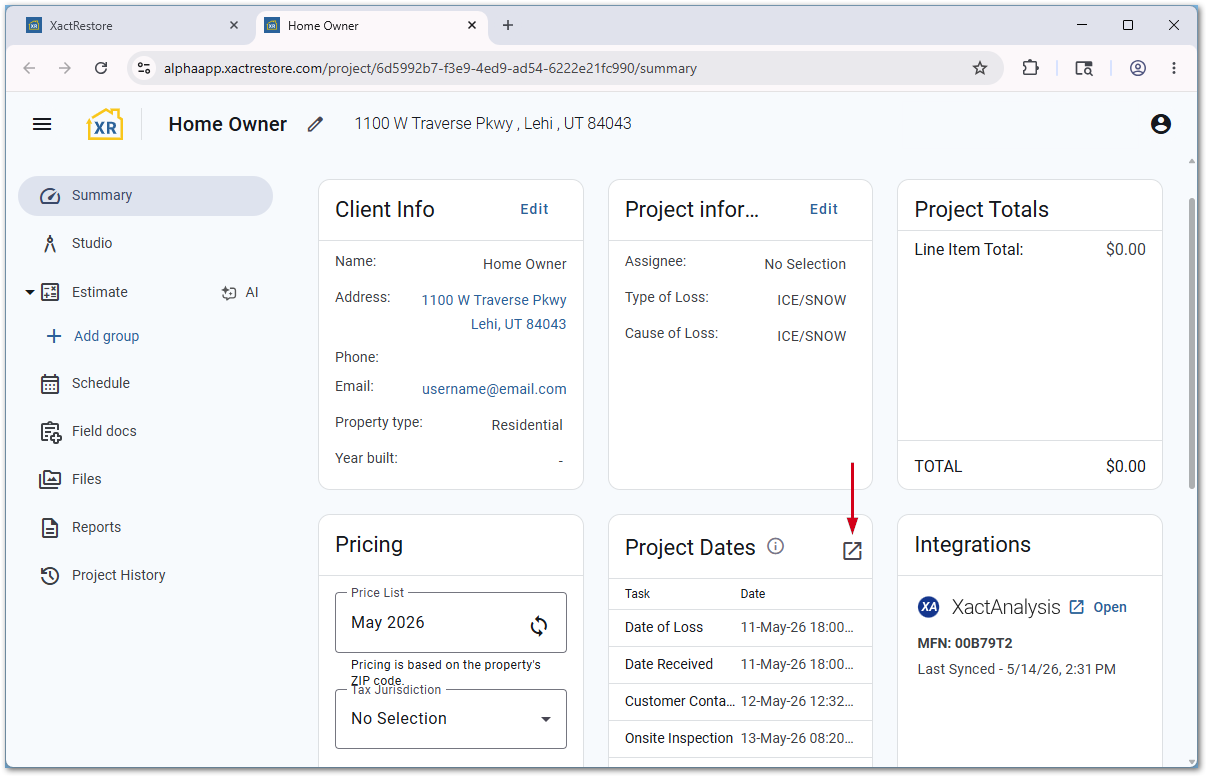
To confirm that date syncing is active, look for the open icon in the dates field in XactRestore online.
Note: The Integrations section also displays the XactAnalysis ID (MFN). If a date does not sync, an error message displays at the top of the page.
Send files to XactAnalysis
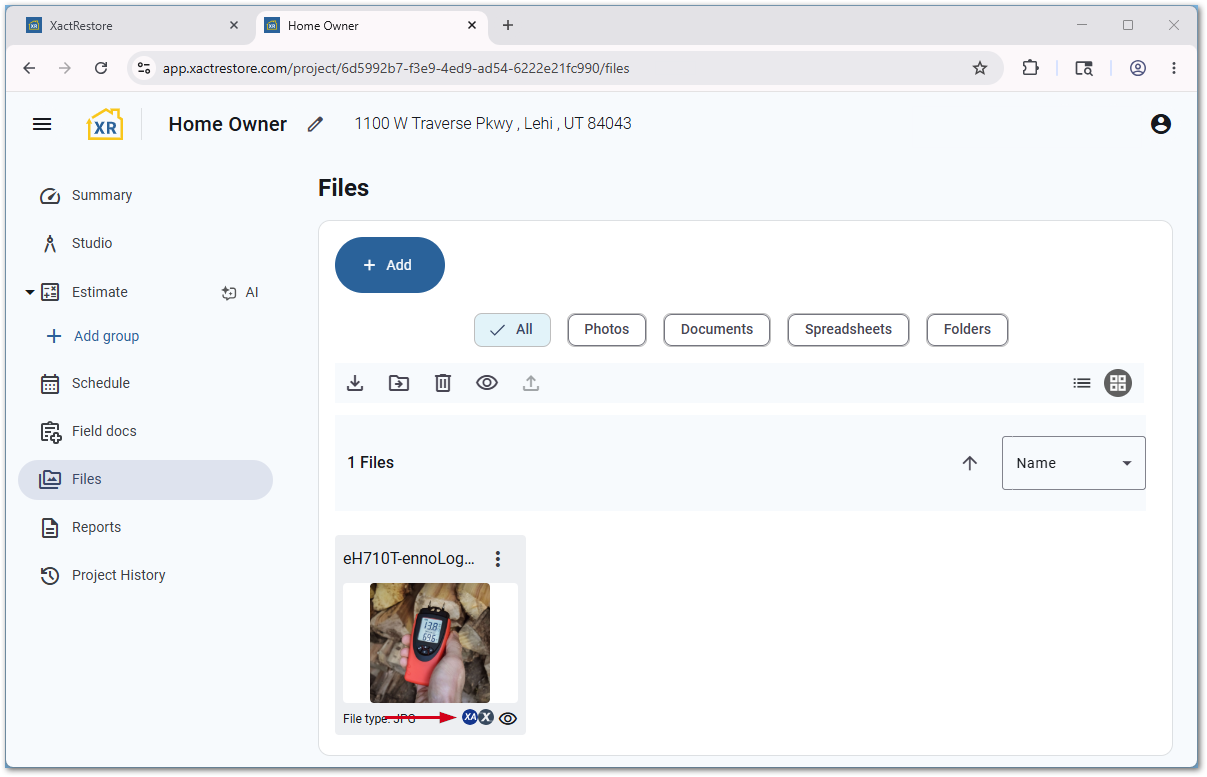
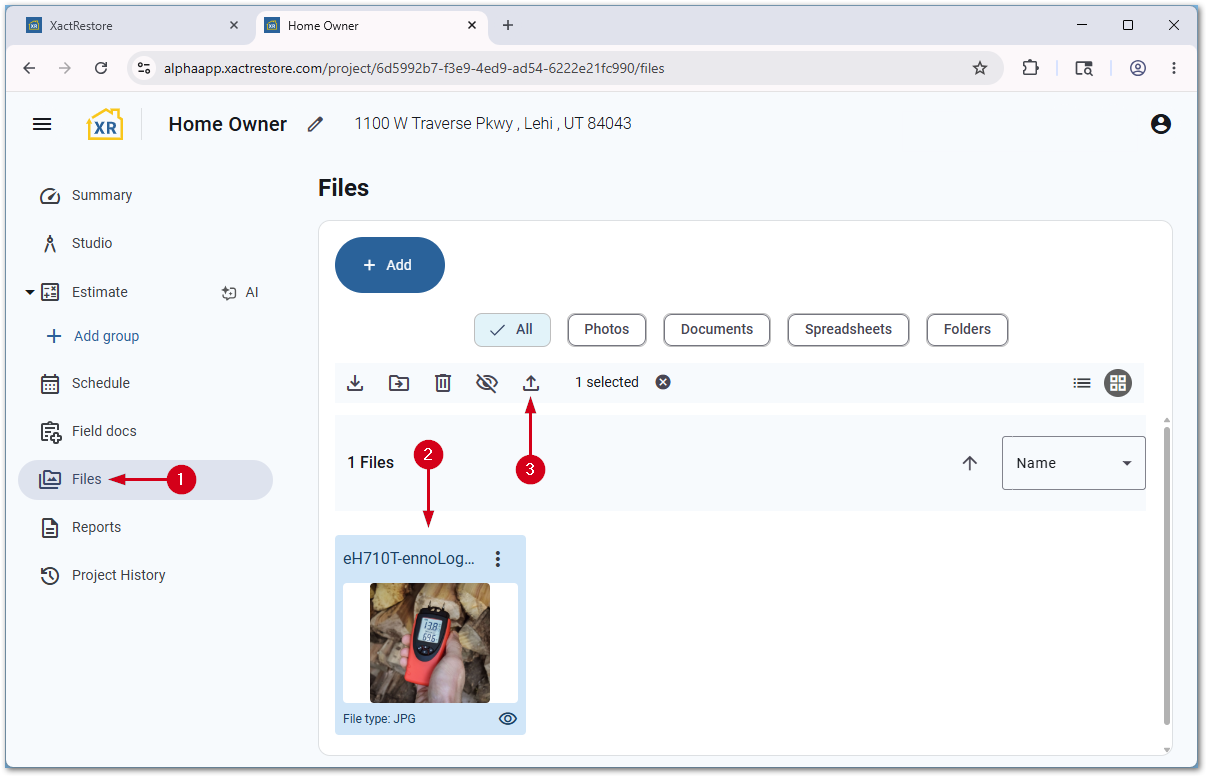
Follow the steps below to send files from XactRestore to XactAnalysis.
- Within a project, select Files.
- Select the desired file(s).
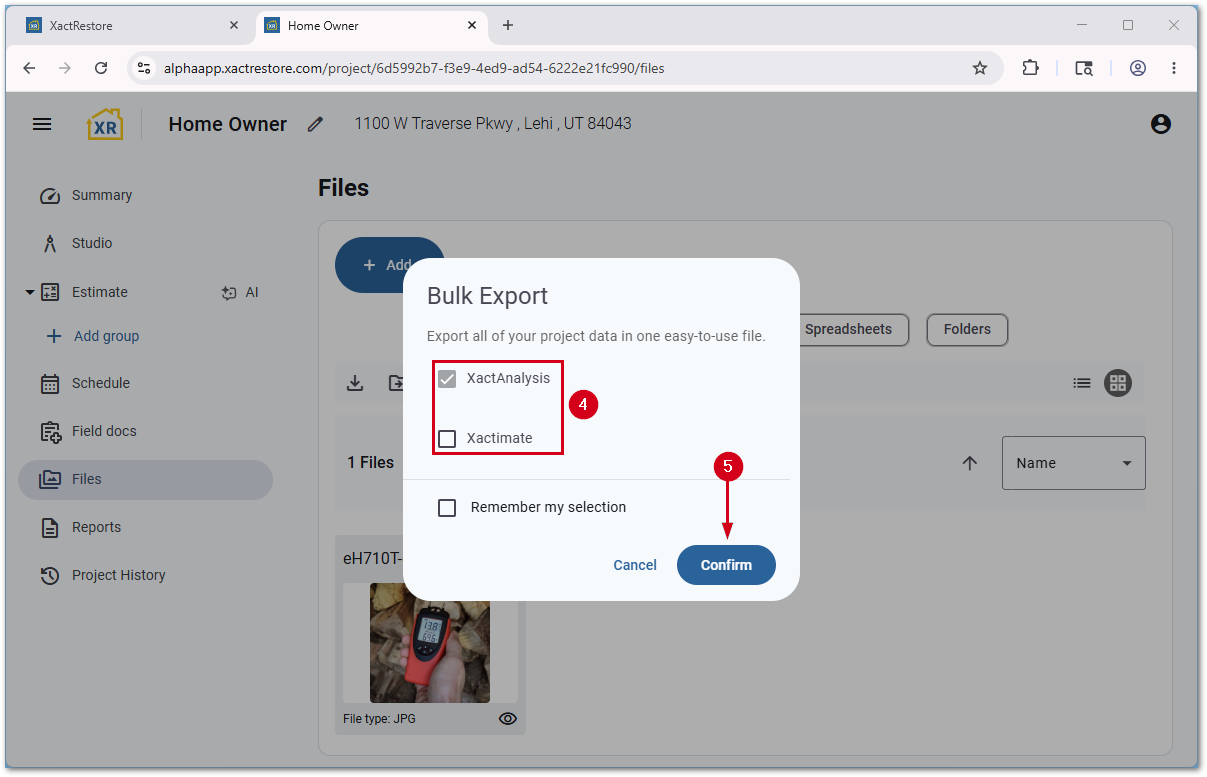
- Select Export.
- Select where to send the file.
- Select Confirm.
You can easily identify files shared with XactAnalysis or Xactimate by the icons next to the file.