Scheduling overview
There is an Xactware Xpert Tip that might help with part of this process. After selecting play, select the full-screen icon to make the video full-screen.
See our XpertTips library for more Xpert Tips.
Scheduling in XactRemodel and XactRestore allows you to keep all your project schedules in one place, allowing you to track ongoing work, allocate resources where needed, and plan projects more effectively.
 Manual scheduling is available to all XactRemodel and XactRestore customers; however, automatic scheduling is only available to XactRemodel Pro and XactRestore Pro customers. To upgrade, please contact our PropTech Sales Department by calling 833-352-9228 between 7:00 AM - 4:00 PM MT, Monday - Friday. Additionally, scheduling is only available on XactRemodel and XactRestore online, not XR Mobile.
Before using the scheduling system, it's recommended to setup your work week and holidays. For assistance with this, see our Schedule work week setup document.
There are two different places schedules are visible: from the main projects page, as a Gantt chart from the main projects page, or as a traditional calendar or Gantt chart from within a project.
Note: For more information about the differences between a calendar view and a Gantt chart, see our Schedule views document.
View schedules
From the project list
Select Schedule from the menu to view projects as a Gantt chart from the XactRemodel and XactRestore projects list.
Note: Use a filter to limit the schedule to a specific time frame.
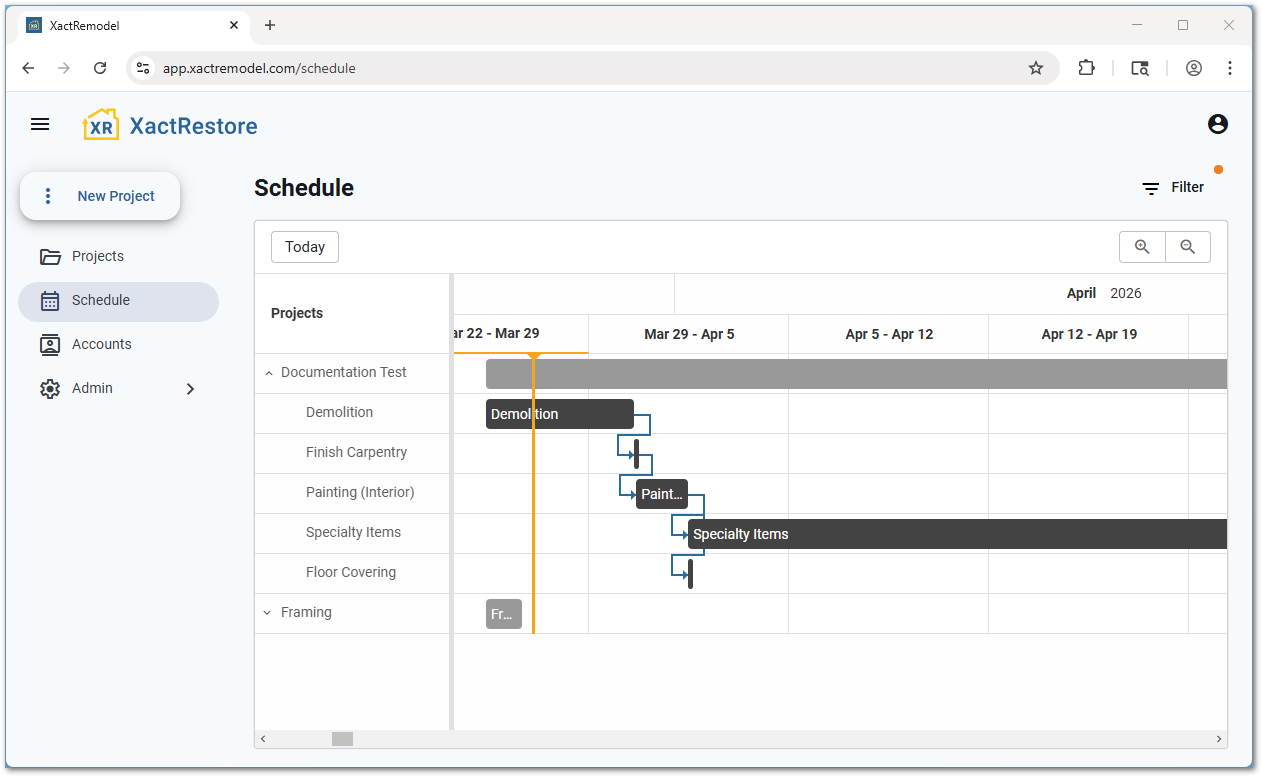
Projects show one of the following colors based on job status.
- Gray: Draft
- Blue: Pending
- Orange: Modify
- Black: Declined
- Green: Accepted
Within a project
Select Schedule from the project menu to view a specific job schedule as a calendar or Gantt chart.
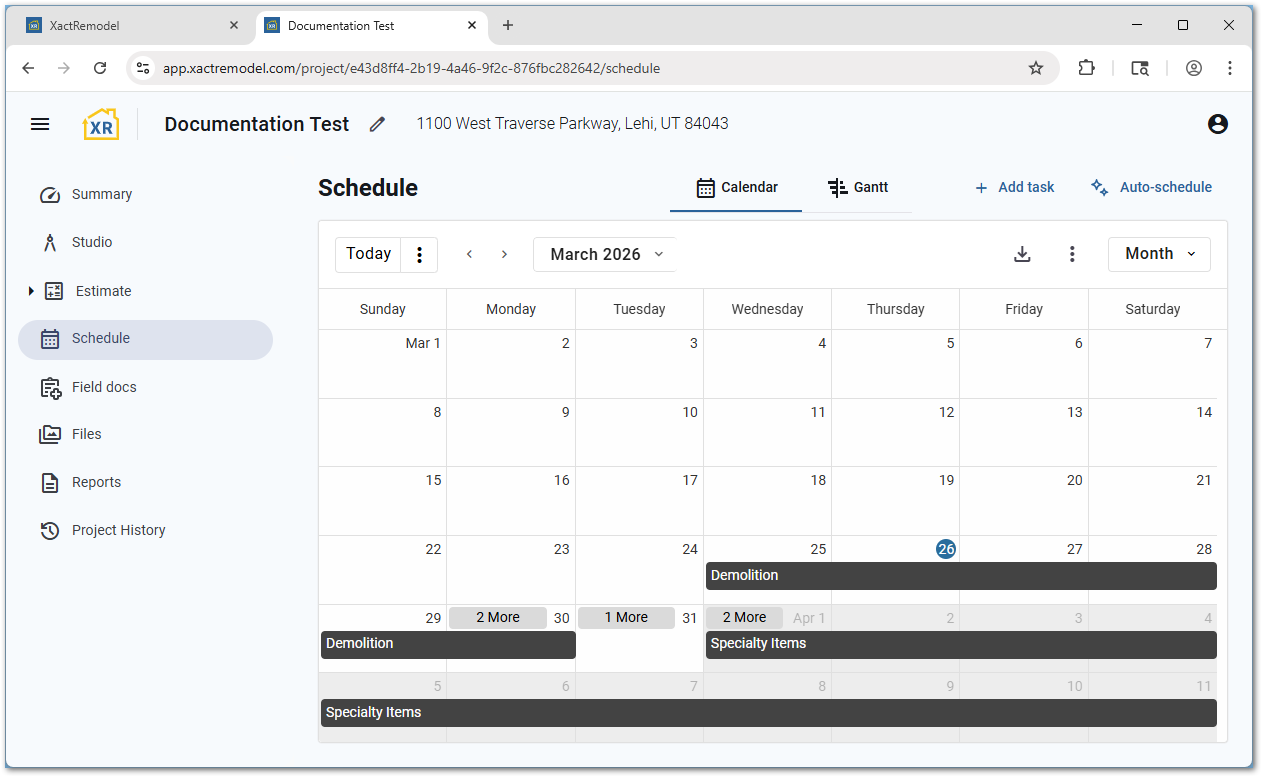
Tasks show one of the following colors based on status.
- Gray: Full project schedule
- Black: Not started
- Blue: In progress
- Green: Complete
Manually schedule tasks
All users can easily add new tasks to a project from XactRemodel and XactRestore.
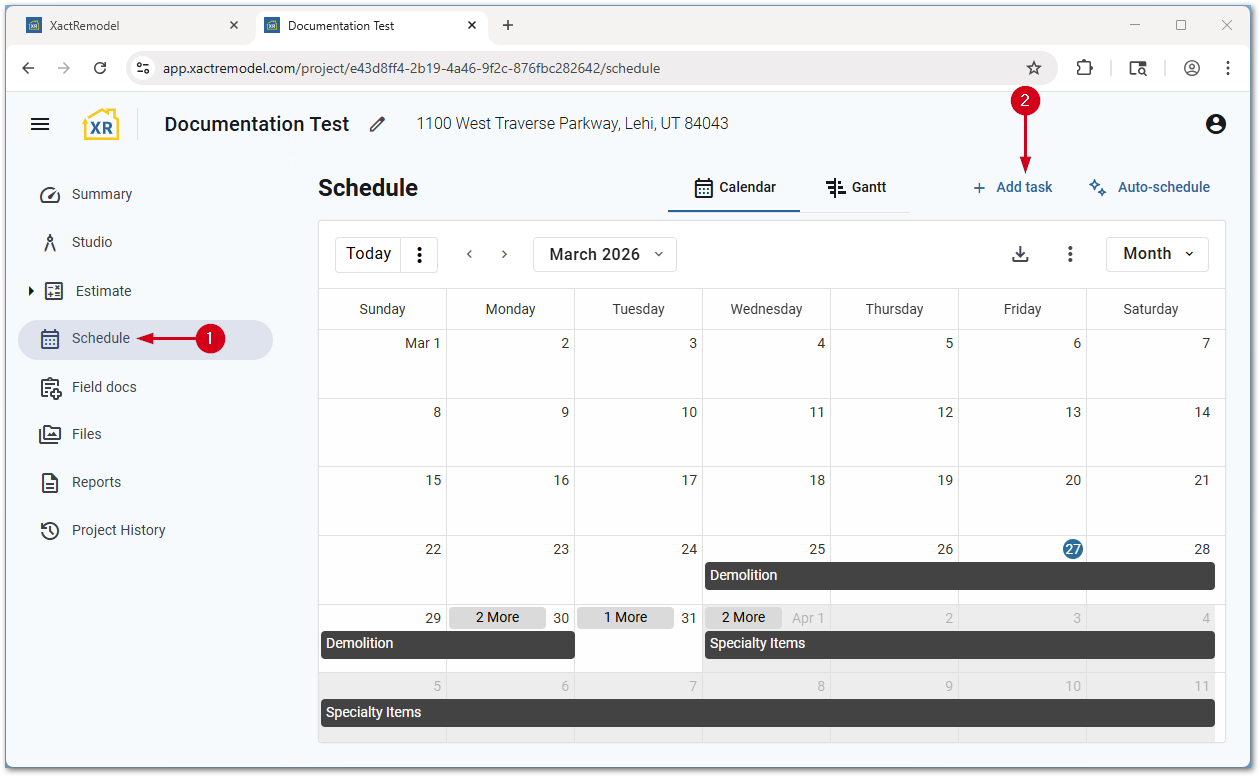
- Within a project, select Schedule.
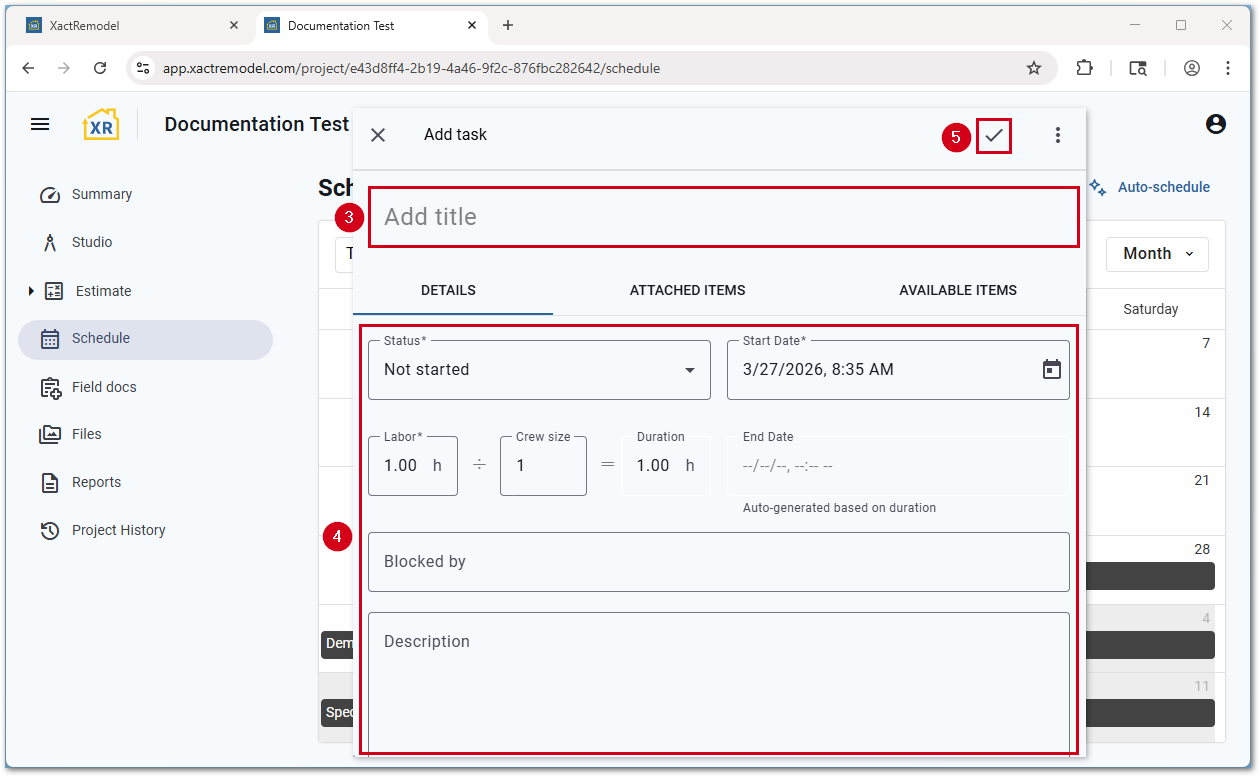
- Select Add task.
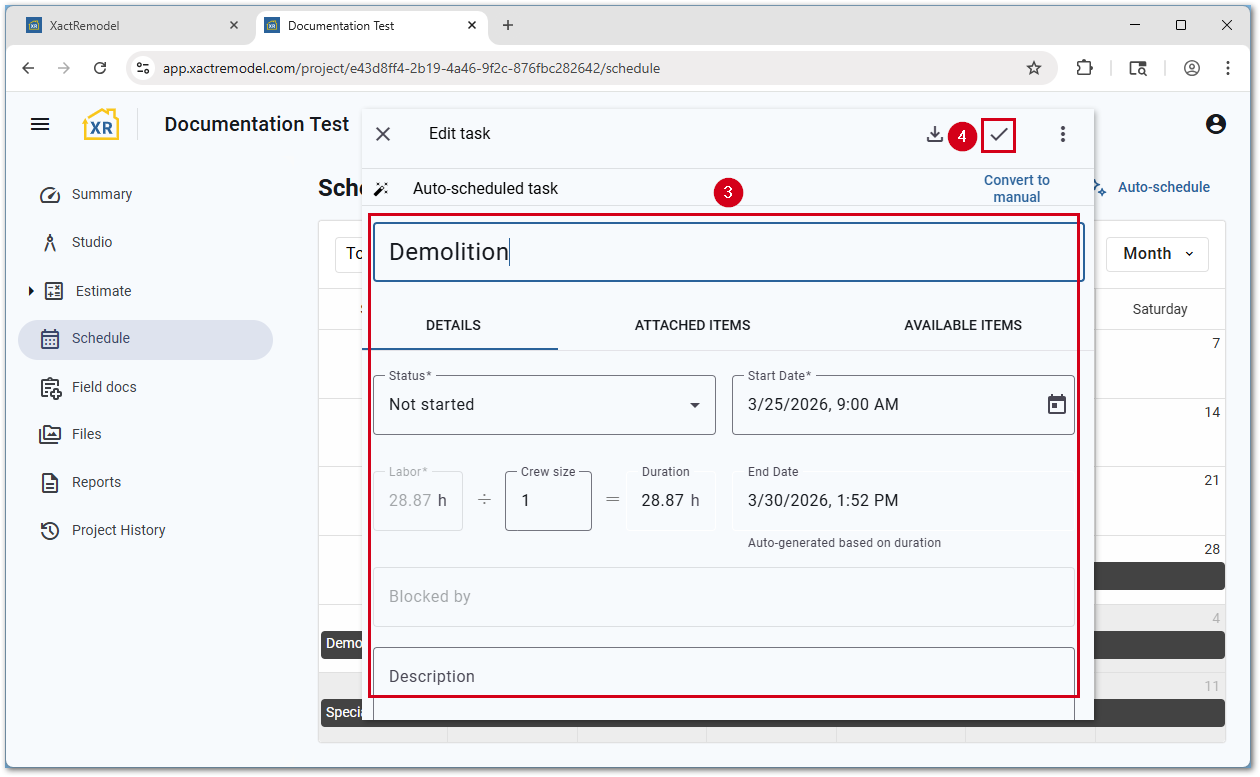
- Add a title.
- Fill out the Details tab.
- Select the Save icon to add the task.
Note: Optionally, you can use the Available Items tab to associate specific line items to a task and the Attached Items tab to see items already associated.
Automatically schedule tasks
XactRemodel and XactRestore Pro subscribers can use the automatic schedule tool to create tasks based off work schedules and line items on the project.
Note: Before proceeding, ensure you’ve set up your work week. See our Schedule work week setup document for assistance.
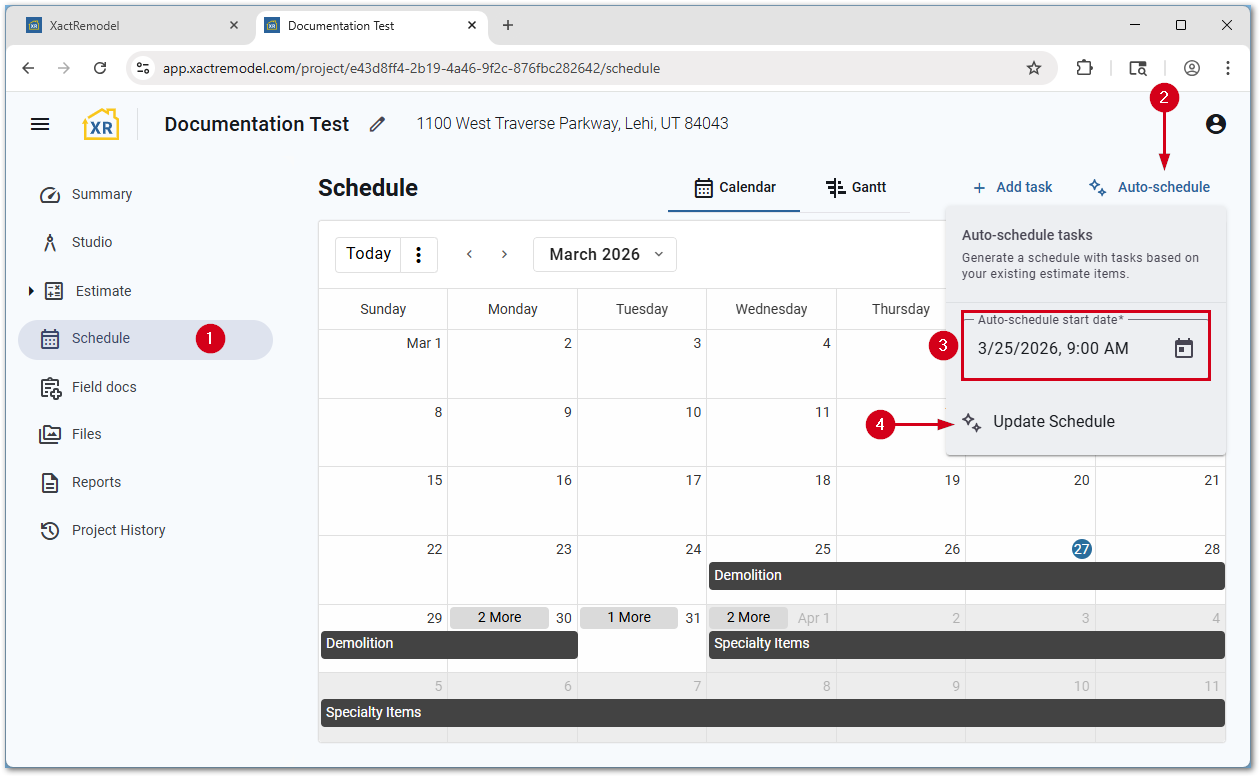
- Within a project, select Schedule.
- Select Auto-schedule.
- Set the Auto-schedule start date.
- Select Update Schedule.
Edit scheduled items
You can edit previously scheduled items if desired.
Note: The steps below show how to edit them within a project, but they can also be edited from the Gantt chart on the main schedule or within the project as well.
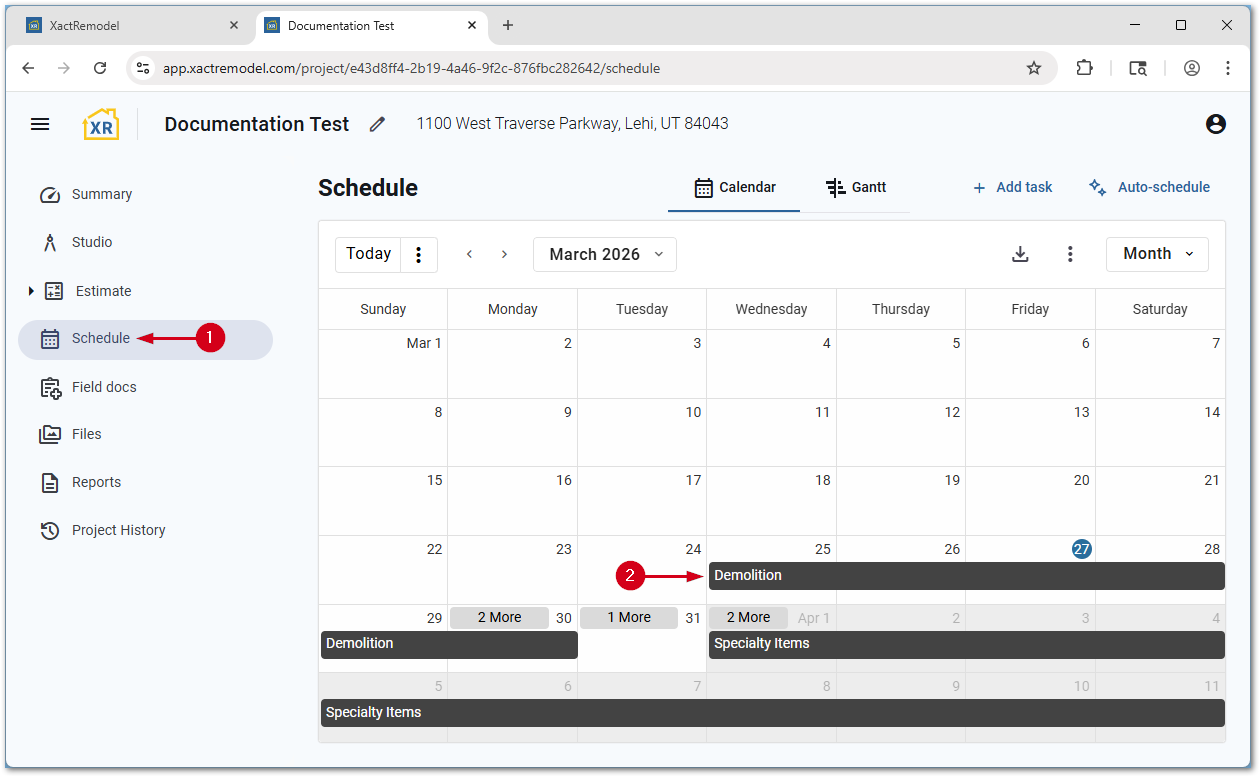
- Within a project, select Schedule.
- Select the item to edit.
- Make any desired changes.
Note: If an item was auto scheduled, you may need to select the Convert to manual option first. To delete a task, select the menu icon then Delete.
- Select the Save icon to save changes and return to the schedule.