My Pricing
 Updated
by Russell B.
Updated
by Russell B.
Users can create custom pricing overrides for various items in XactRemodel and XactRestore using the My Pricing module. When an item with a My Pricing override is added to a project, the project pulls the price from the user's override instead of Xactware's pricing database.
Note: Only users with admin user rights can edit pricing, and My Pricing is available on XactRemodel and XactRestore online. The images below show steps in XactRemodel; the steps are the same in XactRestore.
Use My Pricing within a project
Add items to My Pricing
Follow the steps below to add new items to My Pricing.
- Within XactRemodel, select Admin.
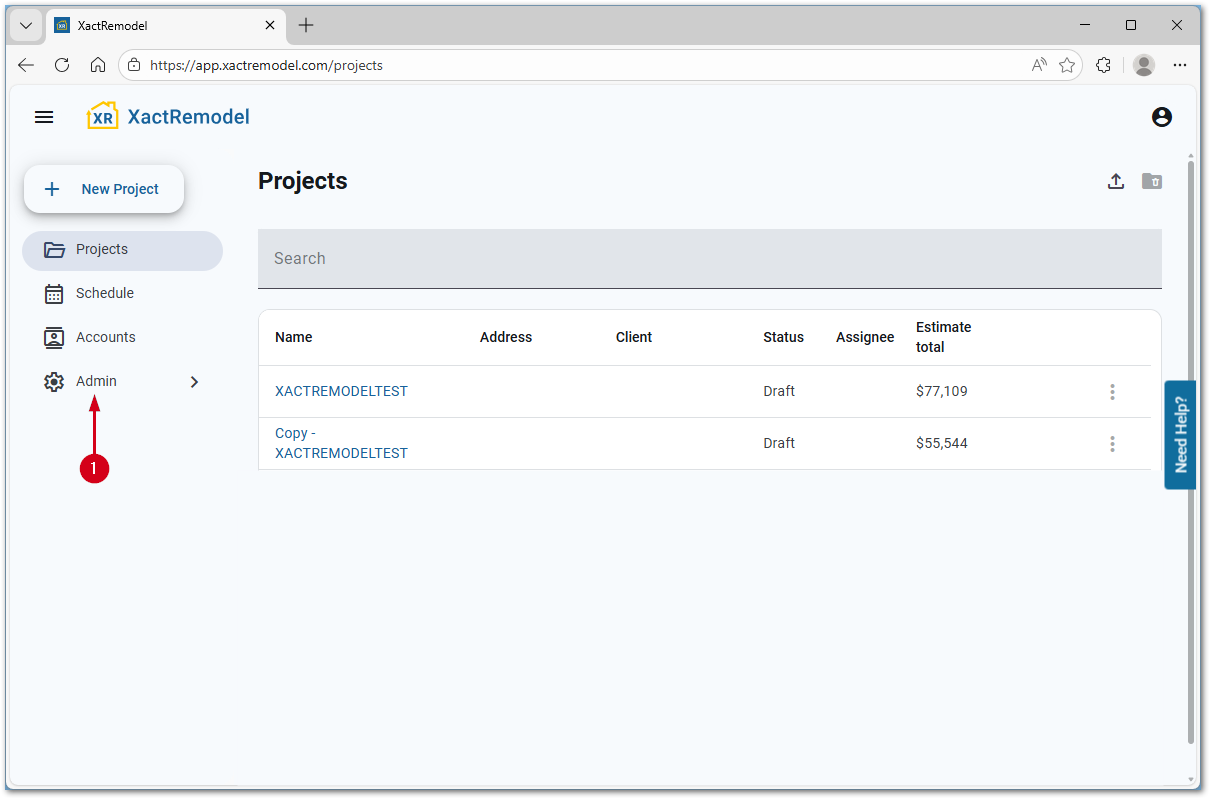
- Select Pricing.
Note: By default, the My Pricing tab at the top is selected. If necessary, select the My Pricing tab to navigate from the Price adjustments window.
- Search for the item.
- Select the desired item to add it to the list below.

Edit items in My Pricing
Users can customize both the description and the activity price once they add an item to the My Pricing list. Any activity without a custom override continues to use the price list’s default price and description when added to a project.
- Within My Pricing, select the item to customize.
Note: If needed, use the search bar or the column filters to locate an item. Select a column header (Item Code, Description, or Unit) to sort the list, either ascending or descending, by that header.
- Make the desired changes.
Note: Changes save automatically once you navigate away from the edited field. To remove an item from My Pricing, select the delete icon.

Use My Pricing within a project
Once My Pricing customizations are set on an item, adding that item to a new or existing project overrides the default price. Editing items in My Pricing does not override previously added items in existing projects. It only affects items added after the customizations are set. If needed, delete and re-add an item to reflect the new My Pricing customizations.
Note: For more information on adding items to a project, see our Add line items from within an Estimate and Add line items in Studio documents.
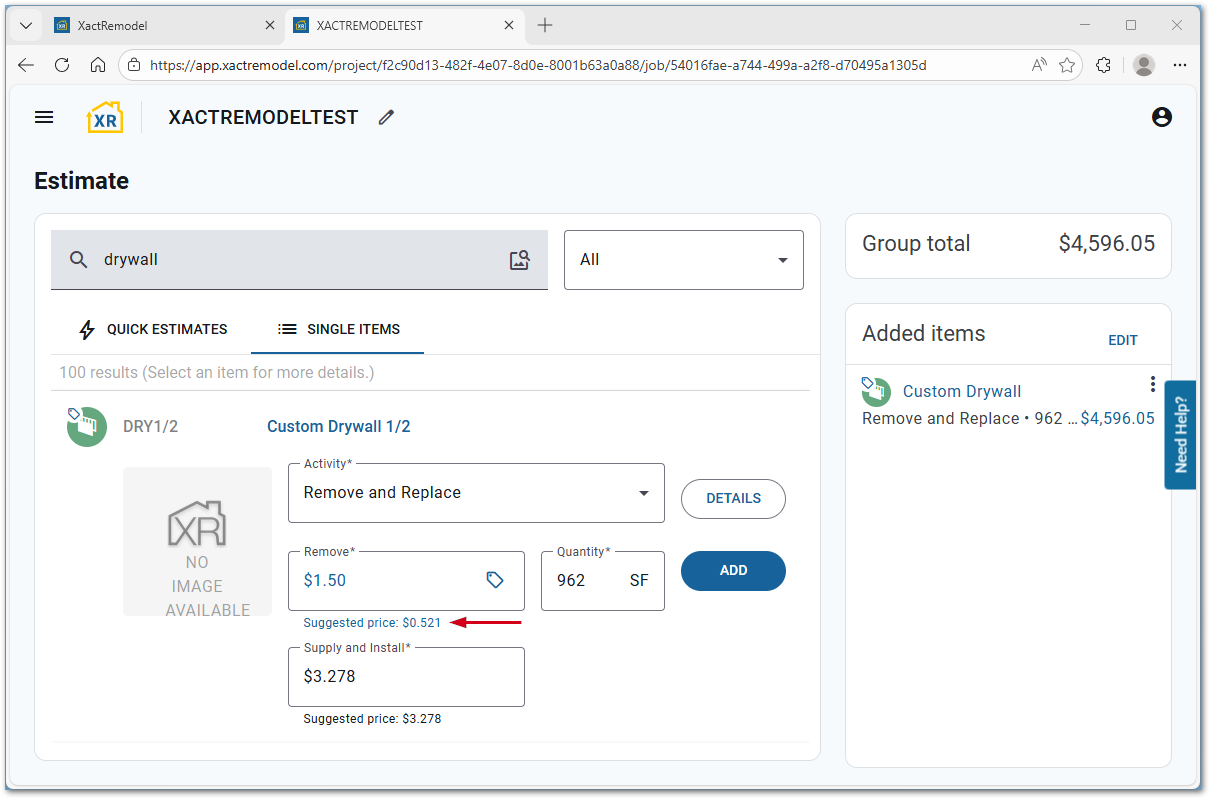
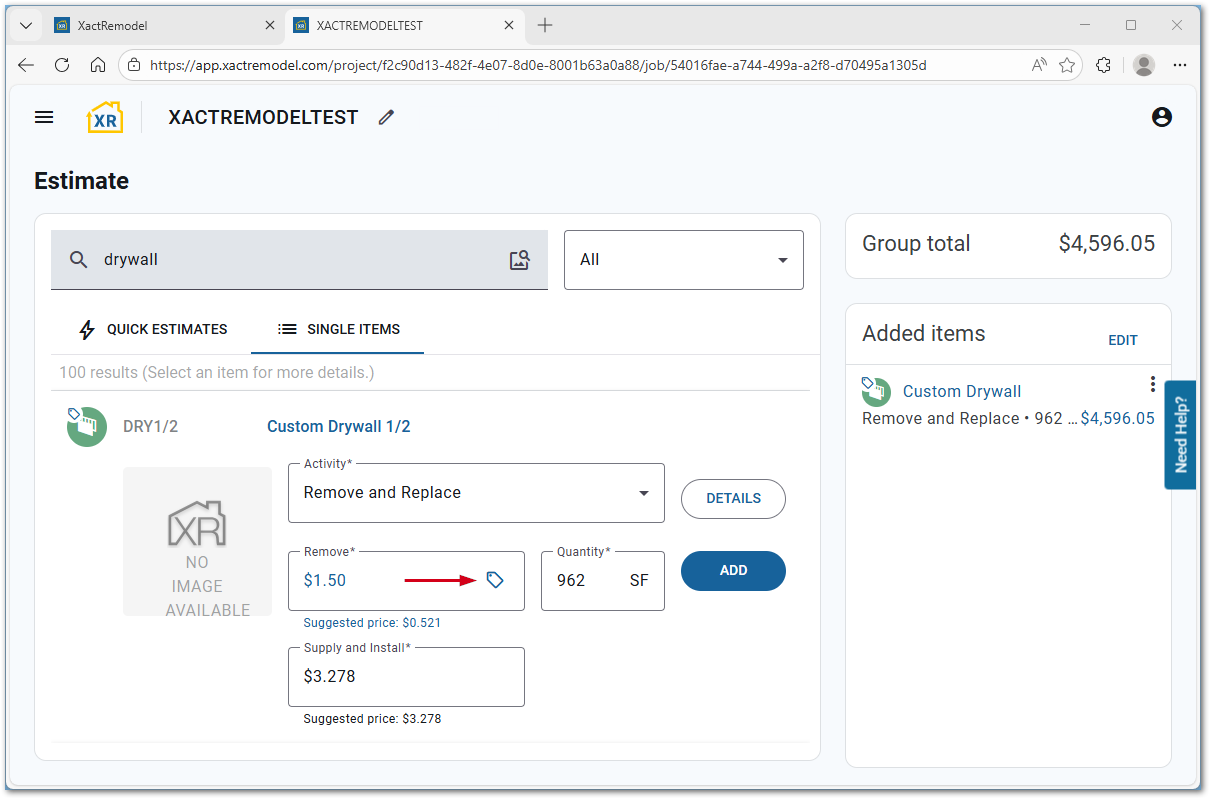
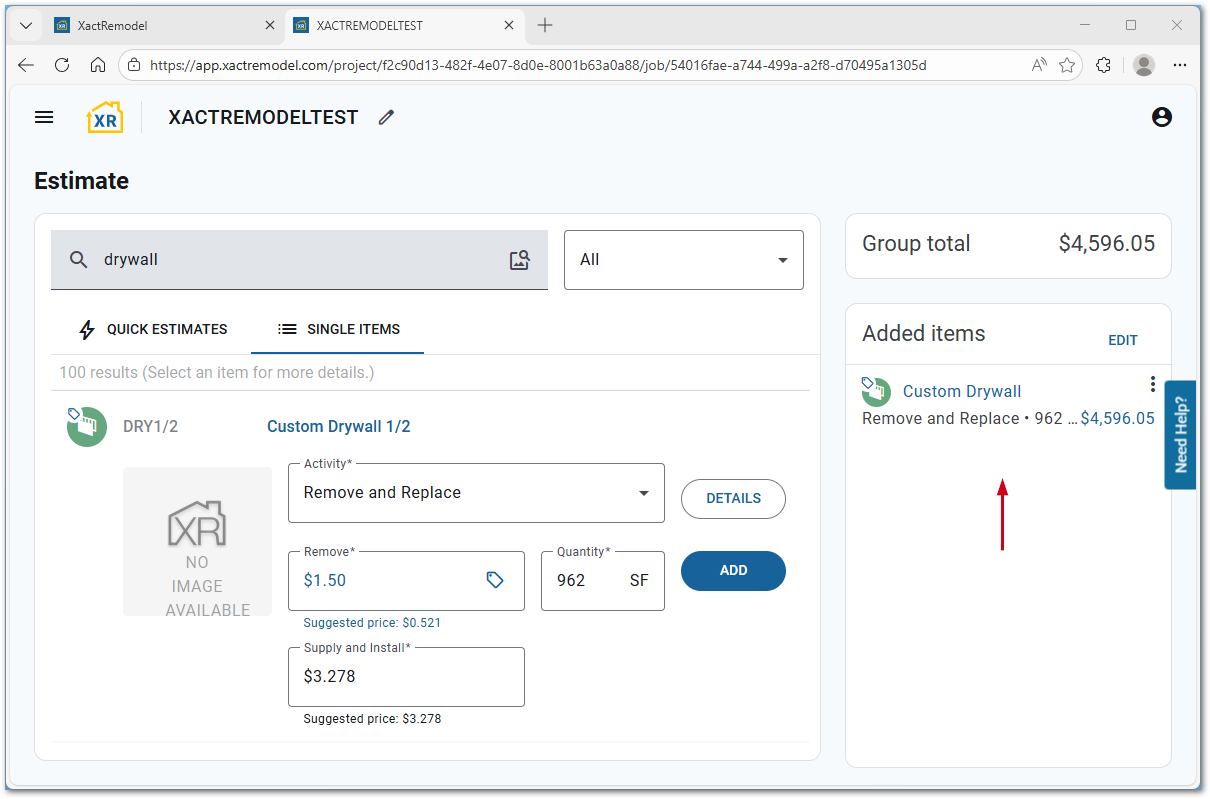
Additionally, a price tag icon indicates that a price is customized from the My Pricing list. Custom pricing and descriptions show in blue. Users can also see the suggested price from the default price list.
My Pricing icon:
Descriptions and pricing shown in blue:
Suggested pricing: