Use the Verisk XactRestore connector in Claude
 Updated
by Russell B.
Updated
by Russell B.
XactRemodel and XactRestore users can now leverage the power of Claude's MCP connectors to quickly create estimates in XactRemodel or XactRestore directly within Claude.
To access this feature, you will need
- An active Claude account (that supports MCP connectors),
- An active XactRemodel or XactRestore subscription, and
- An XactAI license.
Note: Ensure your XactAI license is assigned to your user in XactRemodel or XactRestore. For assistance, see our Manage users and roles document.
Connect Verisk XactRestore in Claude
To use the Verisk XactRestore connector in Claude chats, you must first set it up.
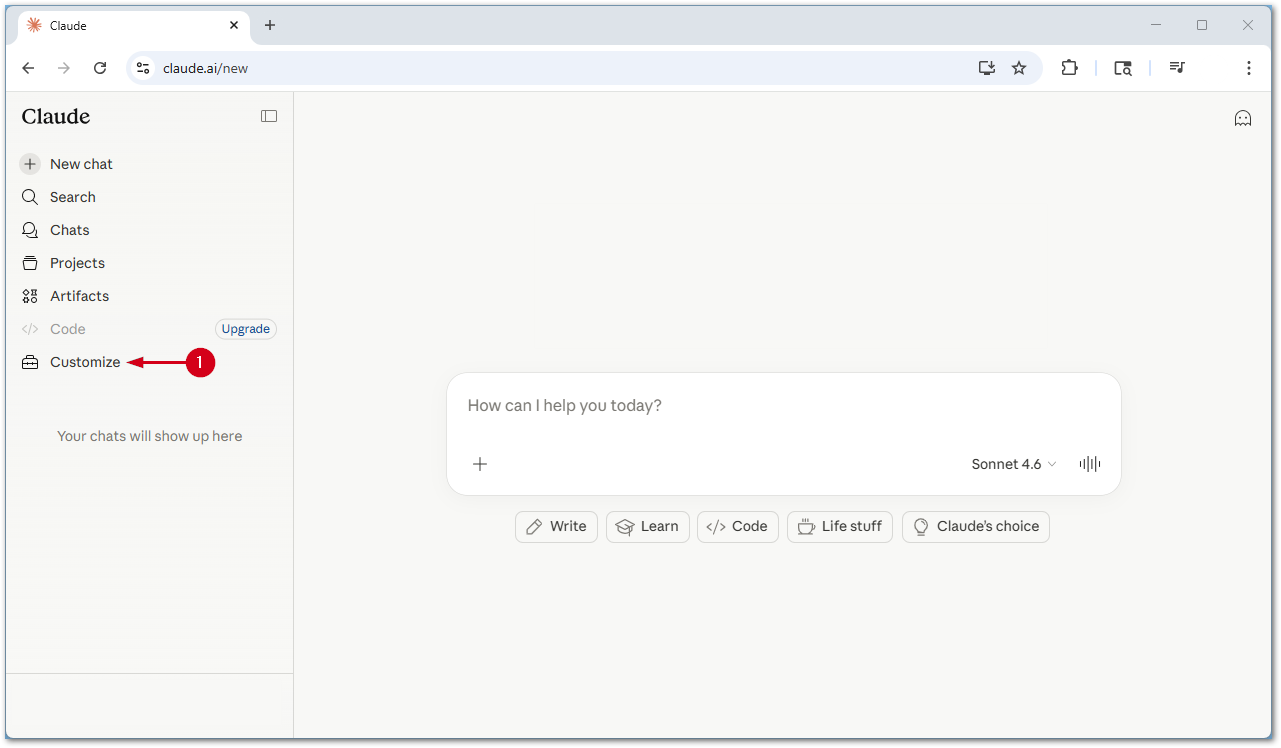
- From within Claude, select Customize.
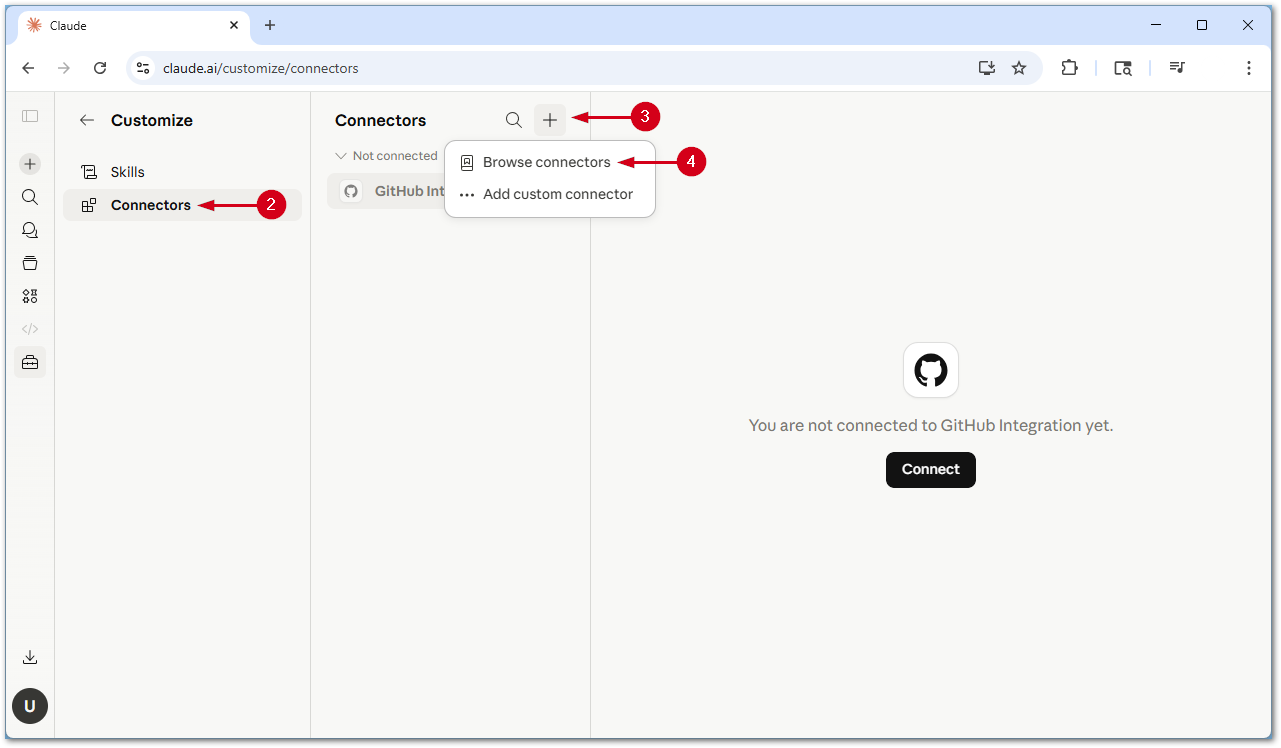
- Select Connectors.
- Select the plus icon.
- Select Browse connectors.
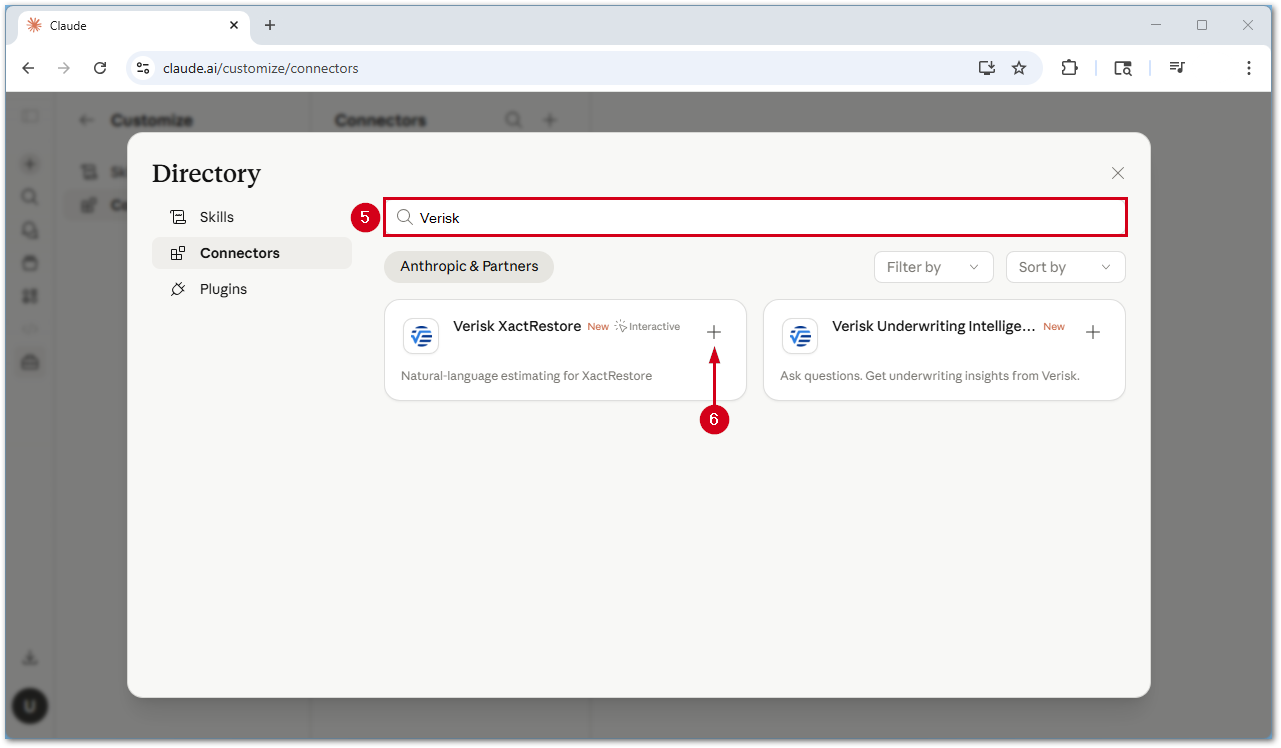
- Search for Verisk.
- Select the plus icon next to Verisk XactRestore. The Verisk login page opens.
- Enter your XactRemodel or XactRestore Email.
- Select Next.
- Enter your XactRemodel or XactRestore Password.
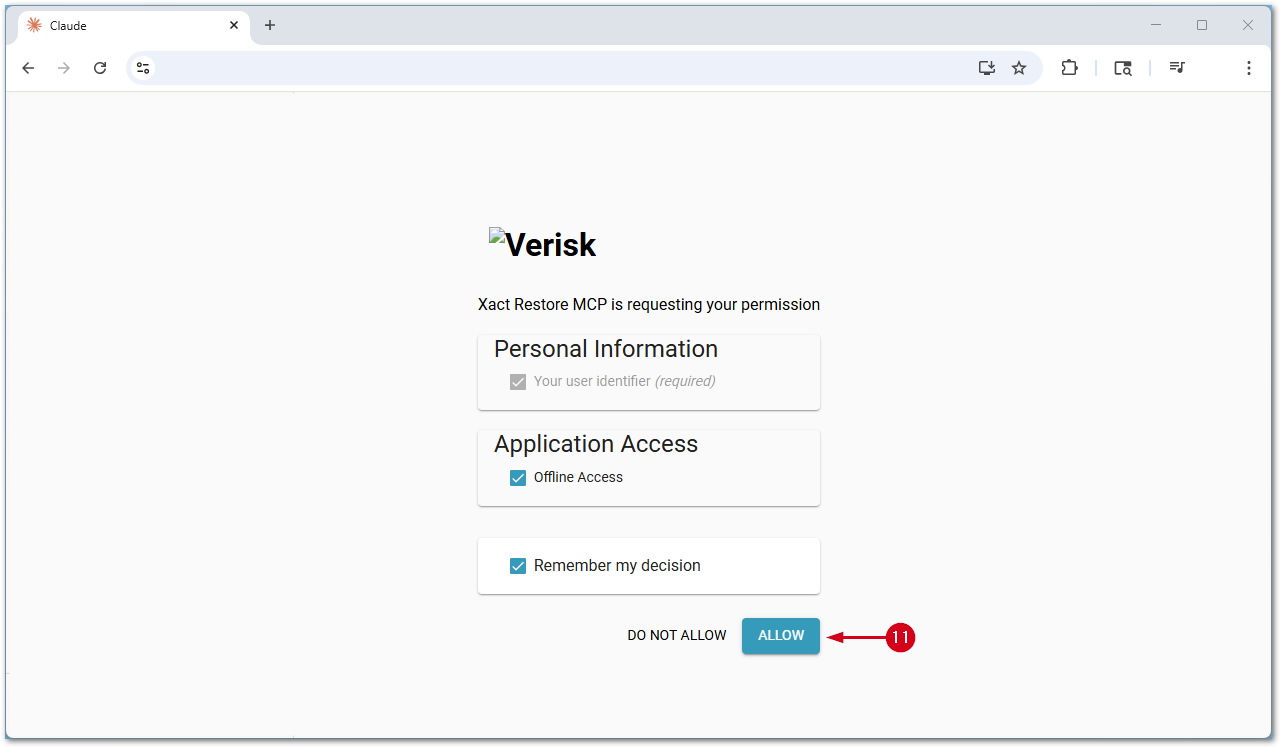
- Select Next. This opens the permissions page.
- Select Allow to grant the required permissions.
- Personal Information: Used to verify your identity and link your account to Claude.
- Application Access (Offline Access): Allows Claude to stay connected without requiring you to log in repeatedly.
A Connected message appears, confirming the connector is successfully linked.
Enable Verisk XactRestore connector
Follow the steps below to ensure the Verisk XactRestore connector is enabled before conversing with Claude.
- Select the Add files, connectors, and more icon.
- Select Connectors.
- Turn on Verisk XactRestore.
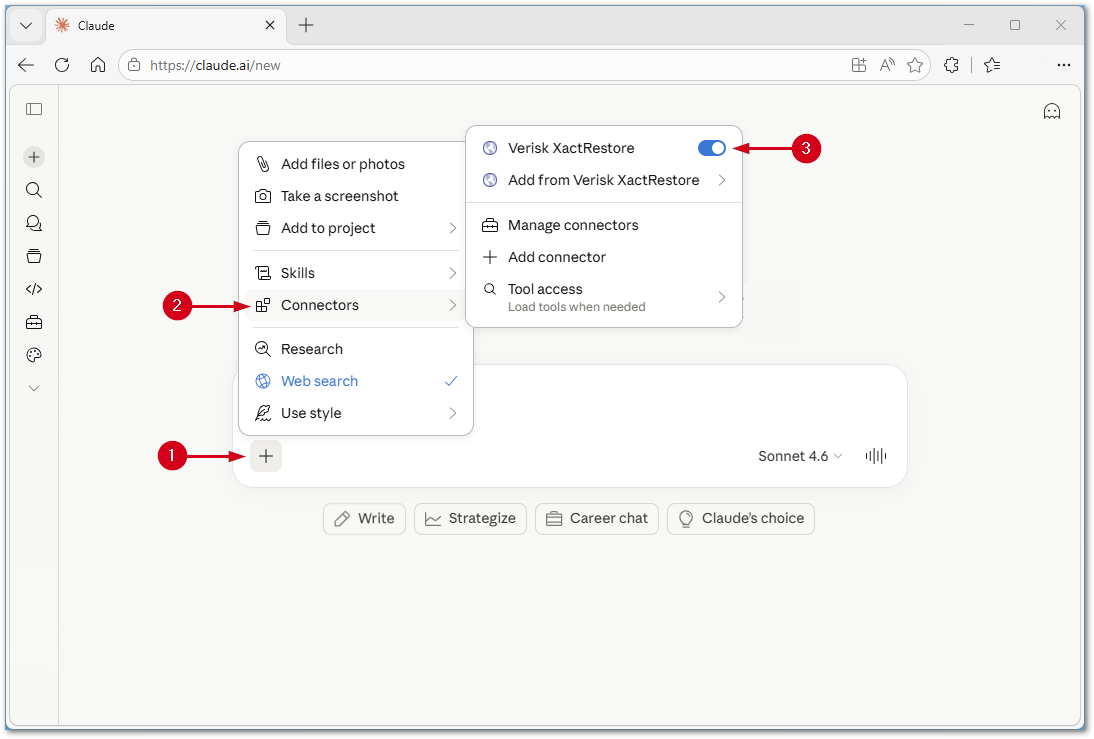
Manage Verisk XactRestore connector access
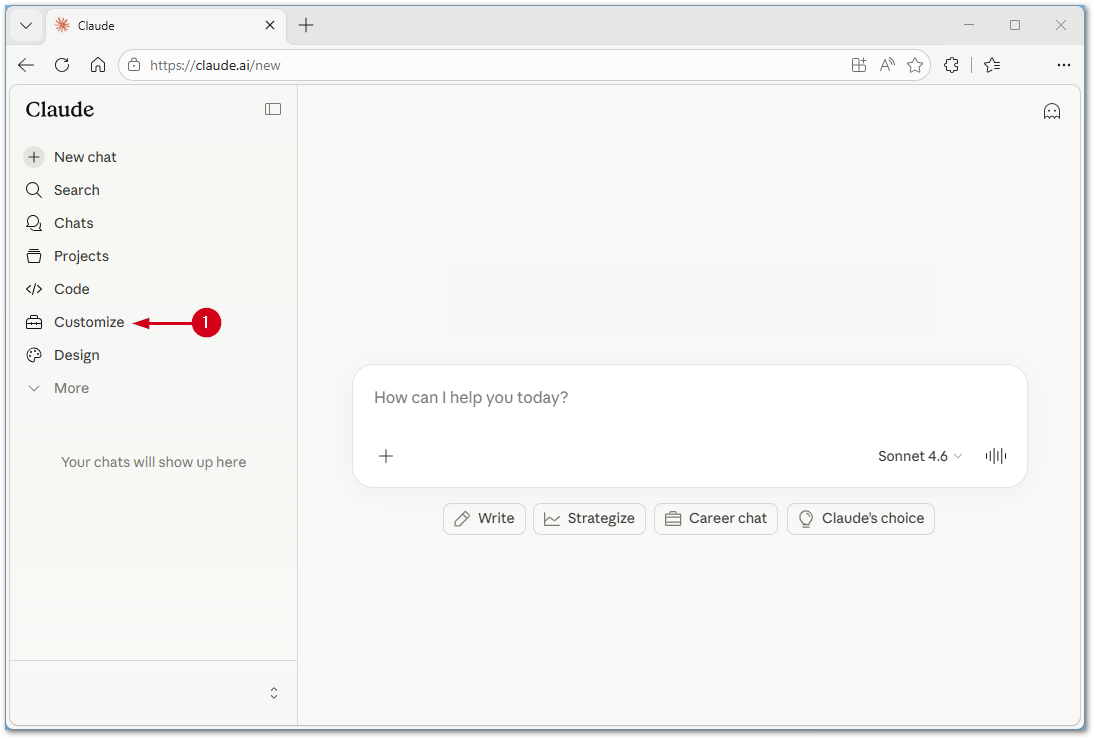
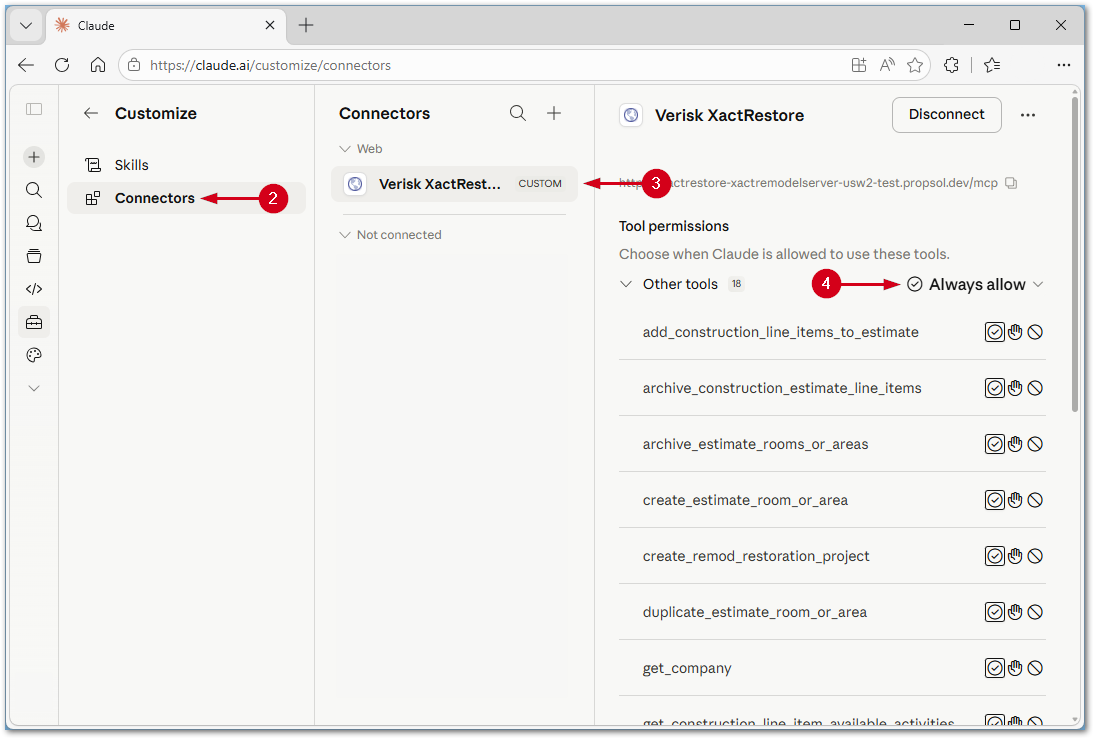
The connector includes multiple tools (e.g., estimate generation and line item creation). It is recommended to set all tools to Always allow.
- Select Customize.
- Select Connector.
- Select Verisk XactRestore.
- Open the Other tools menu.
- Select Always allow drom the Other tools drop-down menu.
Sample prompts using the Verisk XactRestore connector in a Claude chat
Below are some example prompts and their expected results.
- I'd like to create a water mitigation loss for a kitchen at the Smith's house.
- Claude should create a project and a group called Kitchen.
- Claude will continue to ask additional questions including dimensions.
- Tell me the difference between the project one and project two projects.
- Claude should be able to deterine any differences, such as different price lists and differences in activity codes.
- Tell me the different tile floor options.
- Claude searches for available tile floor line items and gives a brief description of each option.
- Tell me the difference between ceramic tile qualities.
- Claude gives a brief description comparing the quality level options available.
- Add a new group to the project name called Pantry and add item name. The pantry is 3x3x9.
- Claude adds a new dimensioned group called Pantry and adds the selected item.
- In the group name, which item name are included?
- Claude gives an overview of which items are added to the selected group.
- Replace item name with other item name.
- Claude will replace the first item for the second item.
- Generate a PDF (or CSV) report of the project name.
- Claude will generate a plain PDF or CSV export.
Note: This is not the same as a report generated from XactRemodel or XactRestore, and will not include your company details or statements.
- Claude will generate a plain PDF or CSV export.
FAQs
What can I do with the Verisk XactRestore connector?
Create and edit projects, add and edit groups & line items, select and apply quick estimates, get information about Xactware price list items, and more.
What does the Verisk XactRestore connector not let me do?
Currently, you can generate an estimate in XactRestore like you would do with the AI Estimator, but you can’t do the same in Xactimate. However, you could manually copy the line items into Xactimate. We plan to offer similar functionality in Xactimate in the future. Additionally, we plan to offer the capability to transfer estimates from XactRestore to Xactimate in the near future.
What licenses do I need to use the Verisk XactRestore connector?
You need to have both an active XactRemodel or XactRestore and an active XactAI license to use the Verisk XactRestore connector in Claude.
Troubleshooting
Connector does not appear
Try the following items if the Verisk XactRestore connector does not appear.
- Refresh Claude.
- Log out and back into Claude.
- Confirm that you are in the correct workspace or account.
Authentication fails
Try the following items if authentication fails.
- Verify Verisk Identity Server access.
- Reauthenticate.
- Try authenticating in an InPrivate or Incognito window.
Connector shows connected but does not work
Try the following items if the connector shows connected but does not work.
- Ensure that the Verisk XactRestore connector is enabled in the chat.
Note: For assistance, see the Enable Verisk XactRestore connector section above.
- Turn off Web Search.
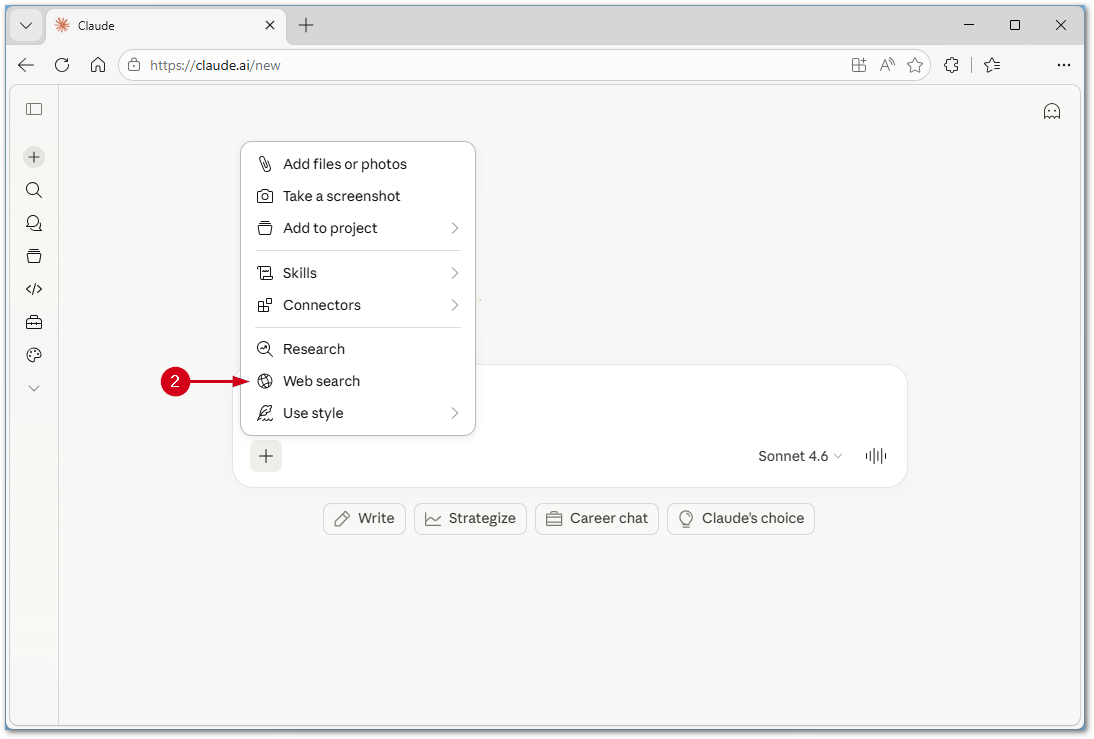
- Restart Claude.
Repeated login prompts
If you are repeatedly being prompted to log in, disconnect and reconnect the connector.
