View sketch in 3D in Studio
 Updated
by Russell B.
Updated
by Russell B.
Studio within XactRemodel and XactRestore online allows you to sketch your project, and this sketch can be viewed in both 2D and 3D.
View levels in 3D
View single levels
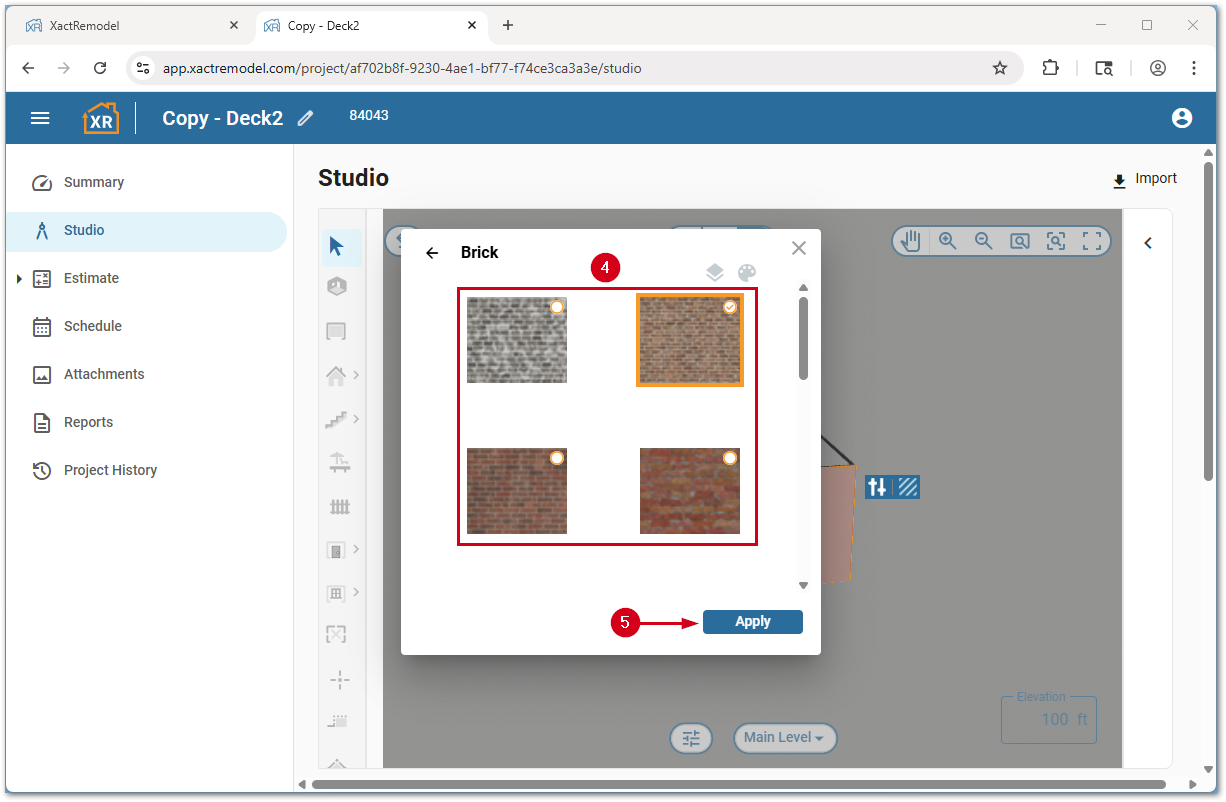
To see a single level in 3D view, select the 3D view button within the Studio section.
View all levels
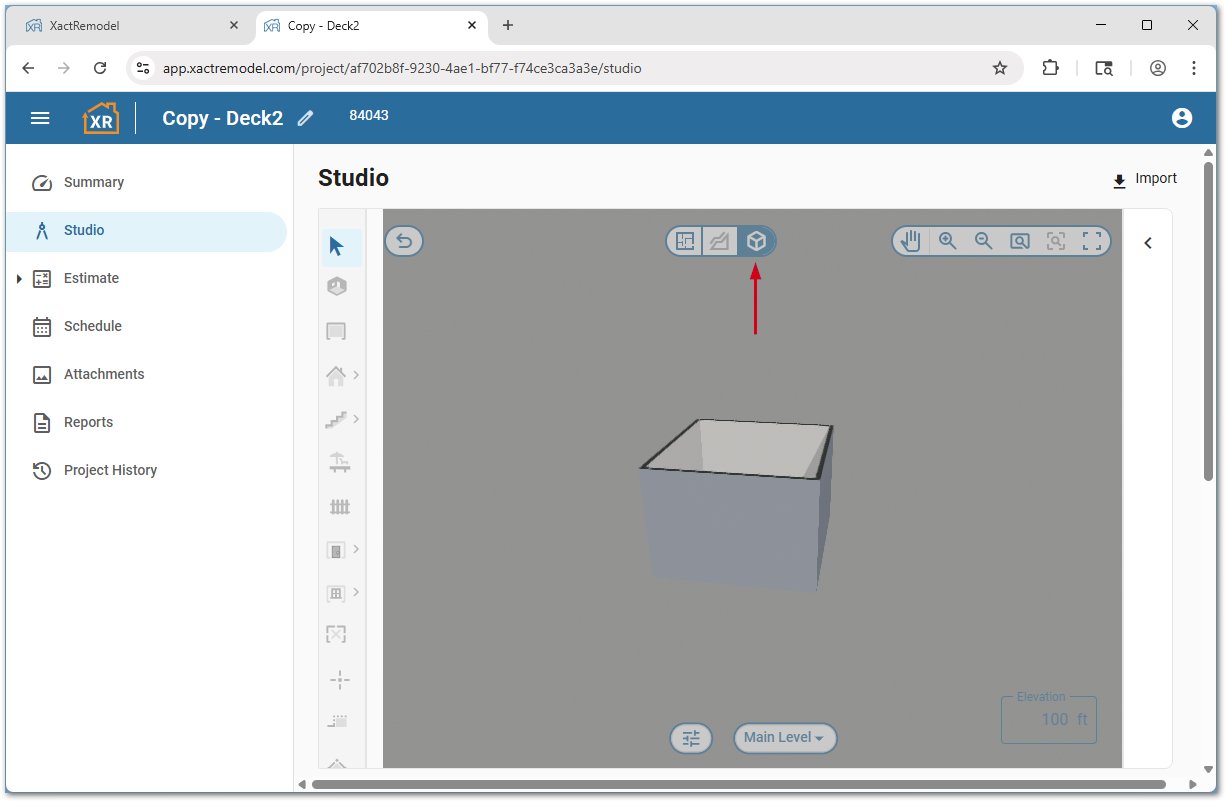
If a sketch has multiple levels, Studio can be set to display all of them together.
- Select the 3D view button.
- Open the Select and modify levels menu.
- Select All levels.
Note: Other levels can be selected if desired.
View controls in 3D
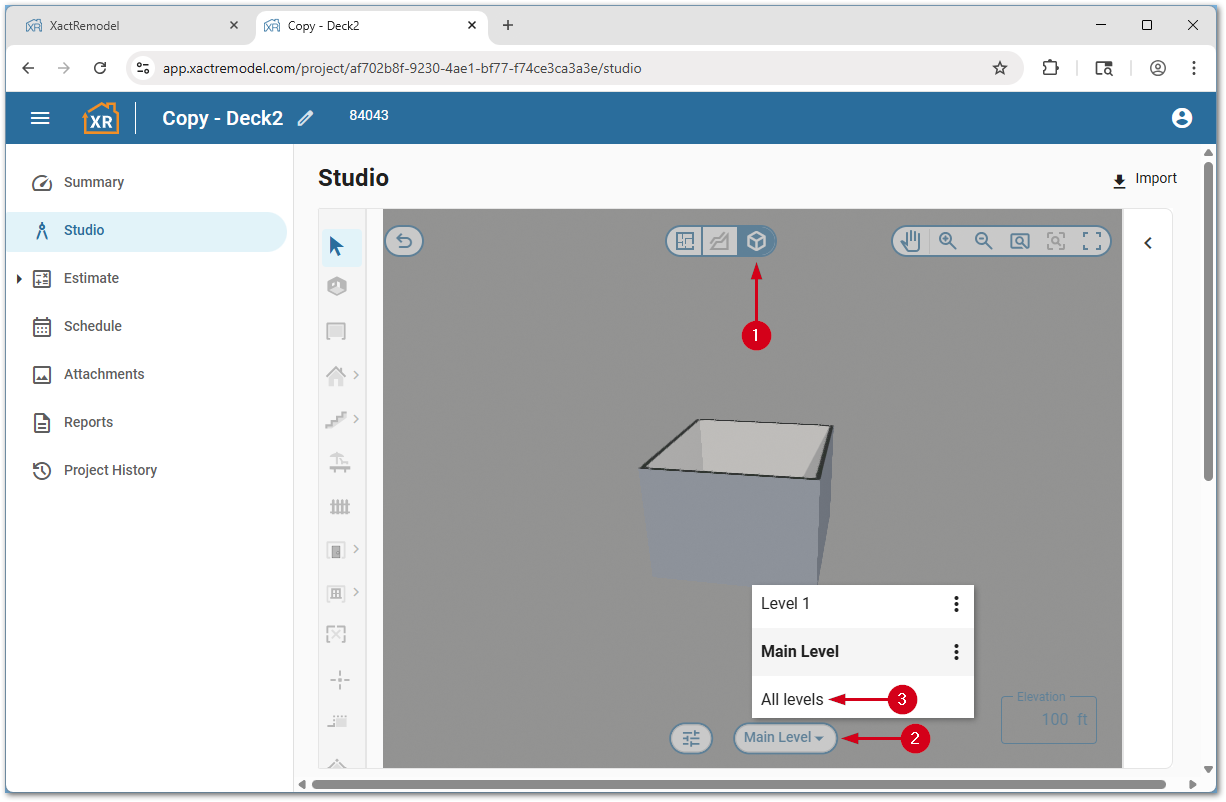
The following controls are available when in 3D mode.
- Left click and drag the mouse to rotate the canvas.
- Press the space bar then left click and drag to pan the canvas.
- Press the + or – keys to zoom in and out.
- Press the Shift and - keys to zoom to extents.
- Press the Shift and + key to zoom to selection.
Note: This tool only works after selecting an item.
- Press the 1 key to return to the 2D floor plan view.
Apply textures in 3D
Textures can be added to surfaces in 3D view to present a more complete concept to customers.
- Once in 3D view, select the surface to apply a texture to.
- Select the Textures button.
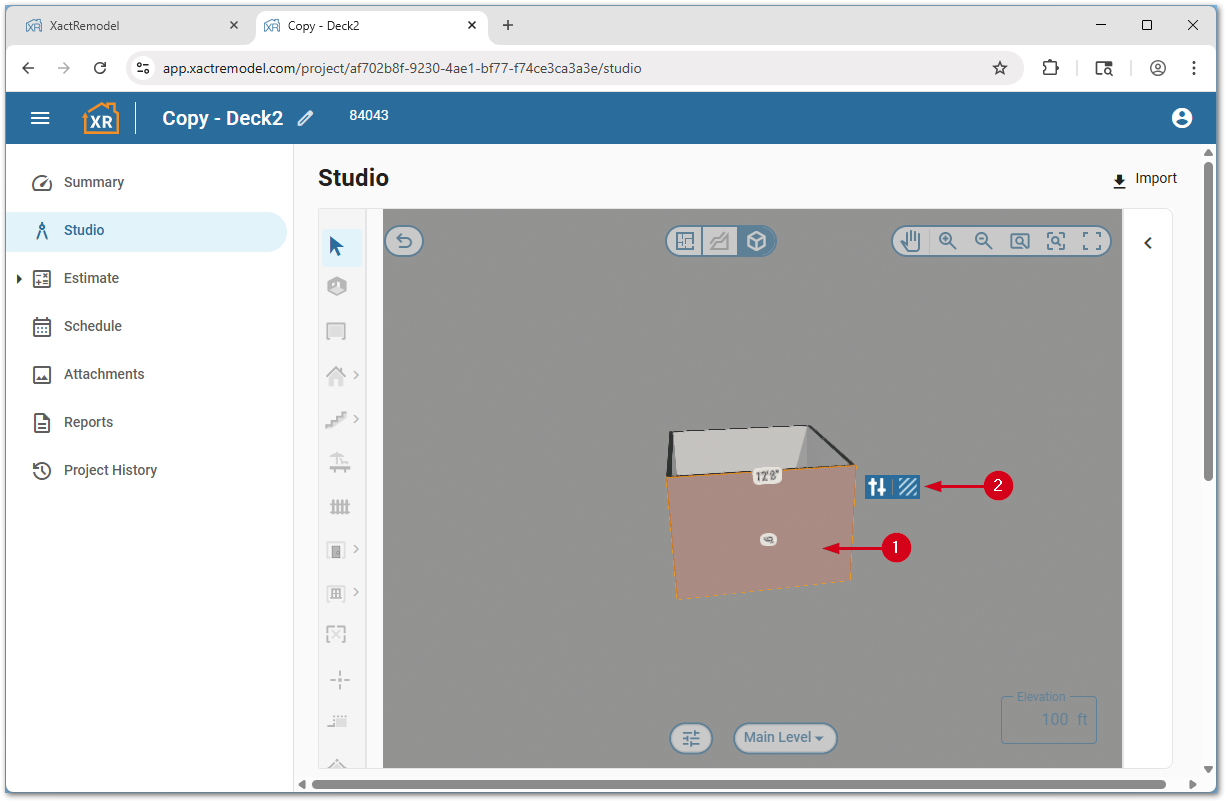
- Select the desired texture type.
Note: To remove a previously applied texture, select the None texture option.
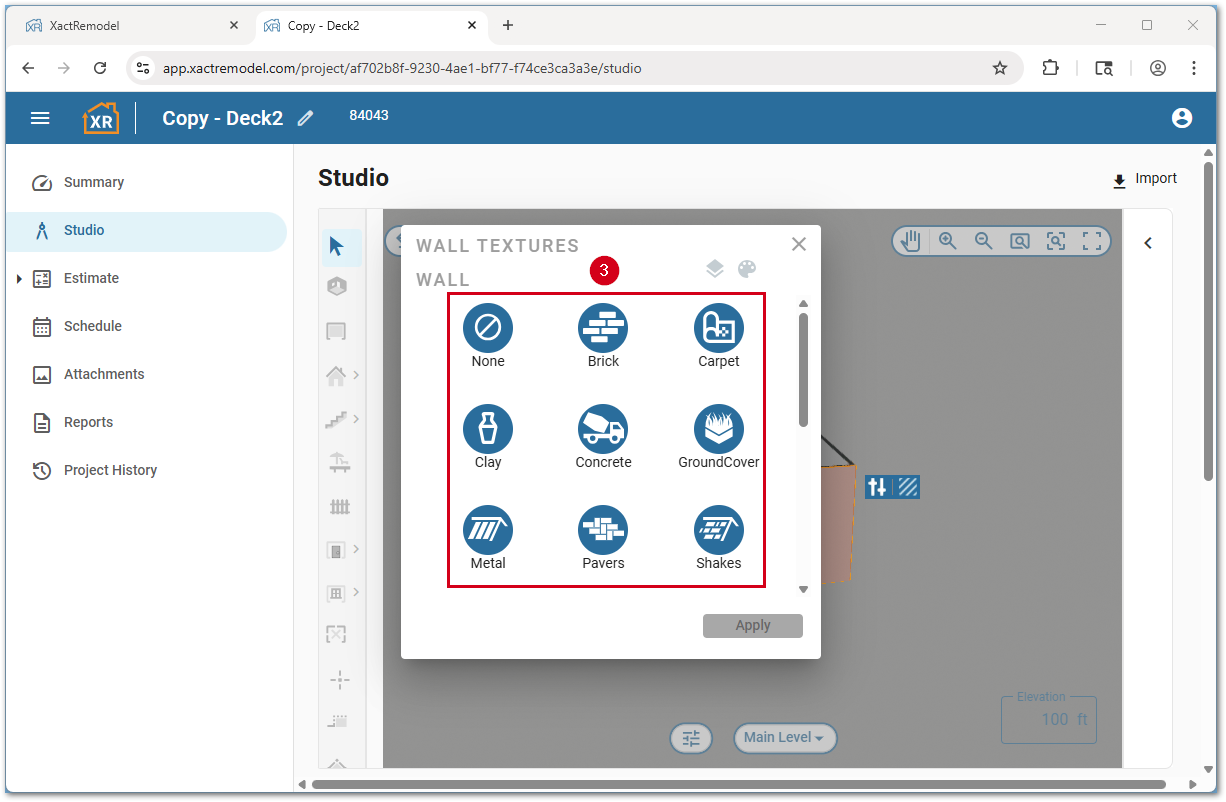
- Select the desired specific texture.
- Select Apply.