Duplicate line items, groups, floorplans, and projects
 Updated
by Russell B.
Updated
by Russell B.
This document covers how to duplicate or copy line items, groups, floorplans, and projects in XactRemodel and XactRestore.
XactRemodel and XactRestore online
XactRemodel and XactRestore online
Copy line items
Copy single line items
The steps below cover how to copy a single line item between groups in XactRemodel and XactRestore online.
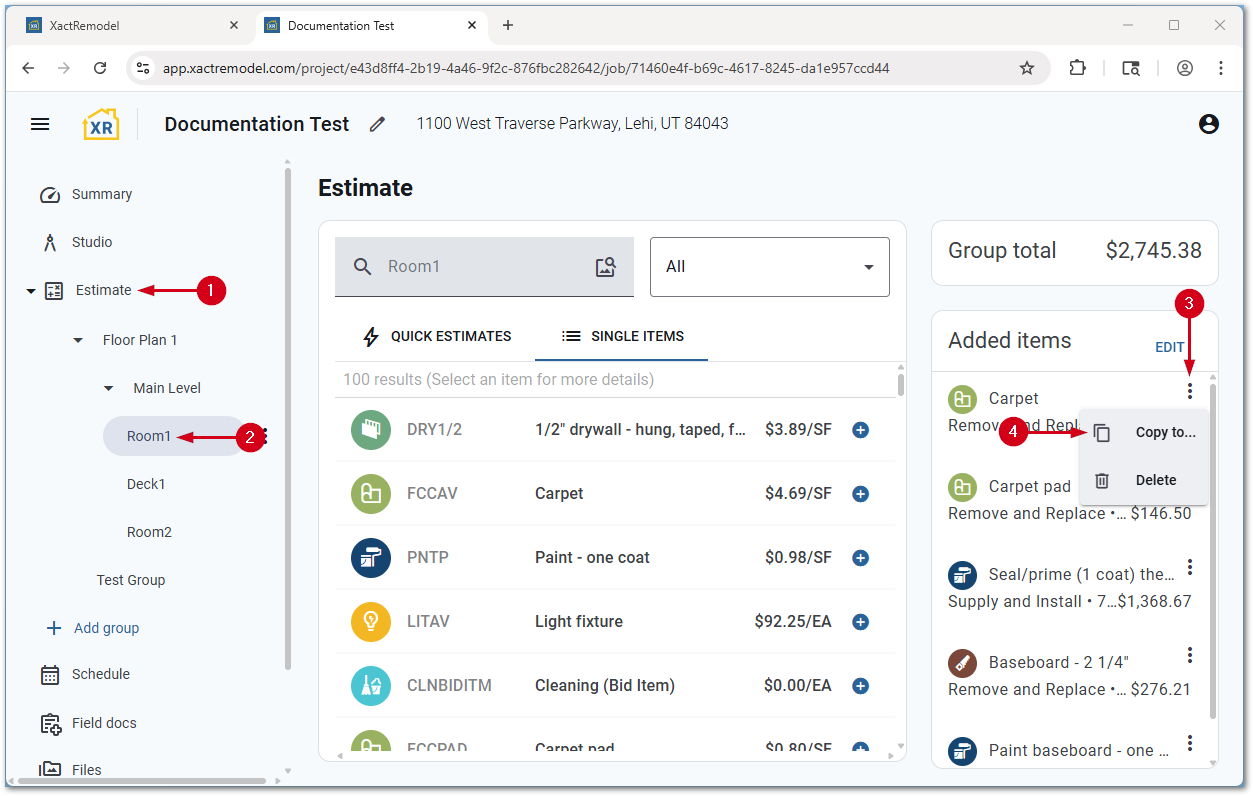
- From within a project, open the Estimate menu.
Note: If the menu is hidden, click the menu icon in the top left of the project.- Select the group with the line item to copy.
- Select the three-dot menu icon next to the item to copy.
- Select Copy to…
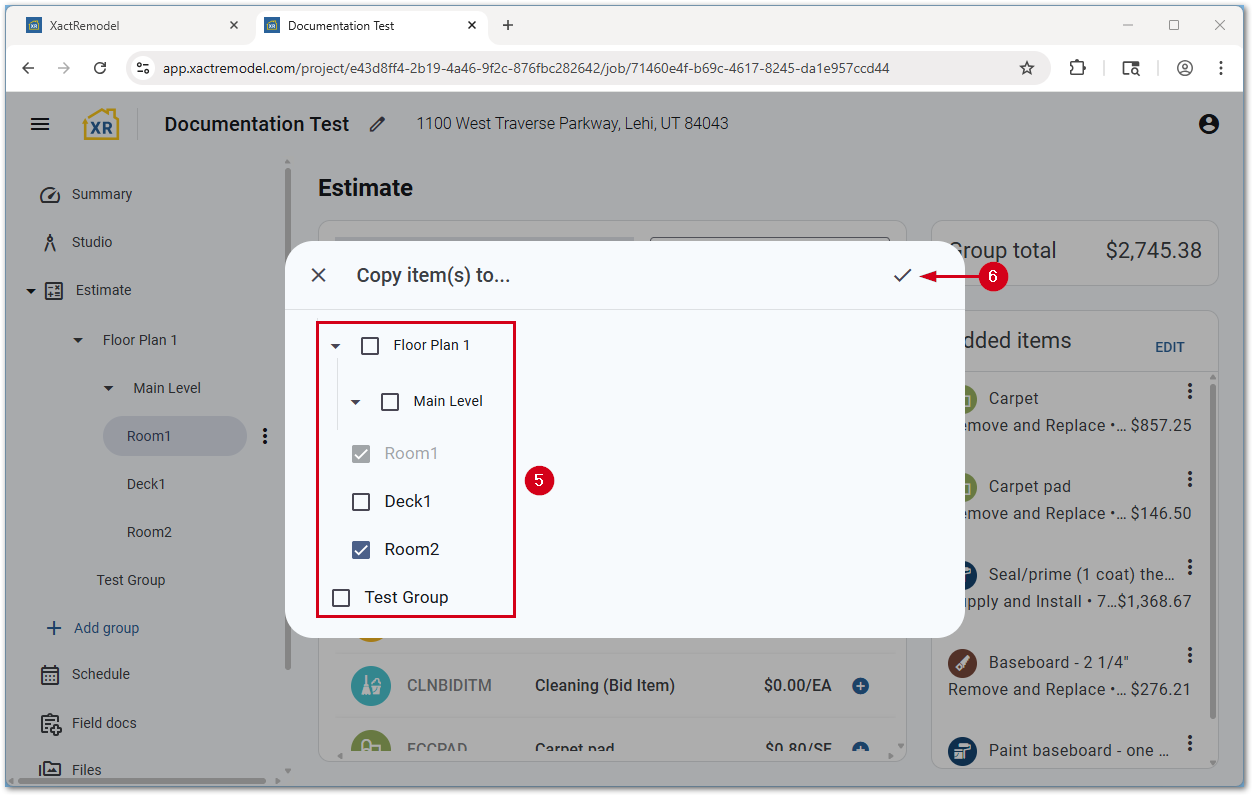
- Select the destination group(s) in which to paste the line items.
- Select Add to group.
Copy multiple line items at once
The steps below cover how to copy more than one item at once between groups in XactRemodel and XactRestore online.
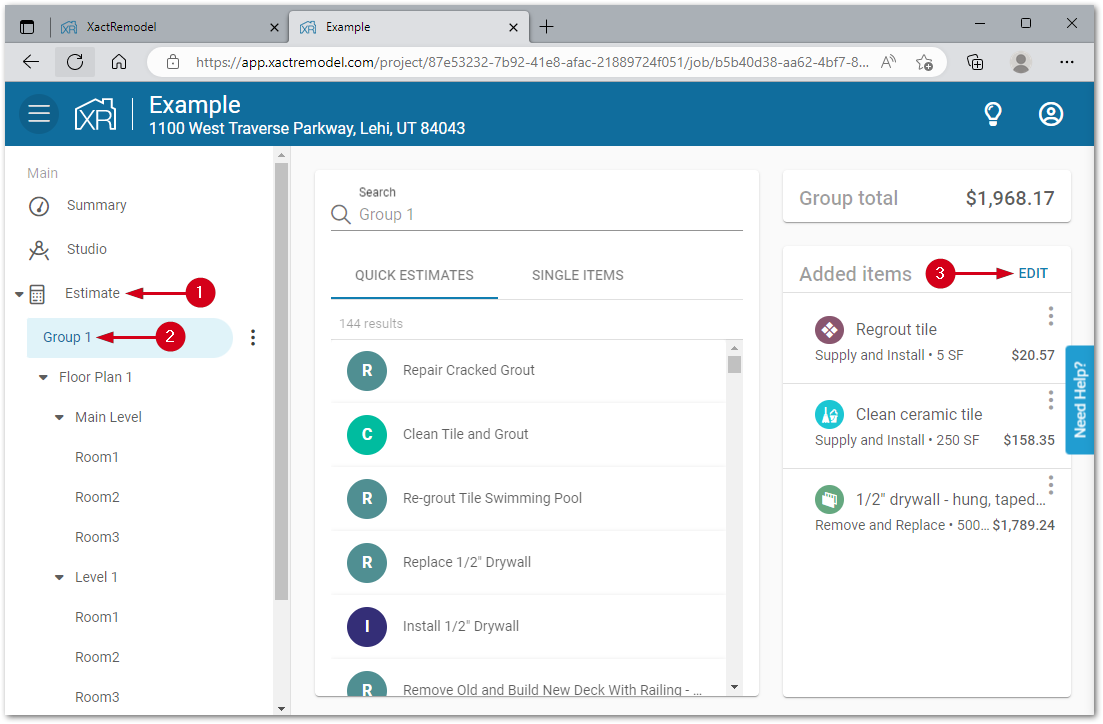
- From within a project, open the Estimate menu.
Note: If the menu is hidden, select the menu icon in the top left of the project.- Select the group with the line items to copy.
- Select Edit in the Added items list.
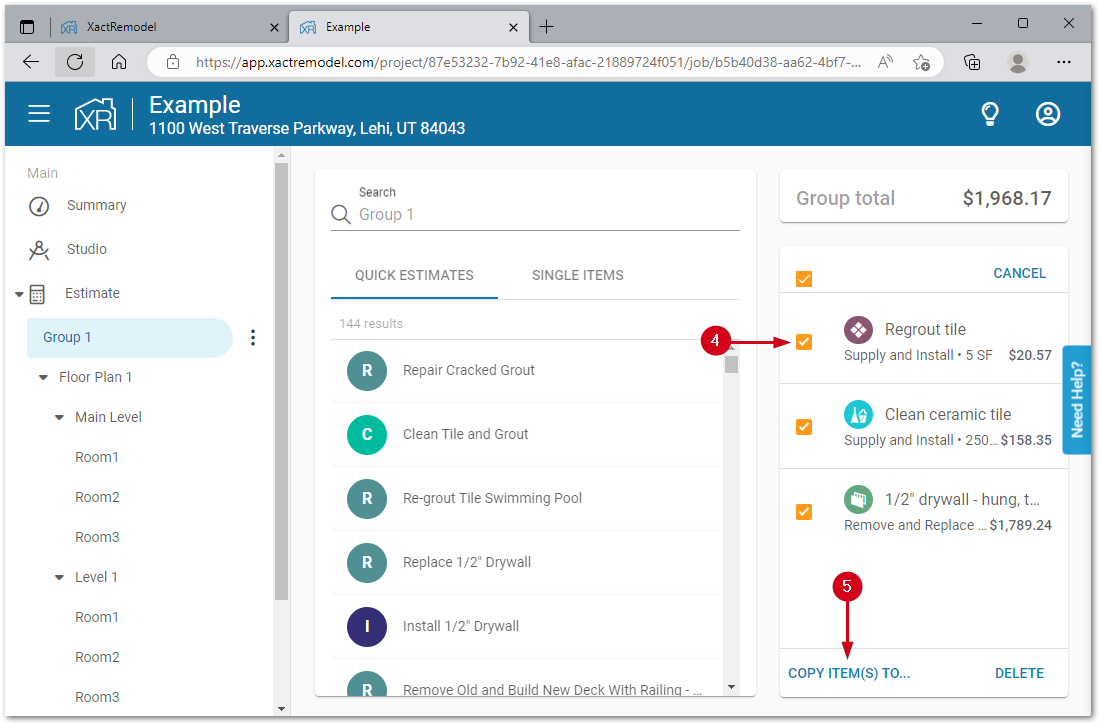
- Select the checkbox next to the line item(s) to copy.
Note: If all line items are to be copied, select the checkbox at the top of the list to quickly check all items.- Select Copy items to…
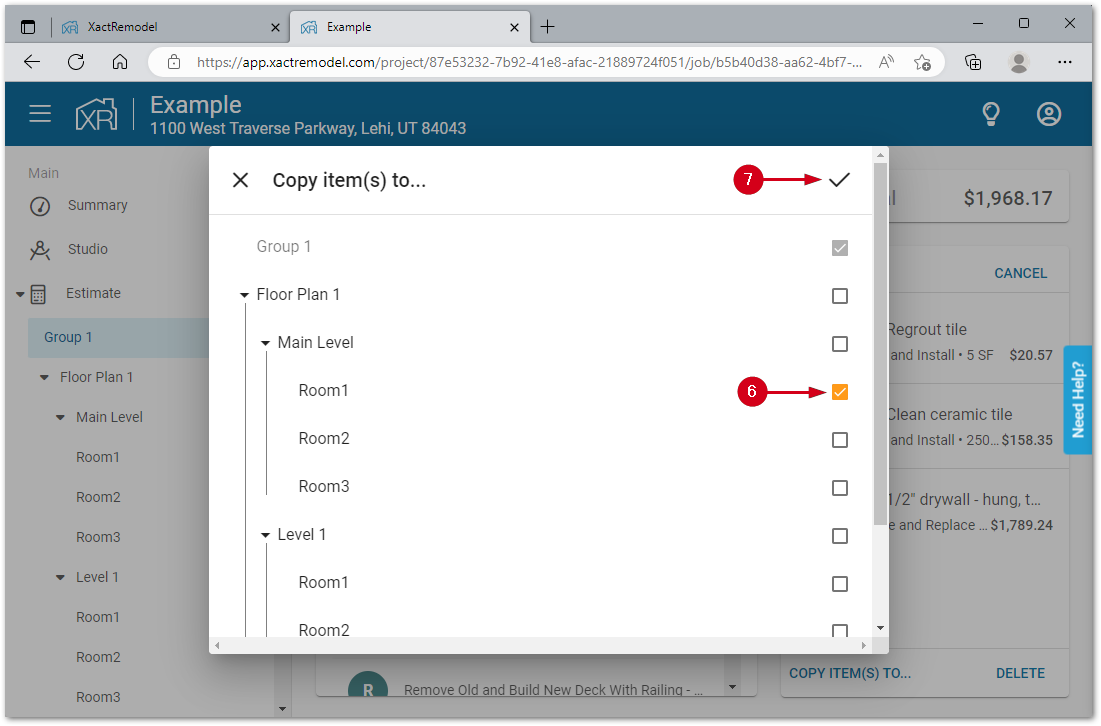
- Select the destination group(s) in which to paste the line items.
- Select Add to group.
Duplicate groups
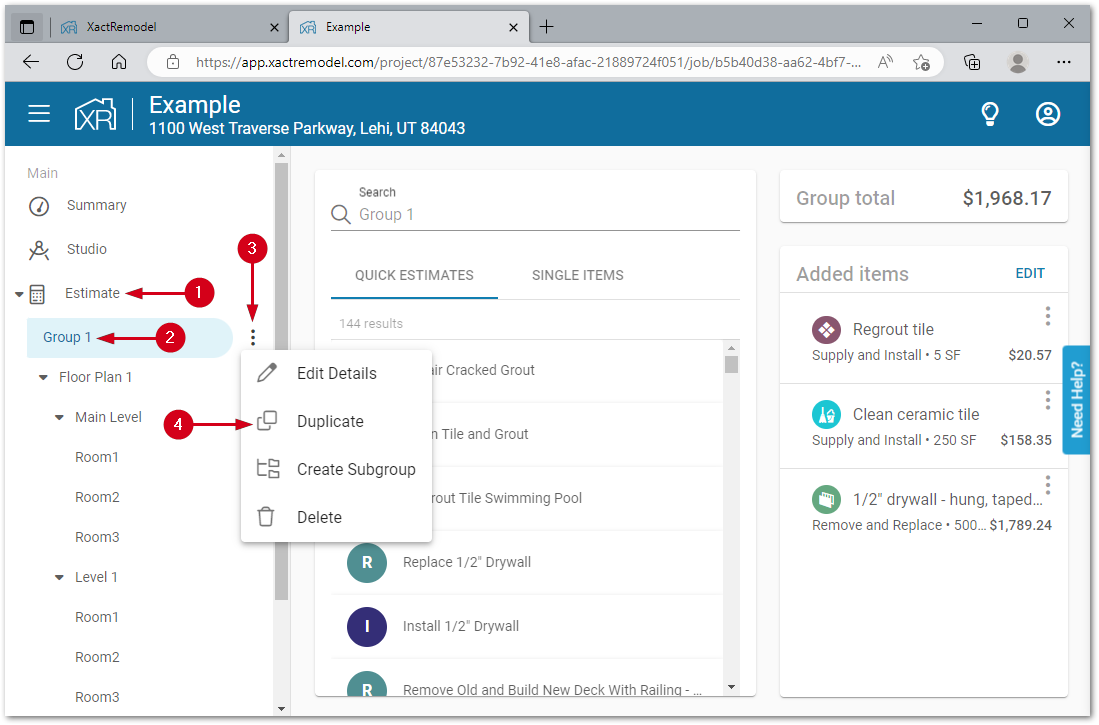
Entire groups, with all line items entered, can be duplicated within a project in XactRemodel and XactRestore online.
- From within a project, open the Estimate menu.
Note: If the menu is hidden, select the menu icon in the top left of the project.- Select the group to duplicate.
- Select the Options icon next to the group to duplicate.
- Select Duplicate.
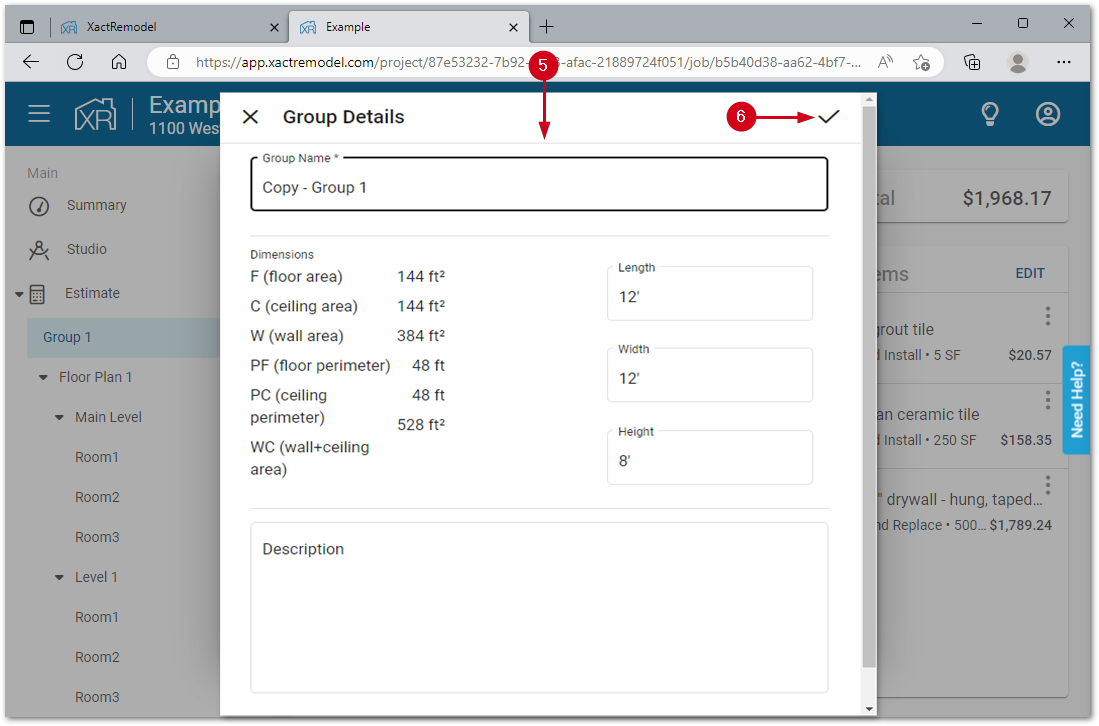
Note: You cannot duplicate groups that are automatically created with the Studio feature.- Fill in the form.
- Group Name: Enter a name for the new group.
- Dimensions: Optionally, add in the length, width, and height of the room.
- Description: Optionally, add any freeform notes about the group.
- Select Save Changes.
Duplicate floor plans
You can duplicate floor plans within Studio in XactRemodel and XactRestore online.
Only the sketch is copied. Use the copy line items section above to copy line items between groups.
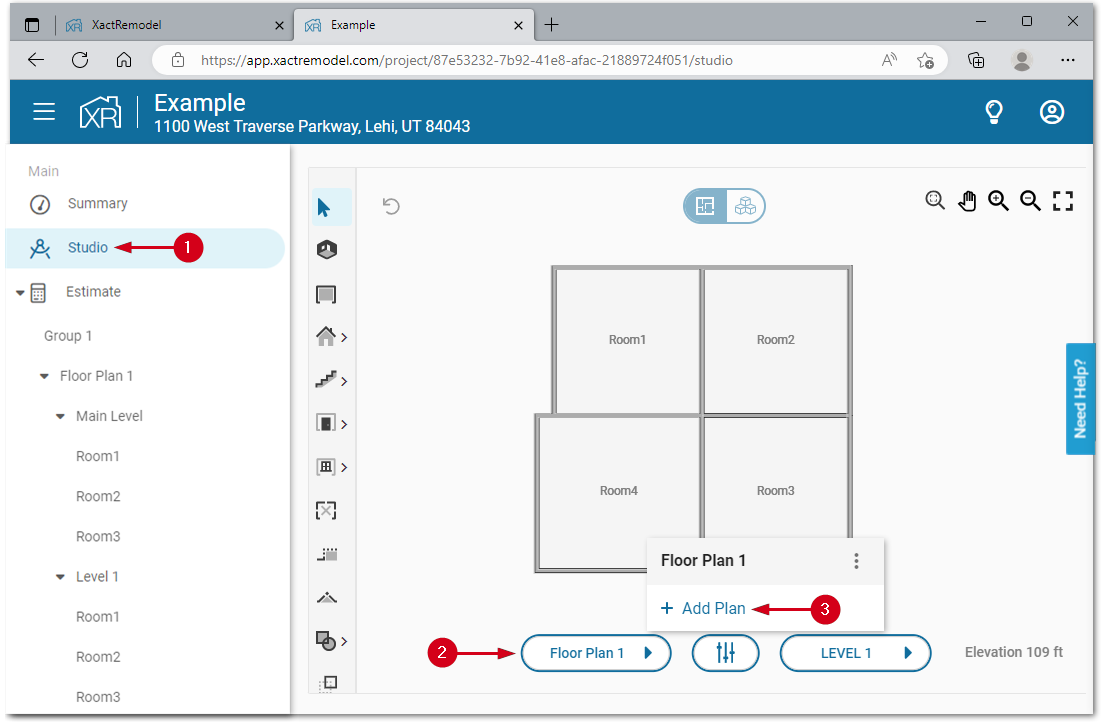
- From within a project, select Studio.
Note: If the menu is hidden, select the menu icon in the top left of the project.- Select the Select and modify floor plans button.
Note: The button text automatically changes to match the floor plan name. In this example, the button text is Floor Plan 1.- Select Add Plan.
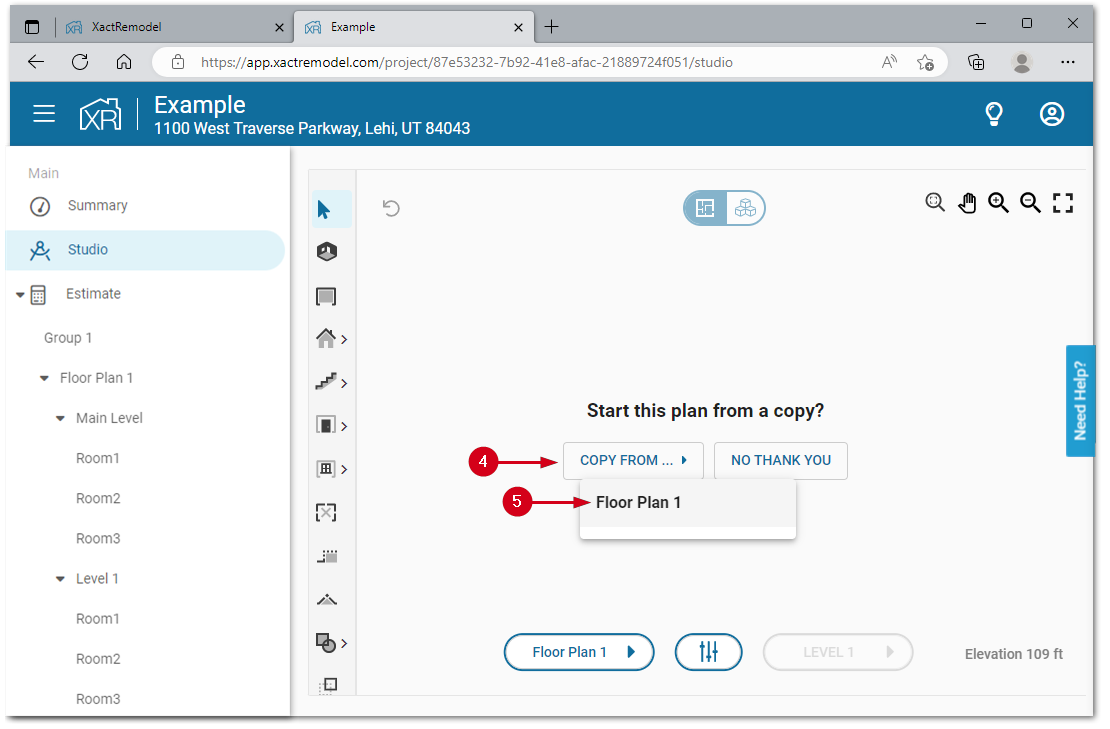
- Select Copy from…
- Select the floor plan from which to copy. The entire sketched floor is copied onto the new floor plan.
Duplicate projects
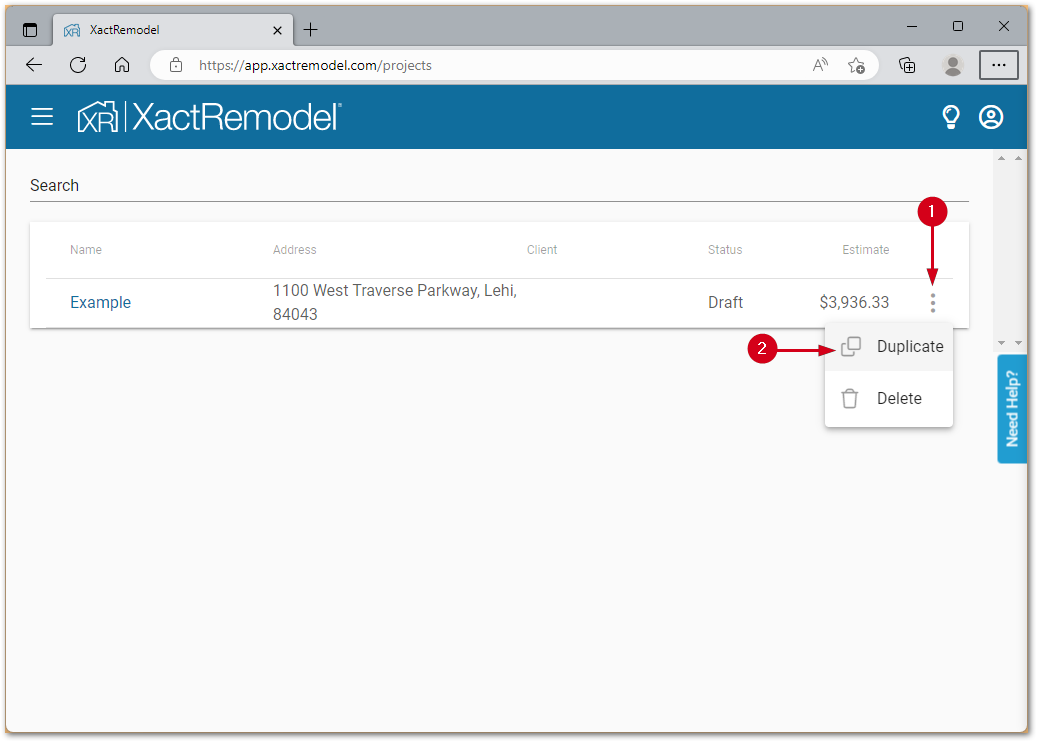
You can duplicate projects within XactRemodel and XactRestore online.
- From the projects list, open the menu next to the project to duplicate.
- Select Duplicate. This adds a copy of the project to the project list.
XR Mobile
Duplicate groups
You can duplicate entire groups (with all sub-groups and line items entered) in projects in XR Mobile.
Note: Screenshots are from XR Mobile on iOS; the process is similar on iPadOS and Android devices.
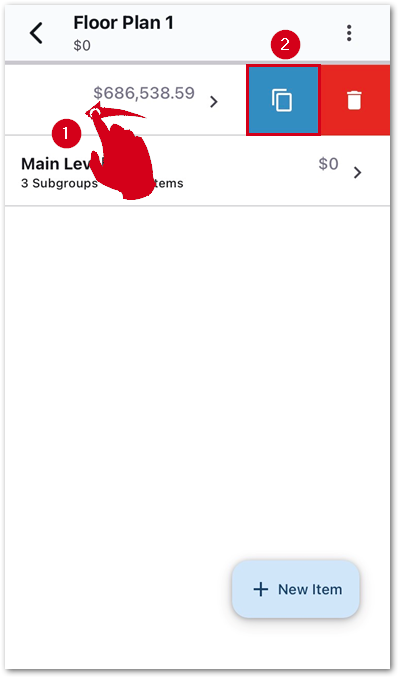
- From within the Estimate section of a project, swipe left on the group to duplicate.
- Select the Copy icon. The newly created group is added to the list.
Duplicate projects
You can duplicate entire projects in XR Mobile.
Note: Screenshots are from XR Mobile on iOS; the process is similar on iPadOS and Android devices.From the project list
Follow the steps below to duplicate a project from the project list in XR Mobile.
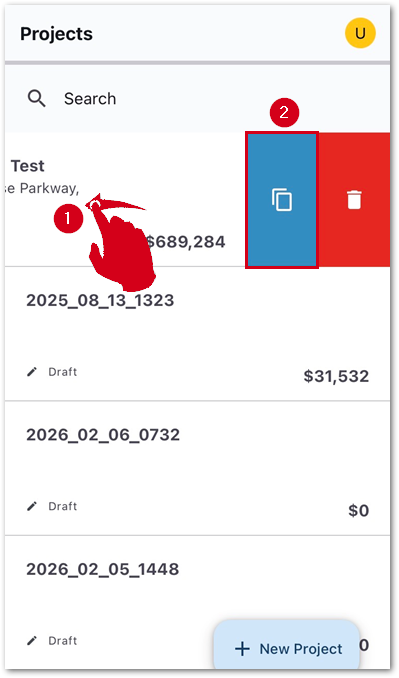
- From the project list, swipe left on the project to duplicate.
- Select the Copy icon. A new copy of the project is added to the project list.
From within a project
Follow the steps below to duplicate a project from within a project in XR Mobile.
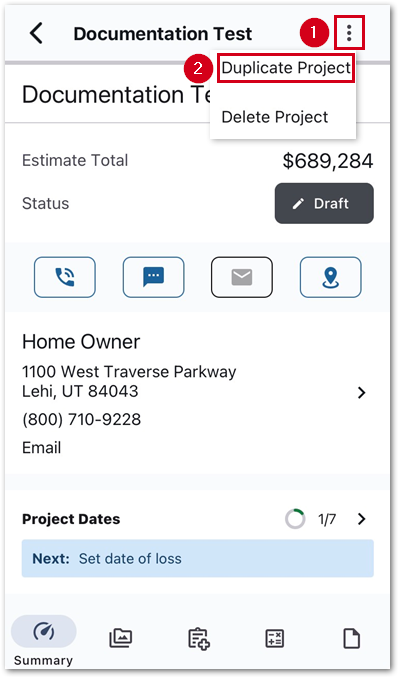
- From within a project, open the three-dot menu.
- Select Duplicate Project. A new copy of the project is added to the project list.