Add levels in Field docs

This document goes over how users can add levels to a job in Field docs.
 Field docs is part of the XactRestore Pro subscription tier. To upgrade, please speak with our Sales Department by calling 833-352-9228.
Add additional levels or edit existing ones
Add the first level
When adding the first level, a large button to add a level is presented to both users in the field in XR Mobile or in XactRestore online.
Note: The steps below go through the process on XR Mobile but is similar on XactRestore online.
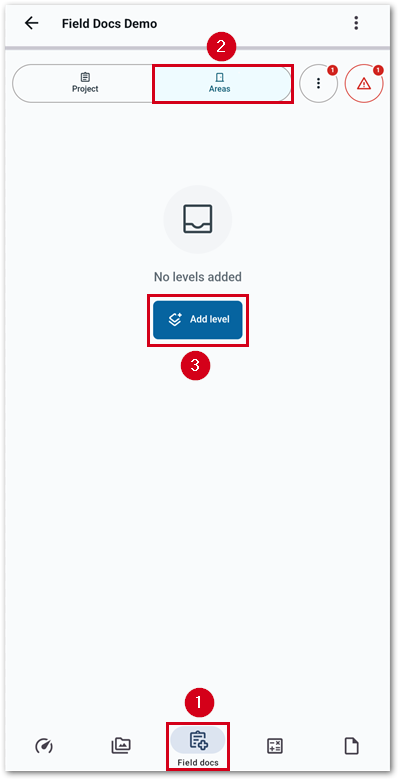
- From within a project in XR Mobile, select Field docs.
- Select Areas.
- Select Add level.
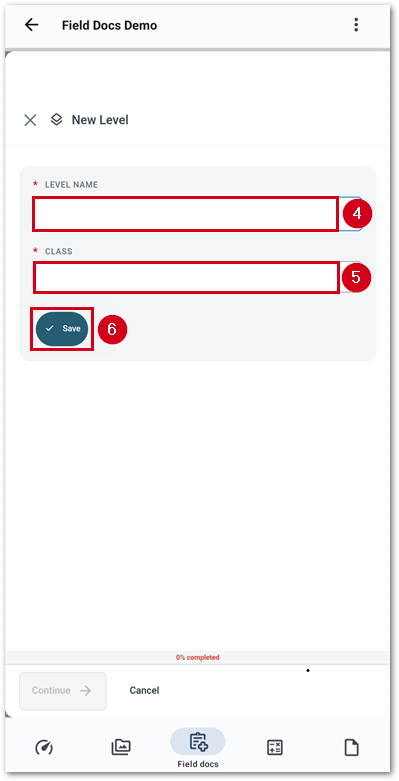
- Enter a level name.
- Select the Class from the drop-down menu.
Note: Administrators have an additional section called level settings following this which includes the ability to override level defaults set in the initial settings.
- Select Save.
Note: Add any additional required information before selecting Save.
- Select Finish level.
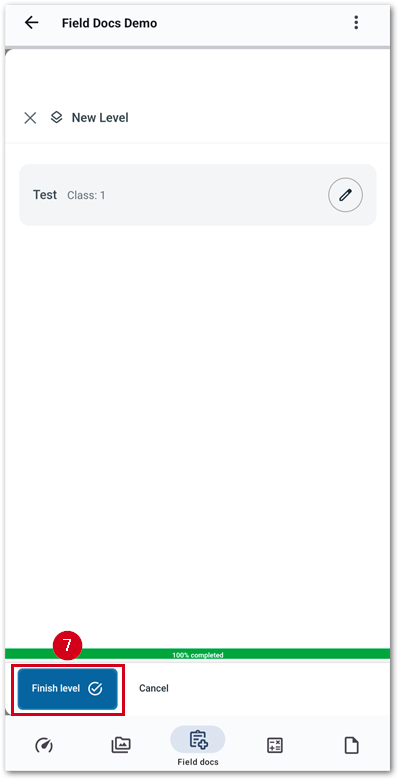
Add additional levels or edit existing ones
Add additional levels
If a level already exists, the process to get to the new level page is different.
- From within a project in XR Mobile, select Field docs.
- Select Areas.
- Select Add area.
- Select Add level.
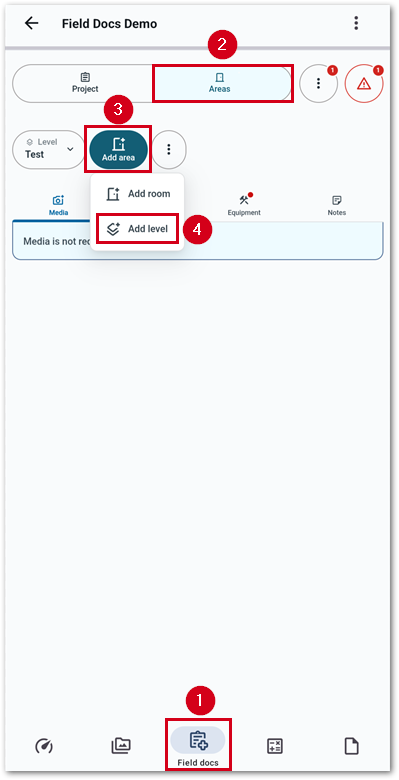
The remainder of the process is the same as adding the first level as described in the above section.
Edit existing levels
To edit an existing level, follow the steps below.
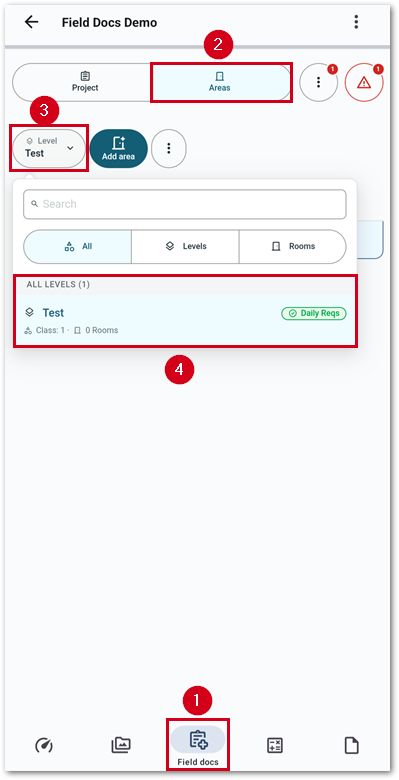
- From within a project in XR Mobile, select Field docs.
- Select Areas.
- Select the Level button.
- Select the level to edit.
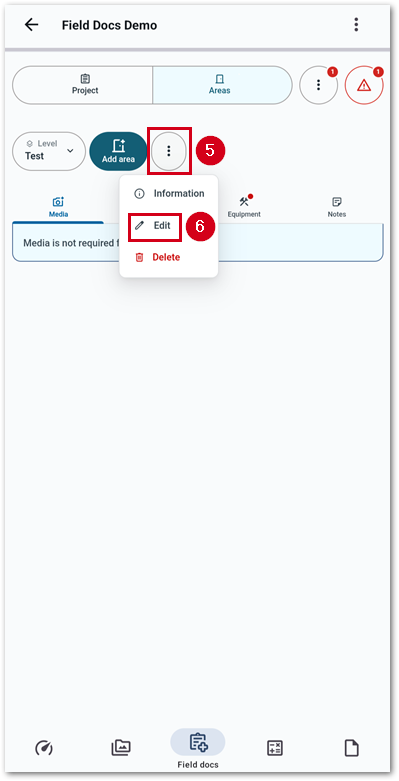
- Select the three-dot menu icon.
- Select Edit.
Note: To delete a level, select Delete.
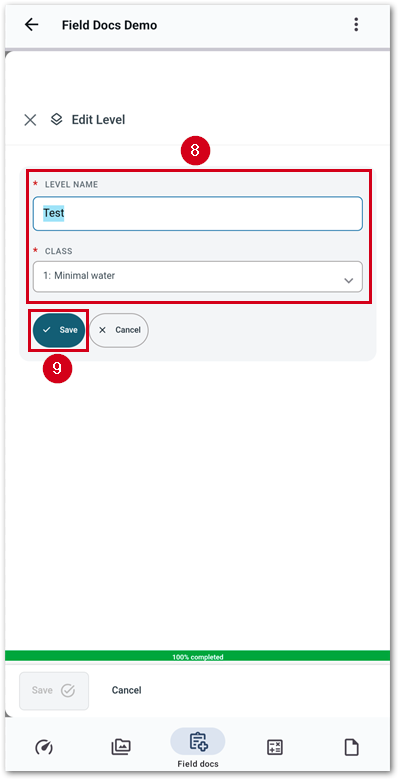
- Select the pencil icon next to the level.
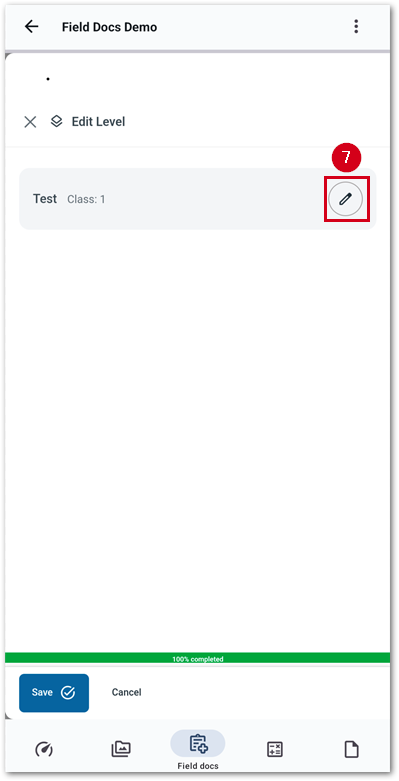
- Make any desired changes.
- Select Save.
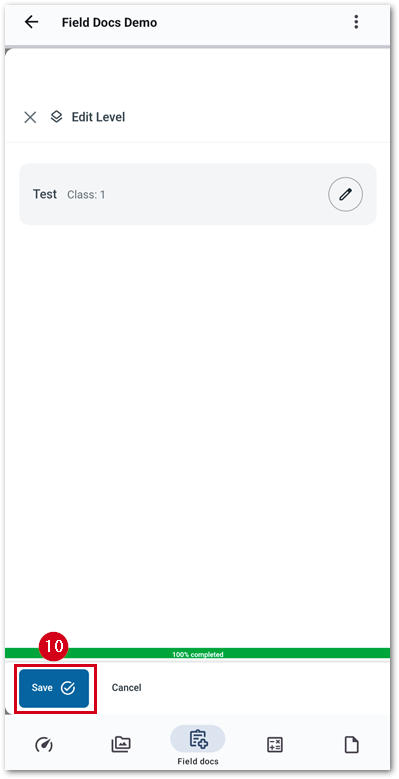
- Select Save.