Project summary
 Updated
by Russell B.
Updated
by Russell B.
The project summary is where you can define the basics for a client’s project, including their contact details, pricing, and any internal notes about the project.
 Some fields in the sections below are limited to XactRemodel Pro or XactRestore subscribers. To upgrade, please contact our PropTech Sales Department at 833-352-9228 between 7 AM - 4 PM (Mountain Time), Monday - Friday.
XactRemodel and XactRestore online
XactRemodel and XactRestore online
The following sections display in XactRemodel and XactRestore online.
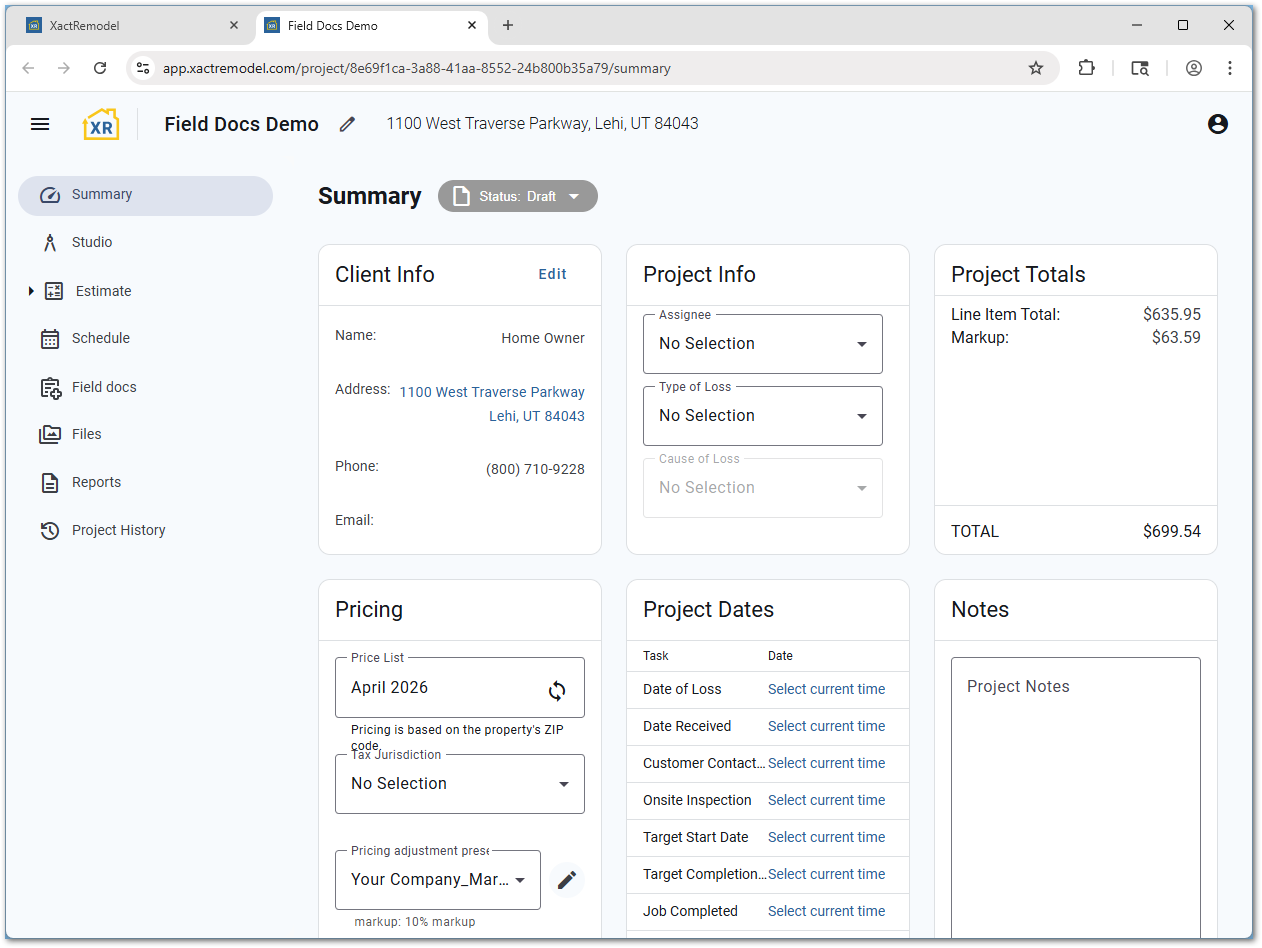
- A drop-down menu next to Summary lets you set a project status.
- To rename a project, select the pencil icon next to the project name at the top of the project. The project name here prints on all reports.
- Client Info
- The client info section allows you to enter a customer name, address, phone, and email address.
Note: Changing a zip code may prompt a reprice of the project.
- XactRemodel Pro and XactRestore Pro subscribers can link a project to a client account. For more information on client accounts see our Associate projects with accounts document.
- XactRestore subscribers can set the type and cause of loss.
- The client info section allows you to enter a customer name, address, phone, and email address.
- Project Info
- The assignee drop-down menu allows you to set which employee is working on the project.
- For XactRestore subscribers, you can set the type and cause of loss. For assistance, see our Type of loss document.
- XactRemodel subscribers can see the date created, the user who created the project, the date last saved, and the user who last modified the project.
- Project Totals
- The project totals section shows a breakdown of line item costs, any markups, and tax.
- Pricing
- The pricing section allows you to see or change the current price list and set a tax jurisdiction. For assistance repricing projects or changing tax jurisdictions, see our Reprice a project or change a tax jurisdiction document.
- You can also set up a pricing adjustment. For assistance, see our Adjustments in XactRemodel and XactRestore document.
- Project Dates
- XactRestore customers can set key project dates in relation to the project. For assistance, see our Set project dates document.
- Notes
- You can use the Notes field to make any internal notes about a project. These notes are not shown anywhere else.
XR Mobile
The following sections display in XR Mobile.
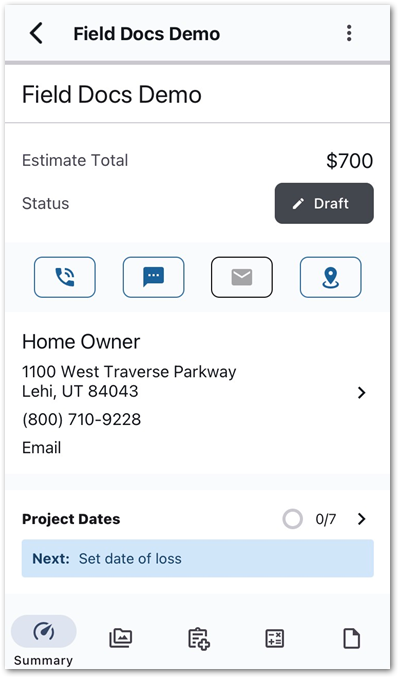
- At the top of the page, you can edit the project name by selecting it.
- A project total displays below that, as well as the status drop-down menu.
- Quick action buttons allow you to quickly call, text, or email the project contact, or open your phone’s map app with the contact address.
- The contact name and details display. Select the contact name to edit it or import an existing phone contact into a project. For assistance with this, see our Import contacts in XR Mobile document.
- In the next section, XactRestore customers can set key project dates in relation to the project. For assistance, see our Set project dates document.
- The next section allows you to see or change the current price list and set a tax jurisdiction. For assistance repricing projects or changing tax jurisdictions, see our Reprice a project or change a tax jurisdiction document.
- XactRestore subscribers can set the type and cause of loss. For assistance, see our Type of loss document.
- You can use the Notes field at the bottom of the project summary to make any internal notes about a project. These notes are not shown anywhere else.
