Custom quick estimates
 Updated
by Russell B.
Updated
by Russell B.
Custom quick estimates allow you to create custom lists of items, which can then be used in multiple projects.
Create custom quick estimates
Follow the steps below to create new custom quick estimates.
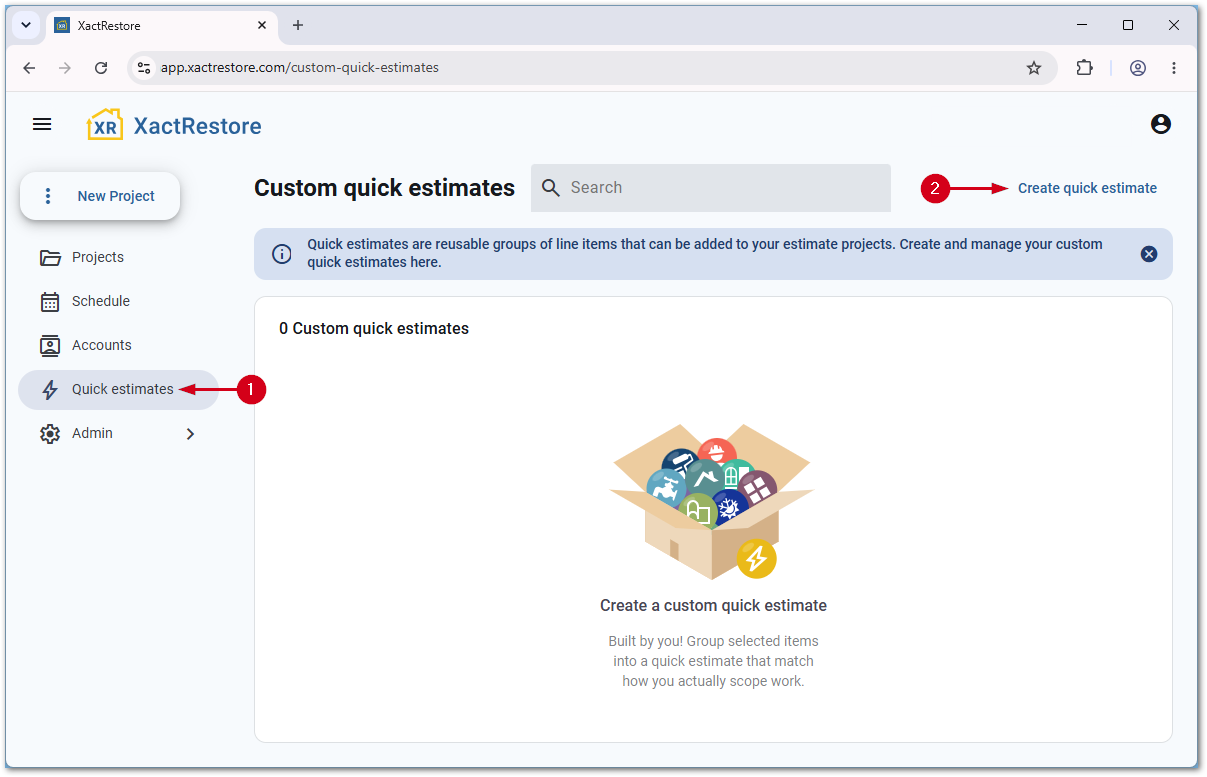
- Within XactRemodel or XactRestore, select Quick estimates.
- Select Create quick estimate.
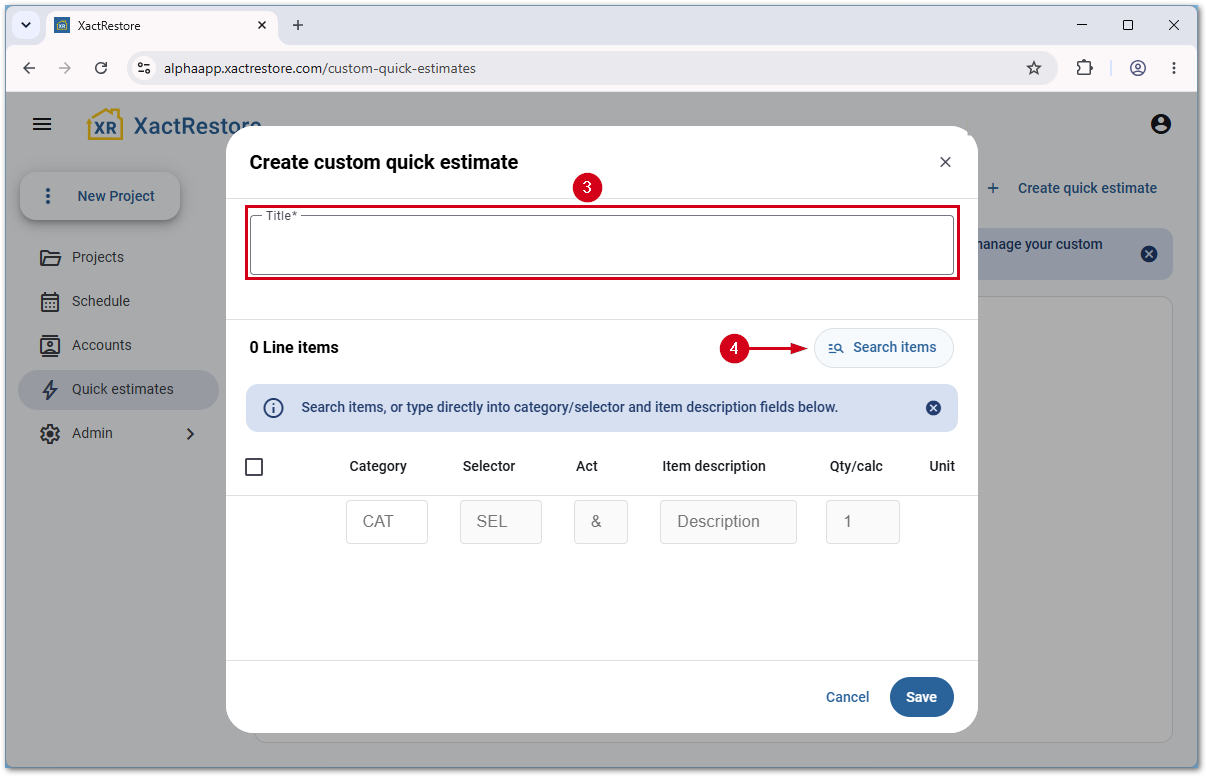
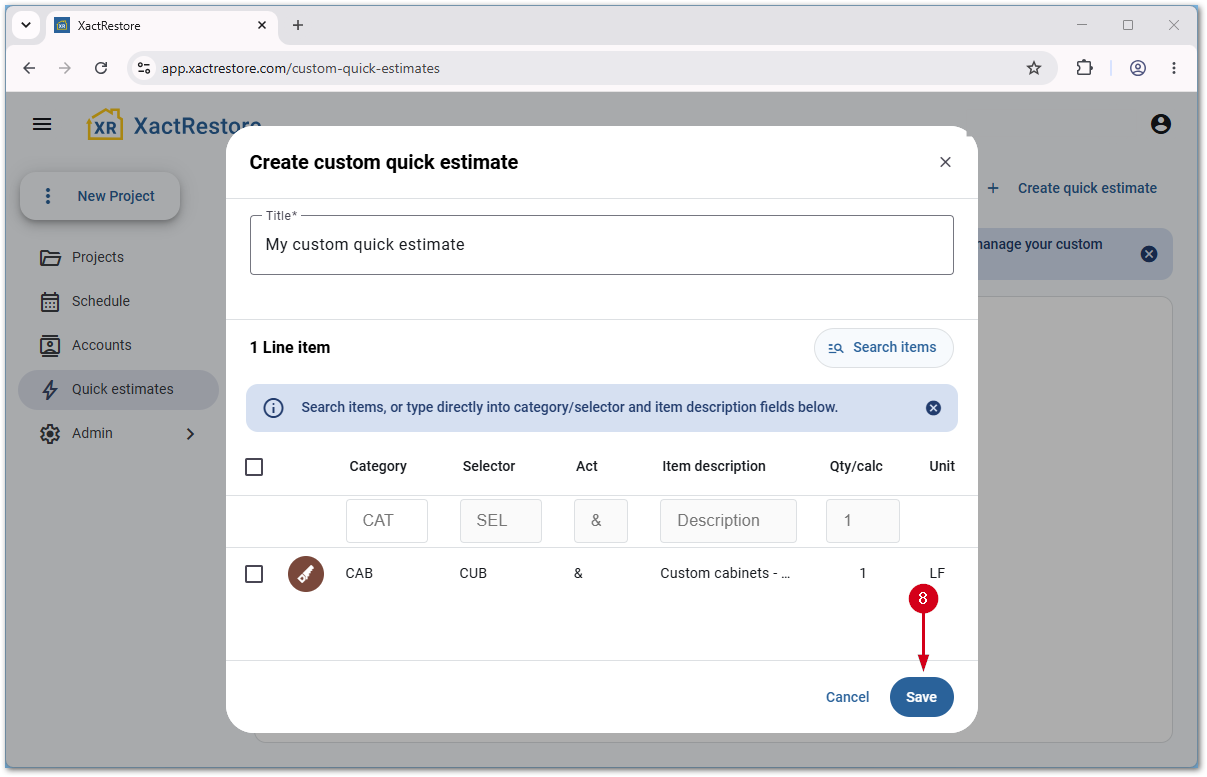
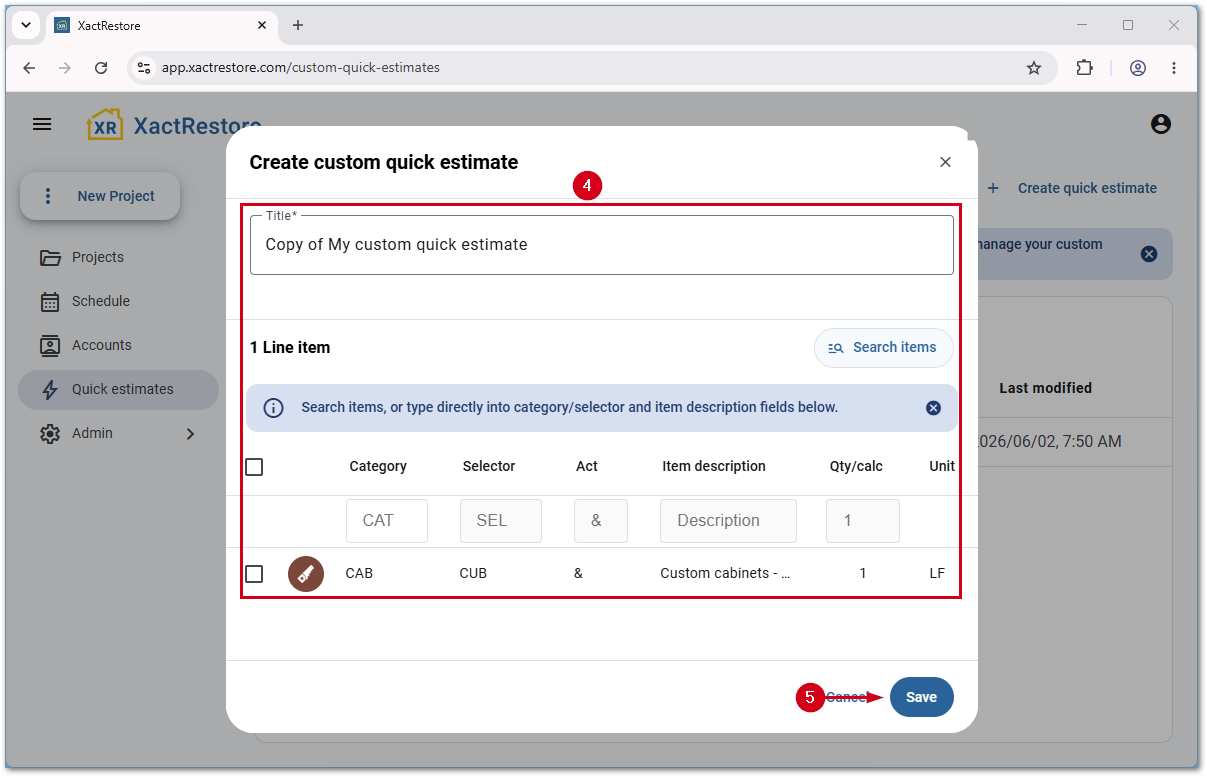
- Enter a Title.
- Select Search items.
Note: If you know the category and selector codes, you can enter them directly instead of searching.
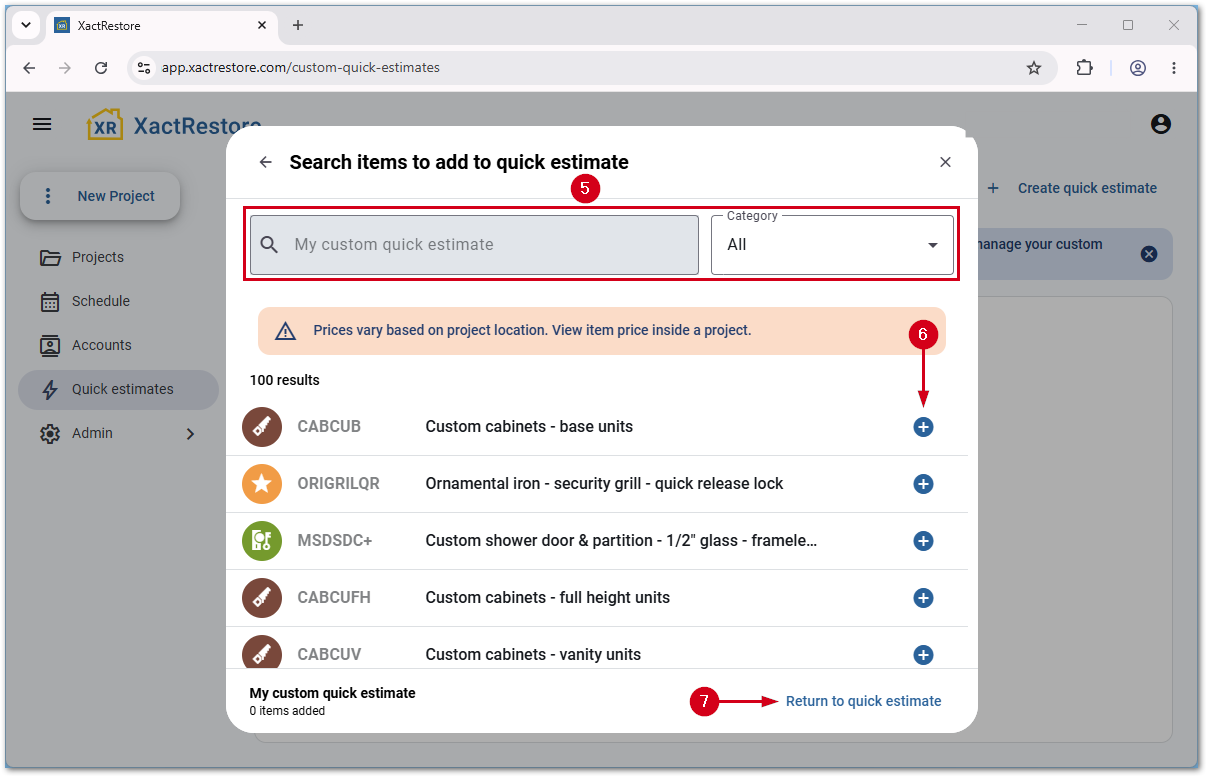
- Search for the desired item.
- Select the plus sign next to the desired item.
- Once you add all items, select Return to quick estimate.
- Select Save.
Edit existing custom quick estimates
Follow the steps below to edit a custom quick estimate.
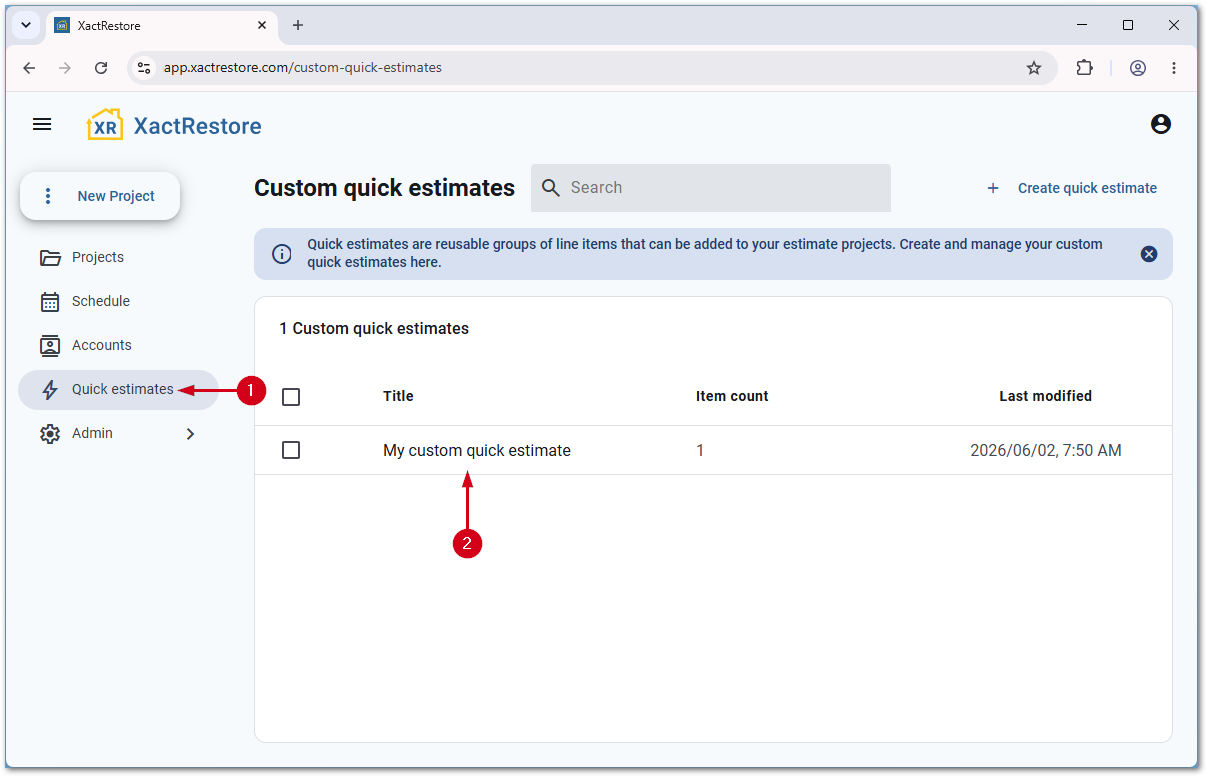
- Within XactRemodel or XactRestore, select Quick estimates.
- Select the desired quick estimate.
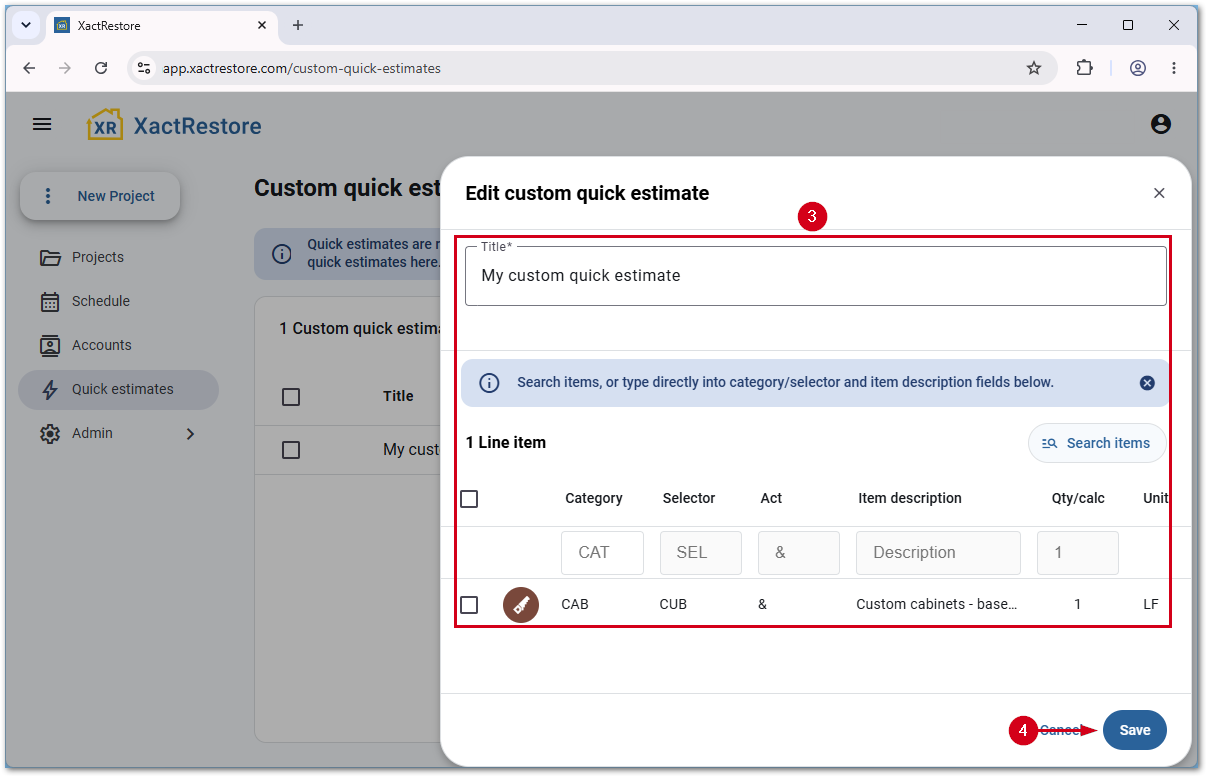
- Make any necessary changes.
- Select Save.
Duplicate existing custom quick estimates
Follow the steps below to duplicate a custom quick estimate.
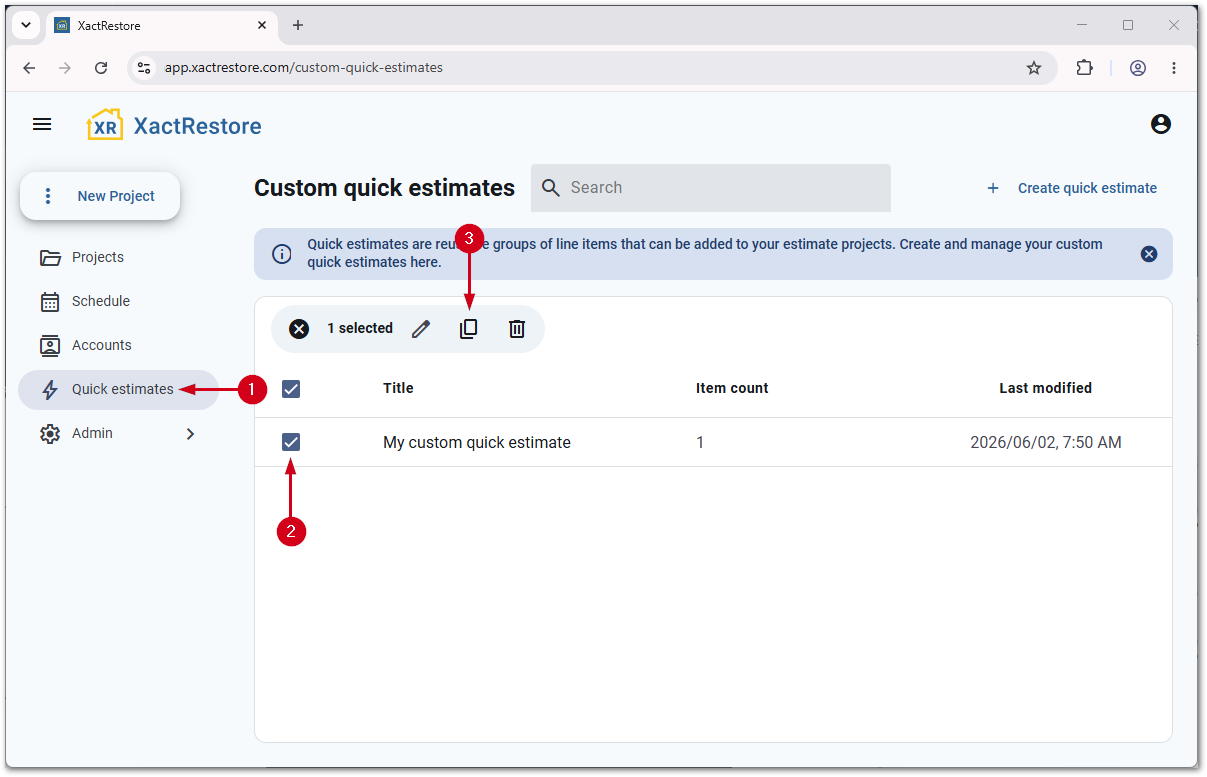
- Within XactRemodel or XactRestore, select Quick estimates.
- Select the desired quick estimate.
- Select Copy.
- Make any desired changes.
- Select Save.
Delete custom quick estimates
Follow the steps below to delete a custom quick estimate.
- Within XactRemodel or XactRestore, select Quick estimates.
- Select the desired quick estimate.
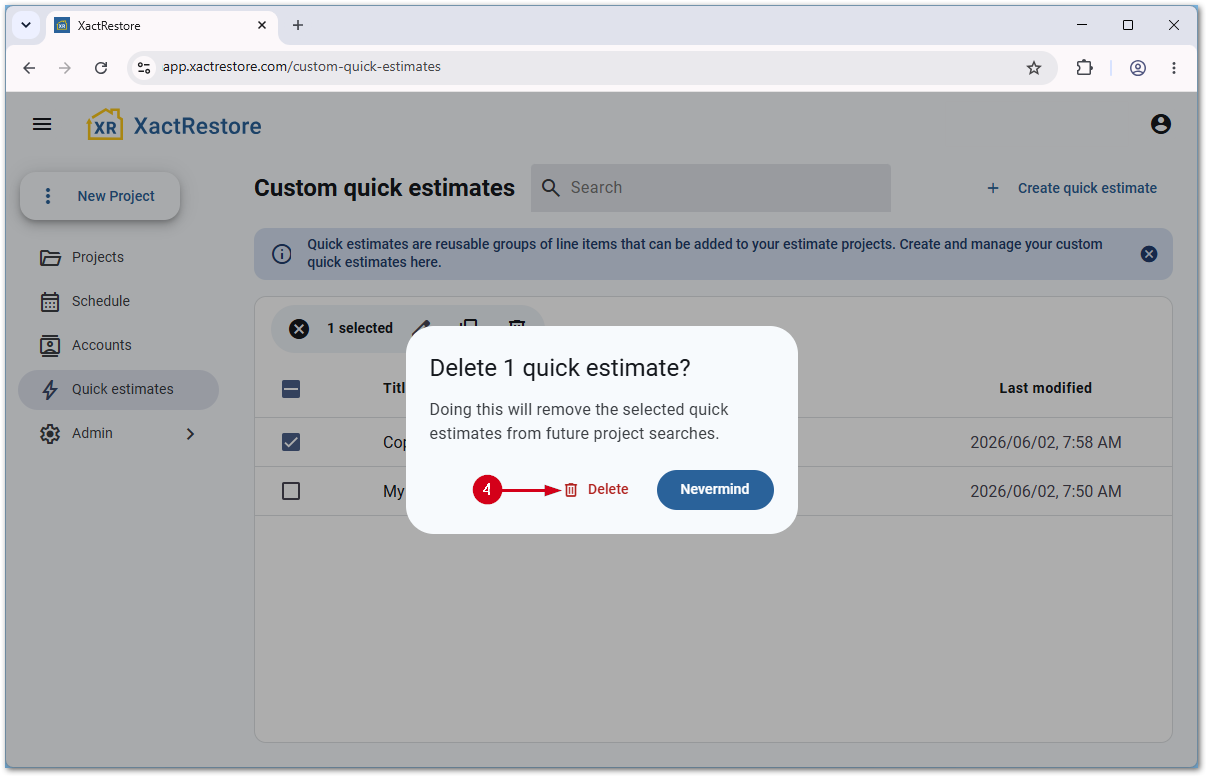
- Select Delete.
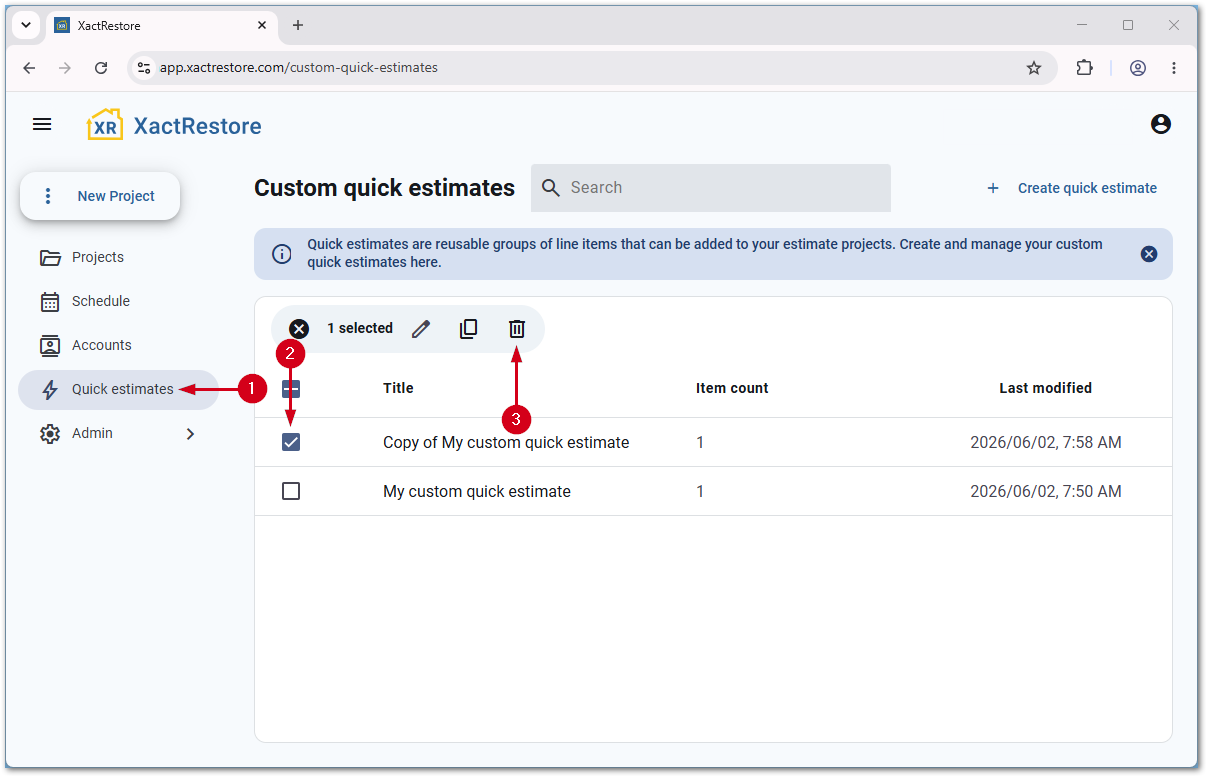
- Select Delete.
IMPORTANT: Once a quick estimate is deleted, it cannot be recovered.