Reorder and delete line items
 Updated
by Russell B.
Updated
by Russell B.
You can reorder or delete line items in XactRemodel and XactRestore as needed.
Delete multiple line items at once
Reorder line items
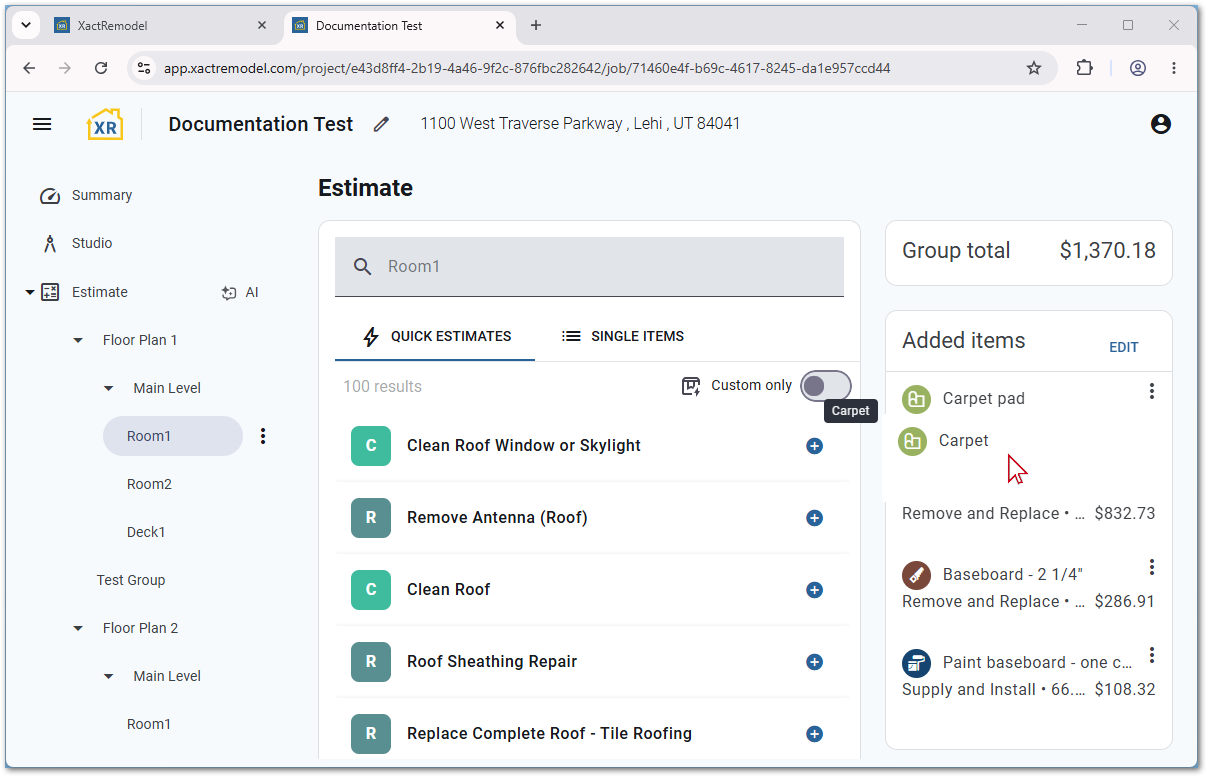
To reorder items in XactRemodel and XactRestore online, drag and drop an item to the desired location within the group.
Note: Items can only be reordered on the web version of XactRemodel and XactRestore.
Delete single line items
 IMPORTANT: Items are deleted without a confirmation prompt. A popup at the bottom of the page offers an option to undo the deletion briefly. After that popup disappears, there is no longer a way to restore a deleted item.
XactRemodel and XactRestore online
XactRemodel and XactRestore online
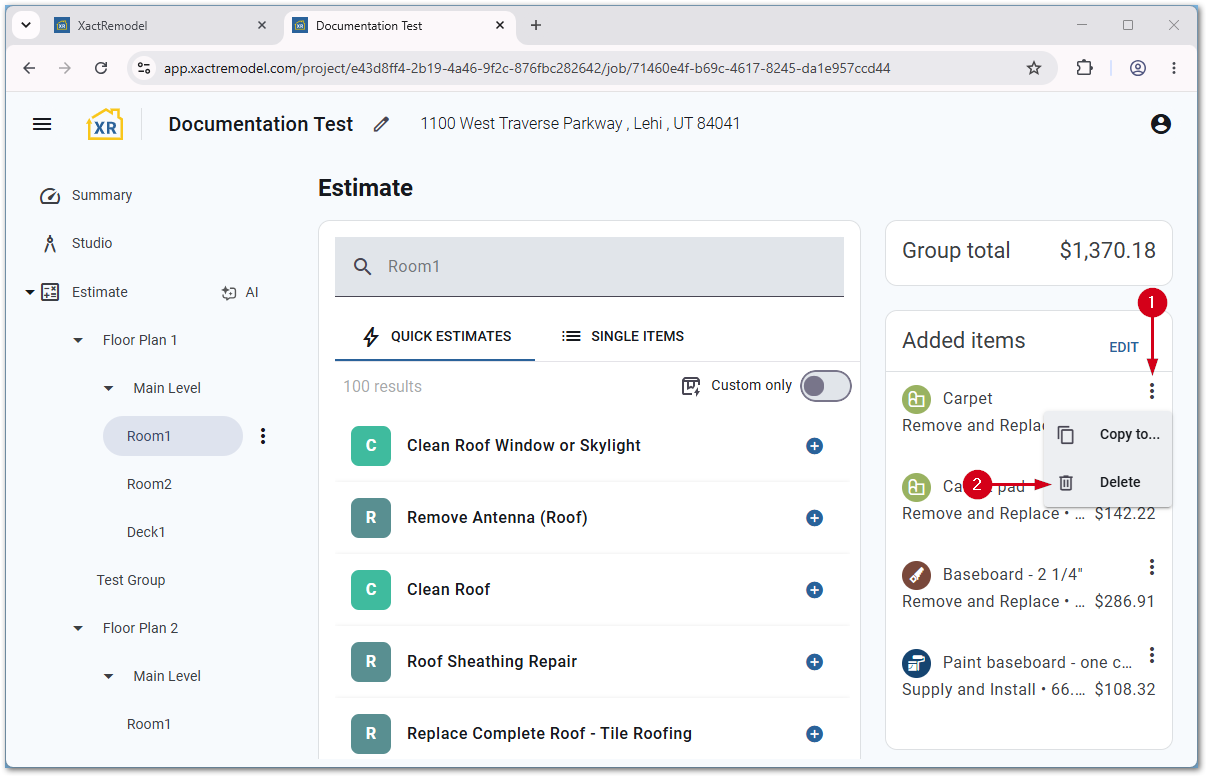
Follow the steps below to remove items one by one from projects in XactRemodel or XactRestore online.
- Select the menu icon next to the item to delete.
Note: This can be done from both Studio and the Estimate section.
- Select Delete.
XR Mobile
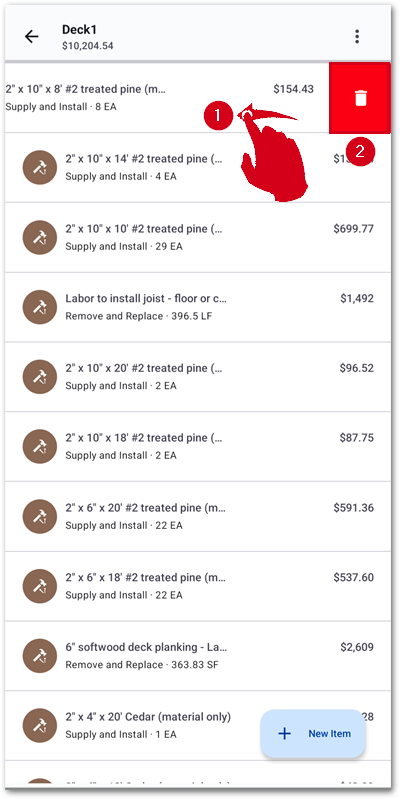
Follow the steps below to remove items one by one from projects in XR Mobile.
Note: Note: The screenshots below were taken on an Android device; however, the experience is similar on iOS and iPadOS devices.
- Swipe left on the item to delete.
- Select the trashcan icon to delete the item.
Delete multiple line items at once
IMPORTANT: Items are deleted without a confirmation prompt. A popup at the bottom of the page offers an option to undo the deletion briefly. After that popup disappears, there is no longer a way to restore a deleted item.
XactRemodel and XactRestore online
XactRemodel and XactRestore online
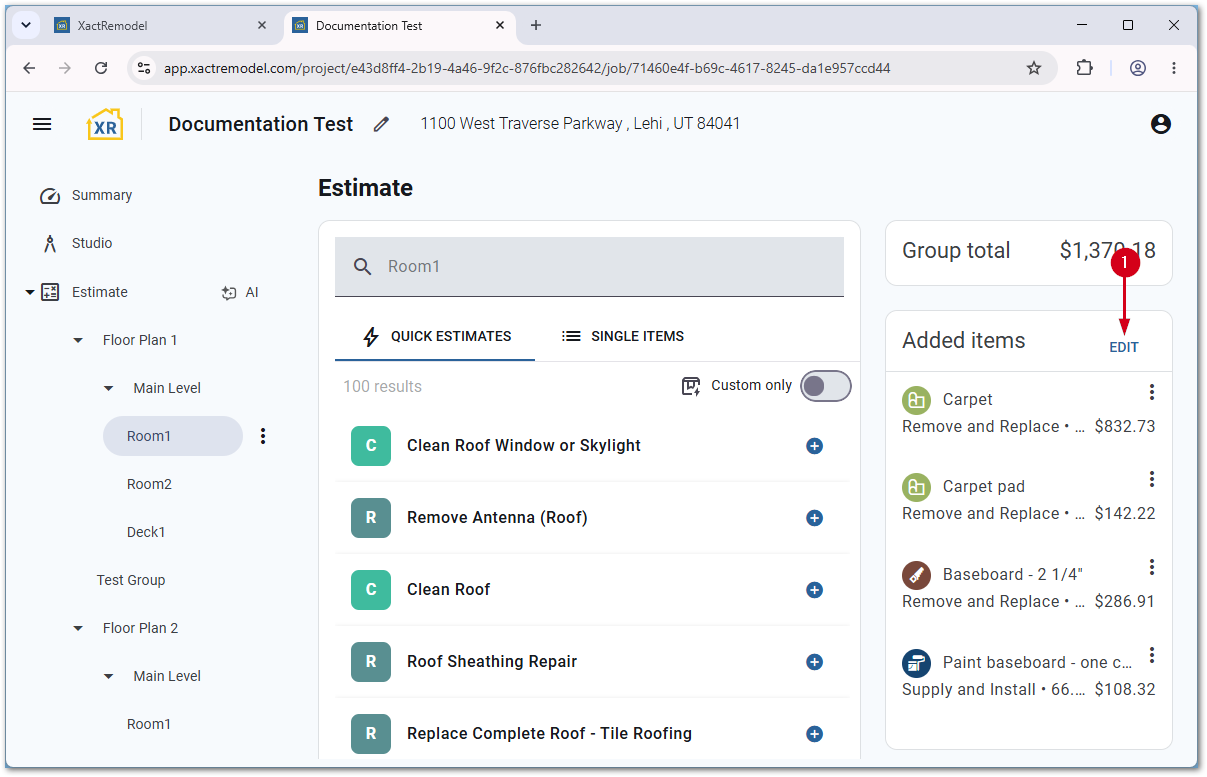
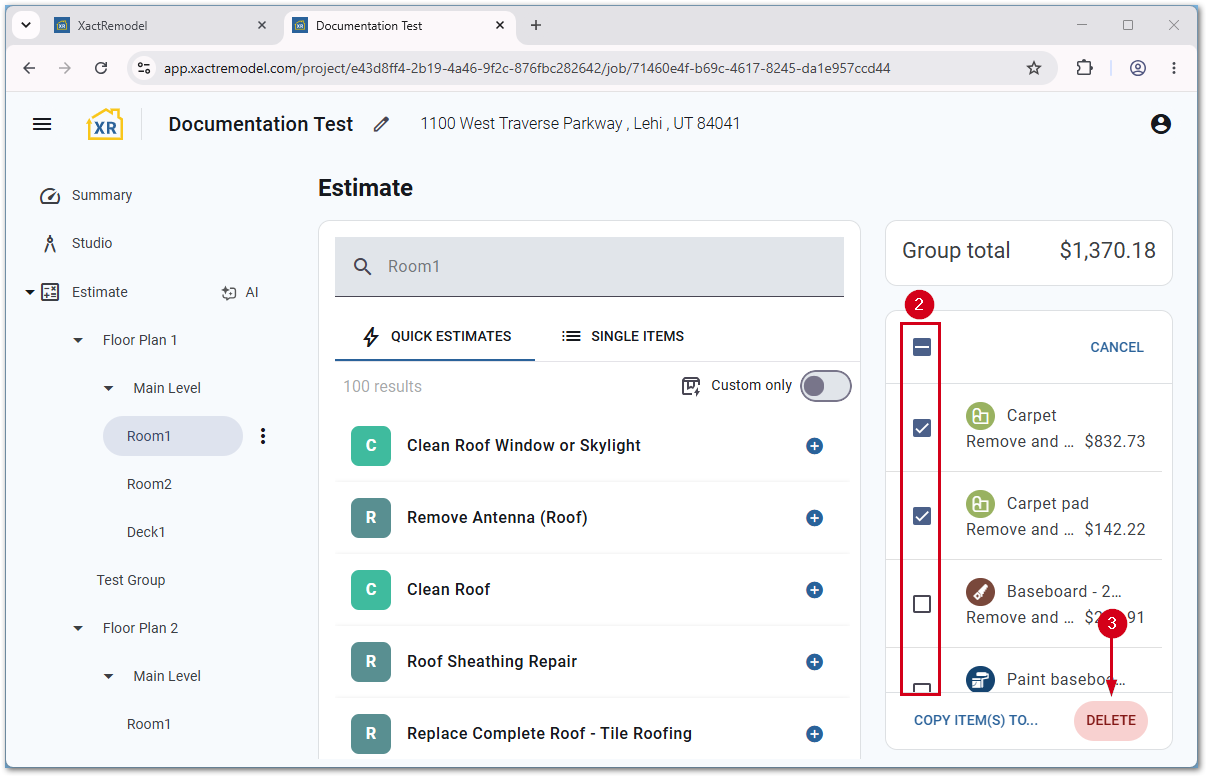
Follow the steps below to delete multiple items at once from projects in XactRemodel or XactRestore online.
- Once in the group with the items to delete, select Edit.
- Select the item(s) to delete.
- Select Delete.
XR Mobile
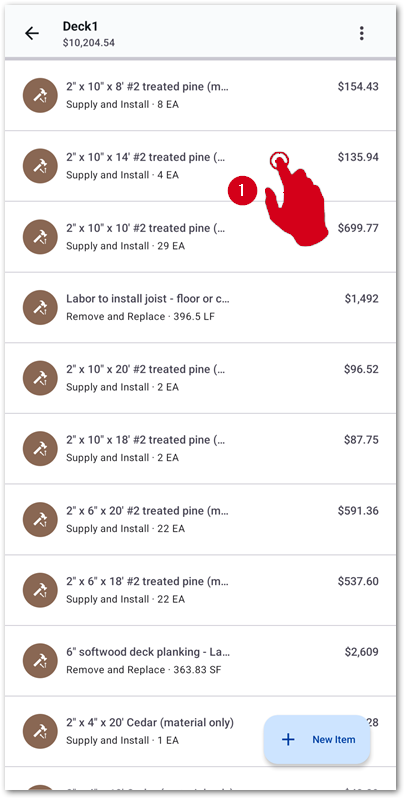
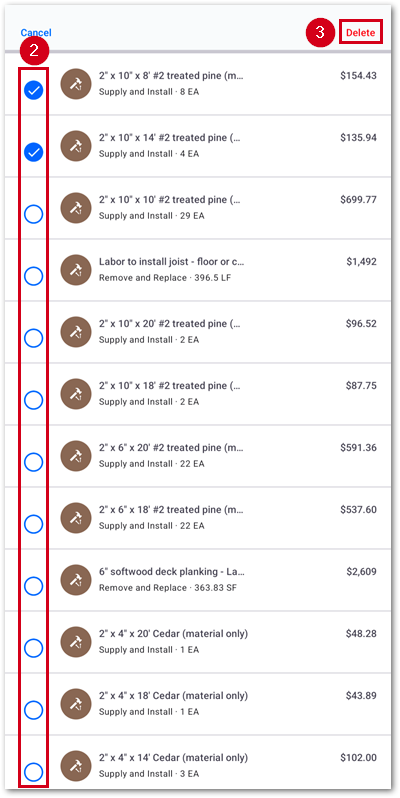
Follow the steps below to delete multiple items at once from projects in XR Mobile.
Note: Note: The screenshots below were taken on an Android device; however, the experience is similar on iOS and iPadOS devices.
- Once in the group with the items to delete, touch and hold anywhere in the line items section.
Note: Once the items list updates to show the line items with empty circles next to each item as shown in the second screenshot, let go.
- Select the items to delete.
- Select Delete.