Convert .pdf files into XactRestore and Xactimate project files

As an XactRestore Pro customer with XactAI, you can convert .pdf files from Xactimate and generate both a native XactRestore project and an .esx file that you can import into another user’s XactRestore, Xactimate desktop (X1), or Xactimate online.
For best results, we recommend using a Final Draft or Rough Draft report; however, other reports may work with varying levels of accuracy. XactAI reads the following information to generate the new project and .esx file:
- Customer name and address
- Any claim dates listed
- Price list
Note: The price list must be no more than five years old to create a project.
- Room and level names
- Line item names, quantities, and prices
 The AI Estimator and the .pdf to .esx conversion tool are generative AI features, and you should review and adjust the results.
Convert a .pdf
Follow the steps in one of the following sections to get started.
From the New project button
Follow the steps below to import a .pdf file using the new project button.
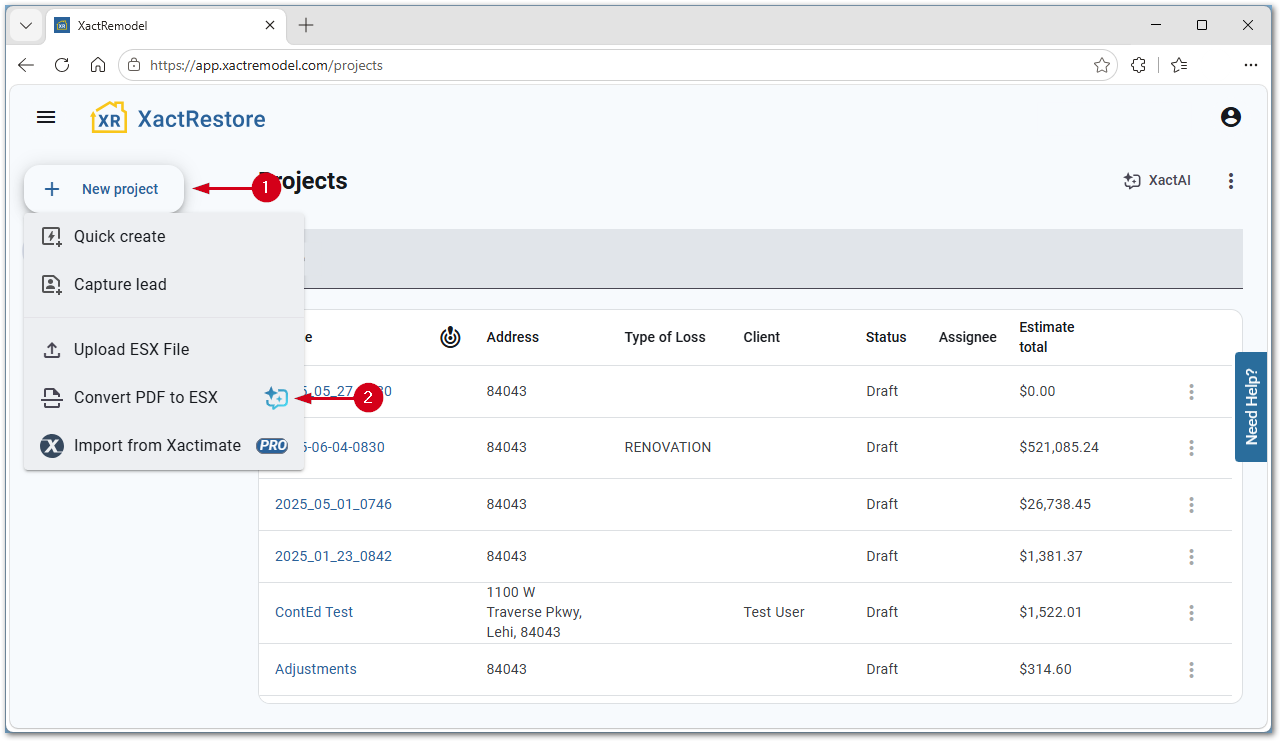
- From the project list, select New project.
- Select Convert PDF to ESX. A File Explorer window appears.
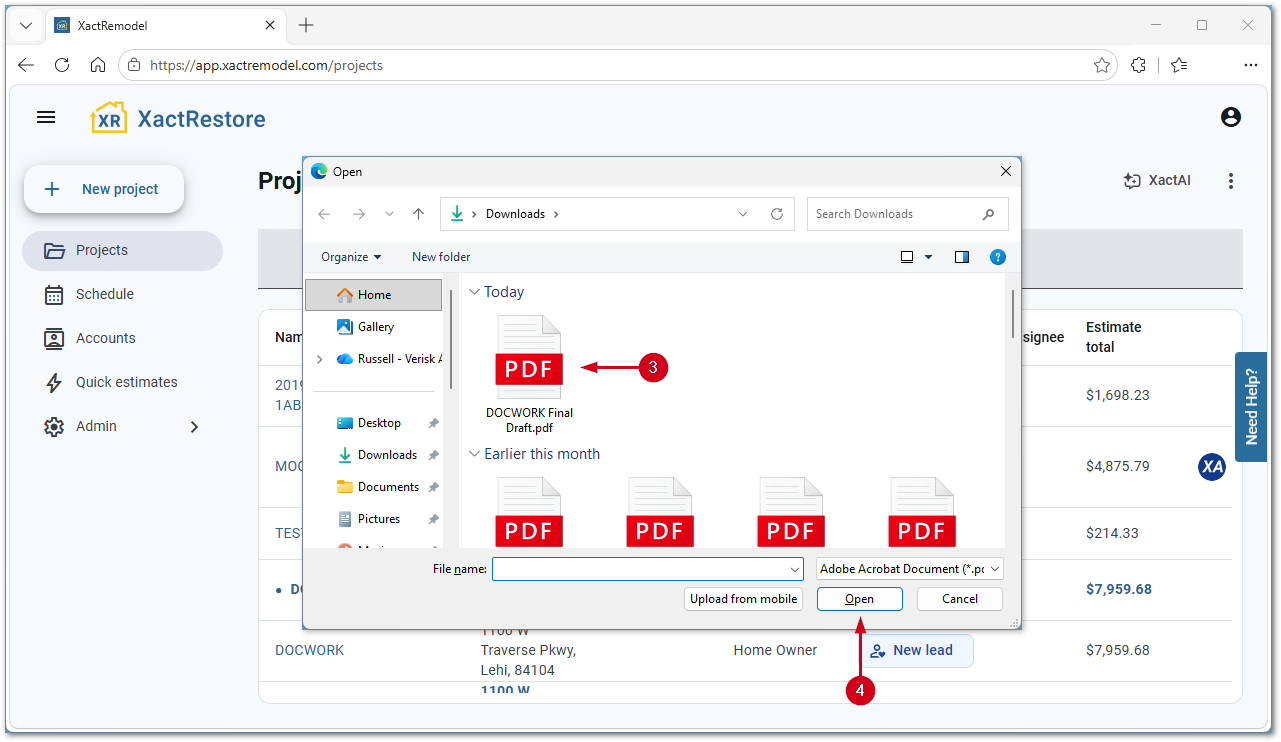
- Select the desired .pdf file.
- Select Open. The File Explorer window closes.
From the XactAI button
Follow the steps below to import a .pdf file from the XactAI drawer.
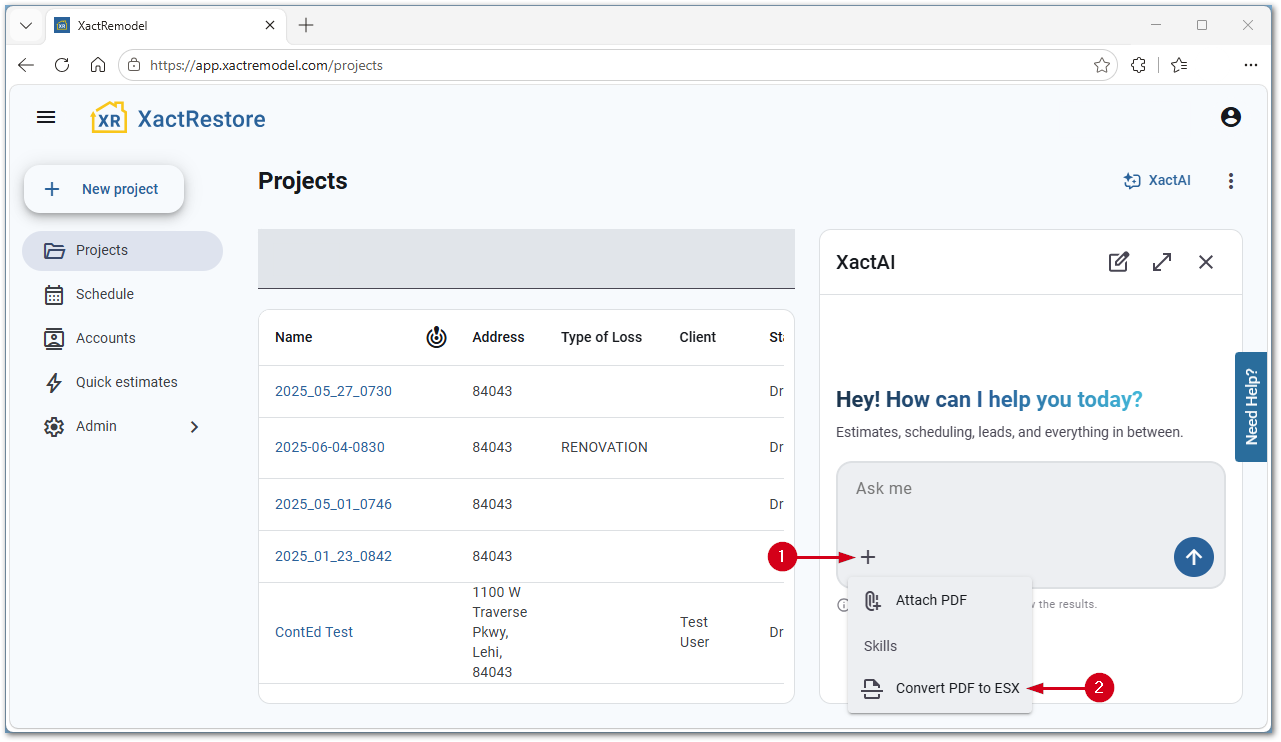
- Select Add input.
Note: If the XactAI drawer is not open, select XactAI first.
- Select Convert PDF to ESX. A File Explorer window appears.
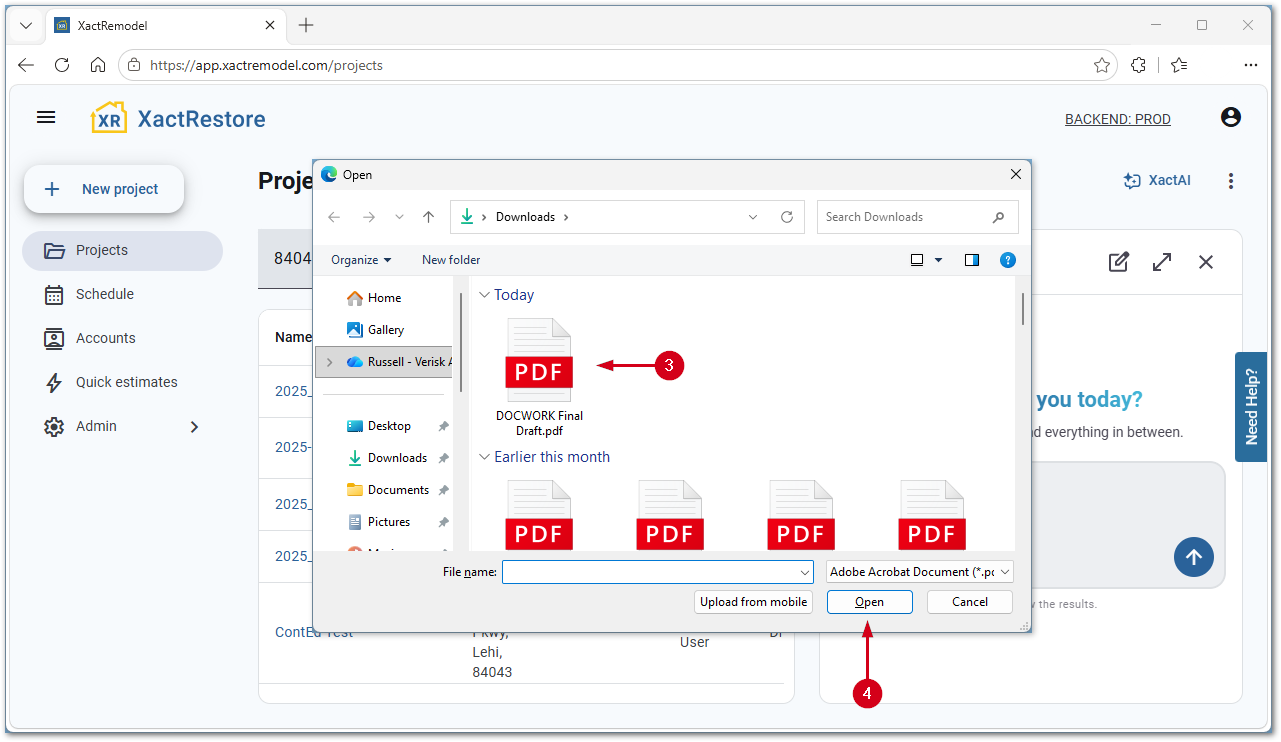
- Select the desired .pdf file.
- Select Open. The File Explorer window closes.
- Select Send.
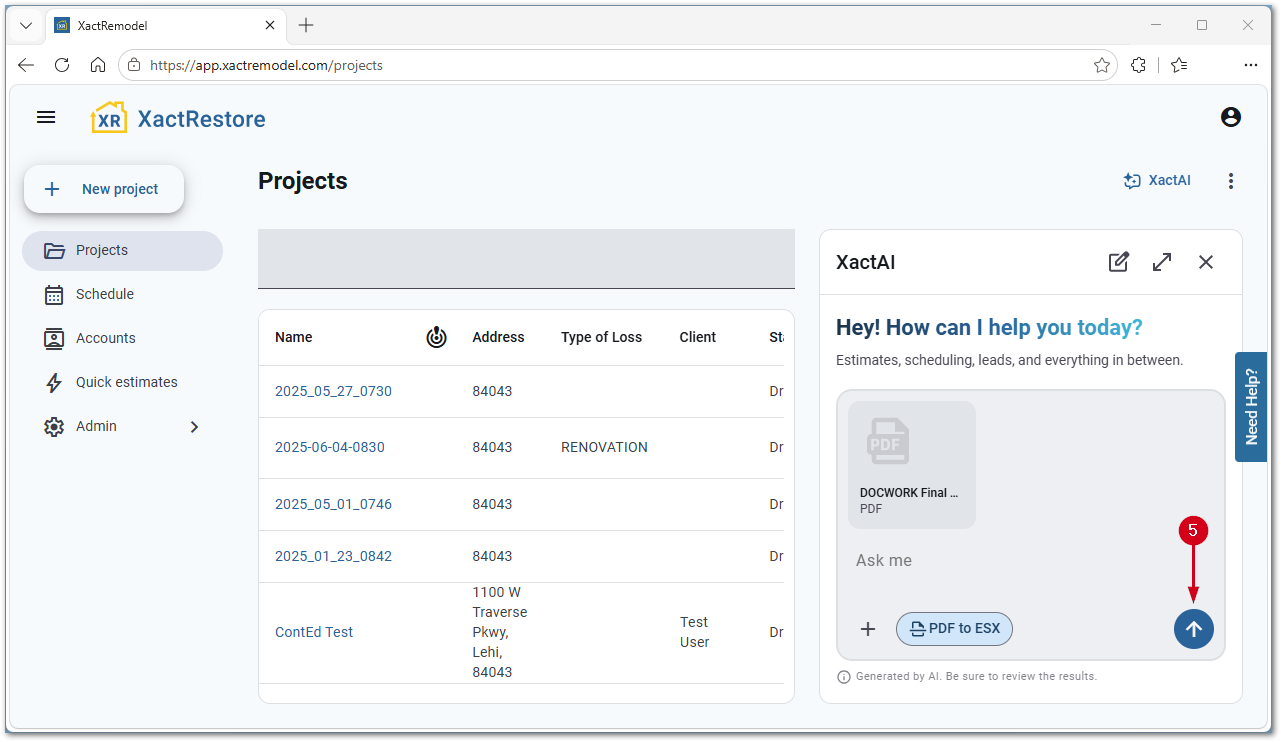
Once the file is converted
Once XactAI reads a file, it lists assumptions and items to manually verify. This could include missing tax information, missing dimensions, custom or unknown line items, or unknown or unsupported activity codes.
Note: In the screenshot below, the full screen setting was used. Select the full screen icon to expand the XactAI drawer. To return to the default size, select the X icon.
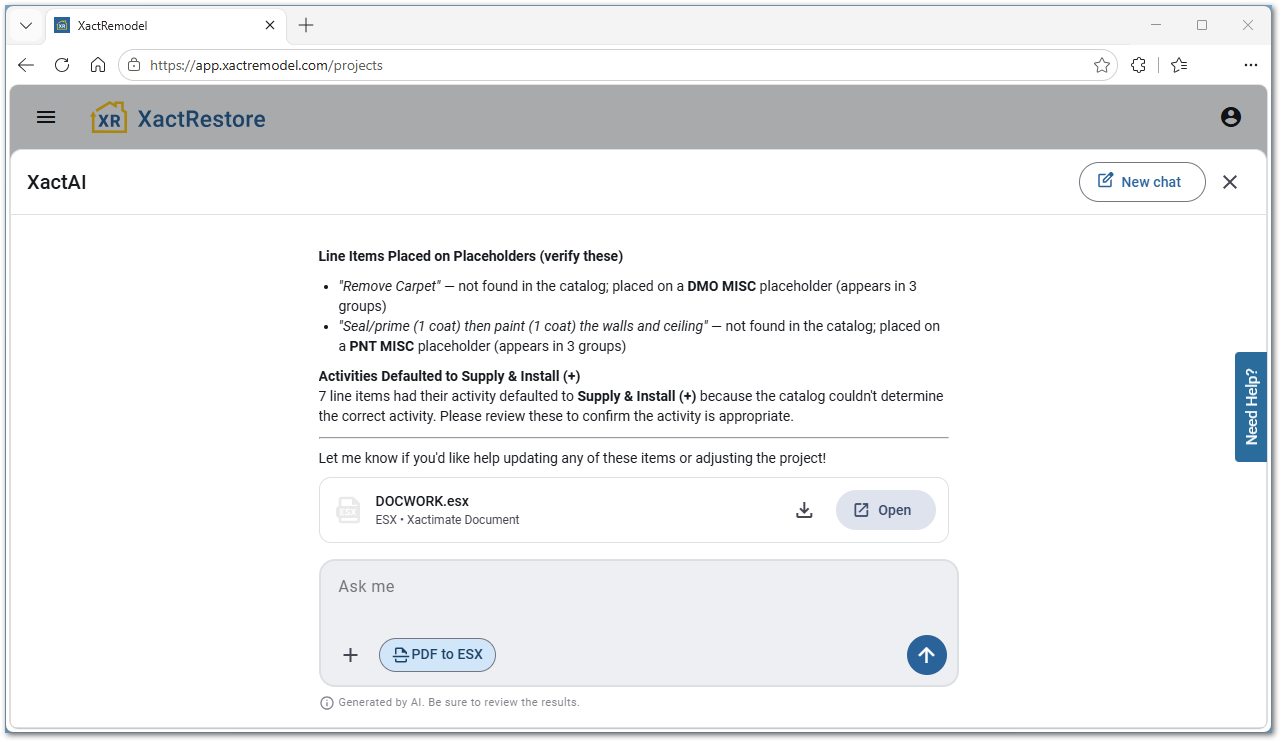
Access the file
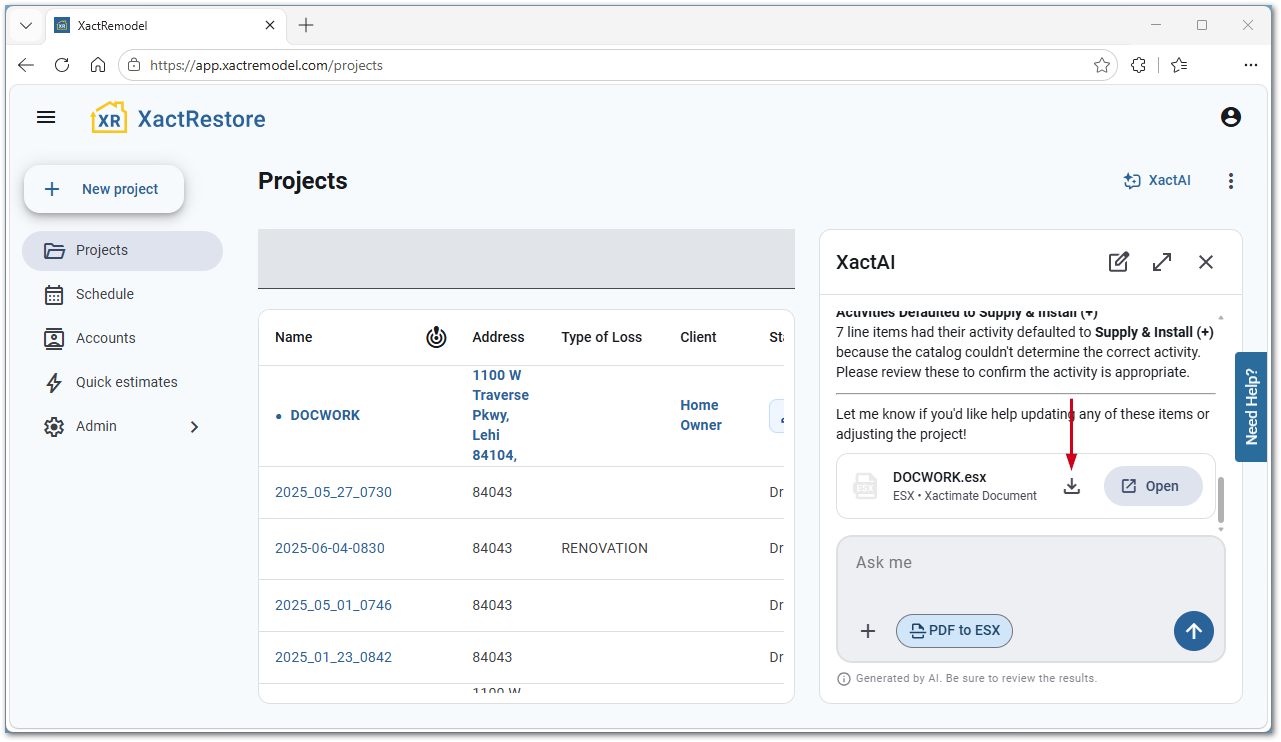
To download the .esx file for use in Xactimate or to provide it to another XactRestore user, select Download.
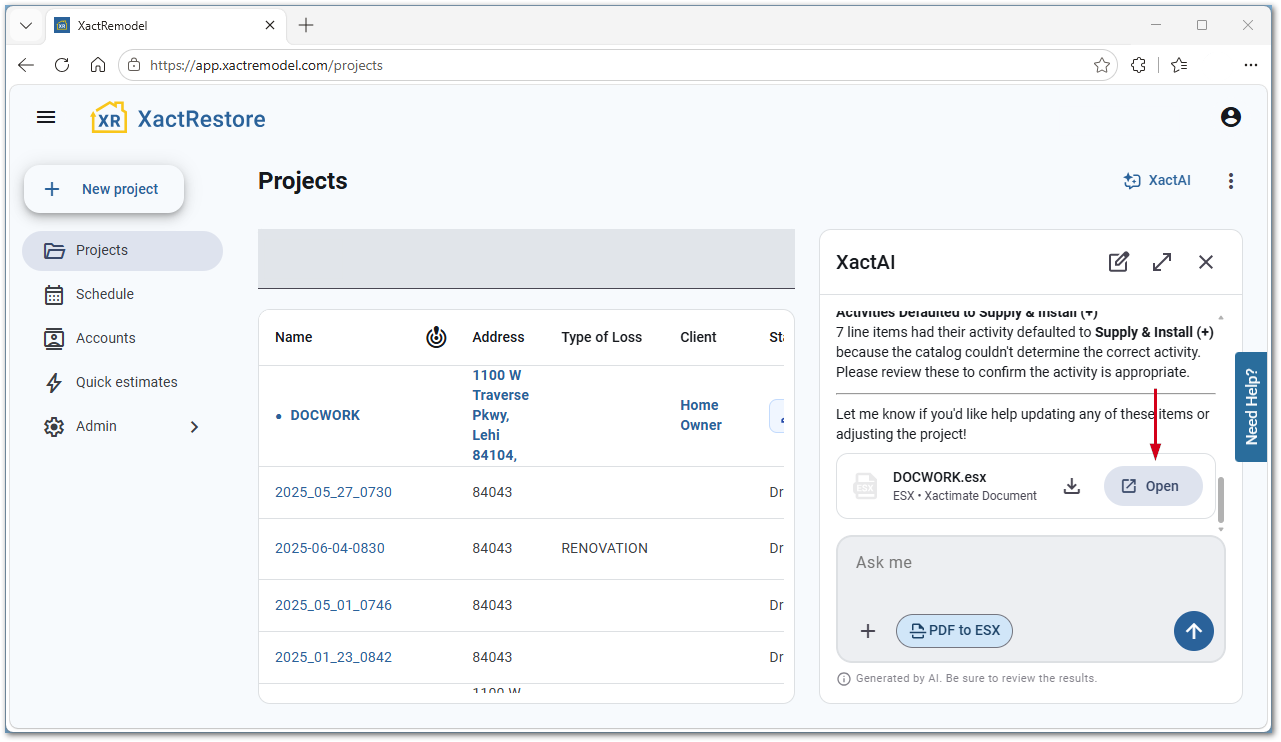
To open the project in XactRestore, select Open.
Tips and tricks
Below are some helpful tips and tricks when using the .pdf conversion tool.
- Once XactAI reads the .pdf and creates an XactRestore project and Xactimate .esx file, the .esx file does not reflect any changes made through the AI Estimator or directly in the project.
- In the XactRestore project, the files section includes a Source documents folder containing the original .pdf and .esx files.
- When selecting a .pdf, we recommend limiting the file name to 20 characters or less.
- XactAI does not import sketch data from the report. If you draw a sketch after conversion, move the line items from the original group to the group created when sketching.
- If a line item cannot be directly matched to an existing price list item, it will still be added but as a MISC item.
- Any line item (F9) notes will be added to the item's description.
- .pdf to .esx does not work using the Claude MCP connector.
- PWI (Paid When Incurred) and Depreciation are not supported.