Add line items in Studio
 Updated
by Russell B.
Updated
by Russell B.
The document below covers adding line items directly from Studio. For assistance with adding line items from the Estimate section, see our Add Line Items from within an Estimate document.
Note: Studio is not available from mobile devices.
Add standard line items in Studio
Follow the steps below to add line items in Studio in XactRemodel and XactRestore.
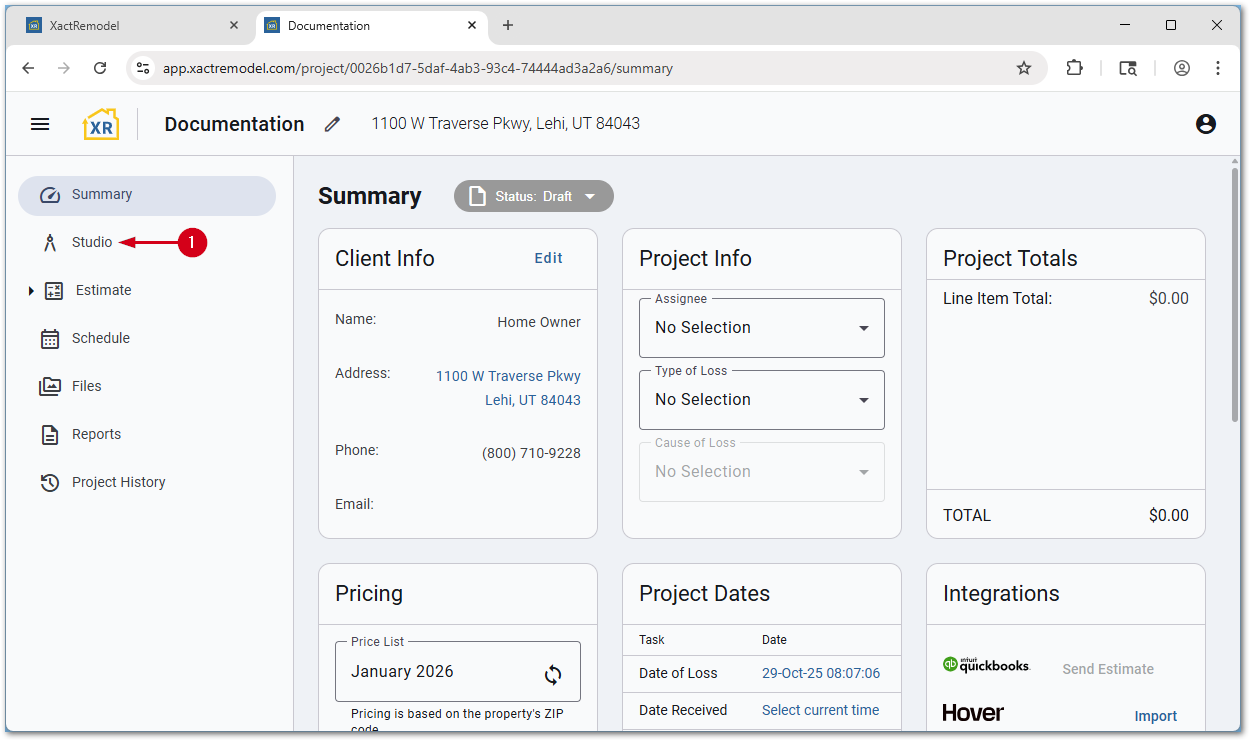
- From within a project, select Studio.
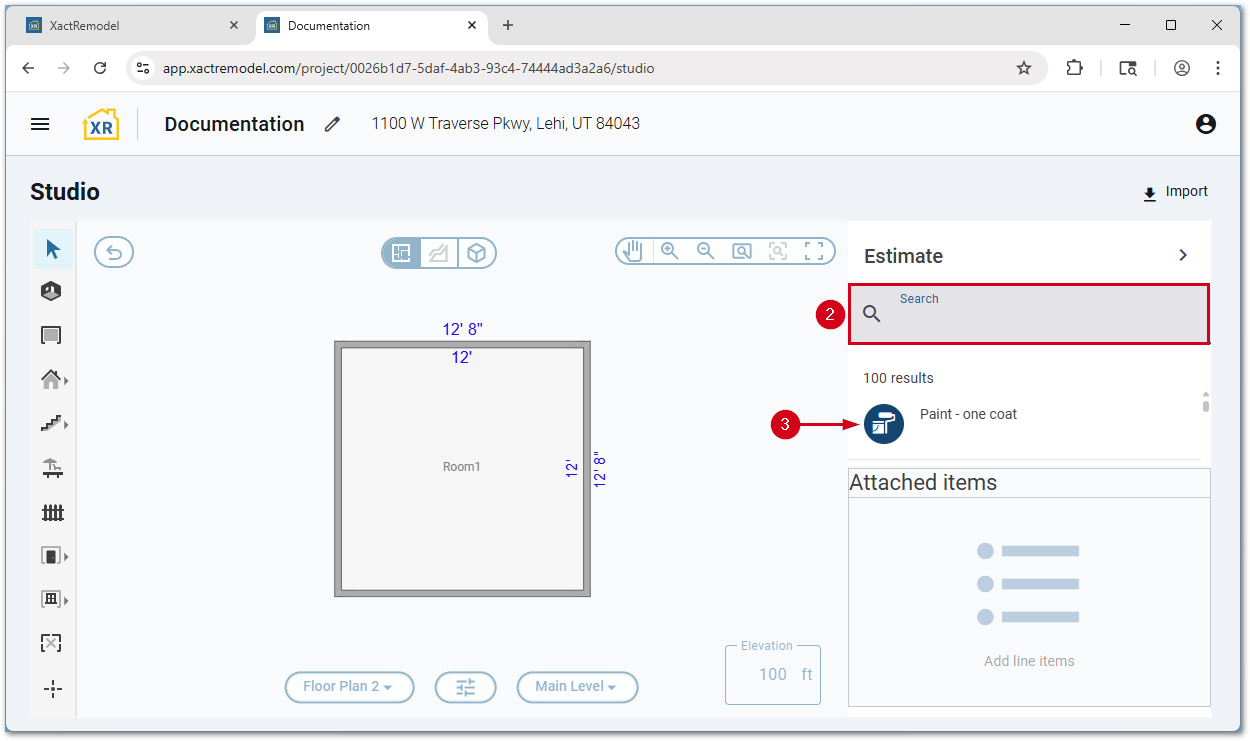
- In the Search field, search for the desired line item.
- Select the desired line item. The line item is added to the cursor.
Note: The menu is collapsed in the images below. Select the expand icon in the top left to open the menu.
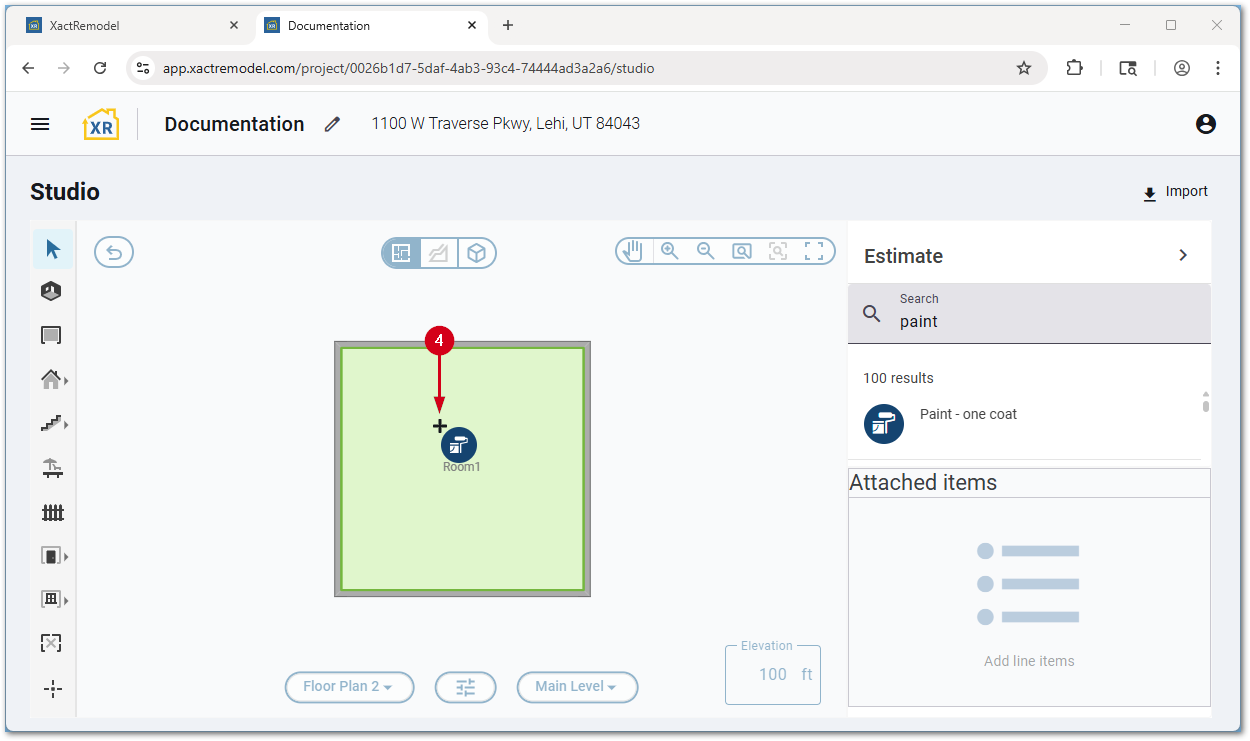
- Select and place the line item as desired. Placed items are shown in green.
Note: Selecting in a room a second time will remove the line item from the room. Press the Escape key on the keyboard to remove the item from the cursor.
Add reference area or block items in Studio
Certain line items, such as cabinets, are represented via reference areas or blocks within Studio.
- From within a project, select Studio.
- In the Search field, search for the desired line item.
- Select the desired line item. The line item is added to the cursor.
Note: The menu is collapsed in the images below. Select the expand icon in the top left to open the menu.
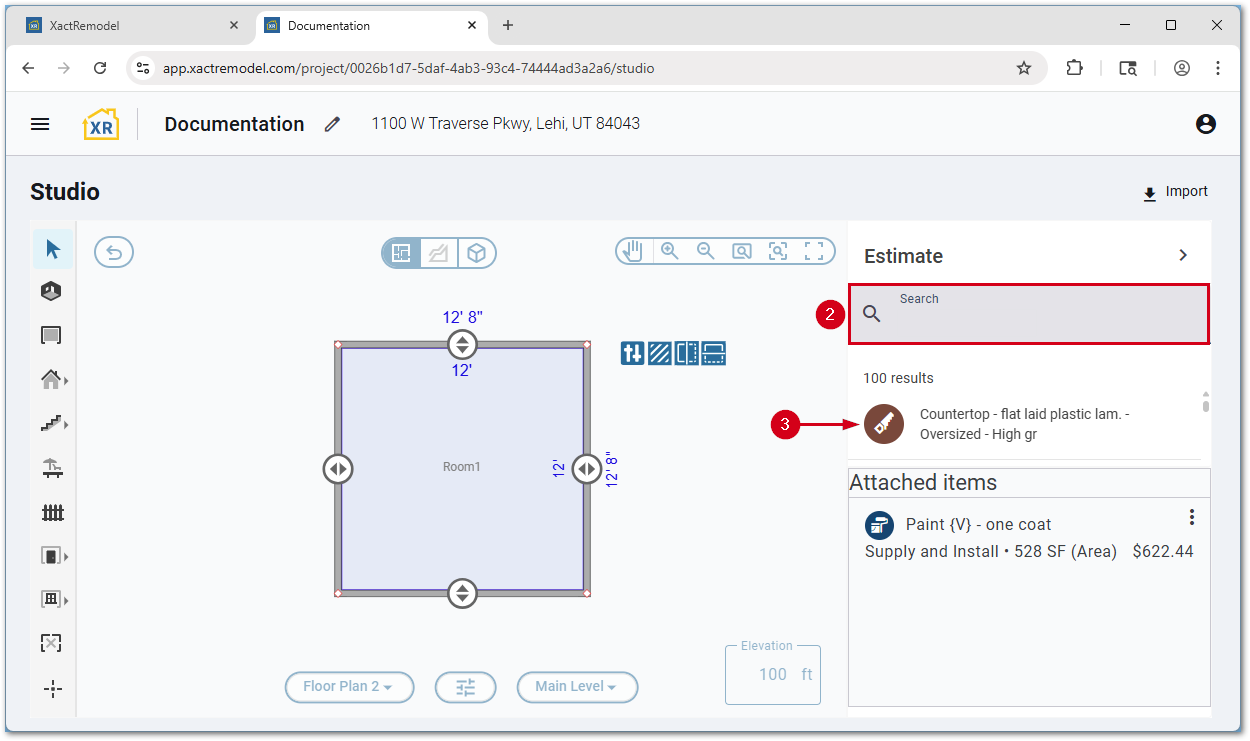
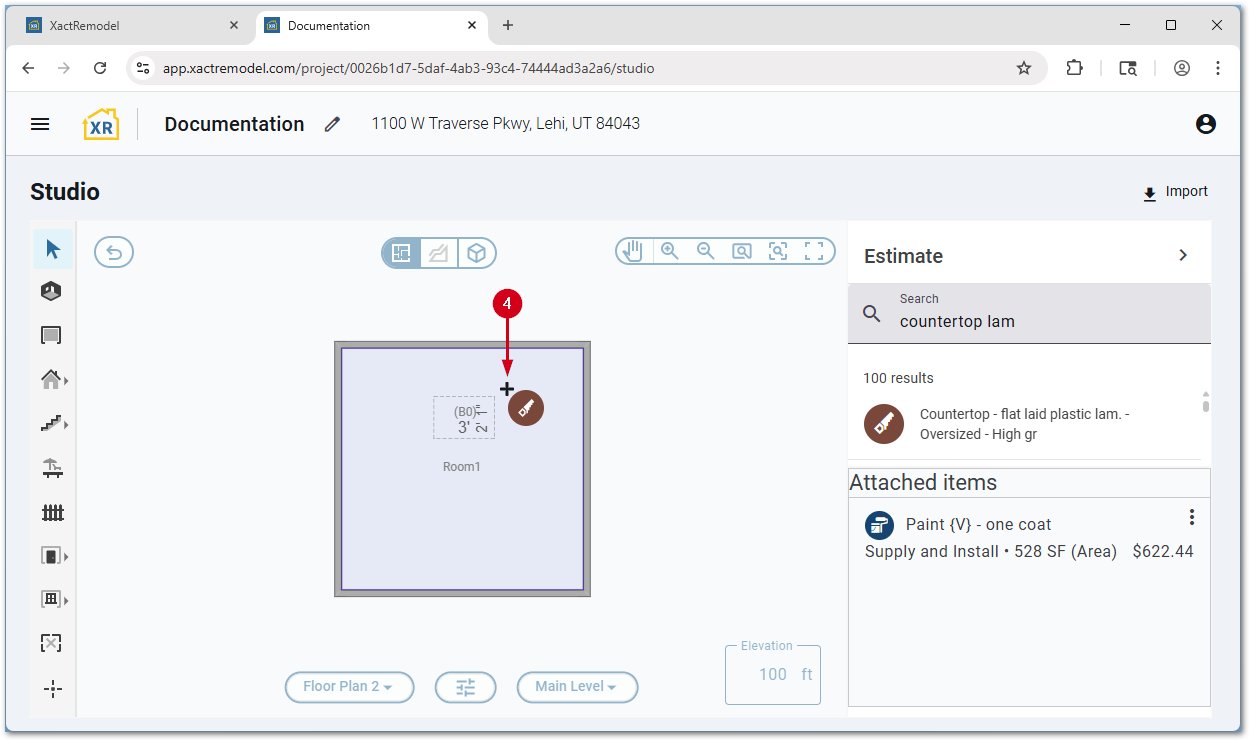
- Select and drag the desired size.
Note: Press the Escape key on the keyboard to remove the item from the cursor. Press the Tab key on the keyboard to rotate the object 22.5 degrees clockwise. For more information, see our Rotate an object in XactRemodel via web document.
Add reference point items in Studio
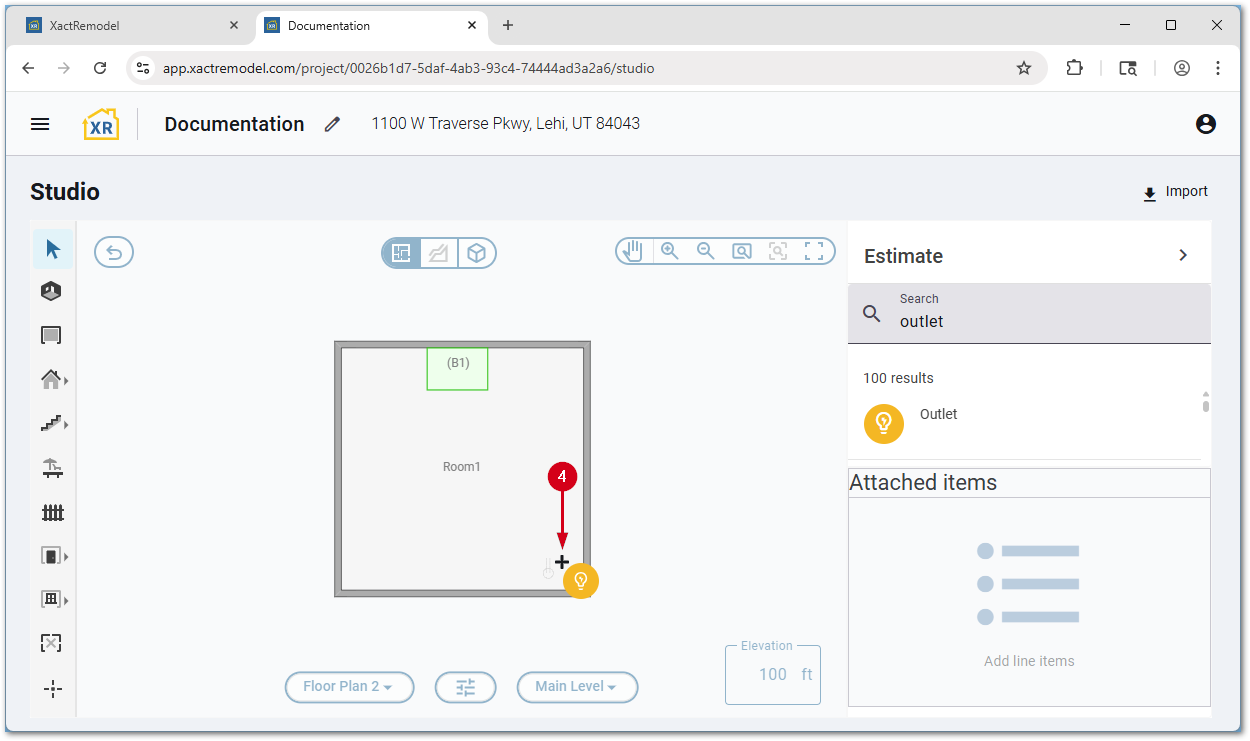
Certain line items, such as light fixtures, outlets, and shrubbery, are represented via reference points within Studio.
- From within a project, select Studio.
- In the Search field, search for the desired line item.
- Select the desired line item. The line item is be added to the cursor.
Note: The menu is collapsed in the images below. Select the expand icon in the top left to open the menu.
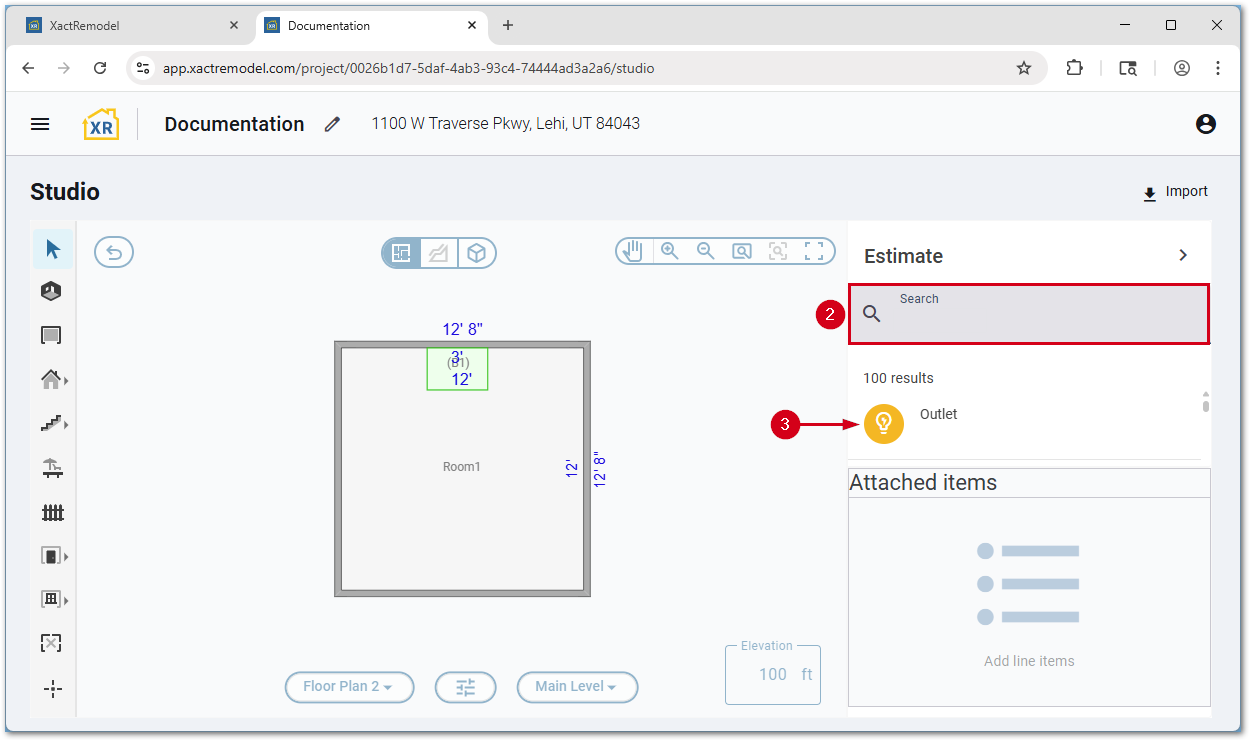
- Select and place the line item as desired.
Note: Press the Escape key on the keyboard to remove the item from the cursor.