Table of Contents
Component report
 Updated
by Russell B.
Updated
by Russell B.
The Component report provides the component-level data associated with each line item that is added to the project. This includes all the Material, Labor, and Equipment components that are associated with the line items that were added to the project. Any custom edits made to the line item components will be reflected on the report.
Report sections
Material components
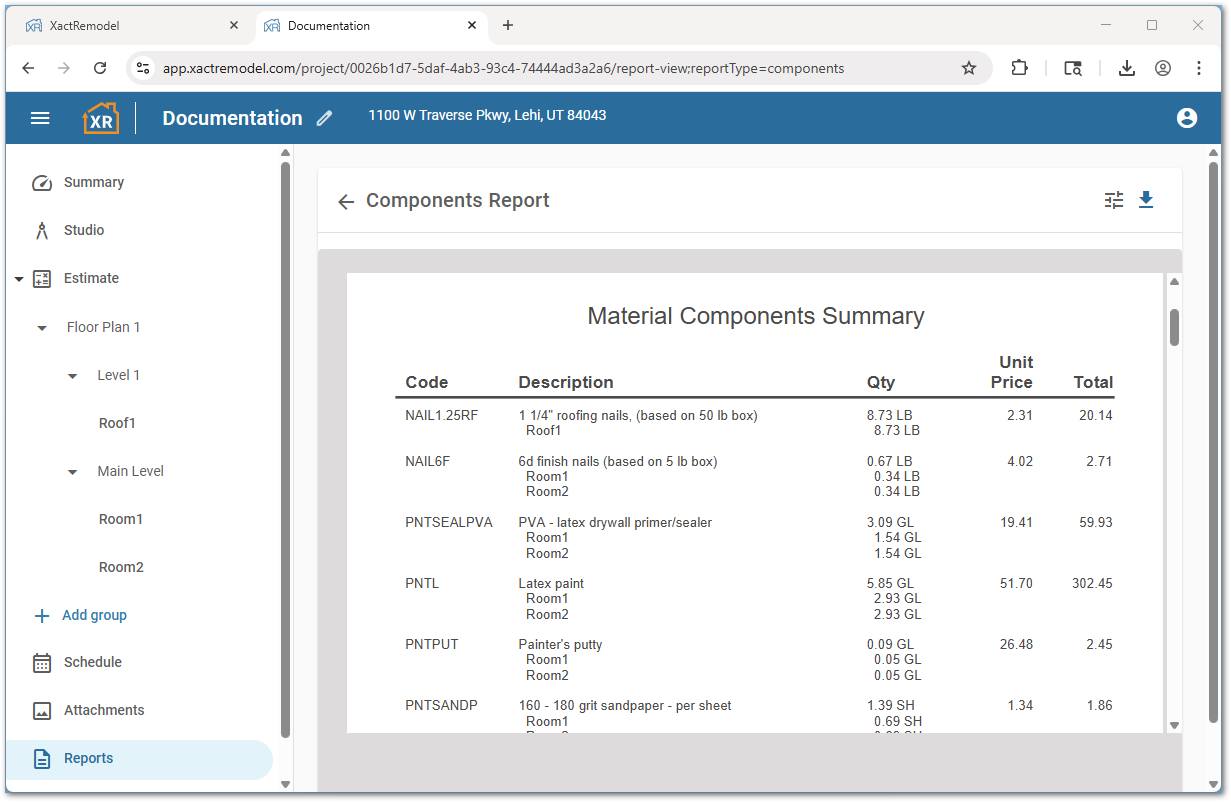
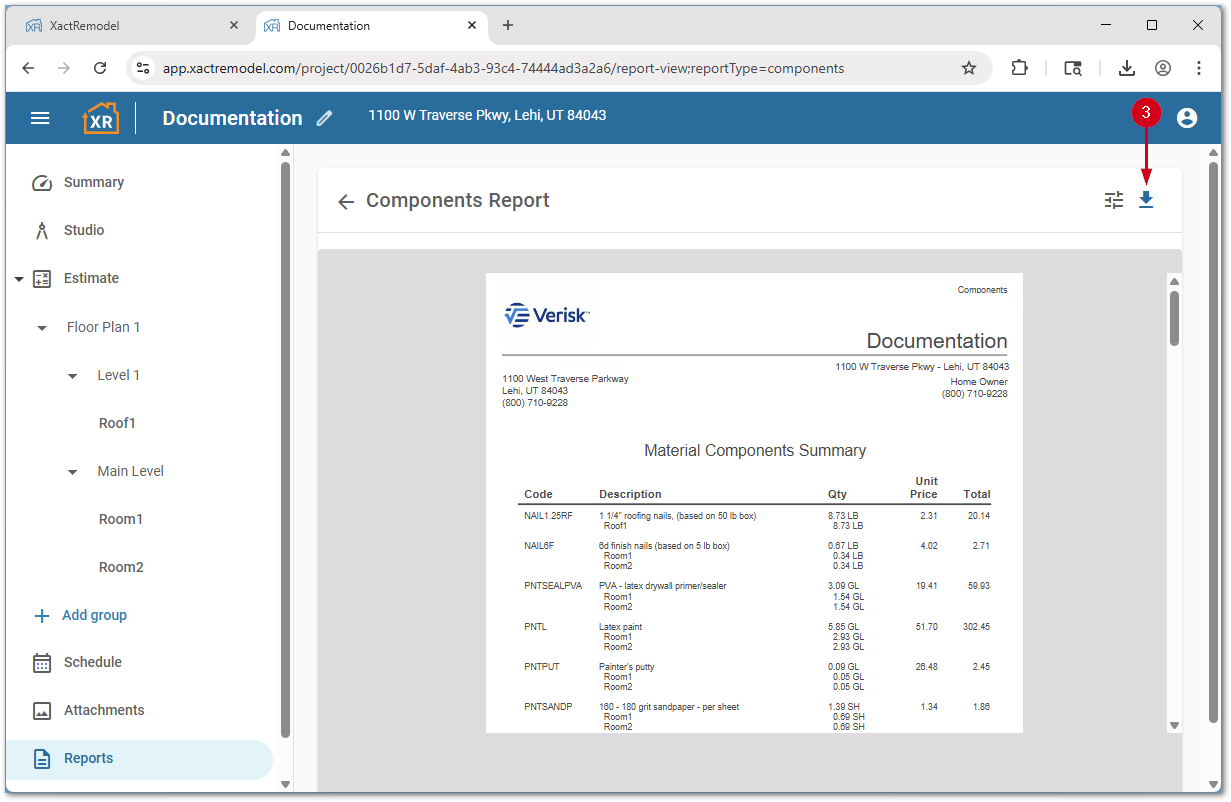
The Material Components Summary breaks out all the material components that are required for the line items in the project. This includes the description of the item, quantity, unit price, and the total price.
When the same material item is applied to multiple groups in the same project, the corresponding groups are displayed on the Material Components Summary with the quantities applied to each specific group.
At the end of the Material Components Summary is a total for all the material in the project.
Labor components
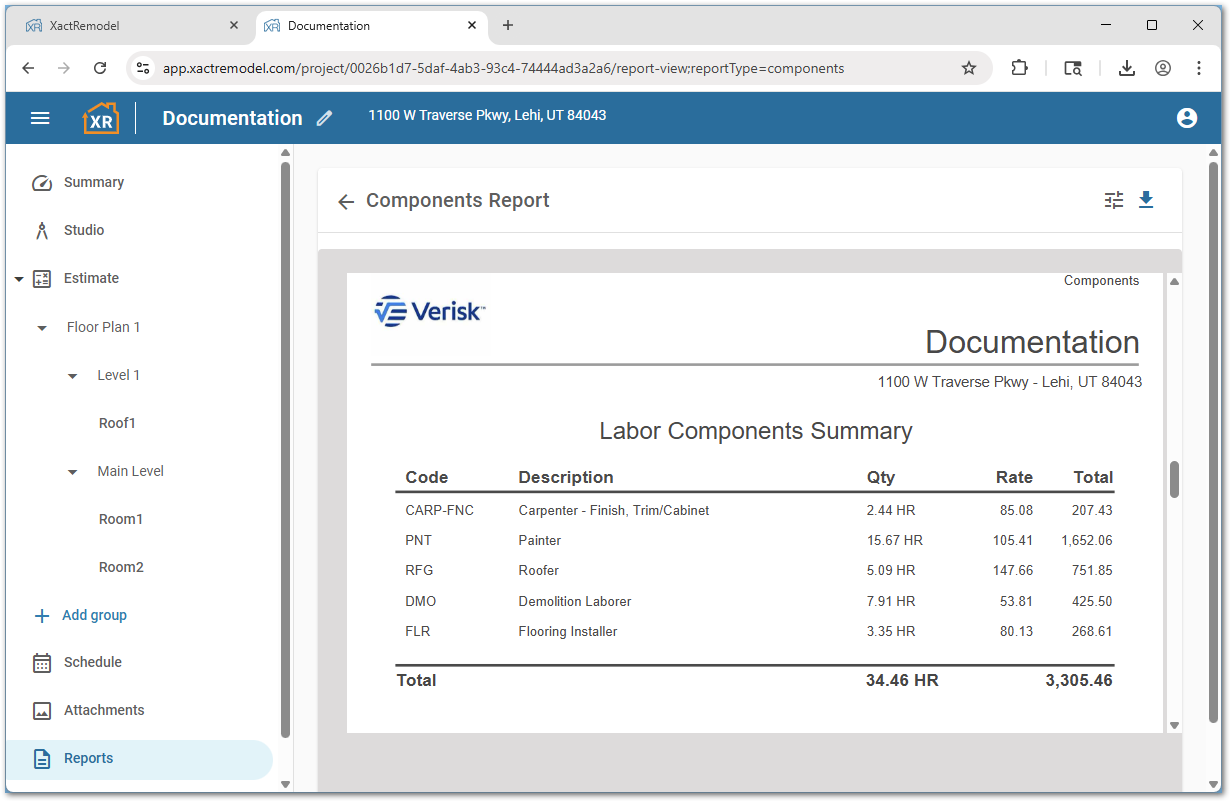
The Labor Components Summary breaks out all the labor trades that are required to complete the project. It includes the description, number of labor hours, the hourly rate, and the total for each labor trade.
The total at the bottom of the Labor Components Summary adds the total number of labor hours and the total cost for the labor in the project.
Equipment components
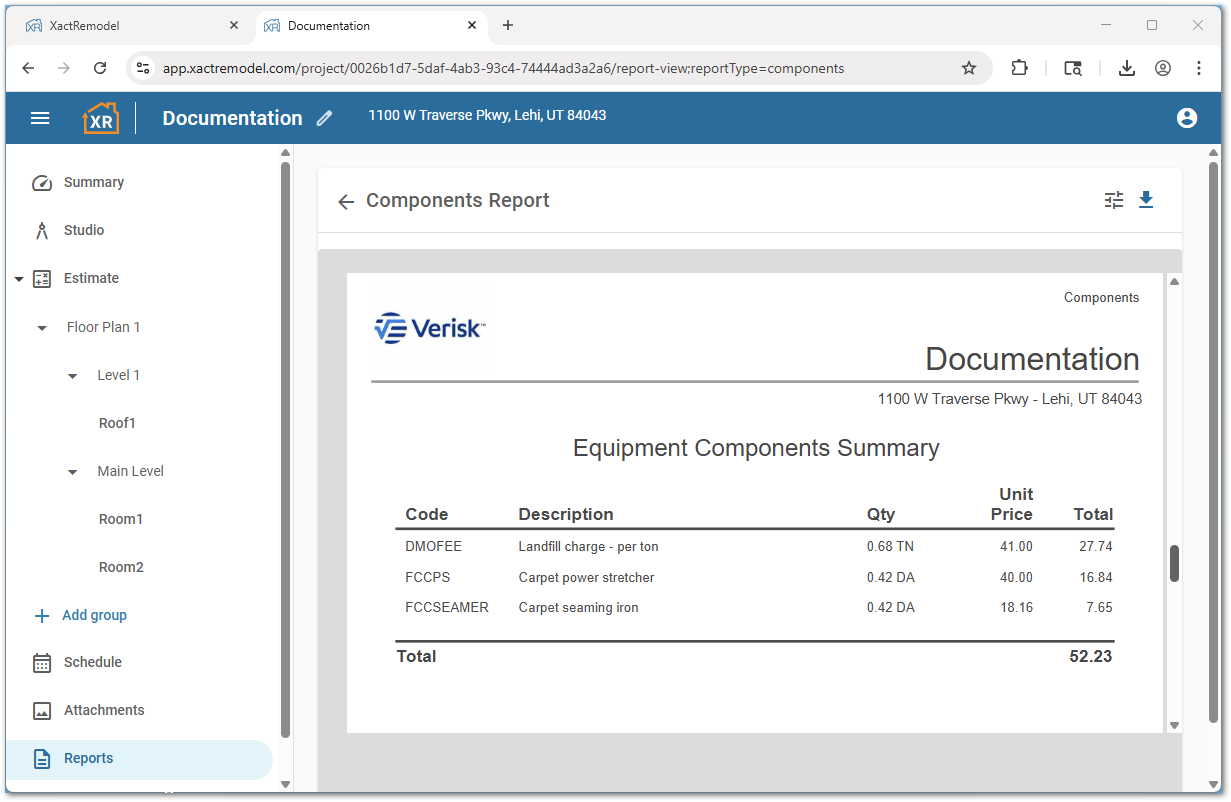
The Equipment Components Summary breaks out all the equipment that is required to complete the project. It includes the description of the equipment needed, the quantity (length of time billed for using the equipment or quantity of the specified equipment), the unit price, and the total price.
The total at the bottom is the sum of the cost for all of the equipment needed for the project.
Summary
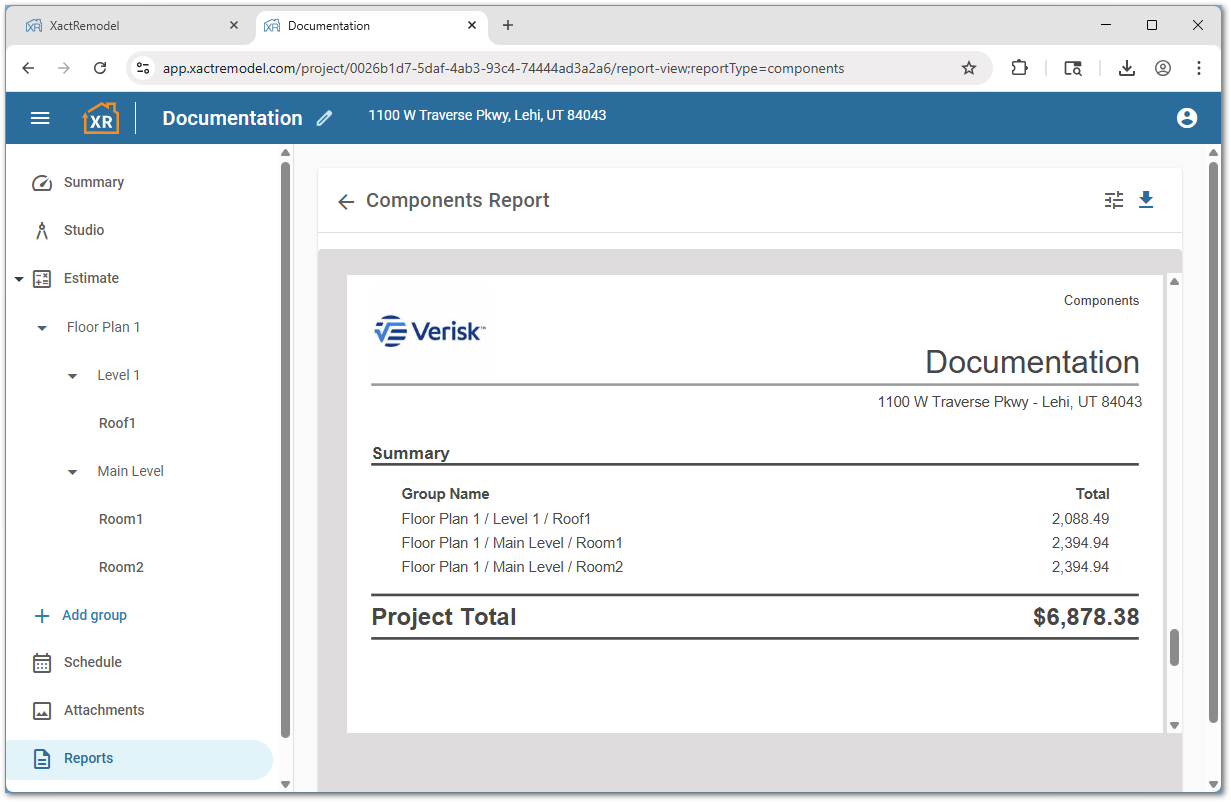
The Project Summary displays the total cost of each Group associated with the project and an overall Project Total.
Company logo and information
Administrators can apply a company logo and information—including the company name, address, phone number, and website— in the company info section. For more information on this process, please see our Company info document.
Note: This feature is only available in XactRemodel and XactRestore online.
Report statements
Users can optionally apply custom opening and closing statements to the Proposal report. For assistance with statements, see our Create report statements document.
Report settings
The report settings available to users include the following:
- Opening Statement: Includes the selected opening statement
- Closing Statement: Includes the selected closing statement
- Groups: Shows a list of rooms or groups displayed in the estimate grouping tree; select or unselect each group to include or omit them
Once the settings have been configured appropriately, select Apply to have the report settings applied to the report.
Generate or share the report
Follow the steps in the following sections to generate and share a .pdf file of the Components report.
XactRemodel and XactRestore online
- From within a project, select Reports.
- Select Components.
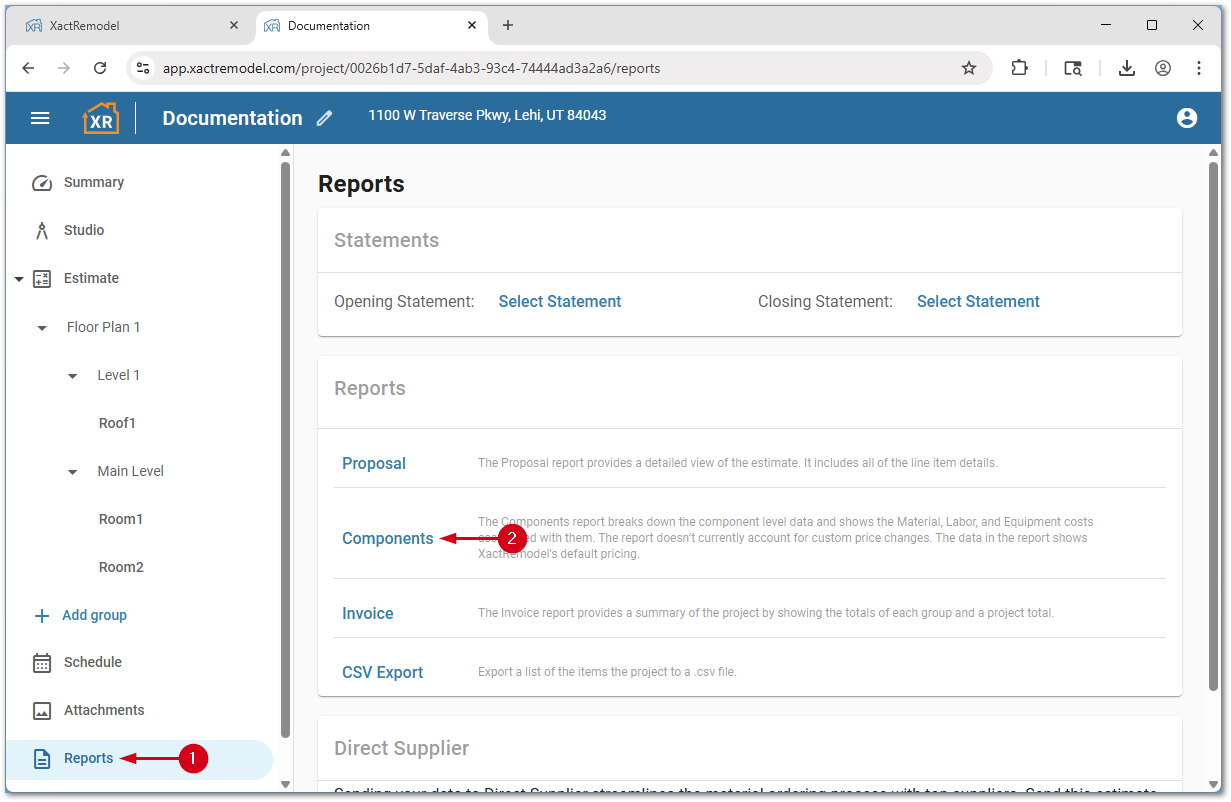
- Select the download icon. A .pdf file downloads automatically.
XR Mobile
Note: Images are taken from an iOS device and may vary slightly on Android devices.
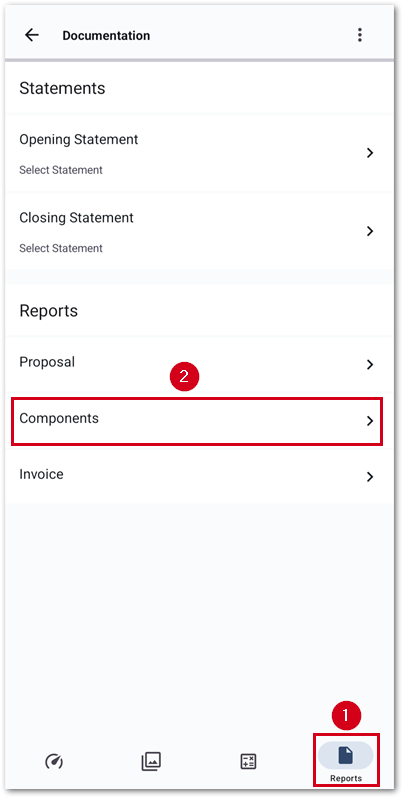
- Within a project, select Reports.
- Select Components.
- Select the share icon.
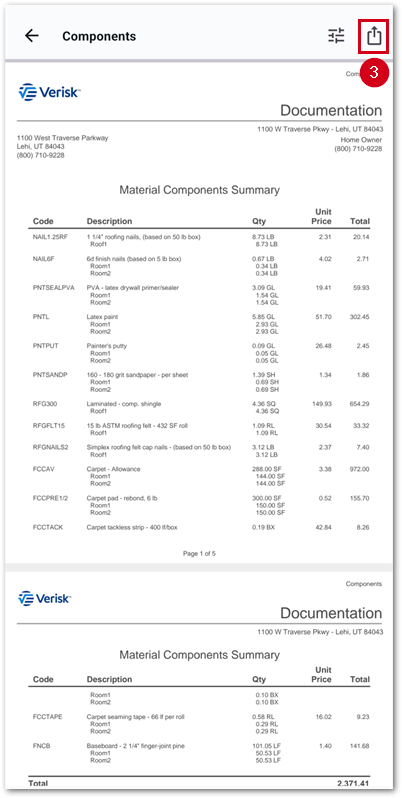
This report can then be shared via email, text, file sharing drive, or printed.
