Manage users and roles in XactRemodel and XactRestore

 Only users with administrative rights can access the Admin menu. If you are not an administrator, reach out to one in your organization. If no one in the organization has administrative rights for the company, please contact the Xactware PropTech Sales Department by calling 833-352-9228 during regular business hours of 7:00 AM - 4:00 PM (Mountain Time), Monday through Friday.
This document covers admin user controls, including adding or editing users, and adding or editing user roles within XactRemodel and XactRestore.
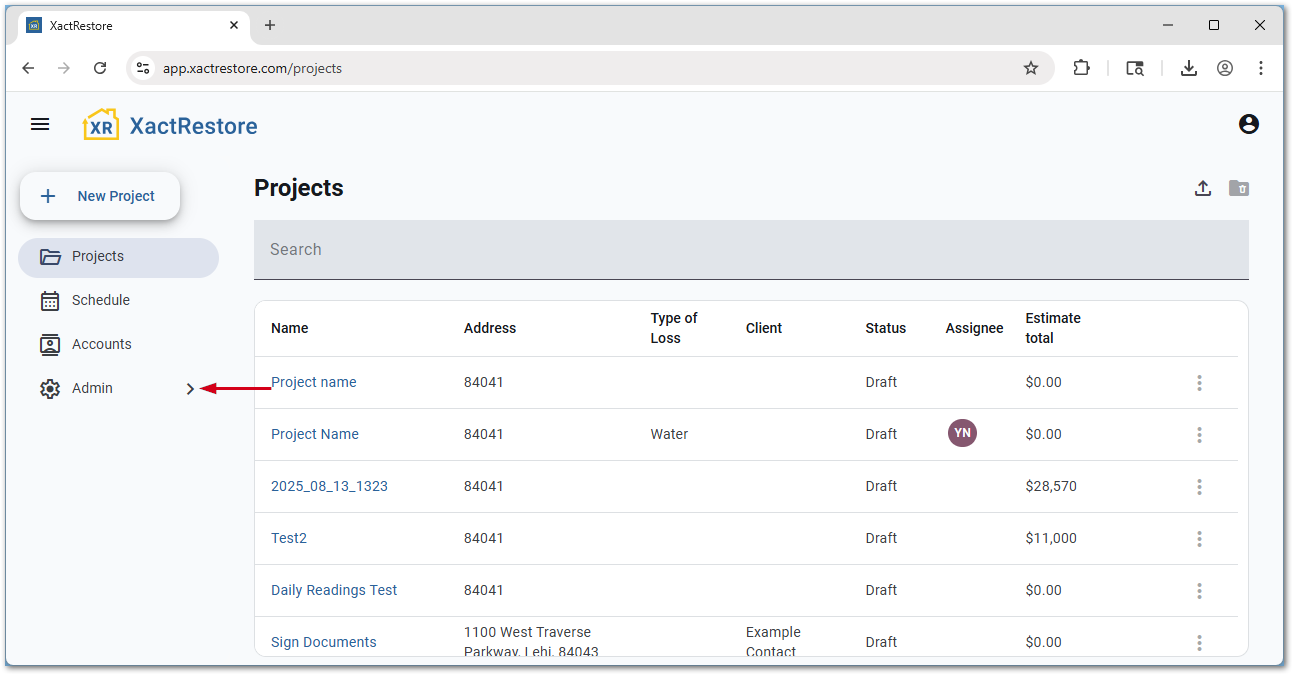
To access the admin menu shown in the below sections, select Admin.
Note: The screenshots are from XactRestore but are the same in XactRemodel.
Manage users
Add users
Follow the steps below to add users in XactRemodel and XactRestore.
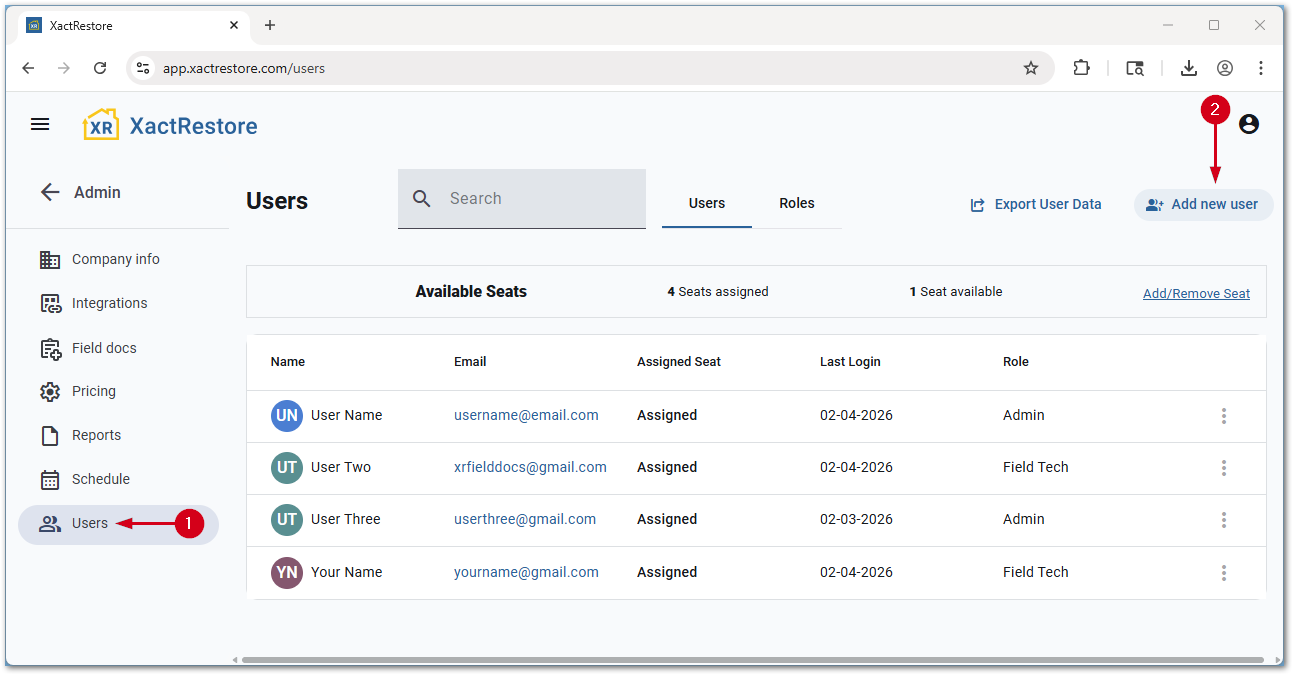
- From the admin menu, select Users.
- Select Add new user.
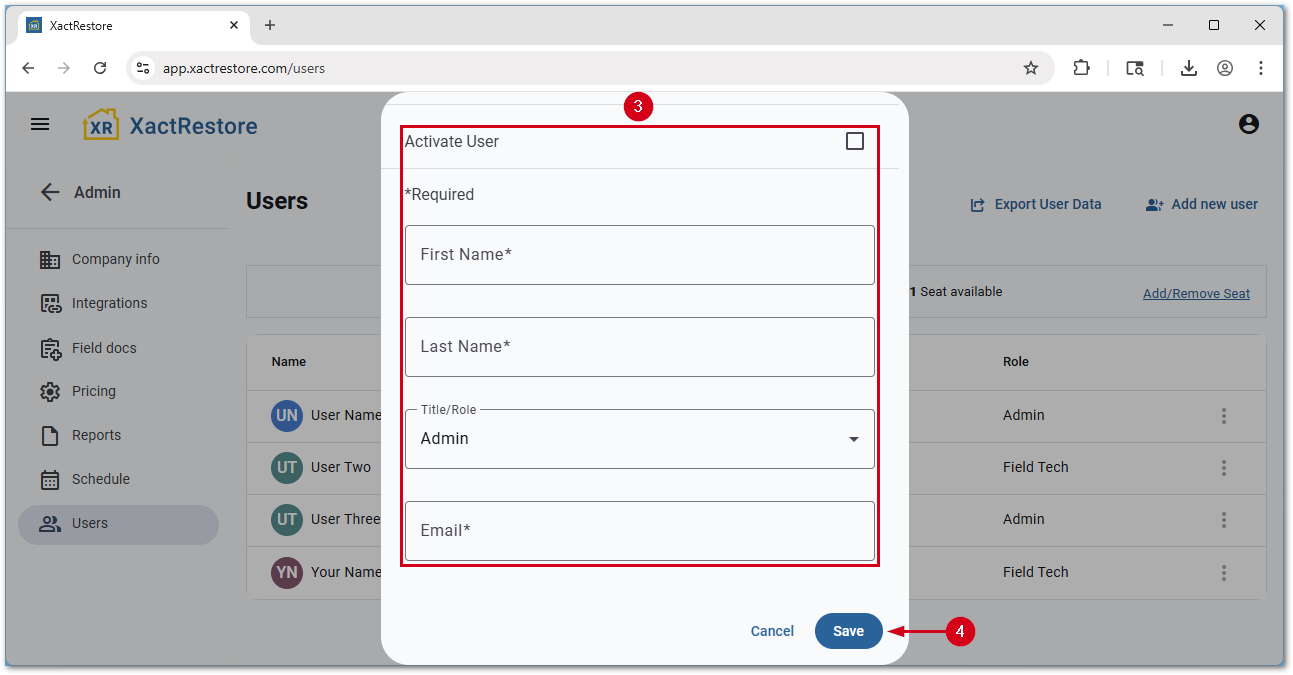
- Fill out the form:
- Activate User: Allows the user to log in and uses an open seat.
- First Name: The user’s first name.
- Last Name: The user’s last name.
- Title/Role: The user's role or title assigned to the user. For more information about titles and roles, see the next section.
- Email: The user’s Xactware ID that will be used to log in with.
- Select Save.
Edit users
Follow the steps below to edit users in XactRemodel and XactRestore.
- From the admin menu, select Users.
- Select the user to edit.
Note: Alternatively, select the three-dot menu and select manage user.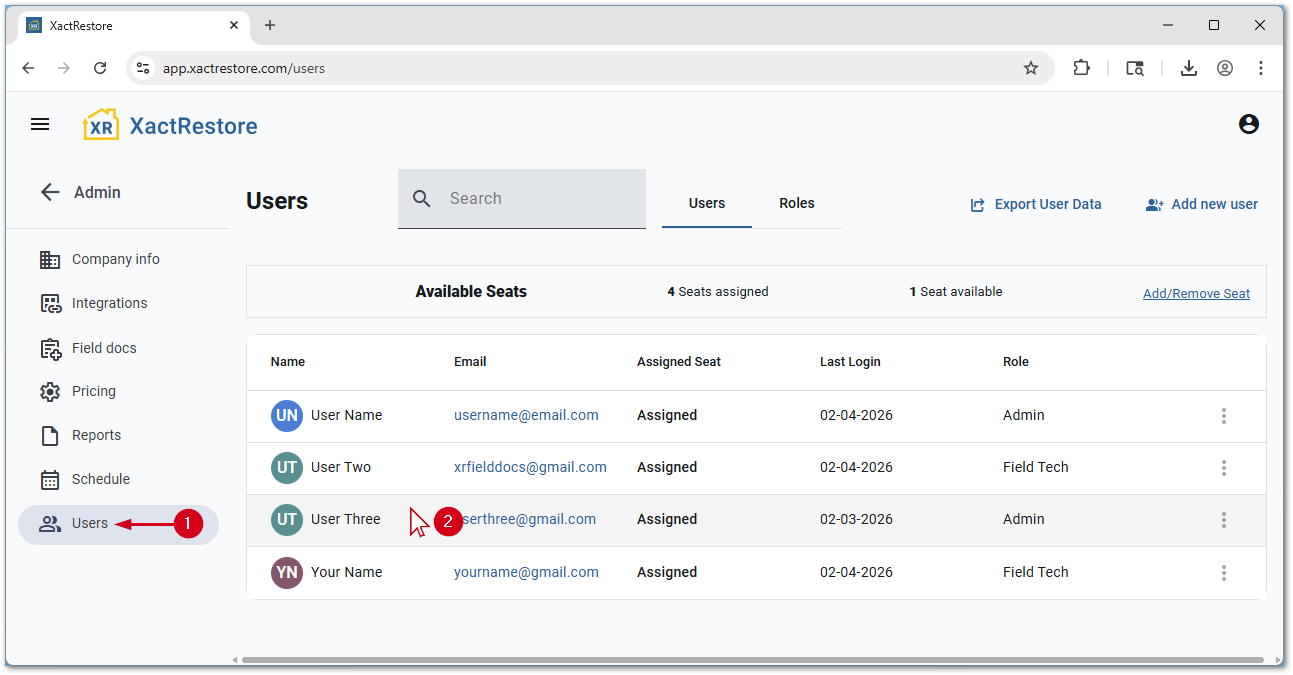
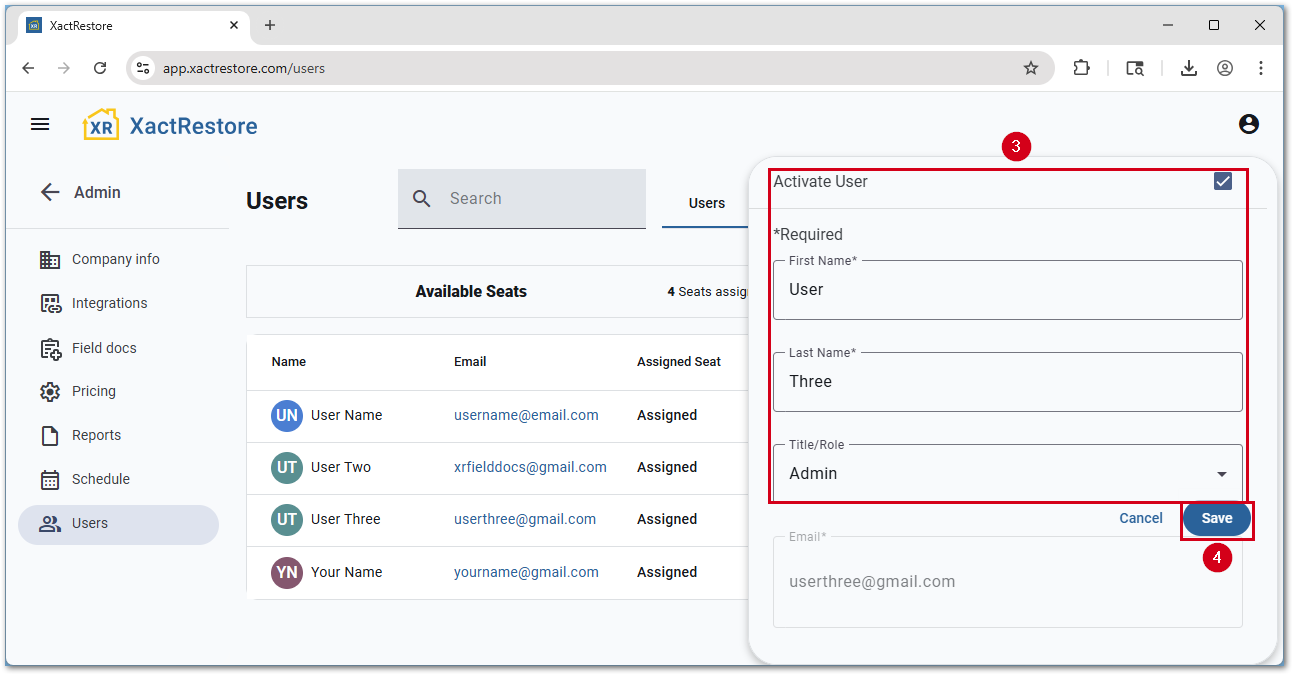
- Make any necessary changes.
- Select Save.
Delete users
Follow the steps below to delete users in XactRemodel and XactRestore.
- From the admin menu, select Users.
- Select the three-dot menu icon next to the user to delete.
- Select Delete.
Note: Deleting a user will remove all related user data and cannot be undone.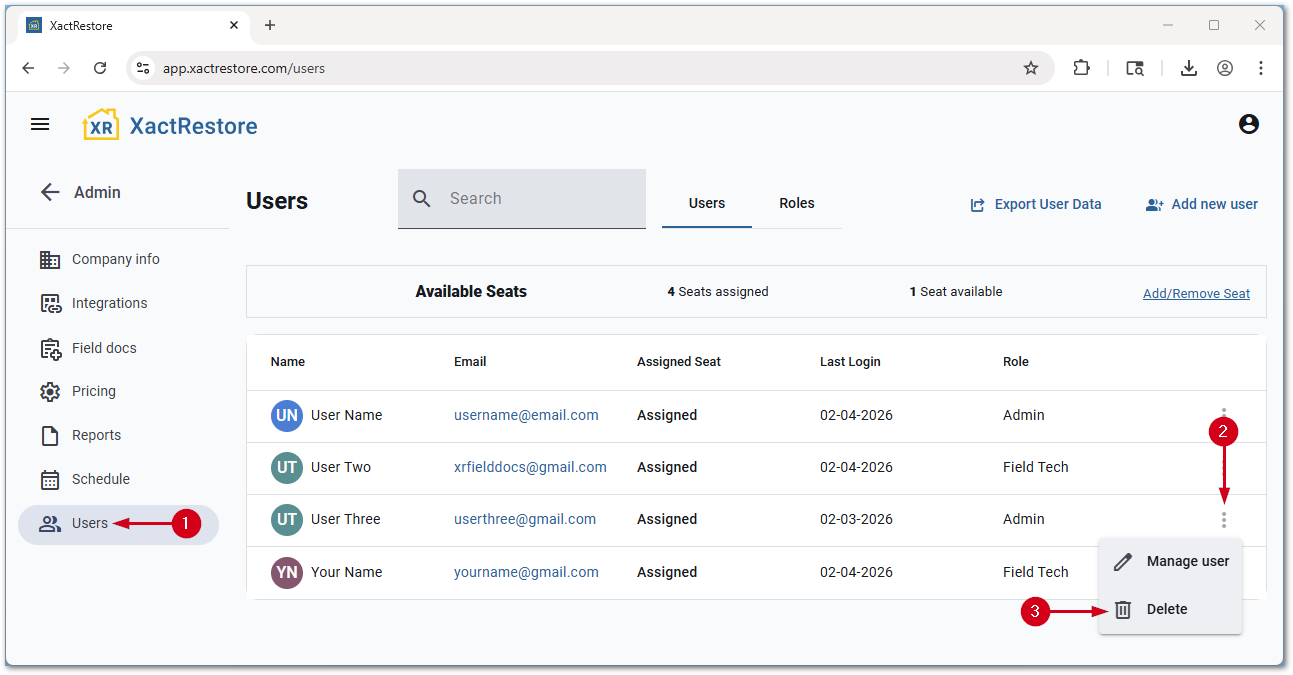
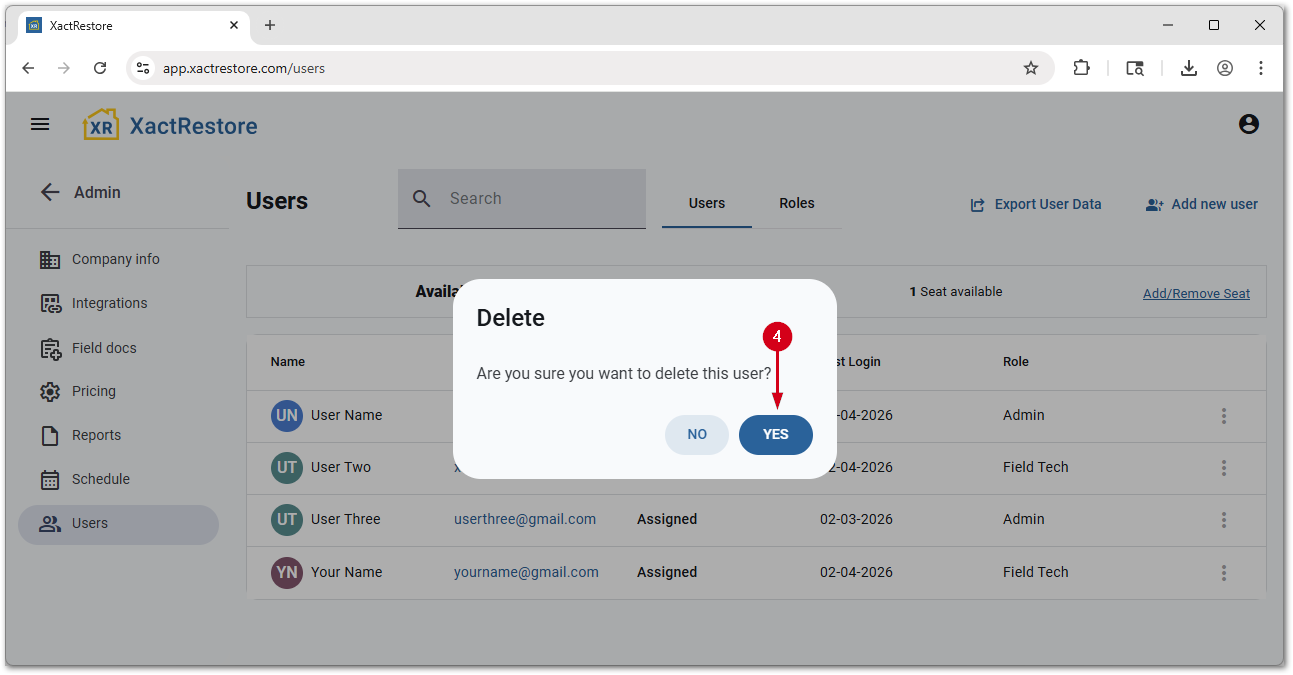
- Select Yes.
Manage roles
Add roles
Follow the steps below to add new roles in XactRemodel and XactRestore.
- From the admin menu, select Users.
- Select Roles.
- Select Create new role.
Note: To start a new role based off an existing one, select the three-dot menu icon next to the existing role and select duplicate.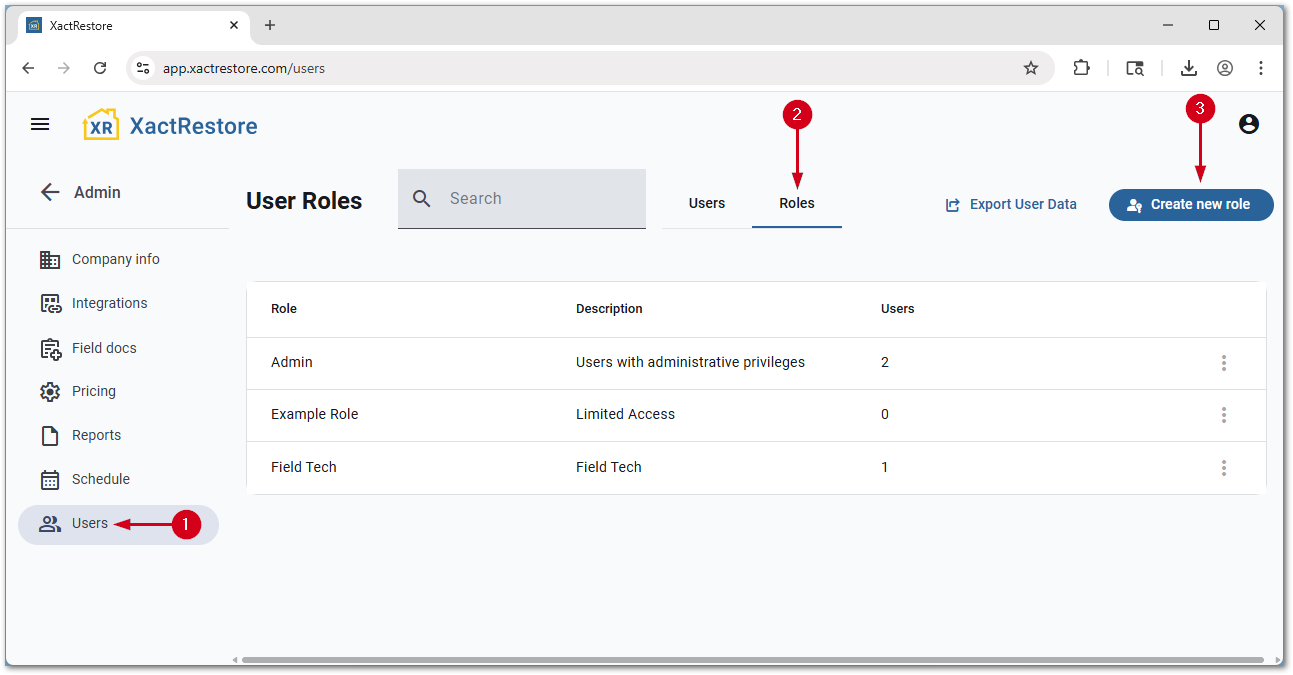
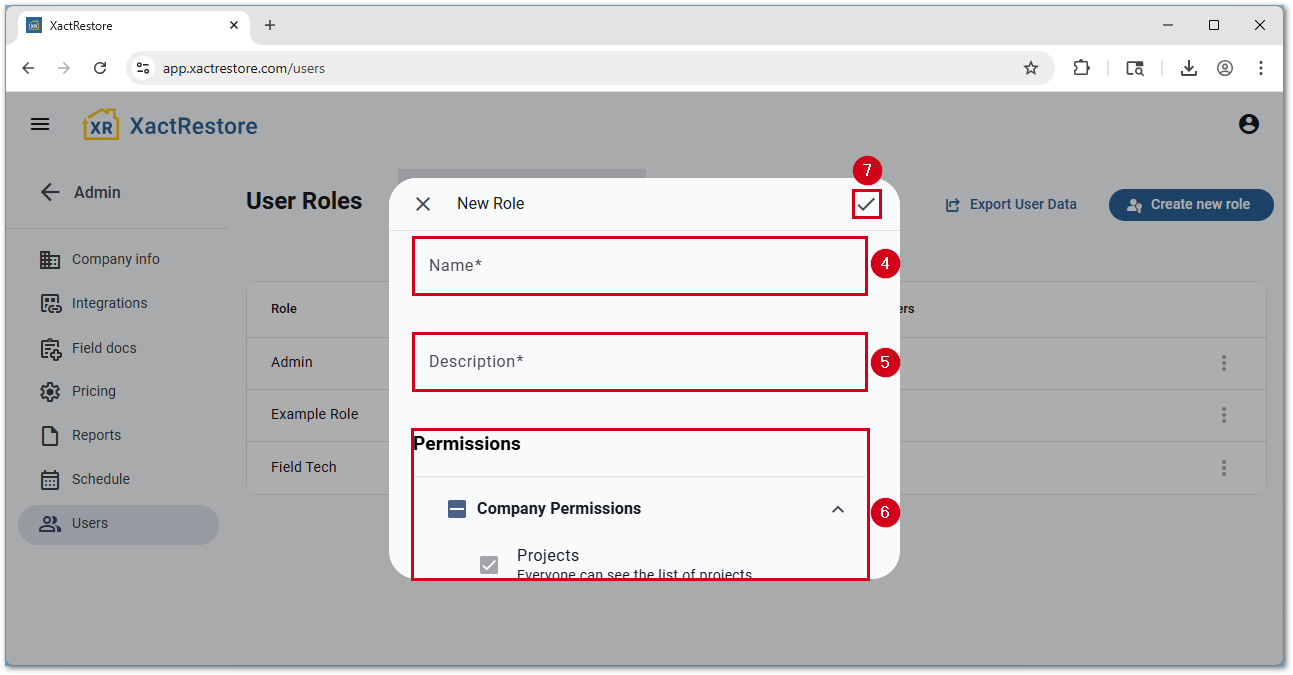
- Enter a Name.
- Enter a Description.
- Select the desired permission(s). Scroll down to see the entire list of permissions.
Note: For companies subscribed to XactRestore Pro, assign users in the field to a role that does not include the Field docs projects settings permission. That will ensure that those users are guided through the process step-by-step instead of being able to freely move around the project when in the field.- Select the checkmark icon to save.
Edit roles
Follow the steps below to edit roles in XactRemodel and XactRestore.
- From the admin menu, select Users.
- Select Roles.
- Select the role to edit.
Note: Alternatively, select the three-dot menu icon and select edit role.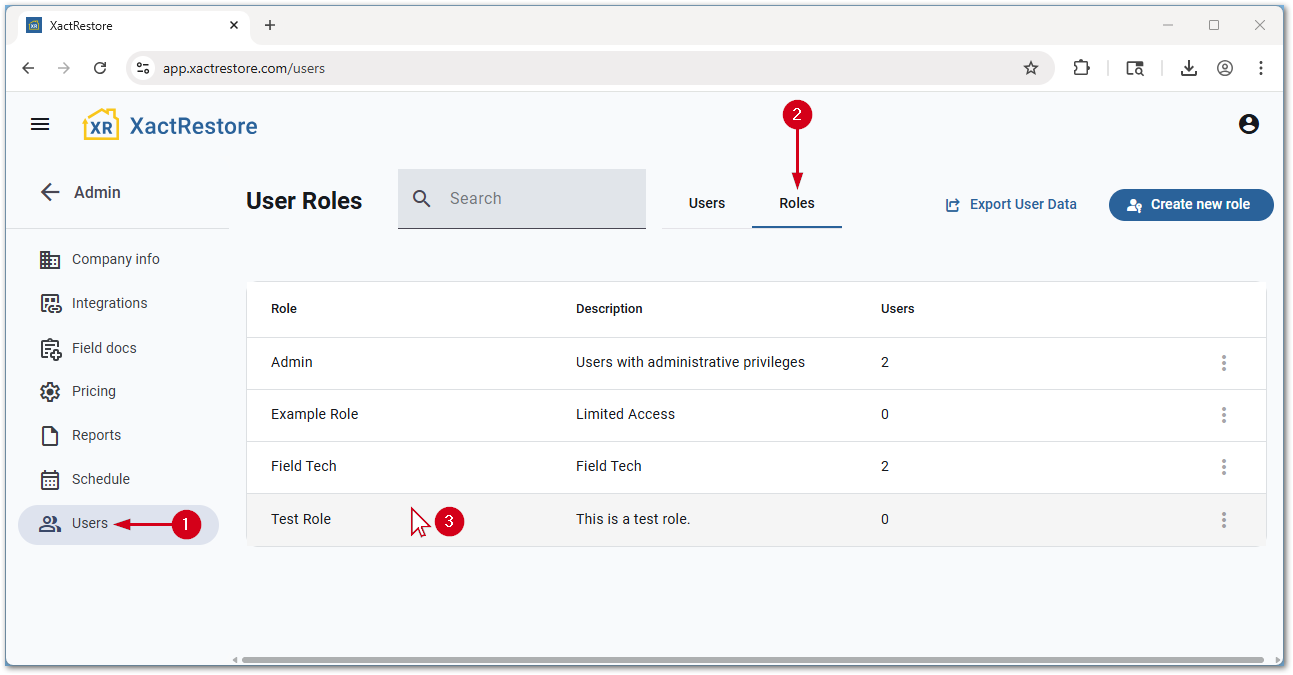
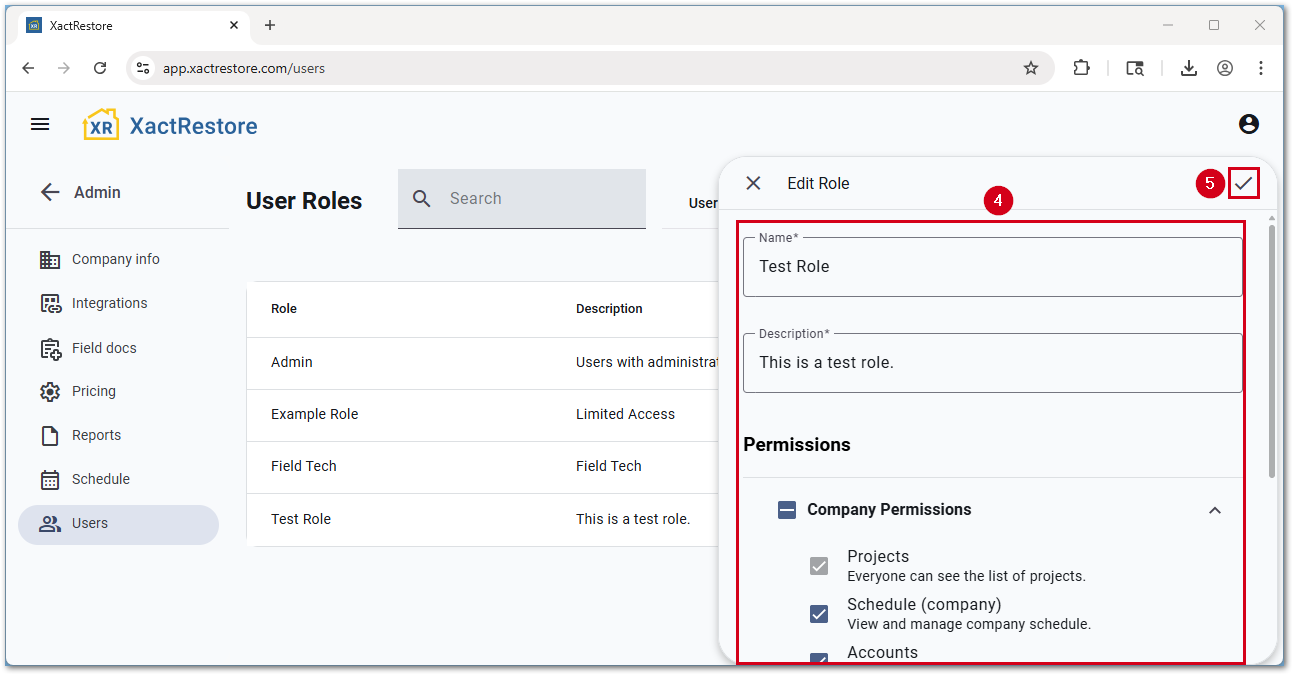
- Make any desired changes.
- Select the checkmark icon to save.
Delete roles
Follow the steps below to delete roles in XactRemodel and XactRestore.
- From the admin menu, select Users.
- Select Roles.
- Select the three-dot menu next to the role to delete.
Note: If there are users assigned to the role, they will first need to be reassigned to another role before proceeding.- Select Delete.
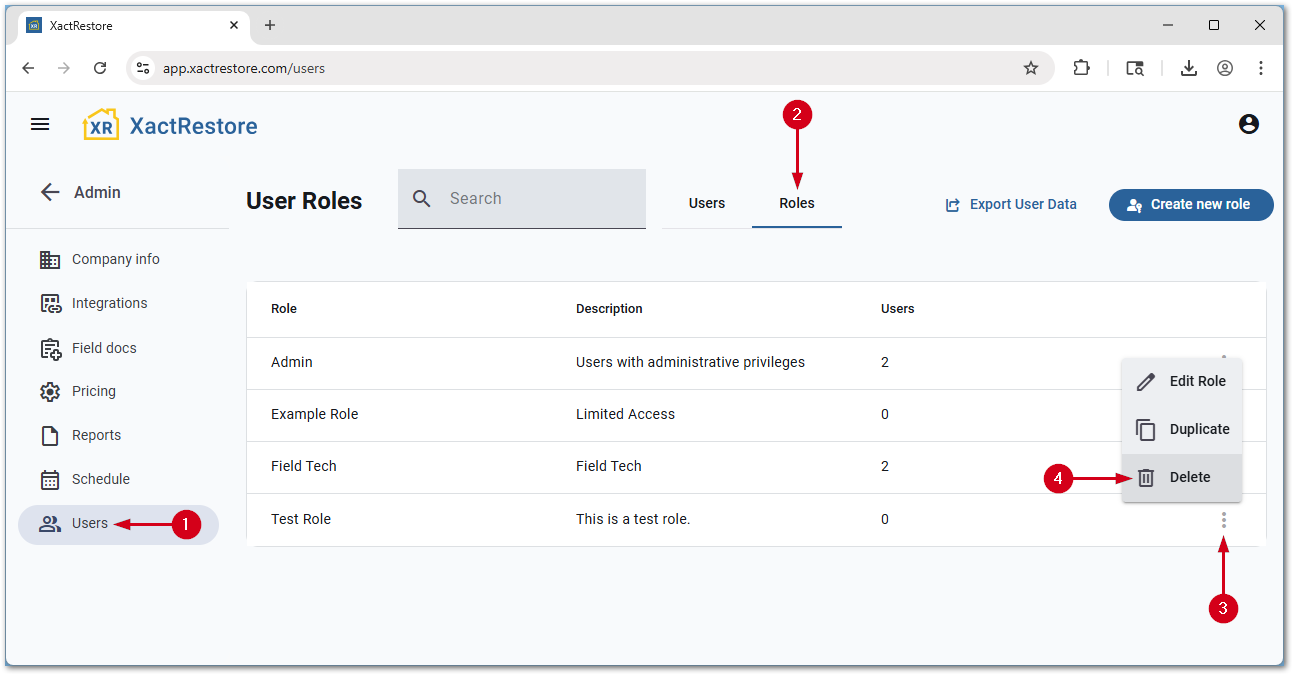
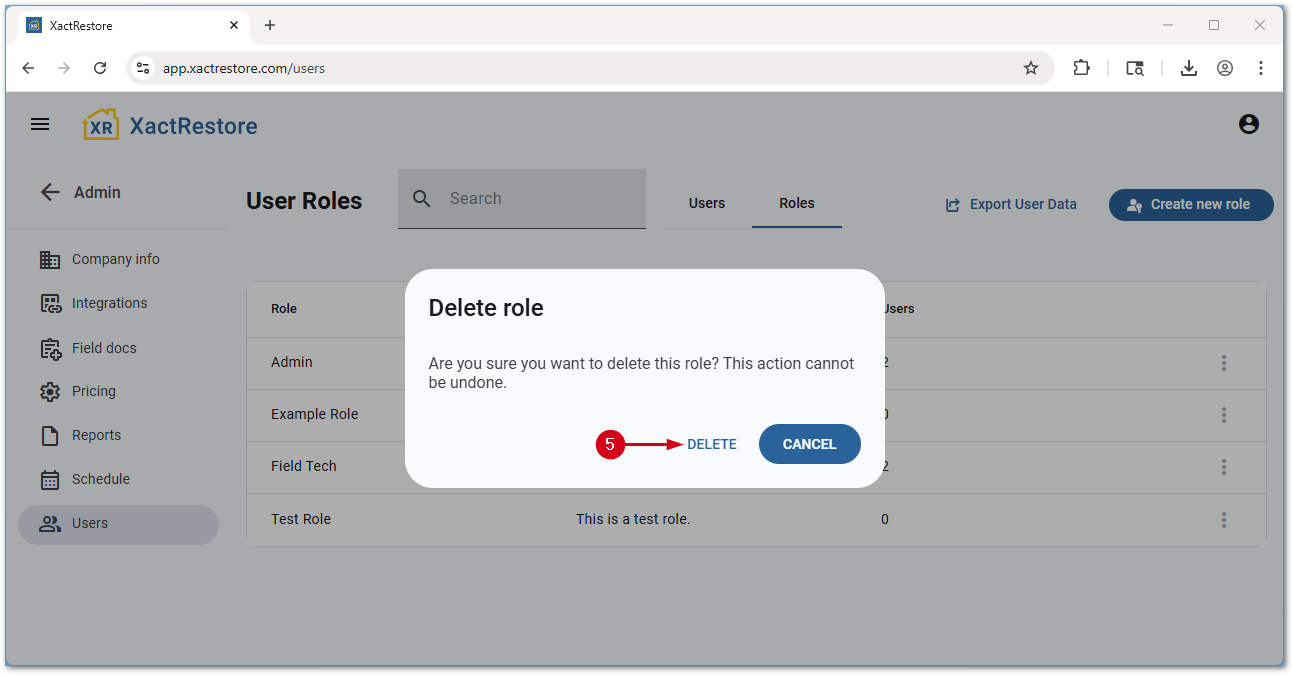
- Select Delete.
Note: Deleted roles cannot be recovered.