Add equipment in Field docs

This document goes over how users can add, edit, and delete equipment to a job in Field docs.
 Field docs is part of the XactRestore Pro subscription tier. To upgrade, please speak with our Sales Department by calling 833-352-9228.
At least one level needs to be present in a job to add equipment. For assistance adding levels, see our Add levels in Field docs. Fields are based on company settings and require images.
Access equipment
Follow the steps below to access the equipment section.
- From within a project in XR Mobile, select Field docs.
- Open the location menu.
- Select the level or room to add equipment to.
- Select Equipment.
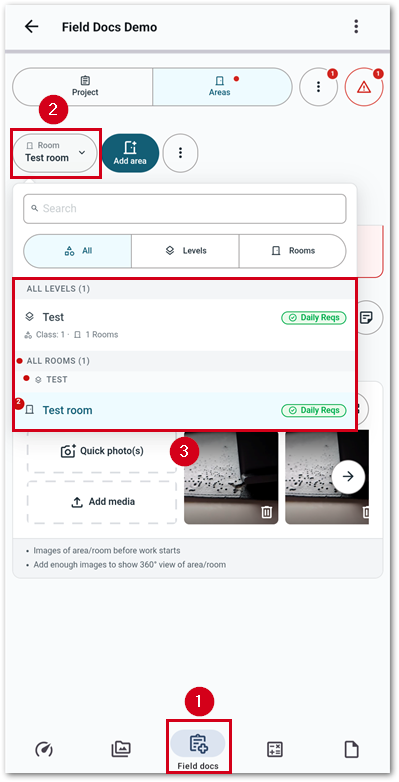
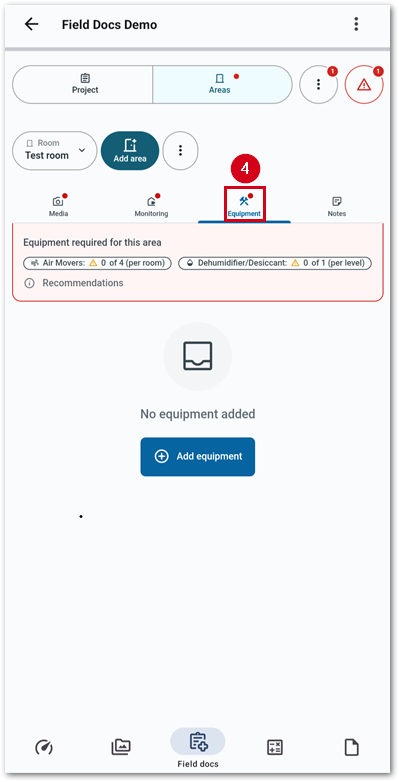
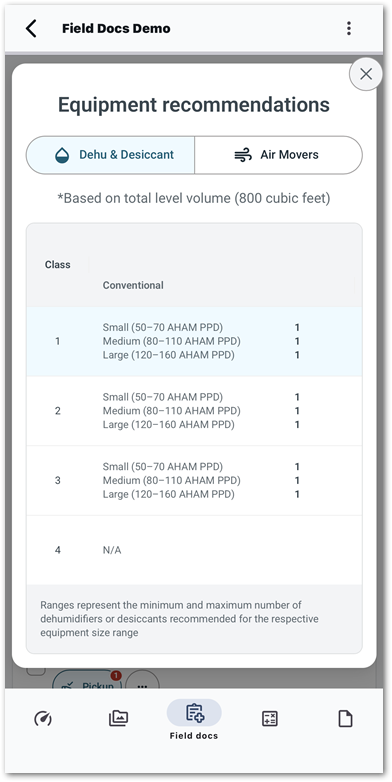
The top of the equipment section shows calculations for air movers and dehumidifiers according to the IICRC S500 guidelines.
Add equipment
Add first piece of equipment
To add the first piece of equipment, follow the steps below.
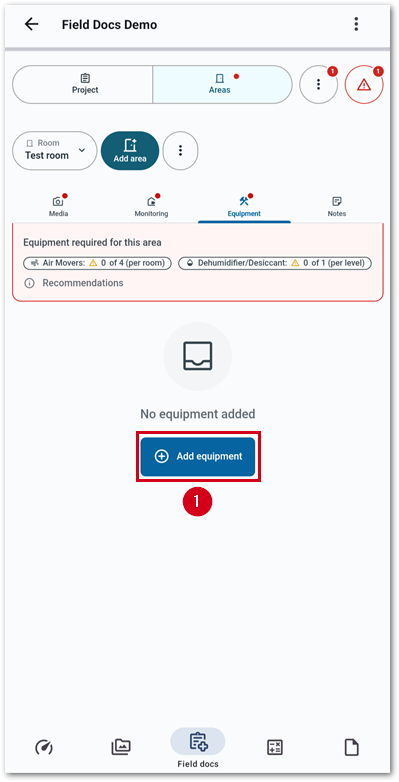
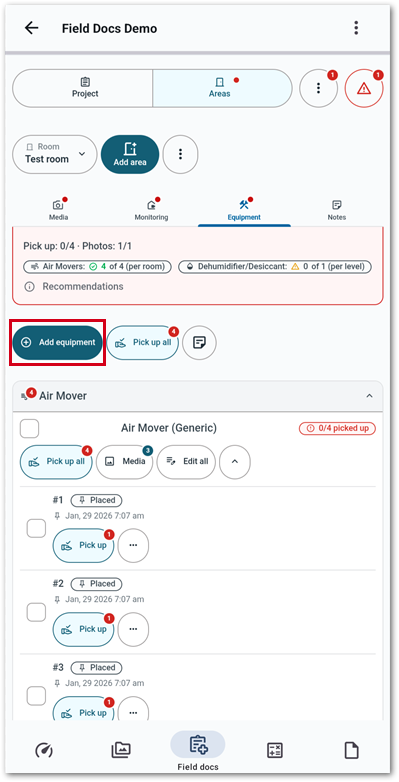
- From the Equipment page, select Add equipment.
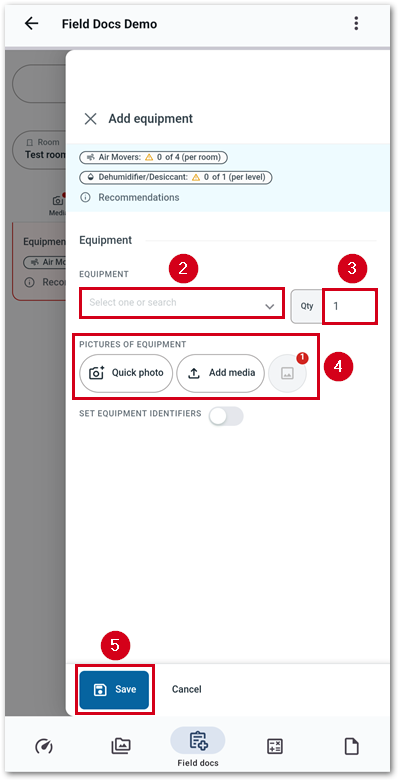
- Start to type in or select the piece of equipment.
Note: In this example, an air mover is used. When adding dehumidifiers, additional information relating to initial temperature and relative humidity and a photo of those readings are also required.
- Enter a quantity.
- Add a picture.
- Quick photo: Add images from the camera directly.
- Add media: Add images from storage.
- Preview media: Once images have been added, they are stored here. Select the button to view or delete media.
- Select Save.
Note: To add labels, such as barcodes, for each piece of equipment, switch on SET EQUIPMENT IDENTIFIERS and enter the respective identifiers.
Once the first piece of equipment is added, the recommendations at the top of the page will refresh to show the number added. If the number is within recommendations, a green checkmark icon appears, but if the number is less than the recommendations, a yellow exclamation mark within a triangle appears. Select the info icon to see detailed Equipment Recommendations.
Add additional equipment
Once at least one piece of equipment has been added, the button to add equipment moves slightly. Follow steps 2-5 in the section above after selecting the Add equipment button.
Edit equipment
If a piece of equipment needs to be edited, this can be done.
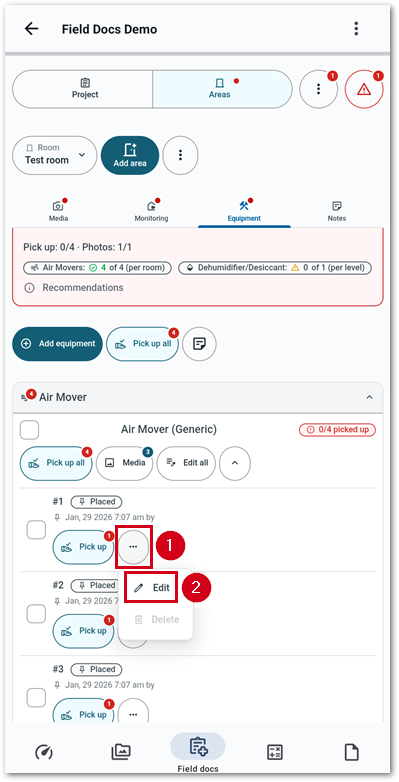
- From the equipment section, select the three-dot menu icon for the piece of equipment to edit.
- Select Edit.
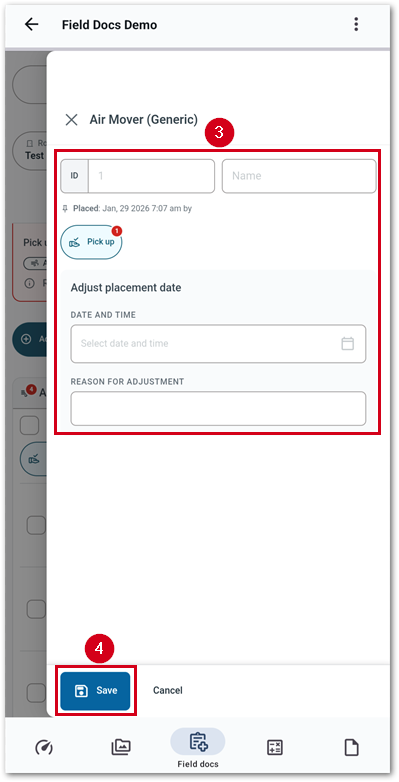
- Make any necessary adjustments.
- Select Save.
Note: If desired, enter a date and time and reason for adjustment before saving.
Delete equipment - Admin only
Follow the steps below to delete equipment.
- From the equipment section, select the three-dot menu for the equipment to delete.
- Select Delete.
- Select OK.
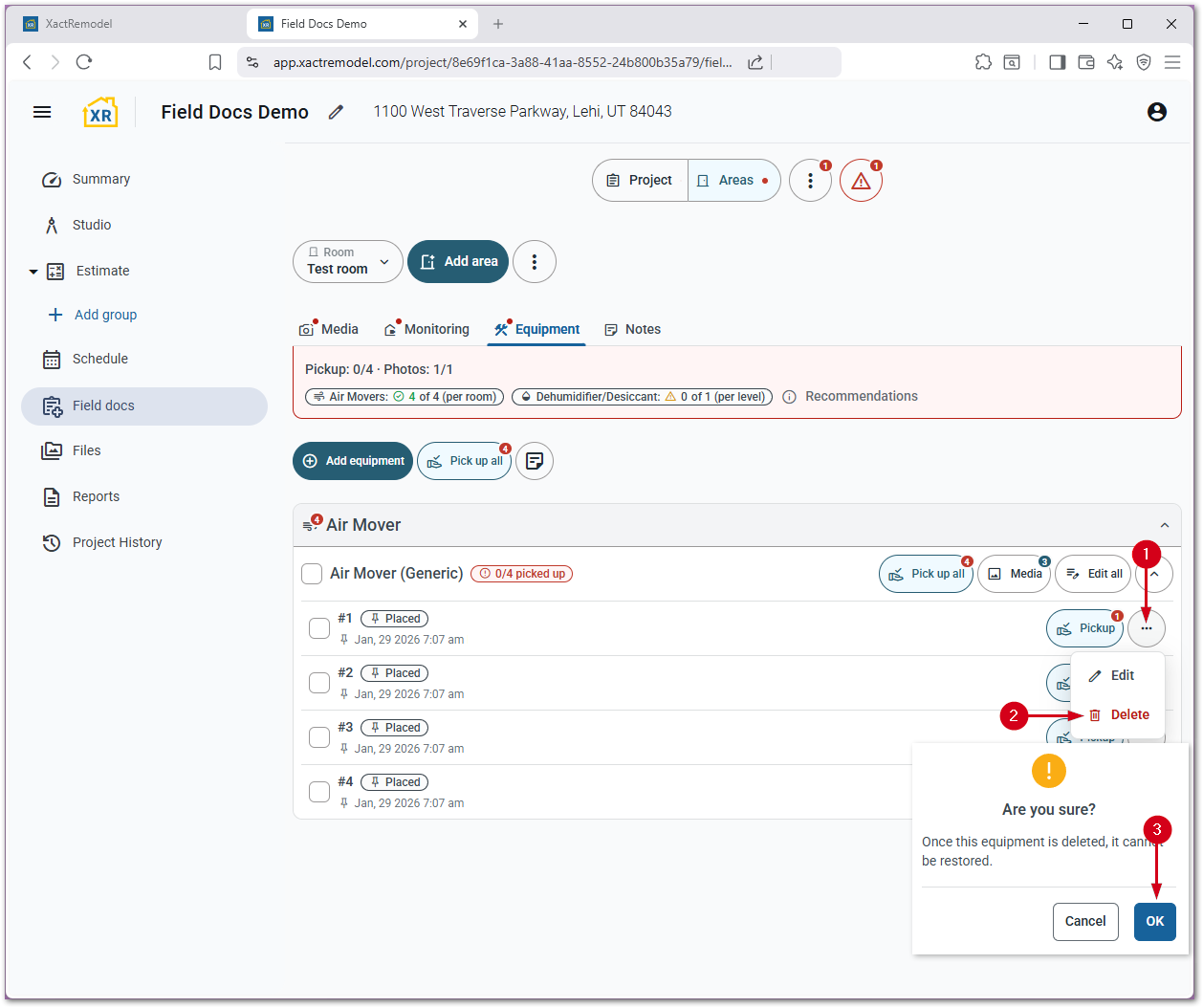
IMPORTANT: Once deleted, equipment cannot be restored.
